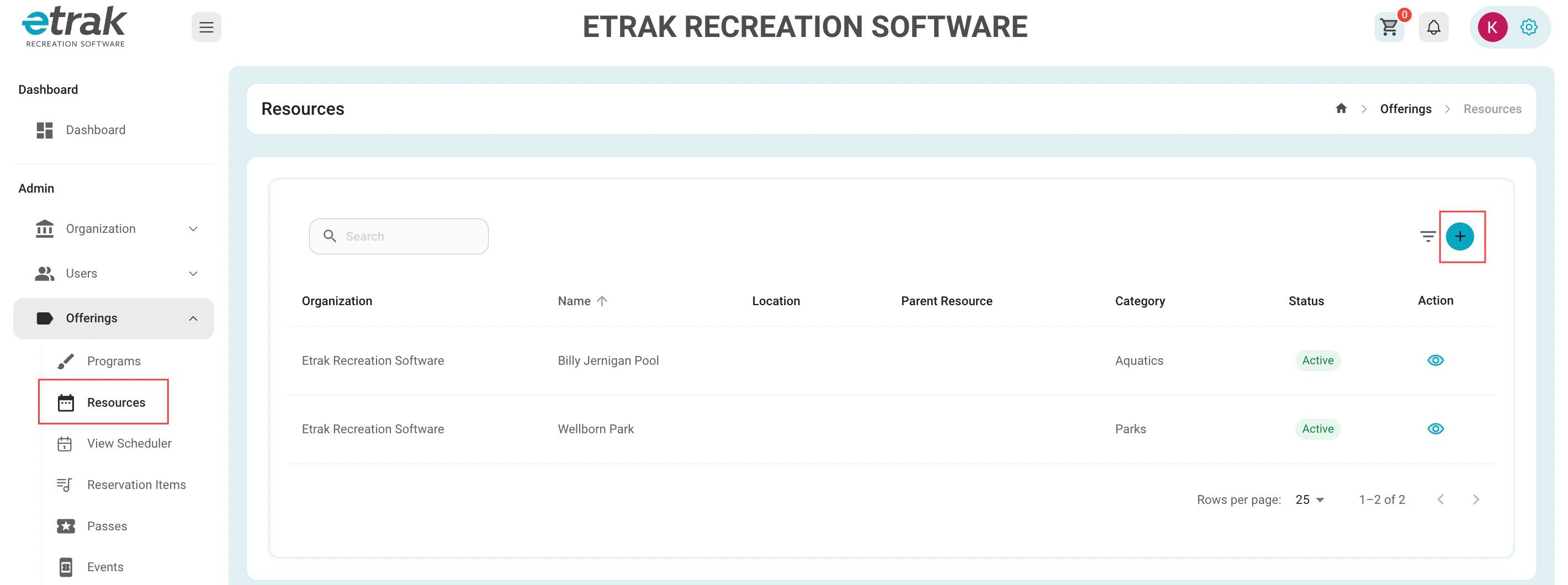
Under the ‘Offerings’ tab on the left side of the screen, select ‘Resources’
Click the blue "+". sign on the right side of the screen to create a new resource
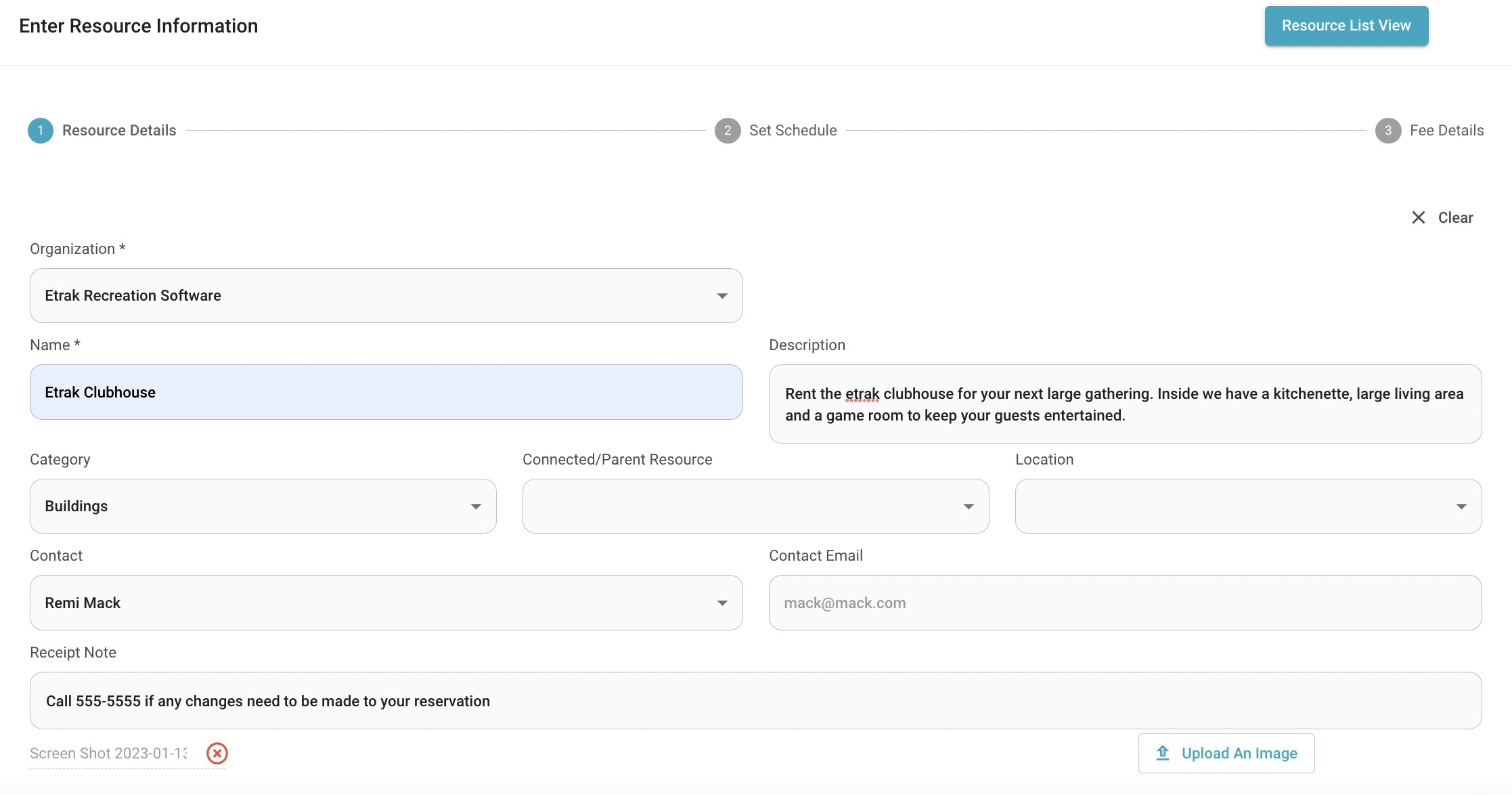
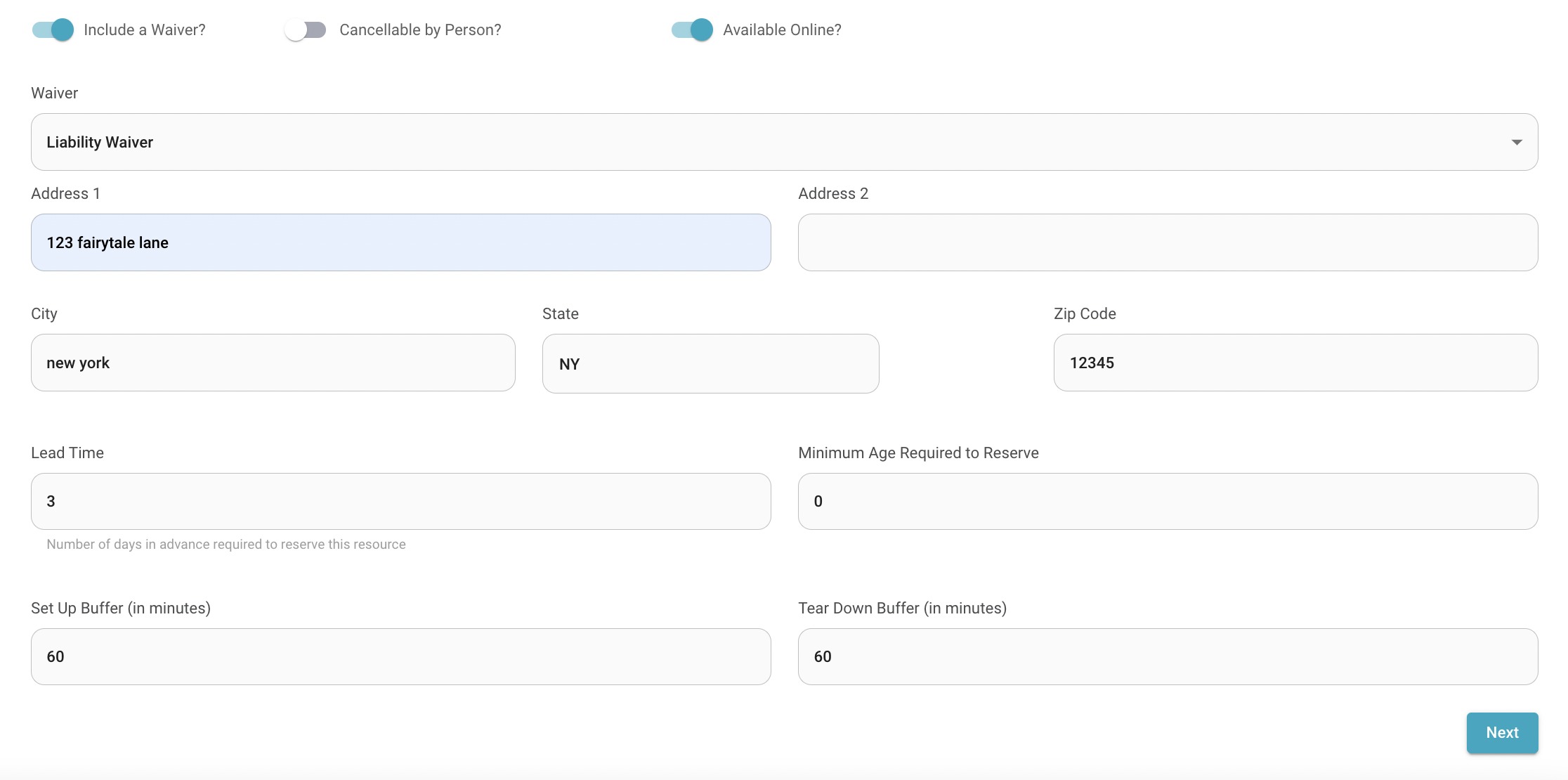
| Waiver | Cancellable by Person | Available Online |
| Address | Lead Time | Buffer Times |
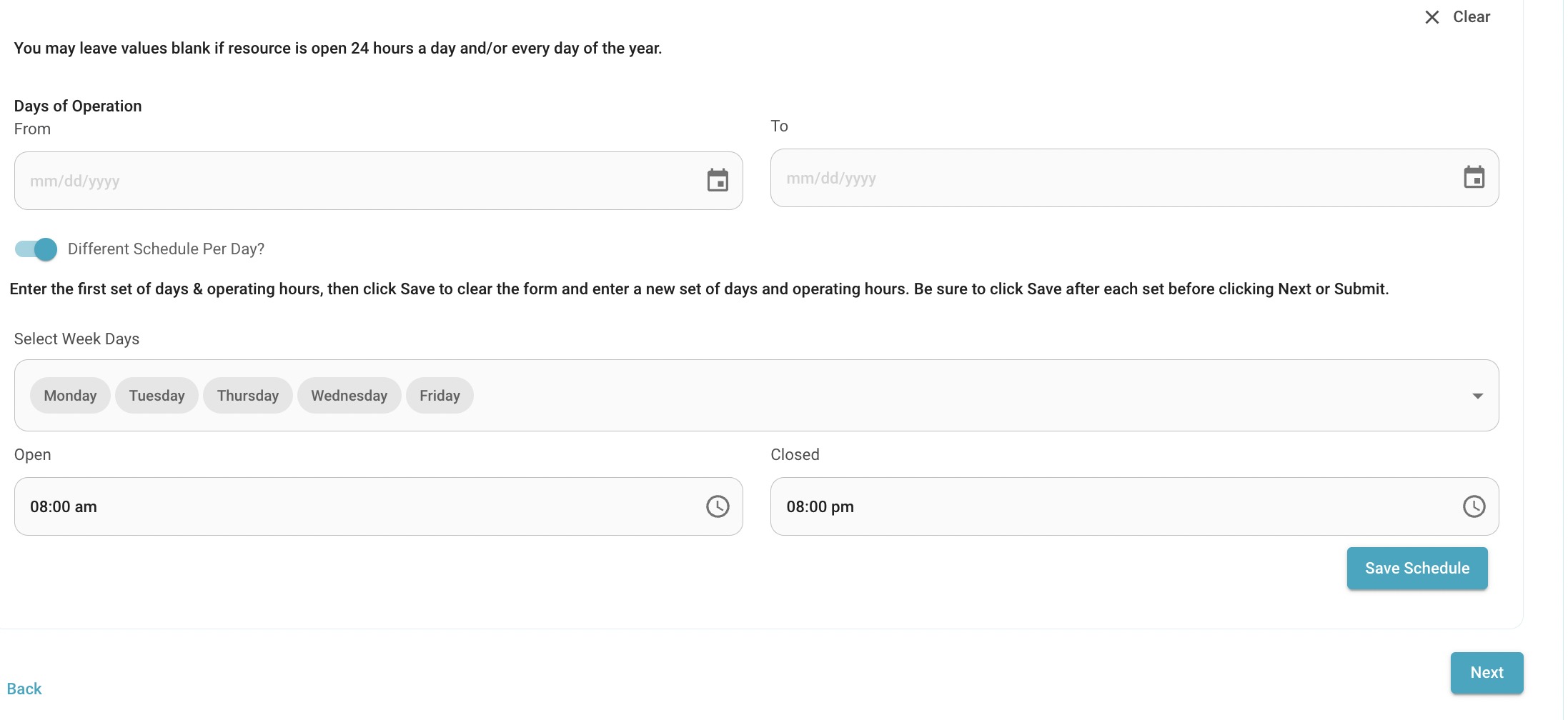
Select ‘submit’ and the next screen will appear to set a schedule for this resource .
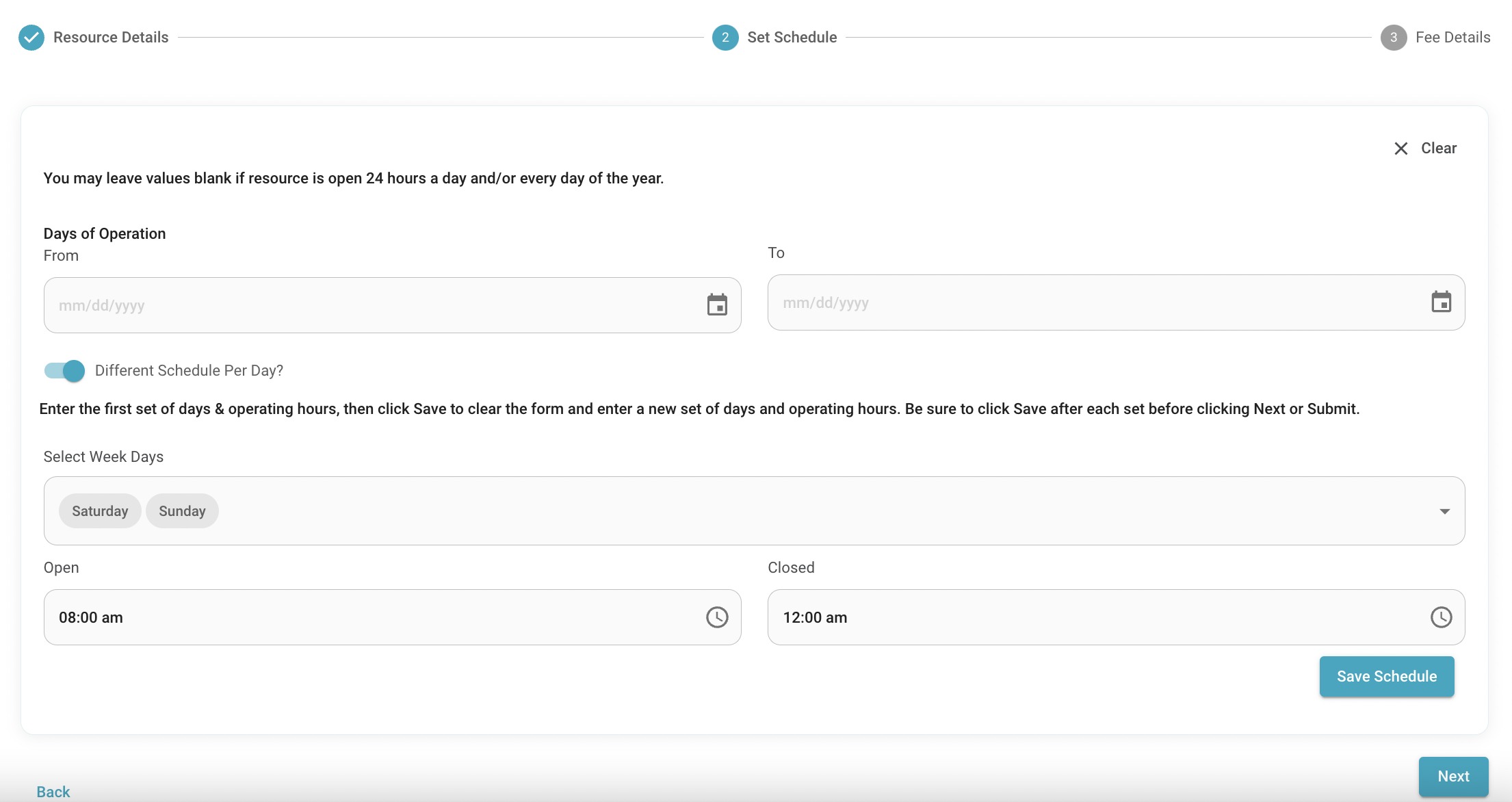
Press ‘ Save Schedule’ to reload this page and add another schedule.
Press ‘Next’ when schedule is set to move on to creating fees.
Minimum and Maximum Age: For example seniors above 60 receive a discount.
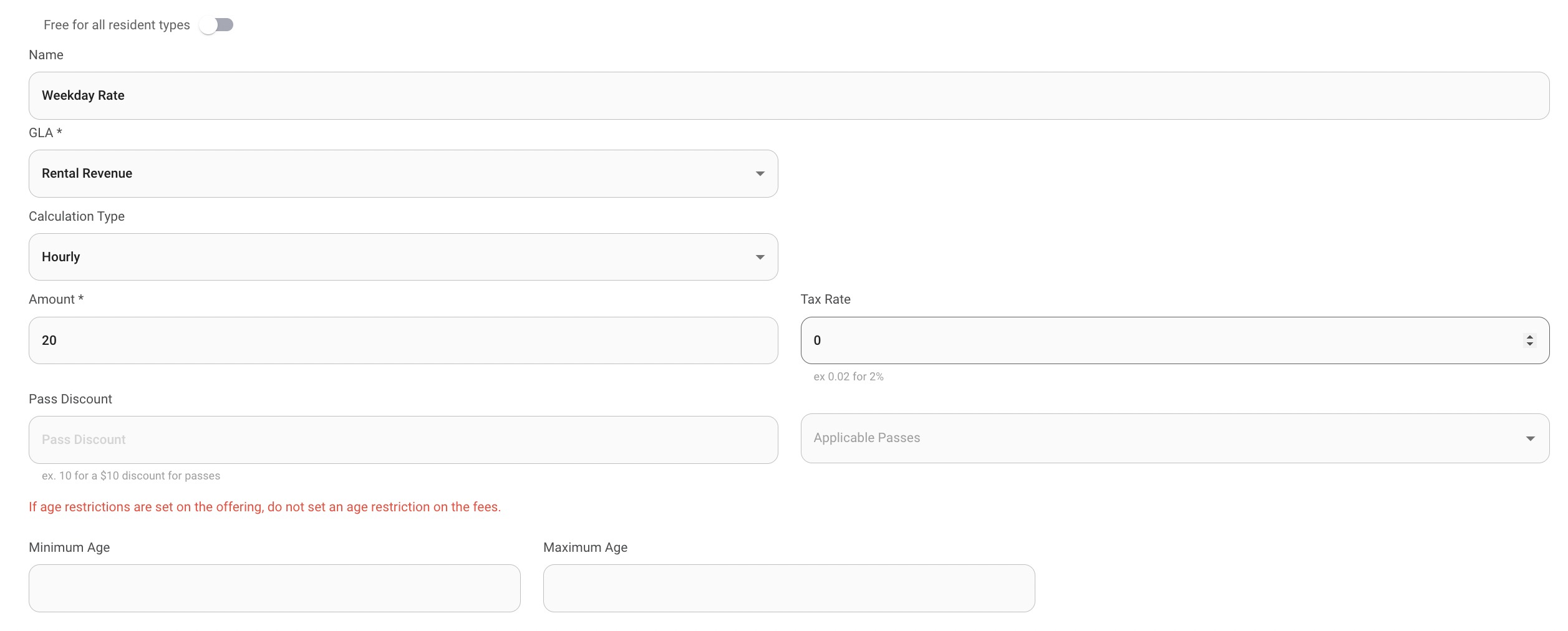
The fee can be applied to all resident types if the toggle is on, if it is turned off a resident and non-resident fee can be applied.
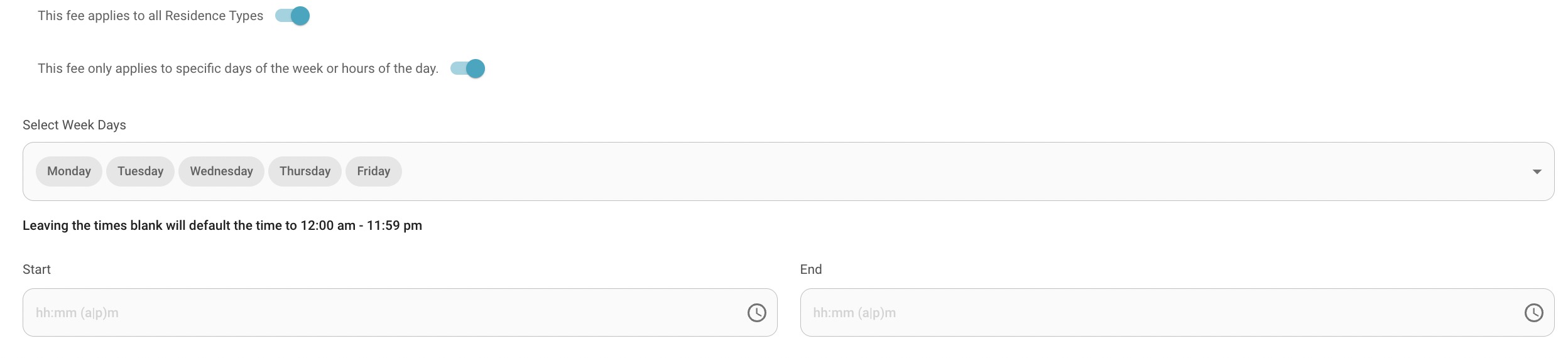
Different fees can be set for different days/ times during the week by switching the toggle to the right.
Save fees for each fee rule. Ex: Weekdays selected, save. Weekend days selected, save. etc. Resident Fee, save. Non-Resident Fee, save.
Select ‘Publish’ to save and your resource will be added!
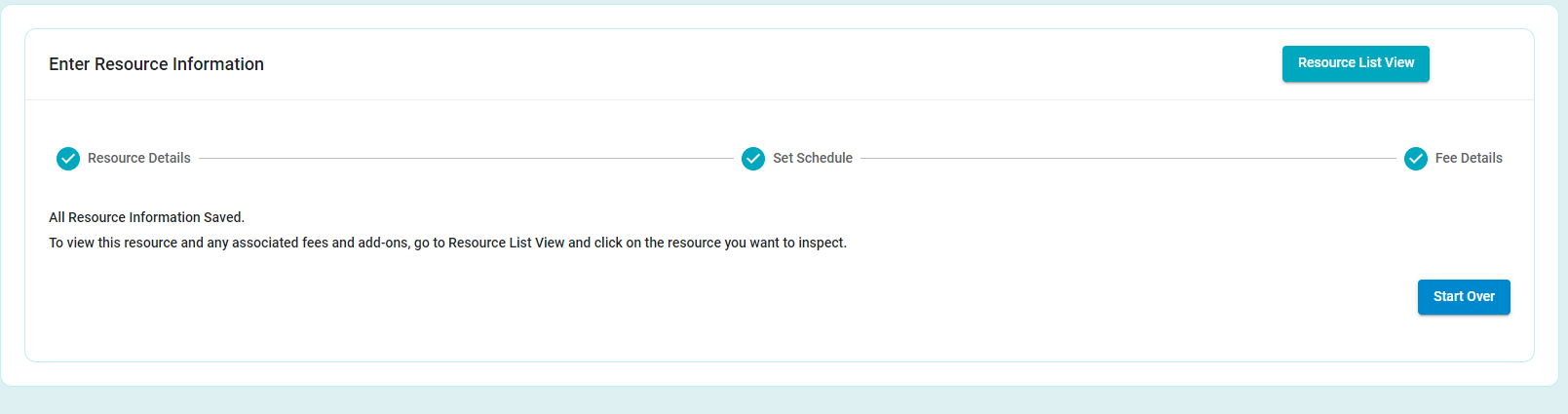
Success!
Was this article helpful?
That’s Great!
Thank you for your feedback
Sorry! We couldn't be helpful
Thank you for your feedback
Feedback sent
We appreciate your effort and will try to fix the article