eTrak allows for customizable membership expiration reminder notifications. This functionality is configured during initial organization setup. If you would like to enable this feature, please contact an eTrak staff member to turn it on for your organization.
Configuring Notification Thresholds
Once enabled, you can set the exact triggers for when automated emails are sent:
- Time-Based Passes: Select how many days in advance the system should send an expiration email. The system will automatically notify customers when they reach this timeframe.
- Punch Passes: Select the remaining number of punches that triggers a low-balance warning. When a customer reaches that threshold, the system automatically sends a low-balance notification.

Setting Up Email Templates
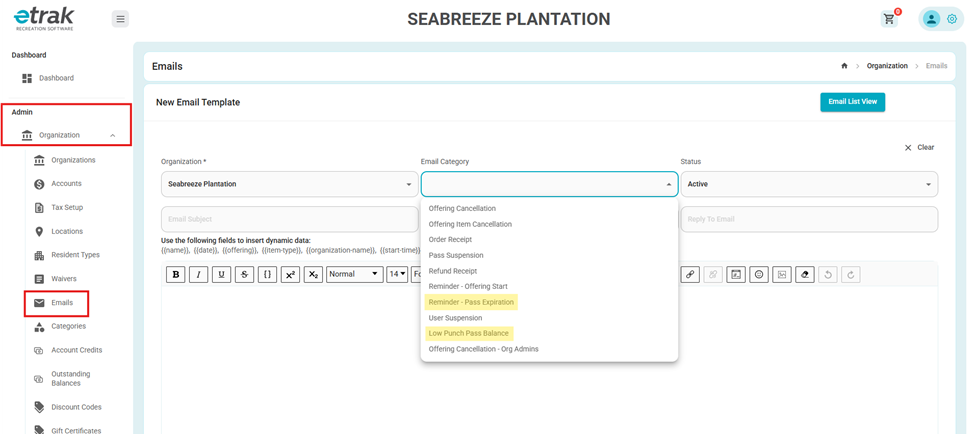
To customize these messages, navigate to Admin > Organization > Emails. Under the Email Category dropdown, you will find two templates designed specifically for membership warnings:
- Reminder – Pass Expiration
- Low Punch Pass Balance
1. Reminder – Pass Expiration Template
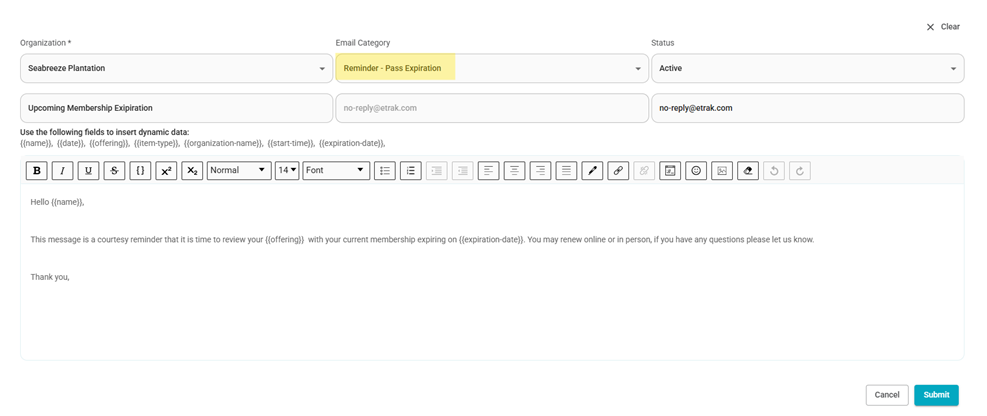
This template is used for all time-based pass expiration warnings. You can customize the subject line and body text to fit your organization's messaging.
- Recommended Dynamic Tags:
- {{offering}} – Automatically inserts the name of the pass.
- {{expiration-date}} – Inserts the exact date the pass expires.
Example Setup:
- Subject Line: Upcoming Membership Expiration
- Email Body:
Hello {{name}},
This message is a courtesy reminder that it is time to review your {{offering}}, as your current membership expires on {{expiration-date}}. You may renew online or in person. If you have any questions, please let us know.
Thank you,
2. Low Punch Pass Balance Template
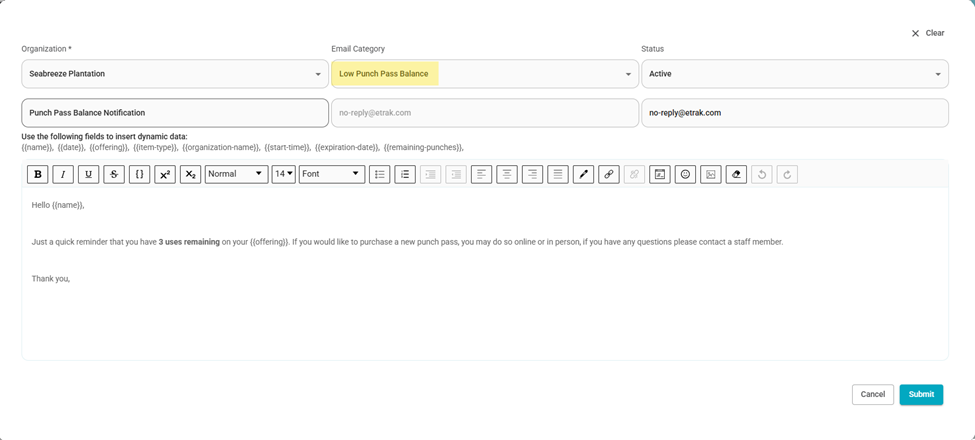
This template is used for punch-card passes. You can customize the message text as needed. However, you do want to include the value of remaining punches as used in the set up configuration.
- Recommended Dynamic Tags:
- {{offering}} – Inserts the name of the pass.
Example Setup:
- Subject Line: Punch Pass Balance Notification
- Email Body:
Hello {{name}},
Just a quick reminder that you have 3 punches remaining on your {{offering}}. If you would like to purchase a new punch pass, you may do so online or in person. If you have any questions, please contact a staff member.
Thank you,
Was this article helpful?
That’s Great!
Thank you for your feedback
Sorry! We couldn't be helpful
Thank you for your feedback
Feedback sent
We appreciate your effort and will try to fix the article