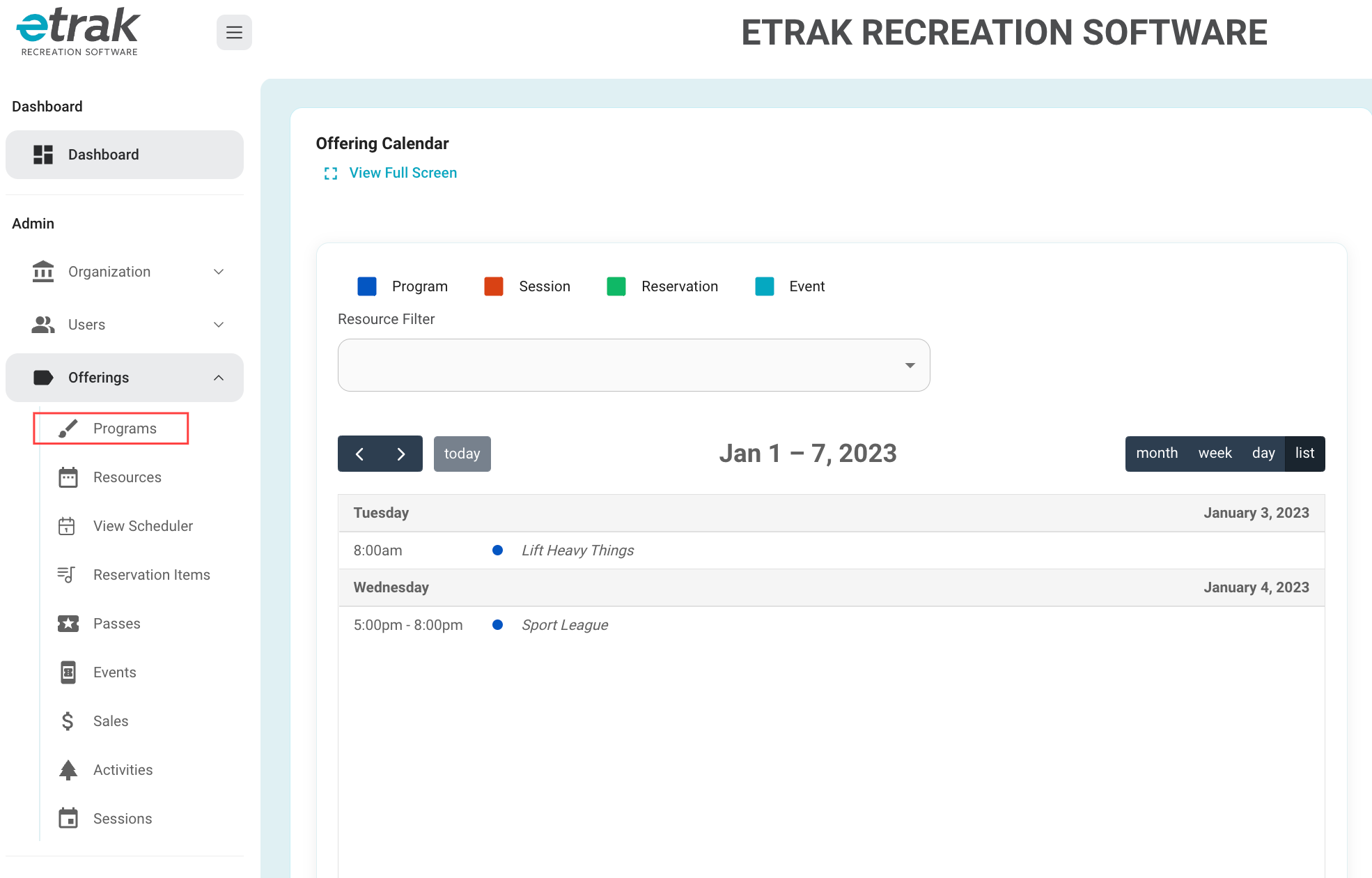
Select programs from the offerings drop down on the left side of the screen
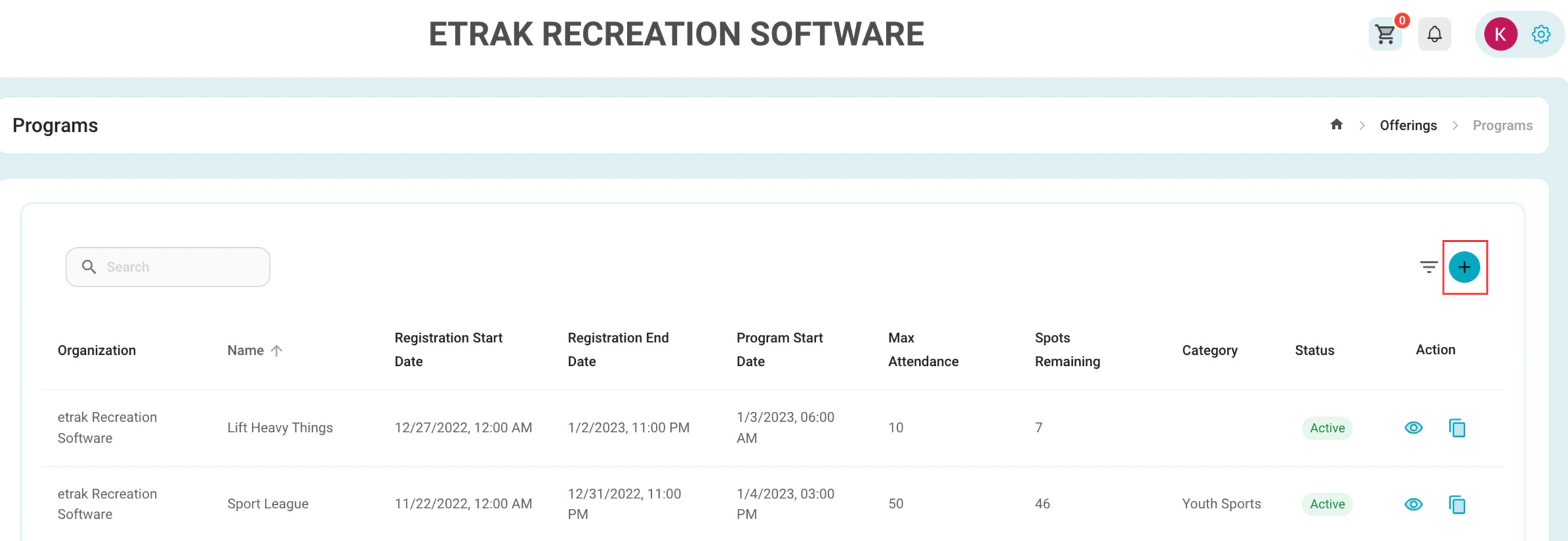
Create a new program by clicking the blue circle with a "+" on the right hand side.
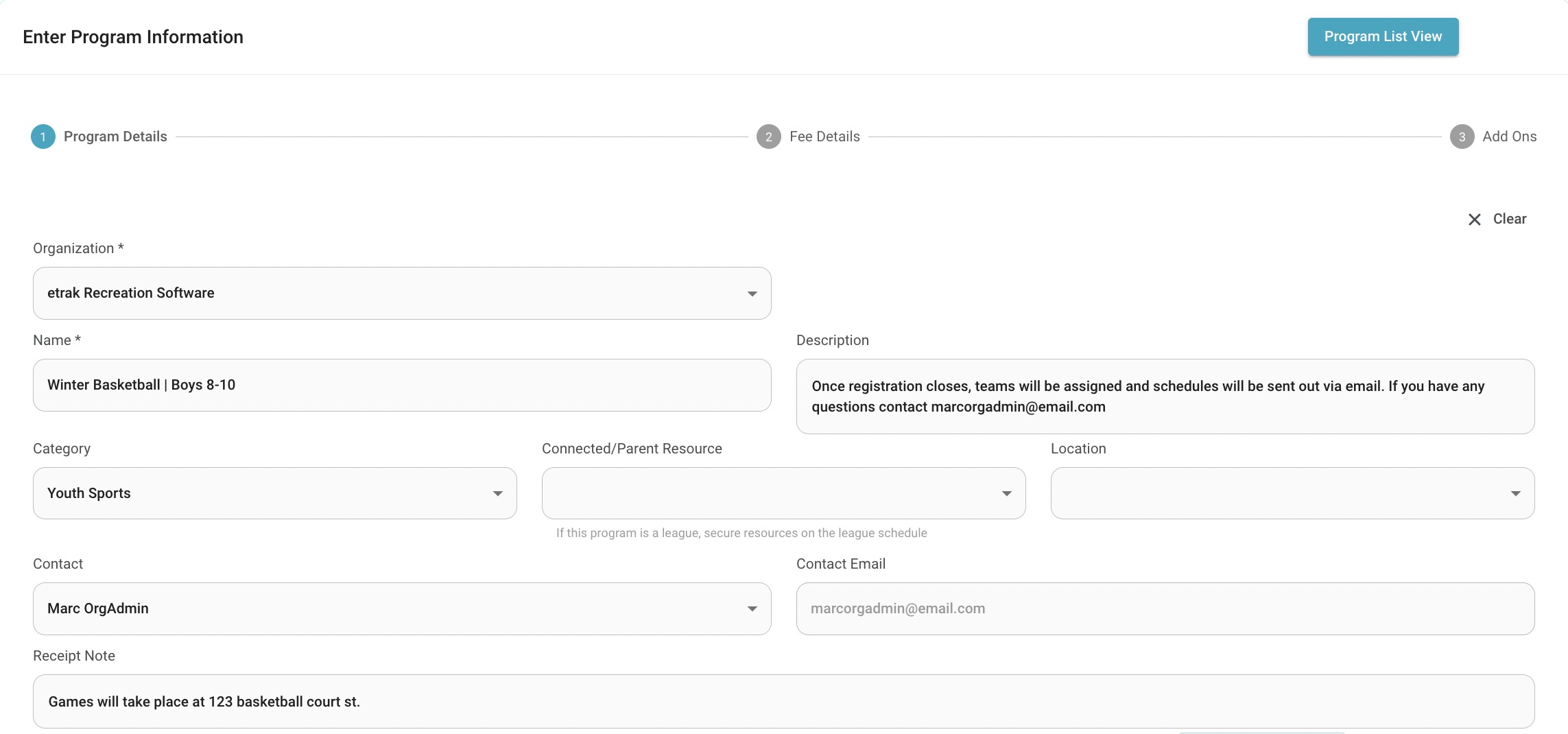
* = required, otherwise, the field is optional
| Offering Name | Description | Category | Connected/Parent Resource |
| Location | Contact Name | Contact Email | Receipt Note |
*refer to program start and end date article to learn more on how to properly set that feature up
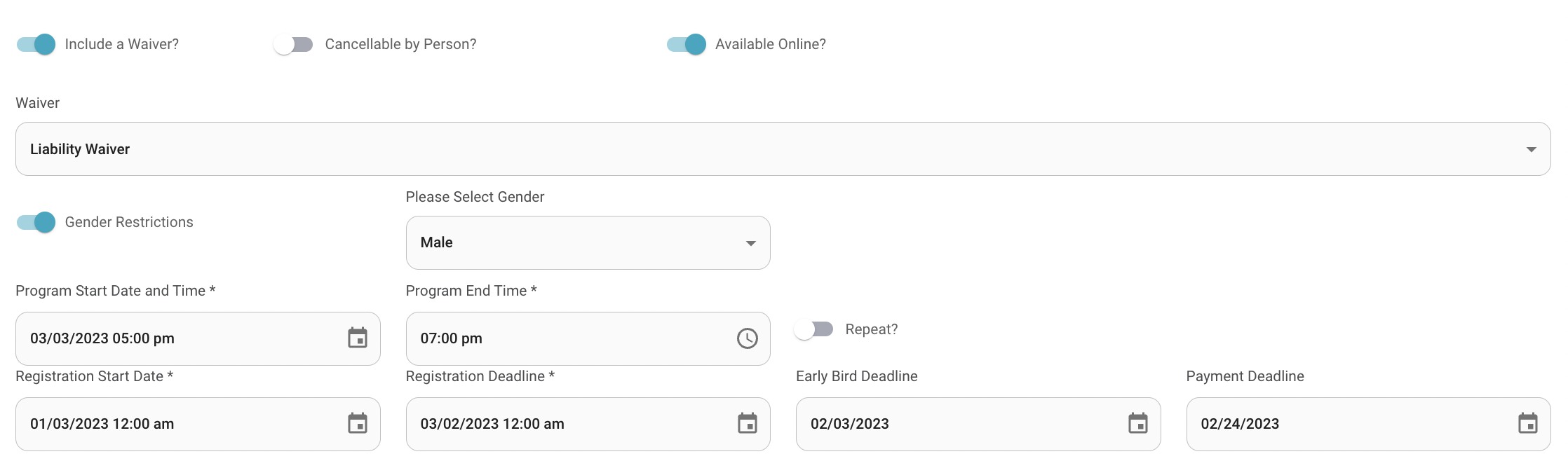
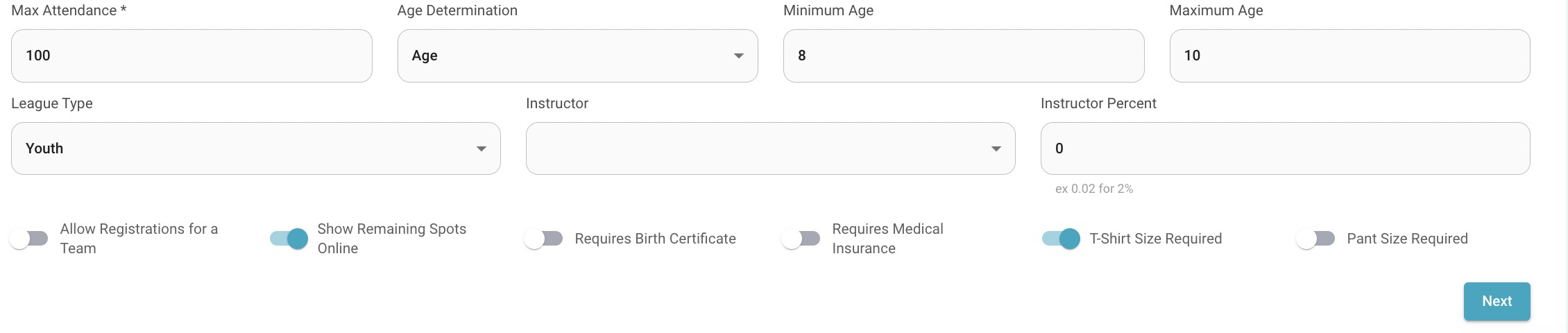
Show Spots Remaining Online: Users will be able to see registration count online
Requires Birth Certificate: System will request a picture of birth certificate is uploaded to user profile before proceeding with registration
Requires Medical Insurance: System will request a picture of medical insurance is uploaded to user profile before proceeding with registration
T-Shirt or Pant Size Required: Users will be instructed to select t-shirt/pant size during the registration process.
Hit ‘next’ to proceed to enter program fees
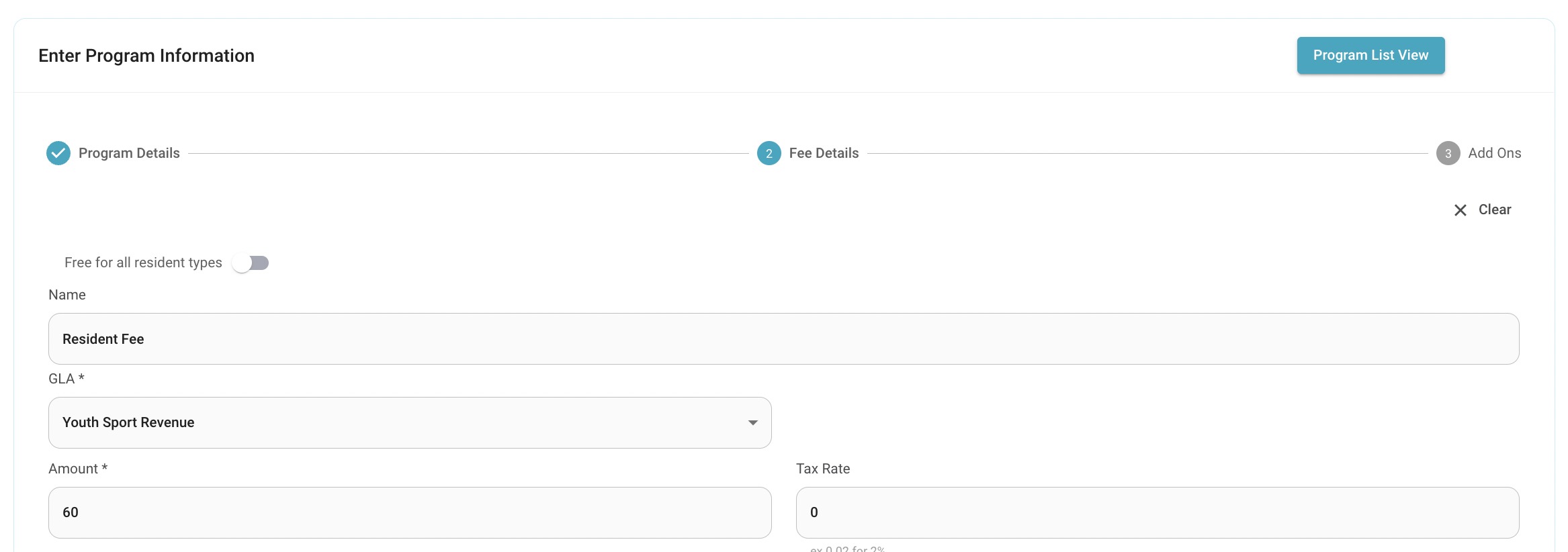
Free For All Resident Types: hit this toggle if no fees apply to this program
Name the Fee: for example (resident fee, non-resident fee, sibling discount fee)
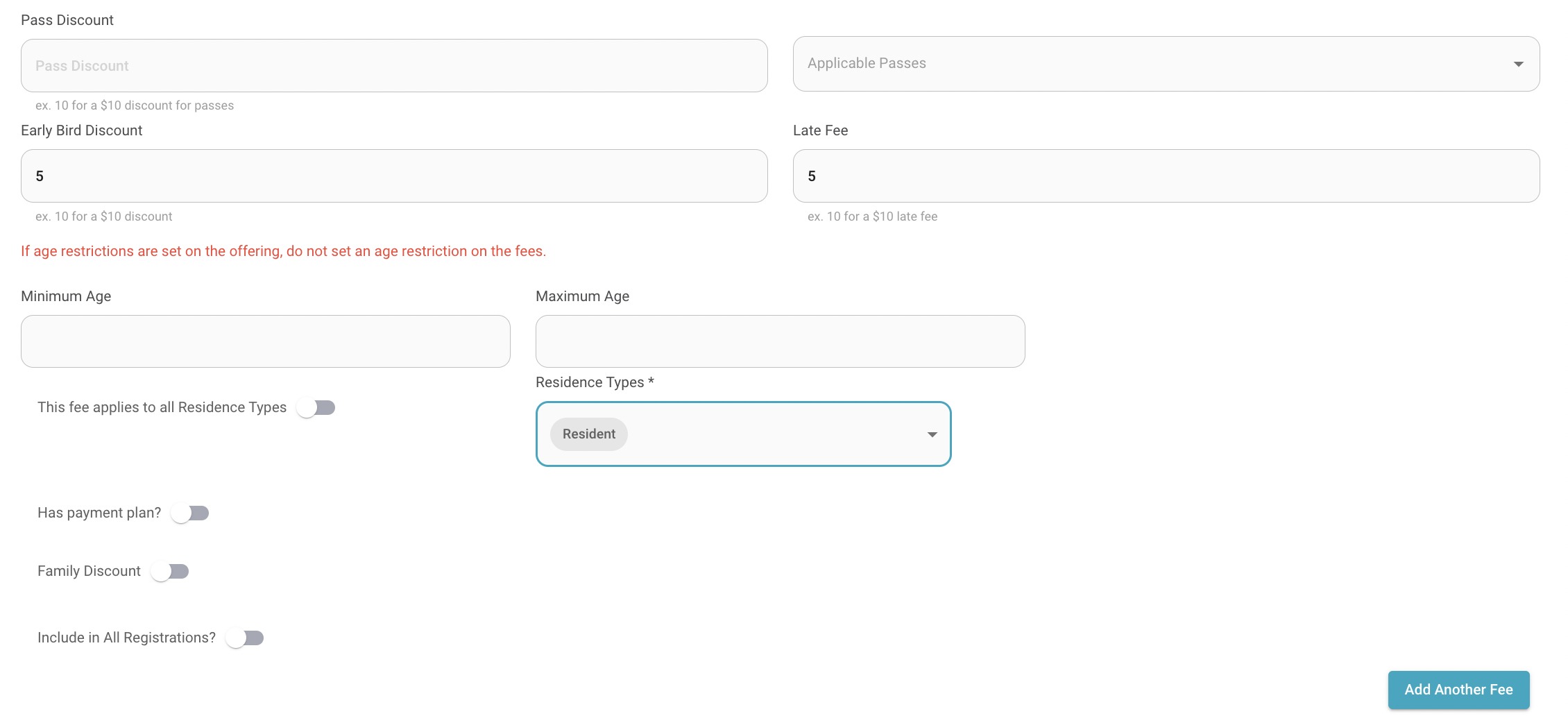
Applicable Passes: select passes that apply from drop down
Minimum/Maximum Age: A fee can be set for specific age ranges (ex: a senior fee for 60+)
Resident types: Unselect this toggle to select resident or non-resident type
Family Discount: only select this if creating the family discount fee, do not turn this on for initial fee
Select "add another fee" and the screen will appear again, or select "next" to move on to add on screen
Set add on name, GLA account, Price and Inventory
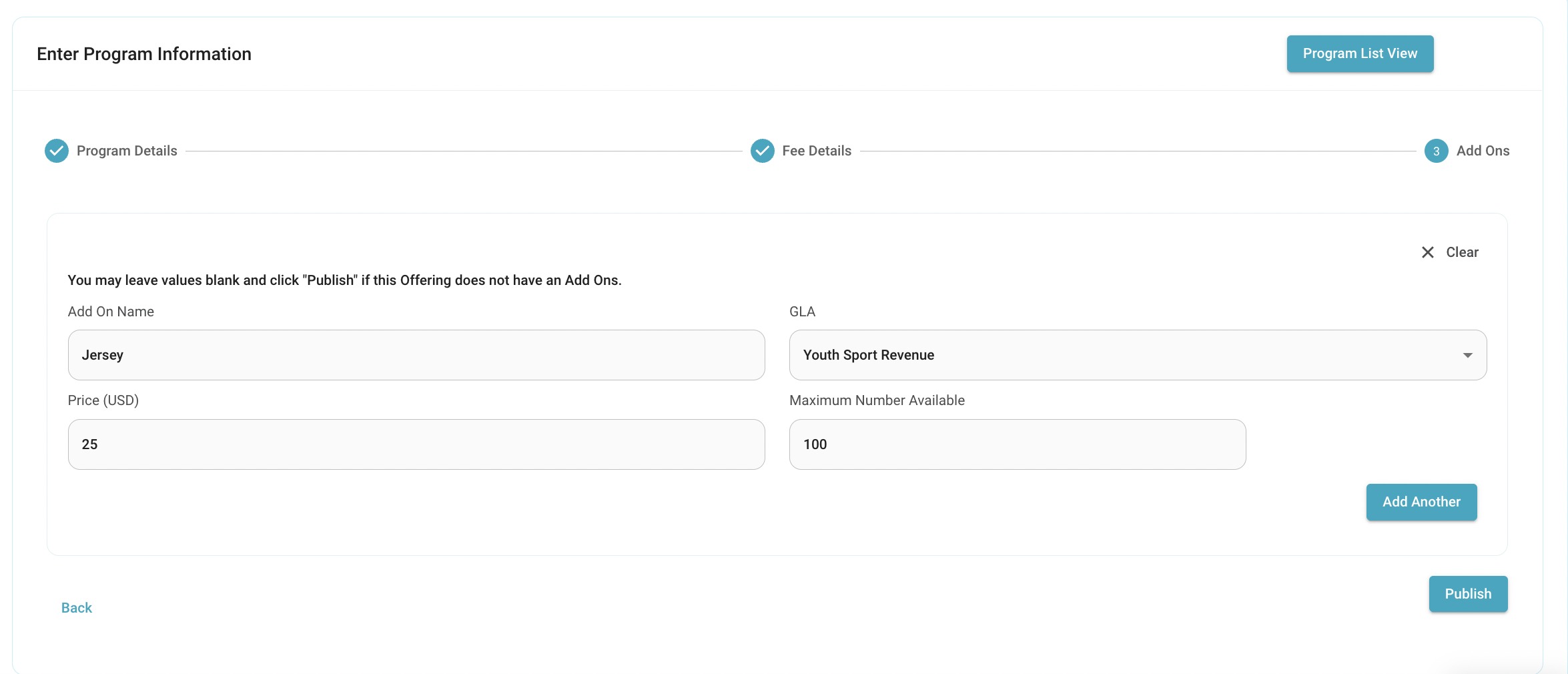
Hit ‘Publish’ to save all program details