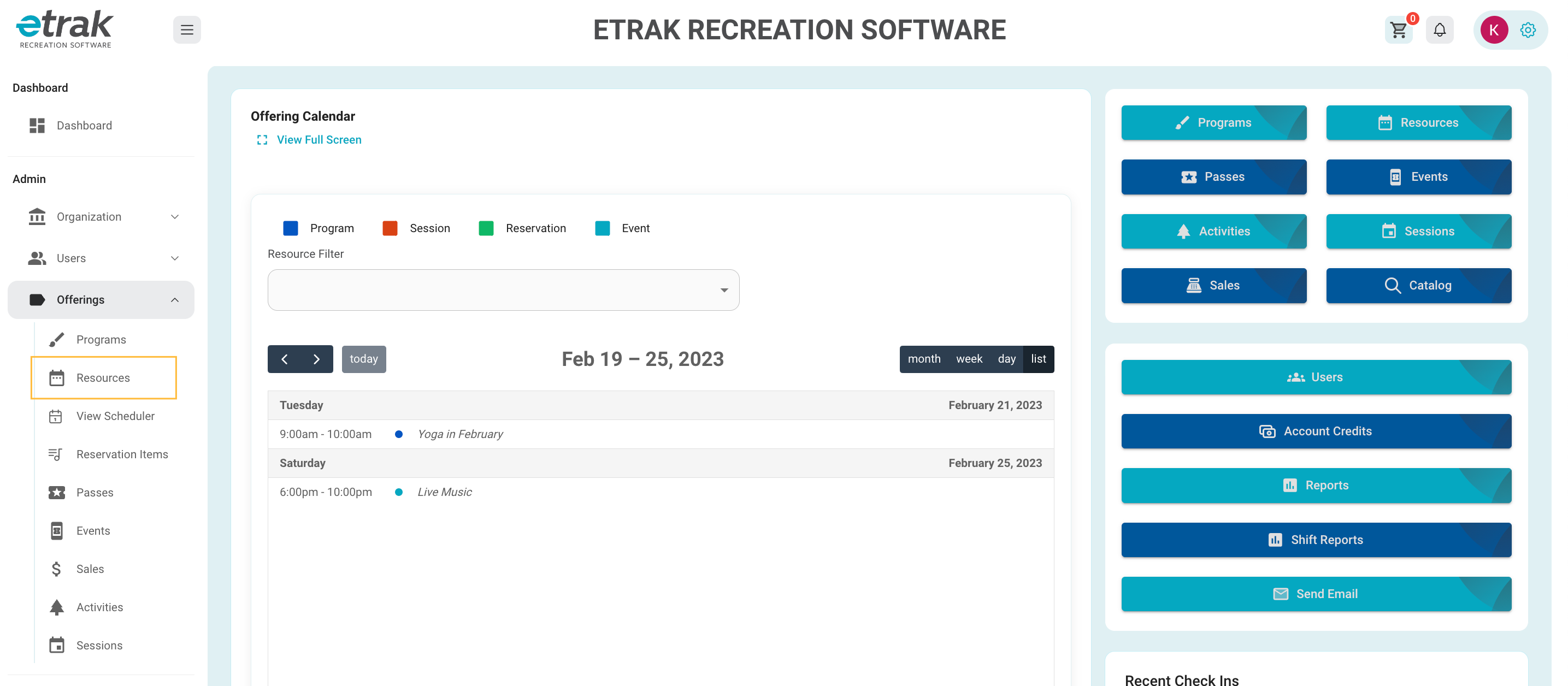
Select ‘Resources’ from the menu on the left side of the screen.
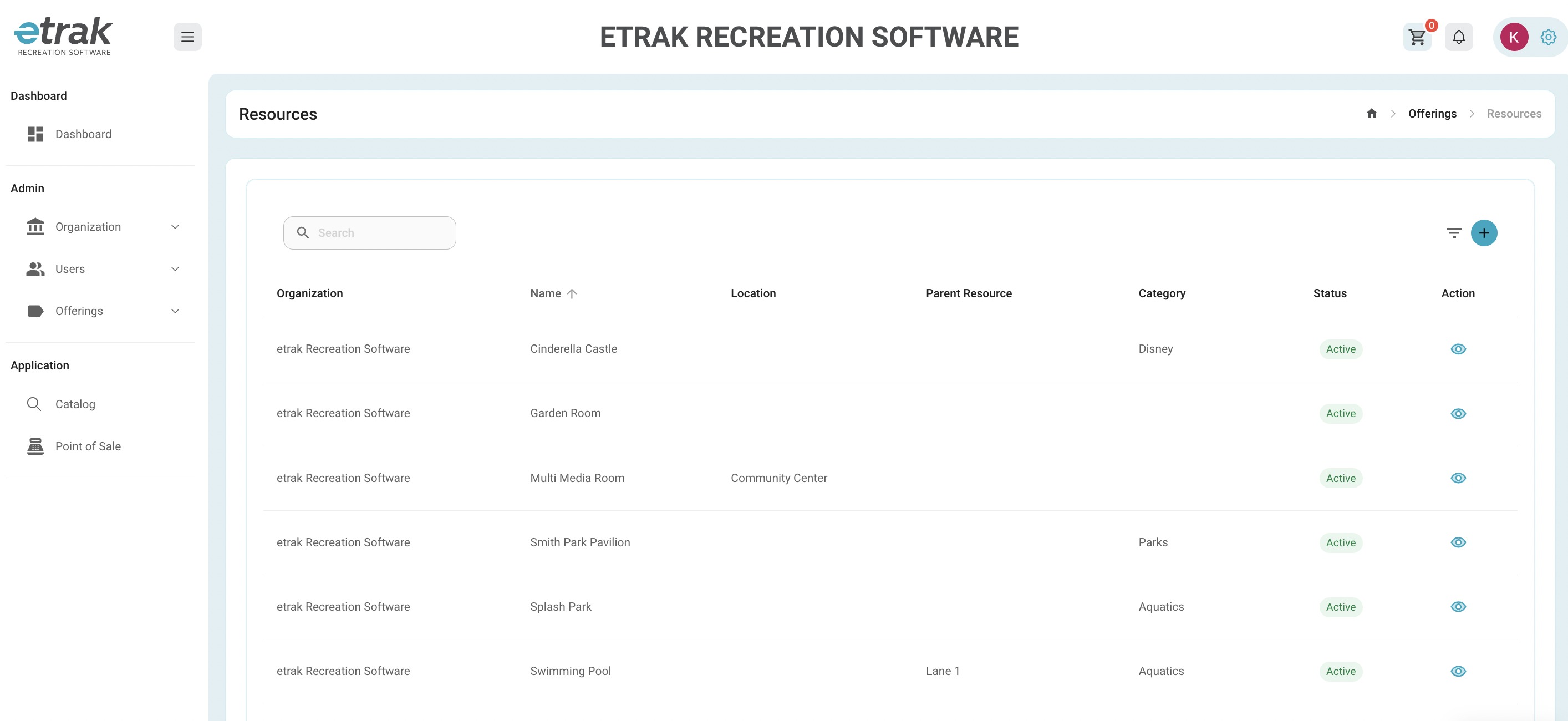
Select the ‘eye icon’ that coordinates with the resource that the reservation needing editing is under.
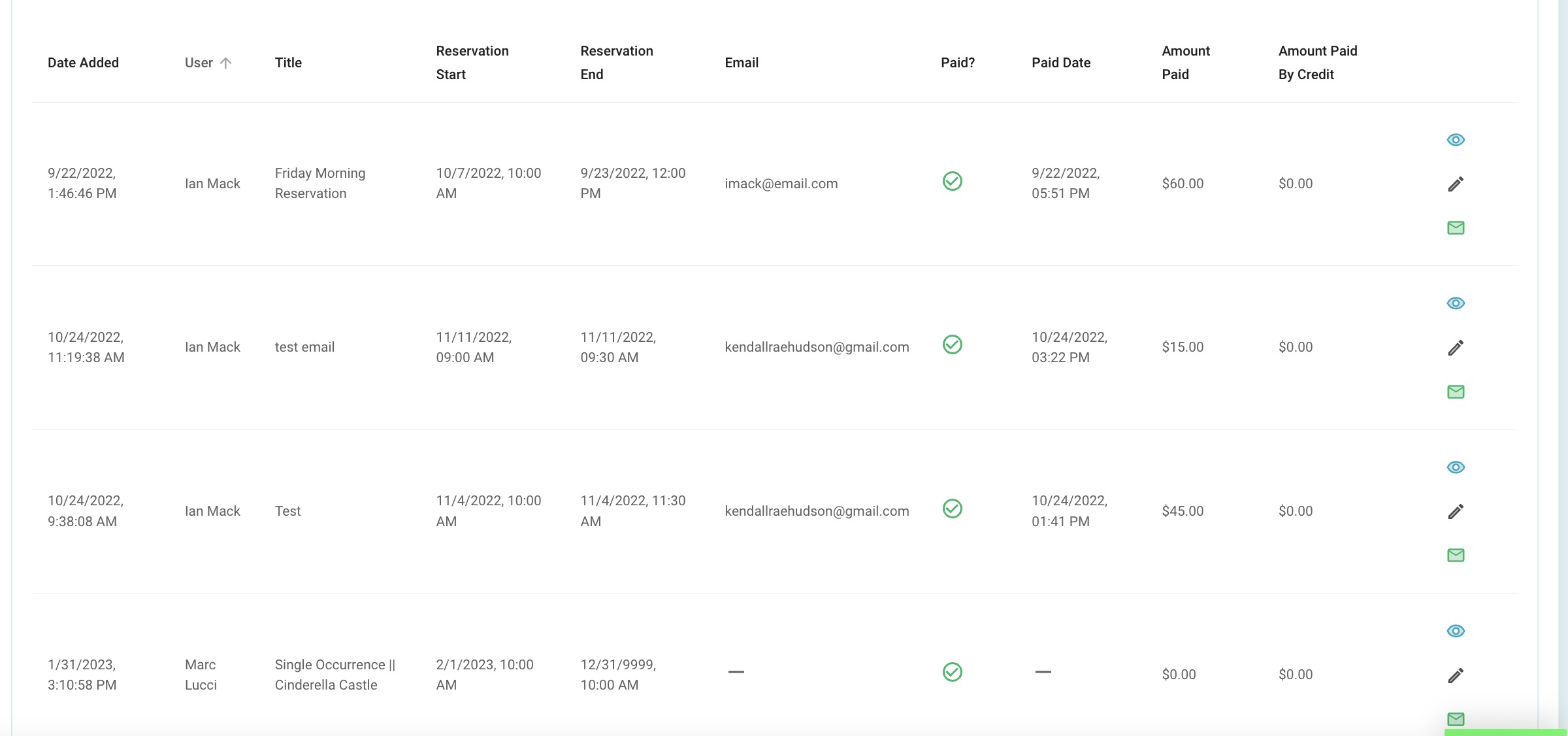
Find the exact reservation under ‘active reservations’
Select the ‘Pencil icon’ that coordinates with the reservation
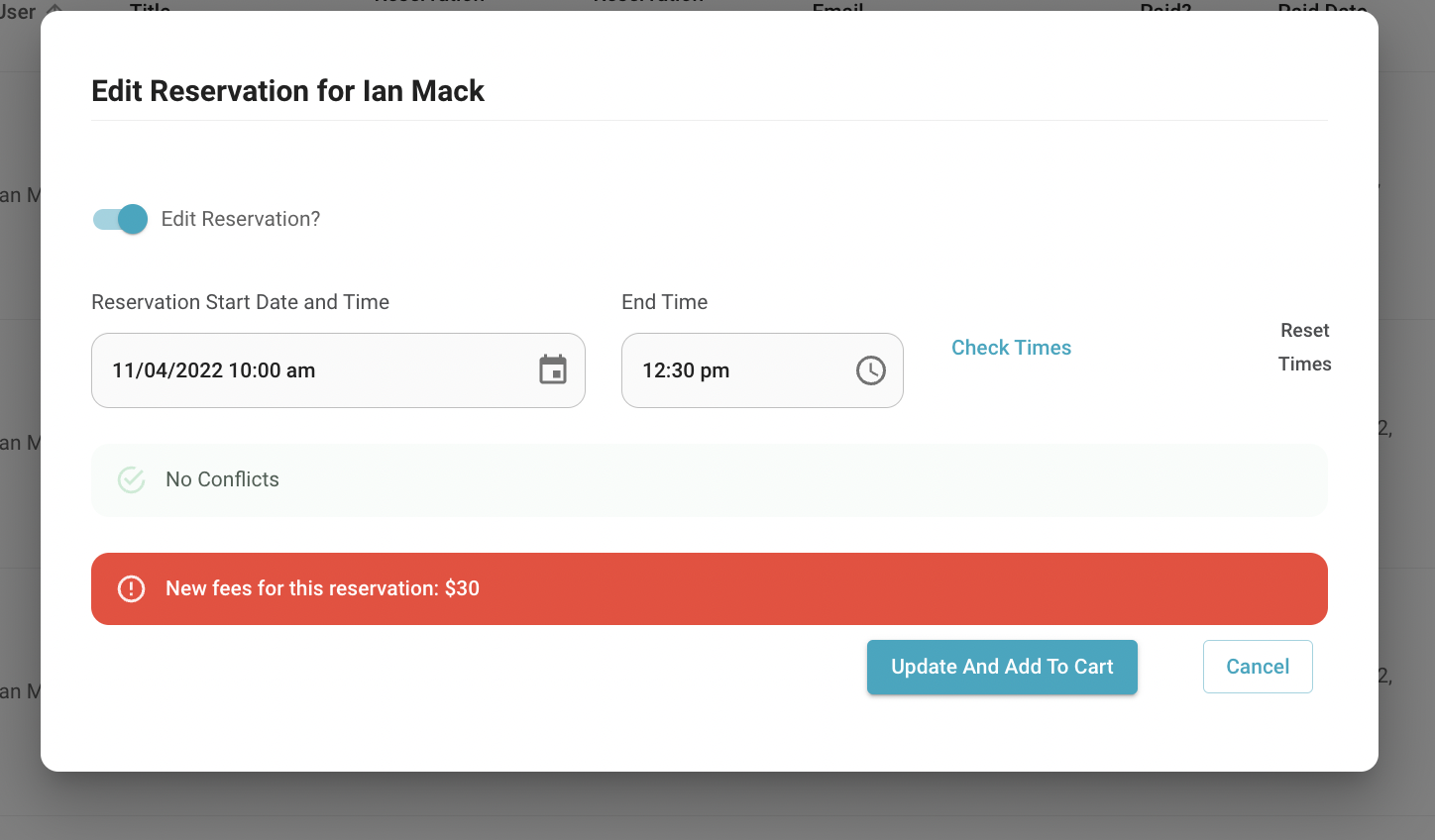
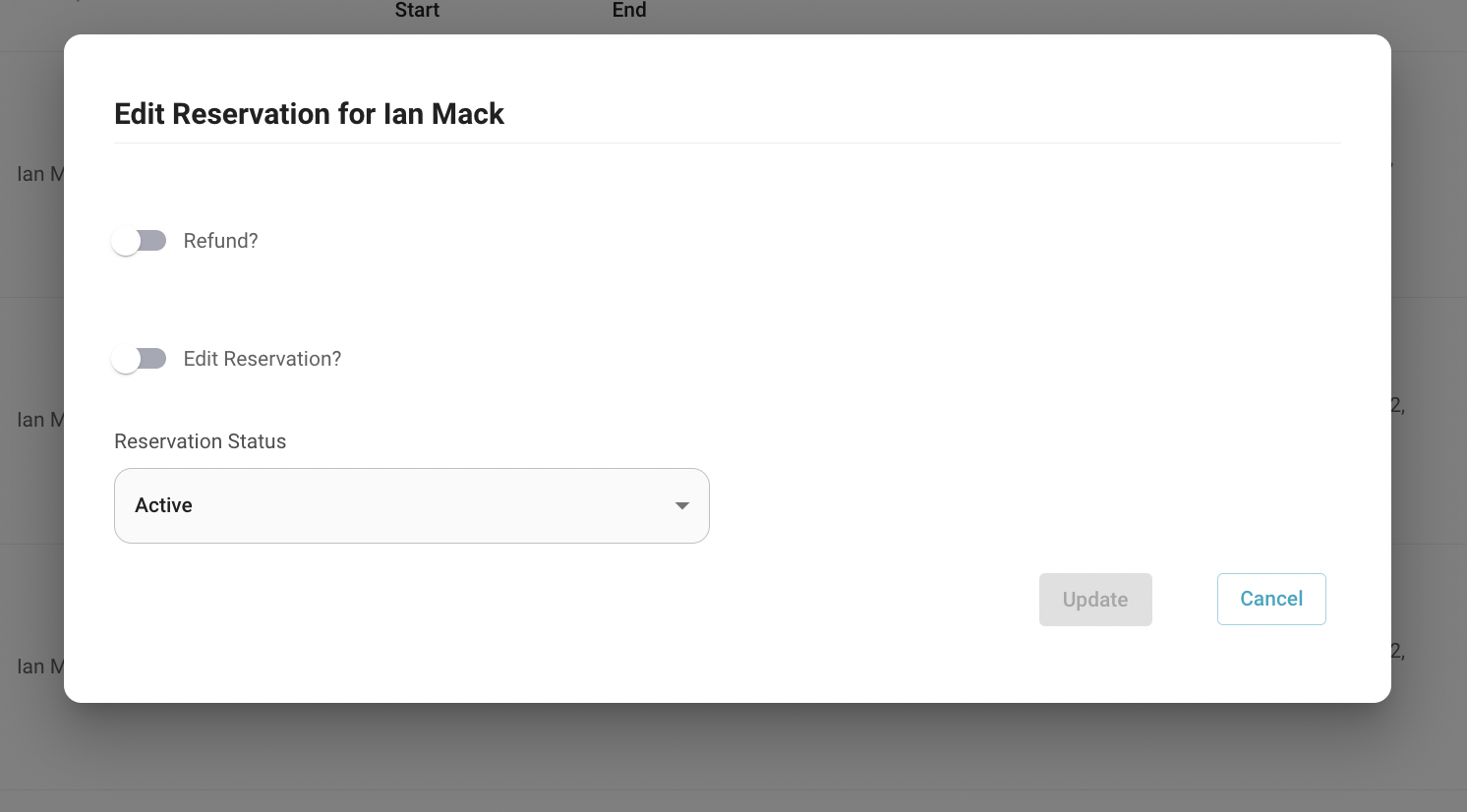
Hit the ‘Edit Reservation’ toggle.
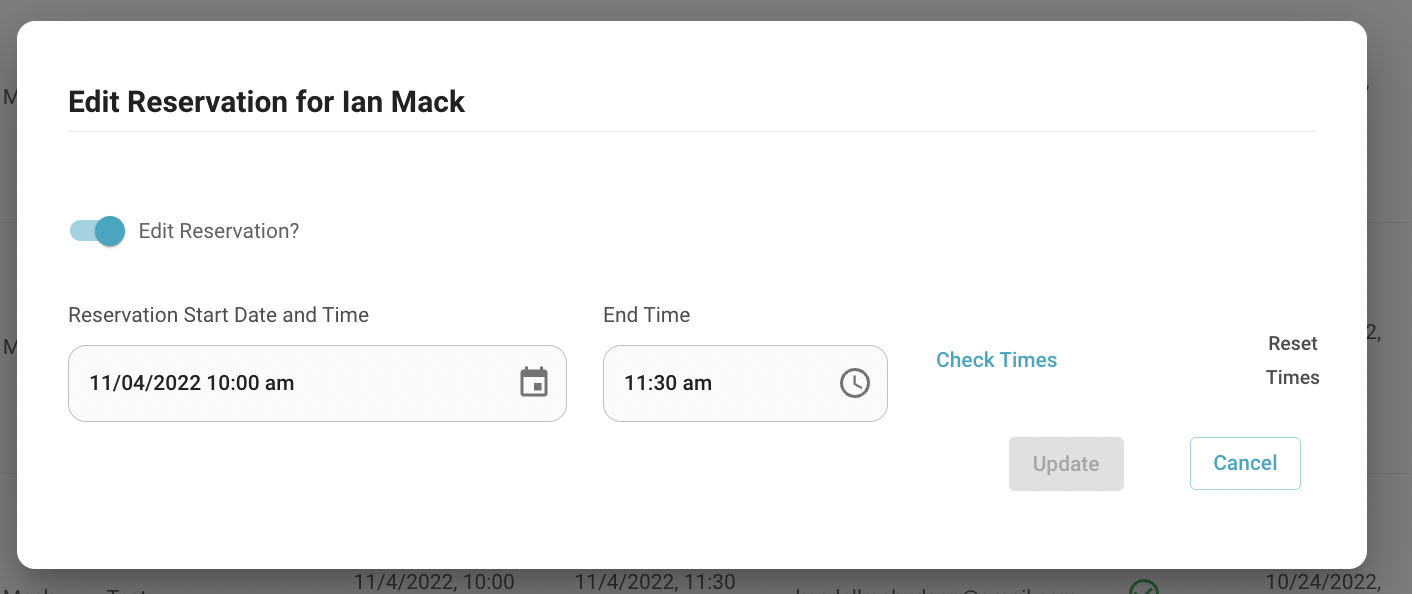
Change the time or dates of the reservation and select ‘Check Times’
The system will double check that this date/time is available.
*If any other reservation information needs changed a refund will need to be run and a new reservation will need to be made.
If there are no conflicting reservations, a green note will pop up.
If there is a fee difference the system will either lead you to the cart to pay or through a refund process.
Finish checking out and your reservation has been successfully updated!