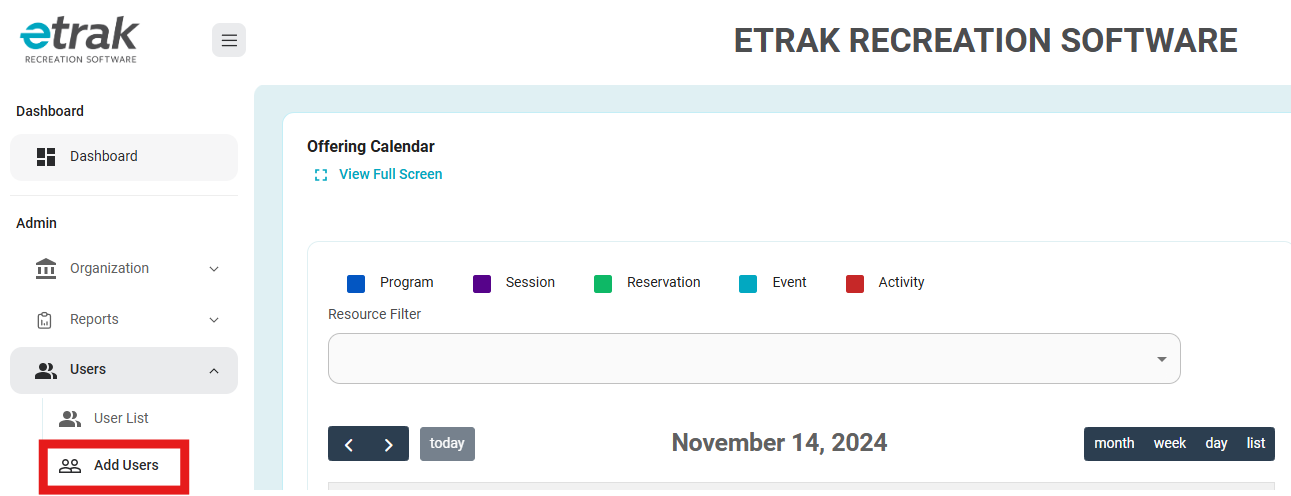
Select "Add Users" from the users drop down on the left side of the screen.
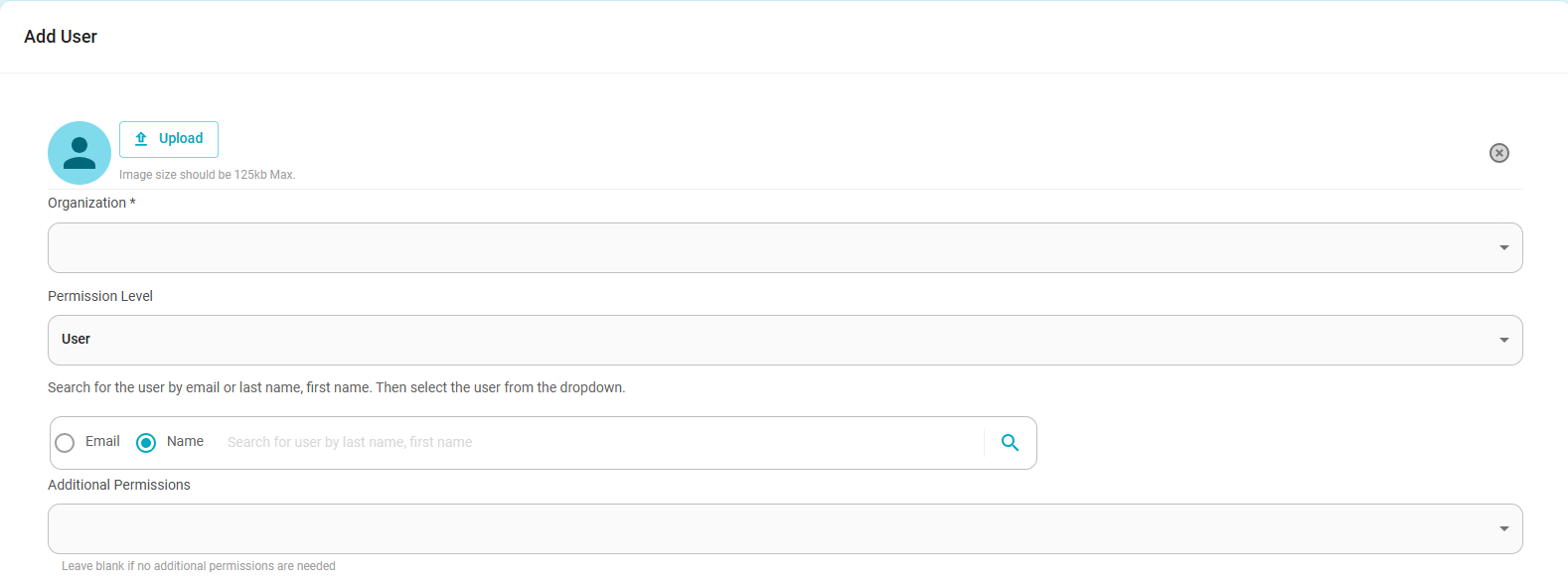
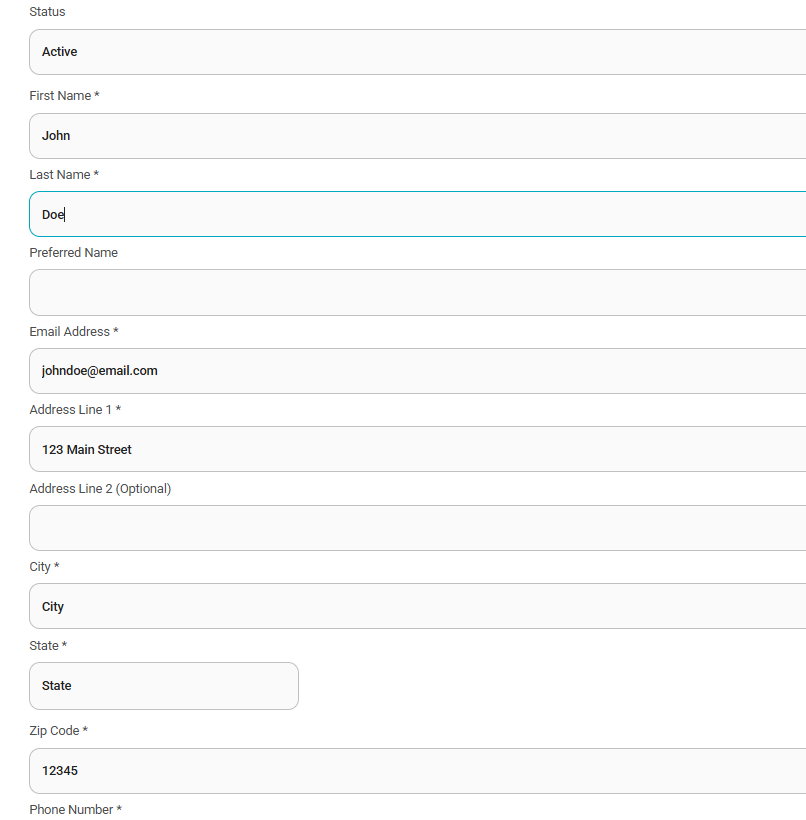
Once you have clicked on Add User you will be directed to the creation.
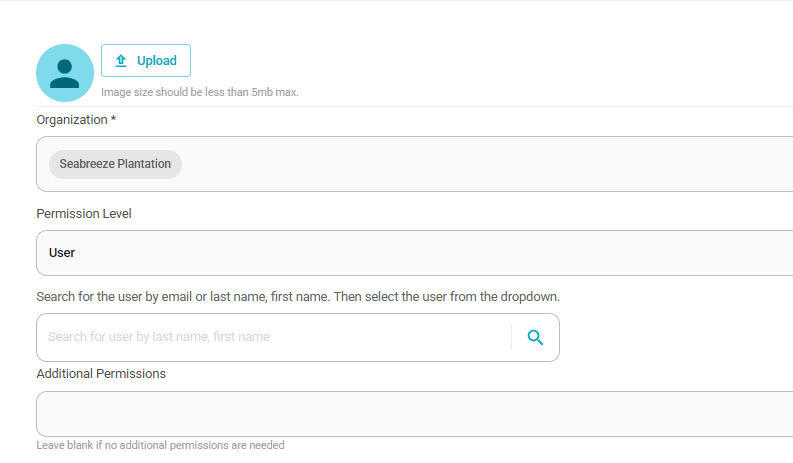
You will first ensure your Organization is selected in the drop down menu.
You will select from User or Family permission level (User if the person will be able to login and complete registrations, Family if this is not someone who will be logging in themselves). If someone is a Family you will assign them a lead person with the search option below.
Additional Permissions will assign staff permissions to a person if necessary. Organization Admin will be an individual that will have the ability to set up and edit offering items. Front Desk will be a role for staff members working at a desk assisting with day to day transactions.
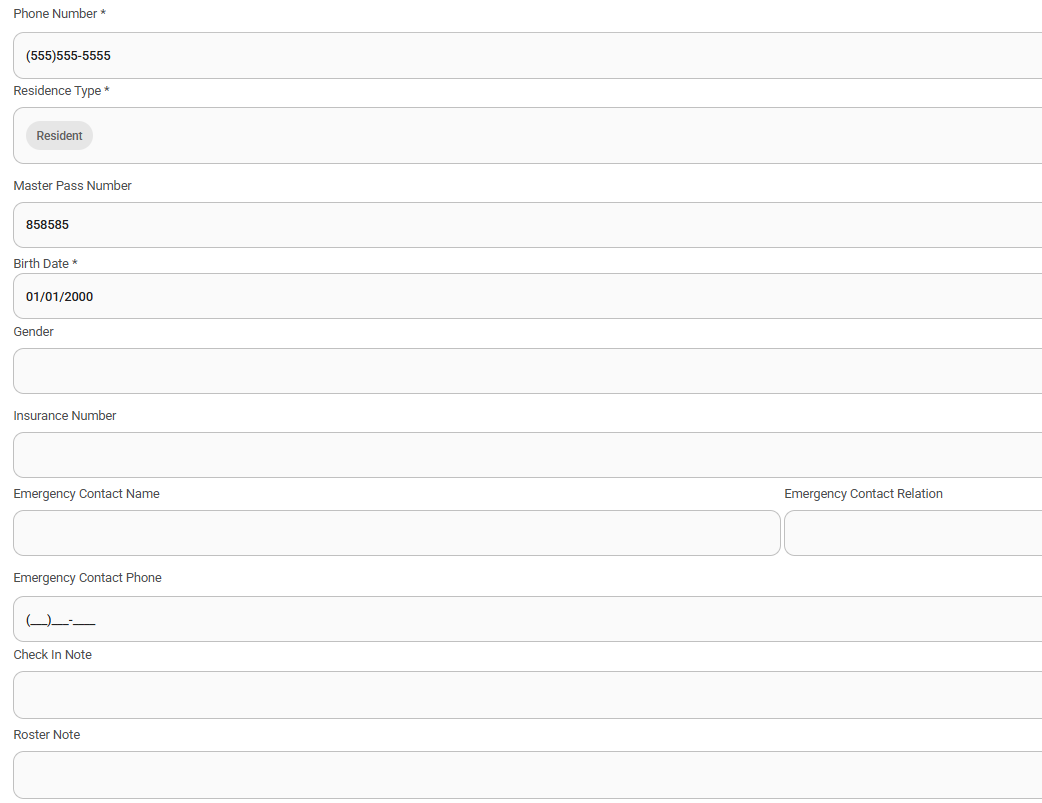
The uploads of Birth Certificate and Medical Insurance can be set as required to register for an offering and then it must be uploaded to profile in order to proceed.
As well as flagging an individual as an Instructor or a League Coach