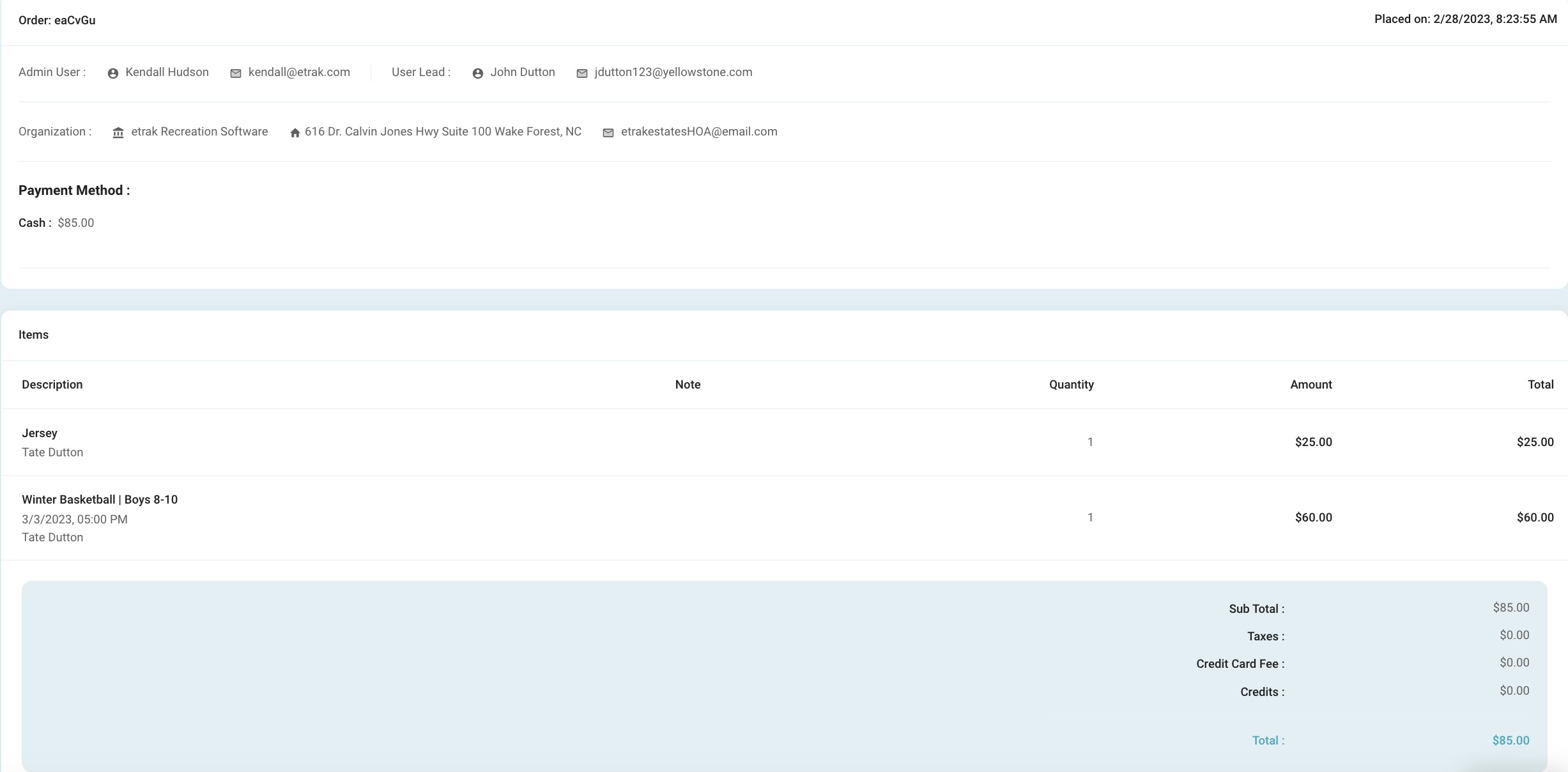
There are 2 ways to register a user for a program.
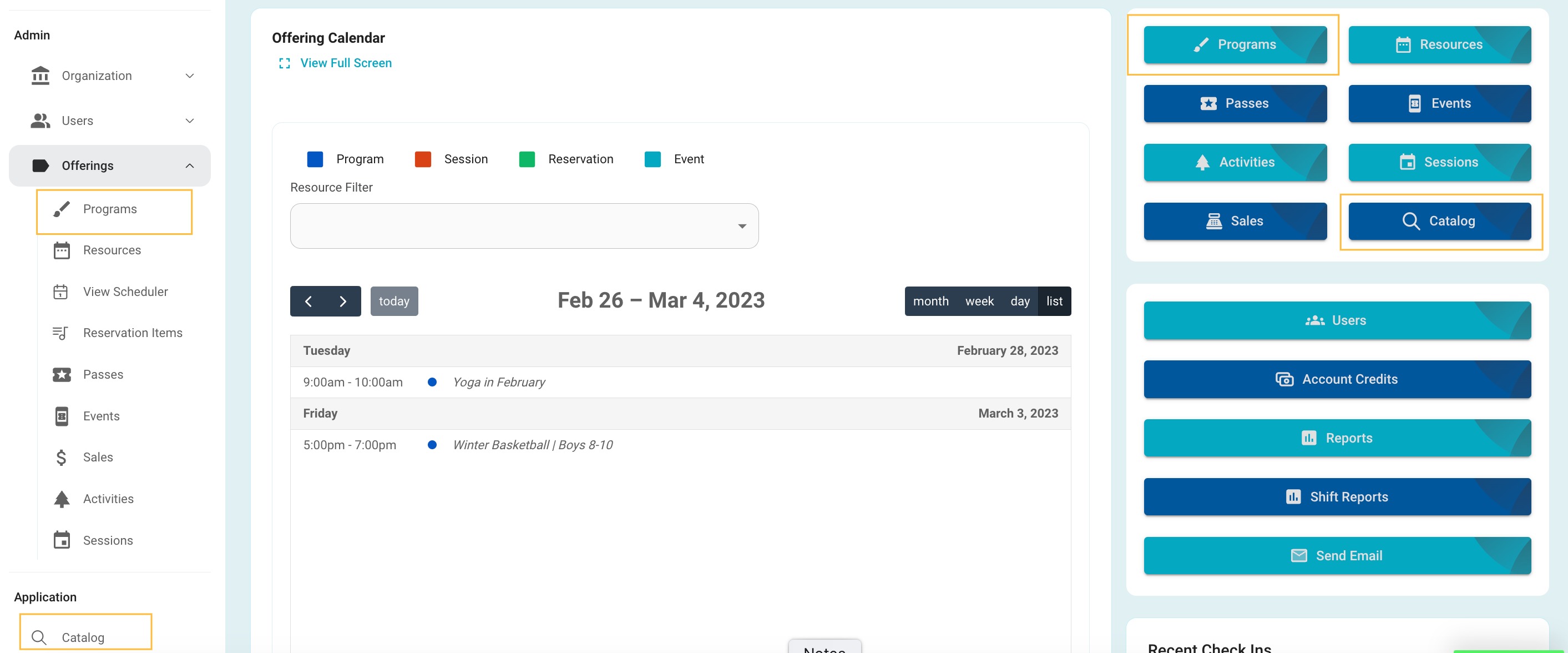
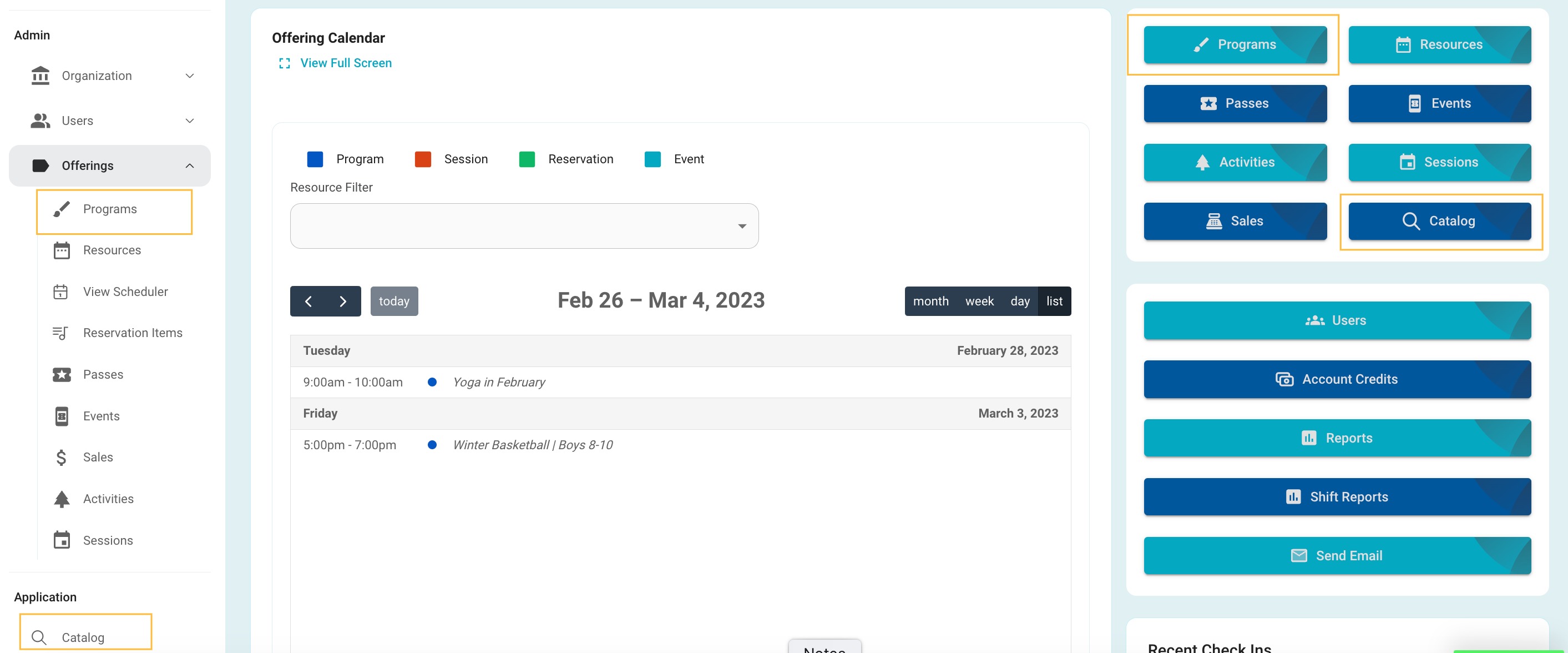
To register through the ‘Programs’ page select ‘Programs’ from the menu on the left side of the screen or the blue button on the right.
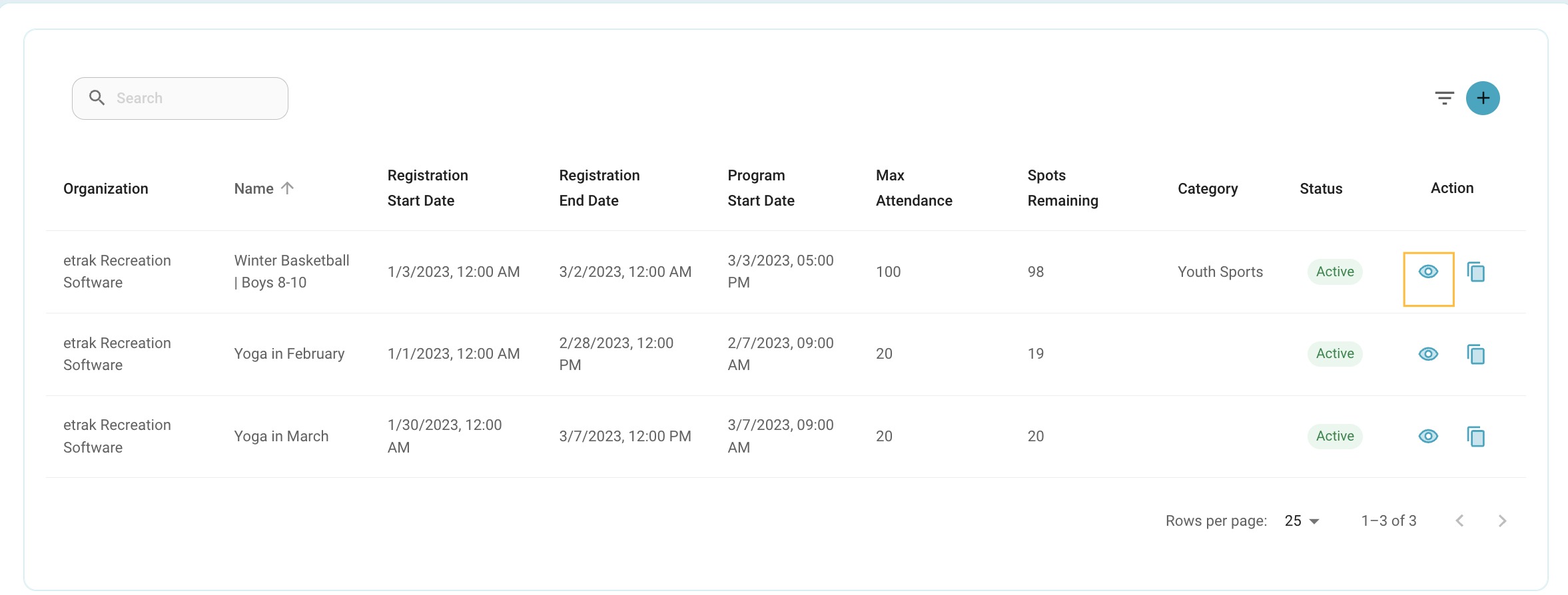
Select the eye icon that coordinates with the program the user is registering for.
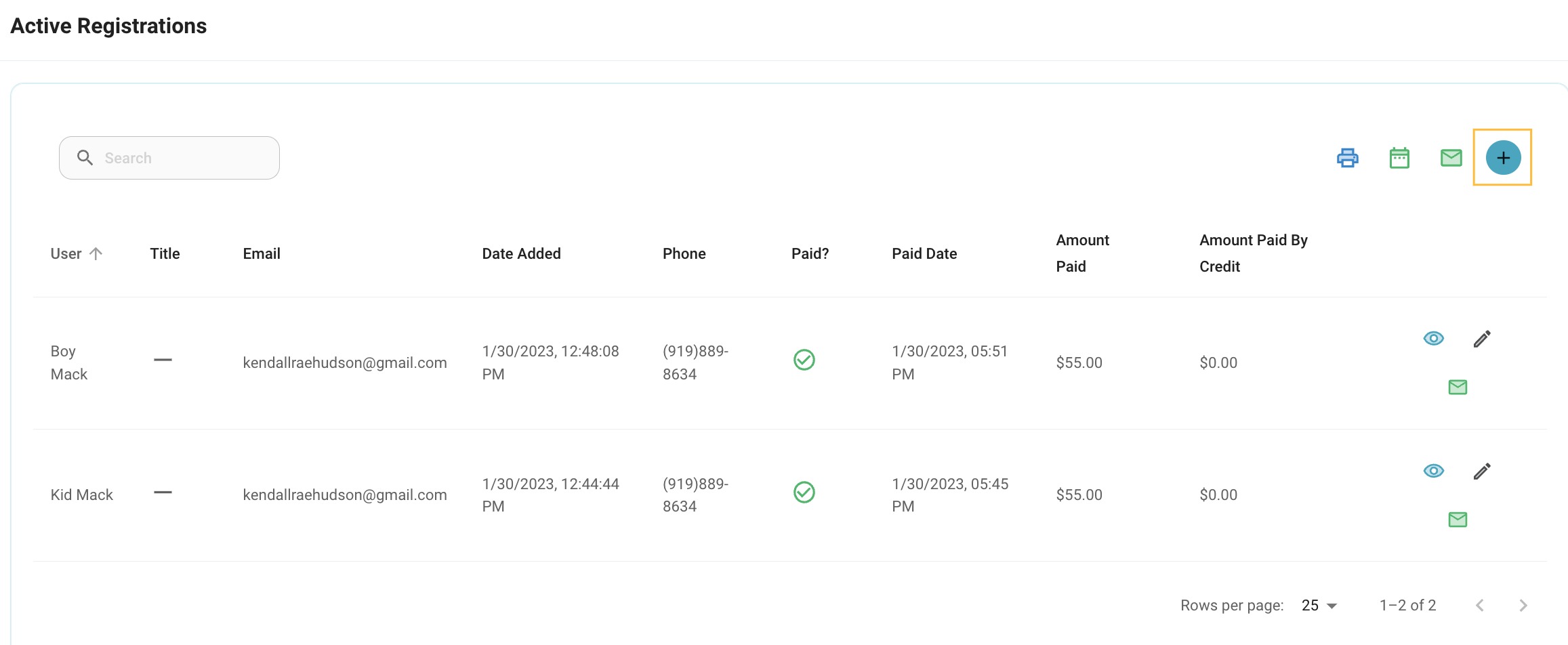
Scroll down to ‘Active Registrations’ and select the blue ‘+’ button to add a new registration.
To register through the catalog select the ‘Catalog’ button from the menu on the left side of the screen or the blue button on the right side.
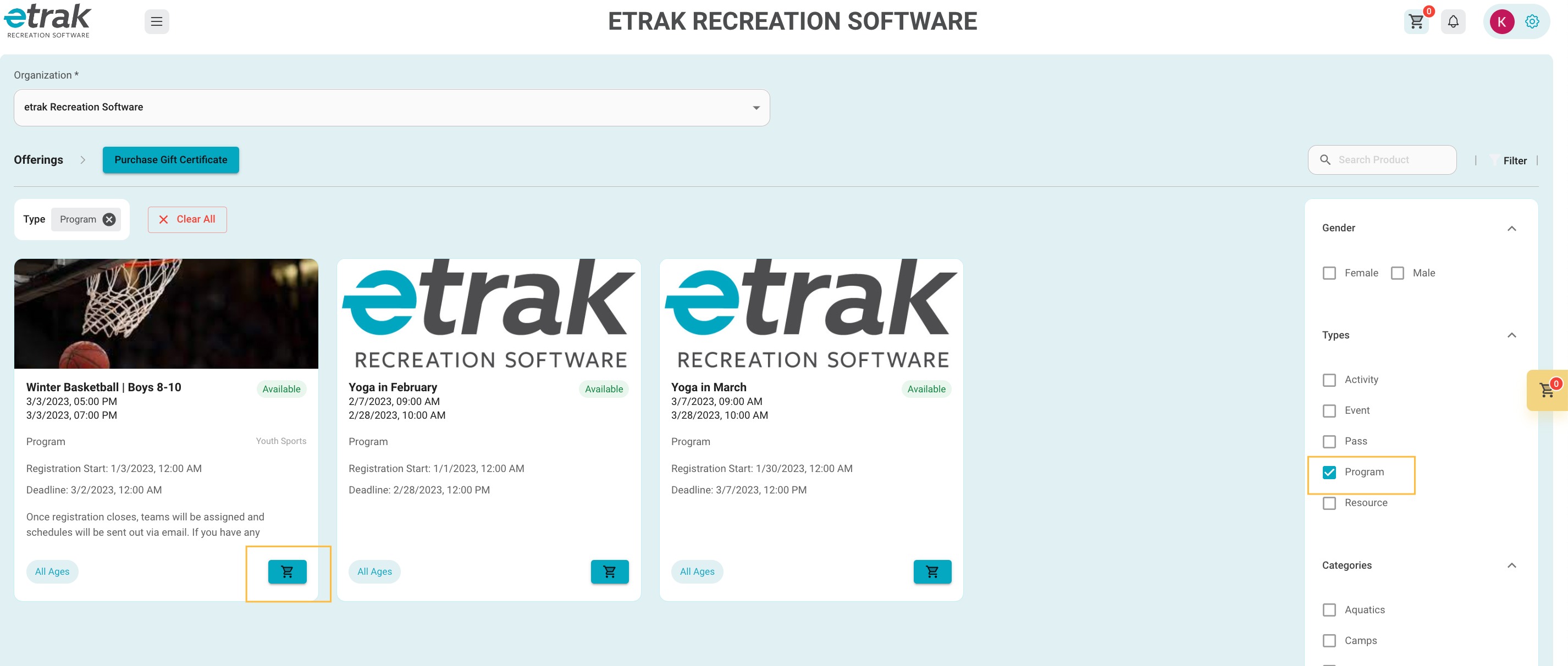
Filter the catalog down to just show the offering type ‘Program’
Press the ‘Cart’ icon that coordinates with the program the user wants to register for.
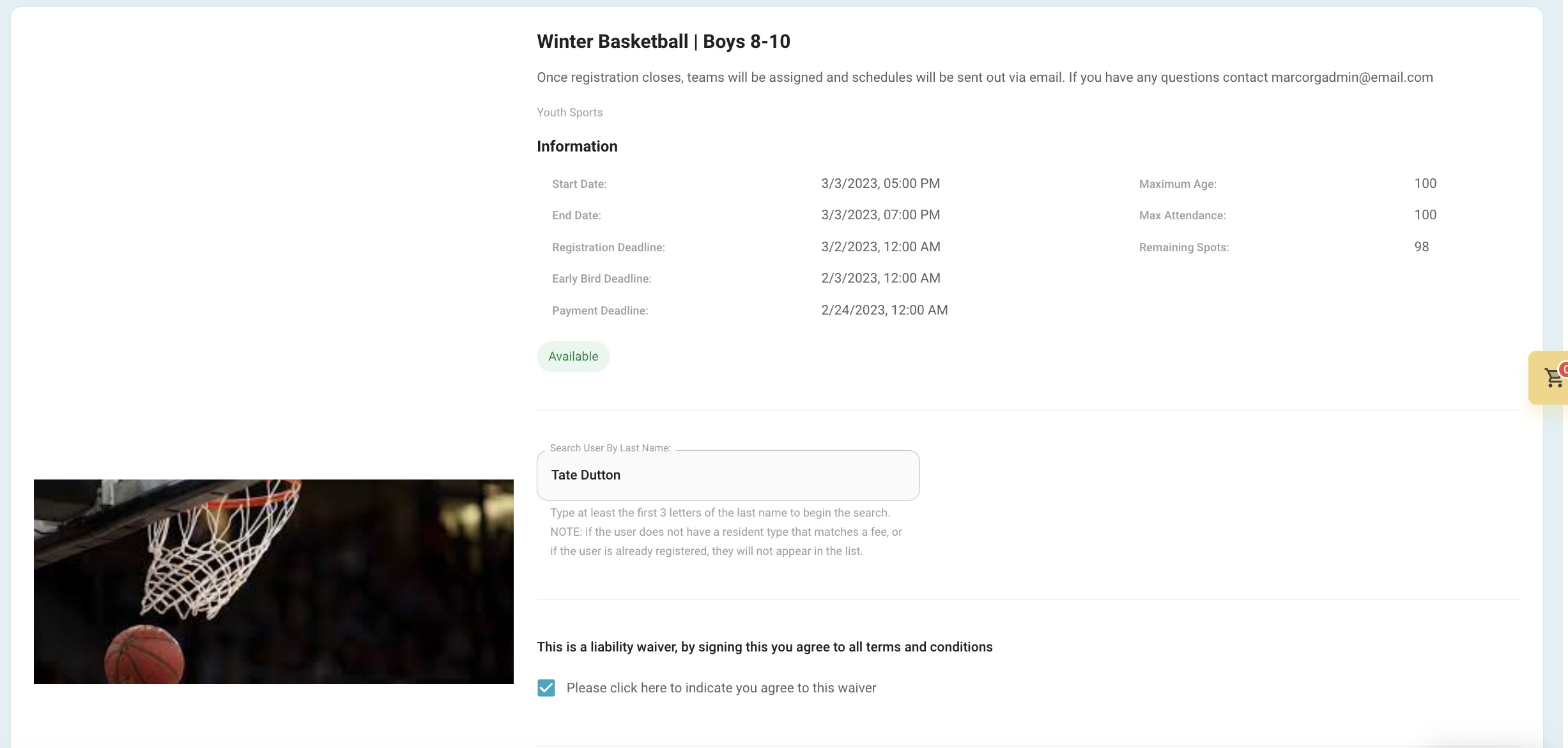
The program details will appear on the next screen no matter what route you chose to start the registration from.
Search for the user that you are registering by at least the first 3 letters of their last name.
*If user is already registered for this program their name will not appear.
*If the user is not within age, gender or grade restrictions a message will appear and you can choose to get added to a pending approval list
If a waiver is attached to this program it MUST be checked to proceed.
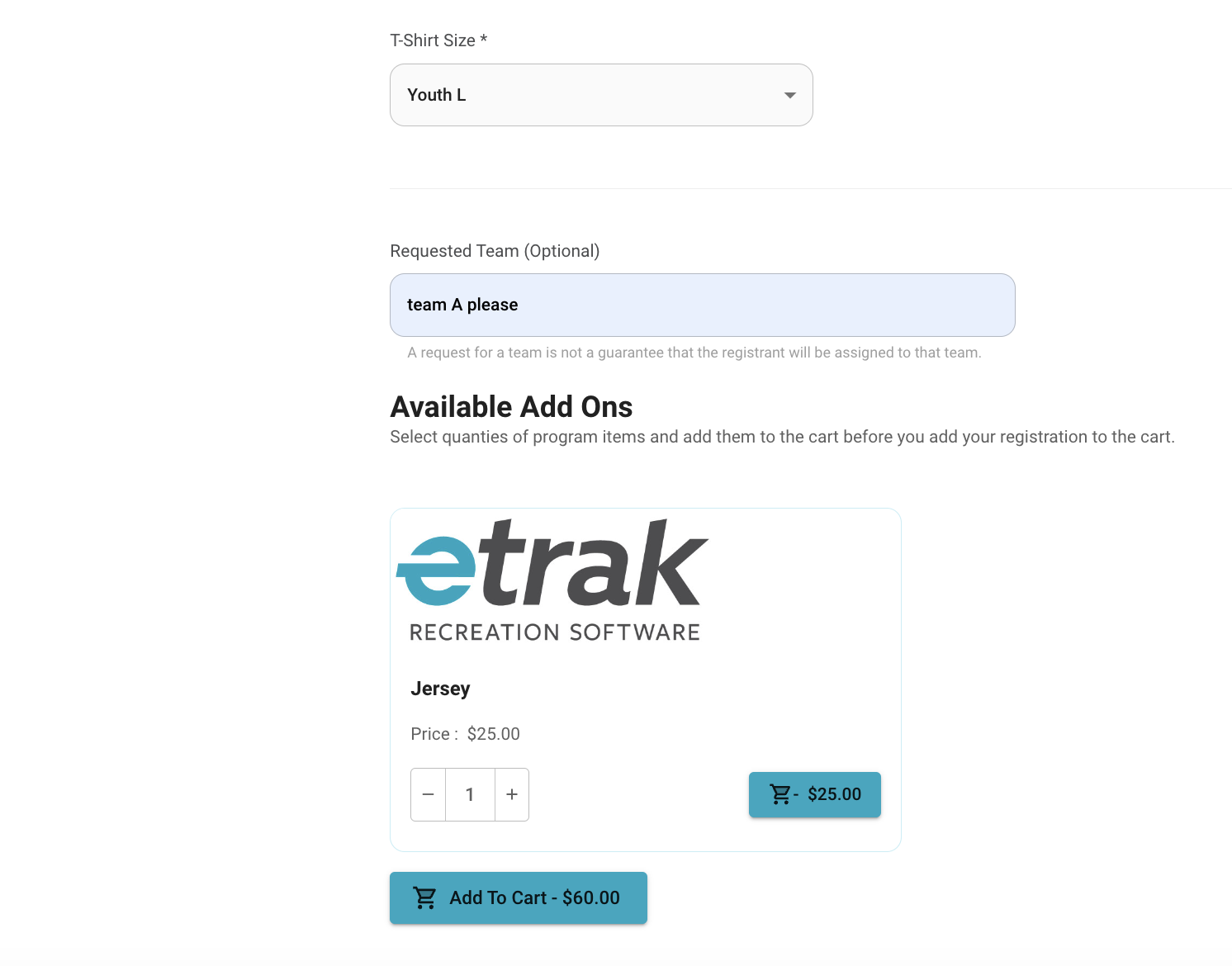
If there is an option to select a T-shirt size this is required.
If user has a team preference or note for the coach it can be listed here.
Add ons that are set up with a program can be added to the cart.
Select the quantity and press the ‘Add to Cart’ button on the add on box before adding the registration to the cart.
Once all information is complete, press ‘Add to Cart’ at the bottom of the page.
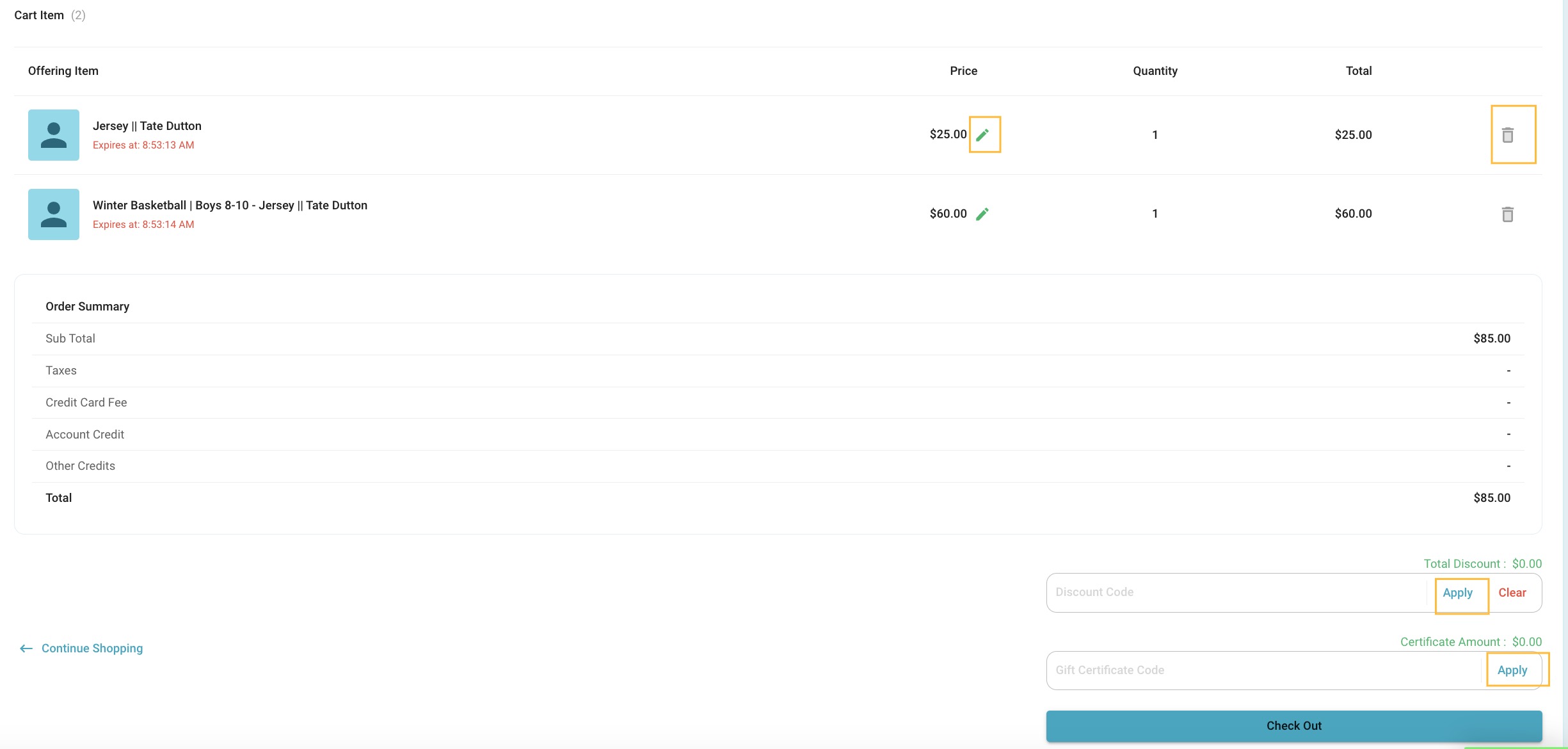
Review the items in the cart.
Prices can be adjusted using the pencil icon.
Items can be removed by selecting the trash icon.
If user is using a discount code or gift card enter the code and press ‘Apply' before proceeding to ‘Check Out’
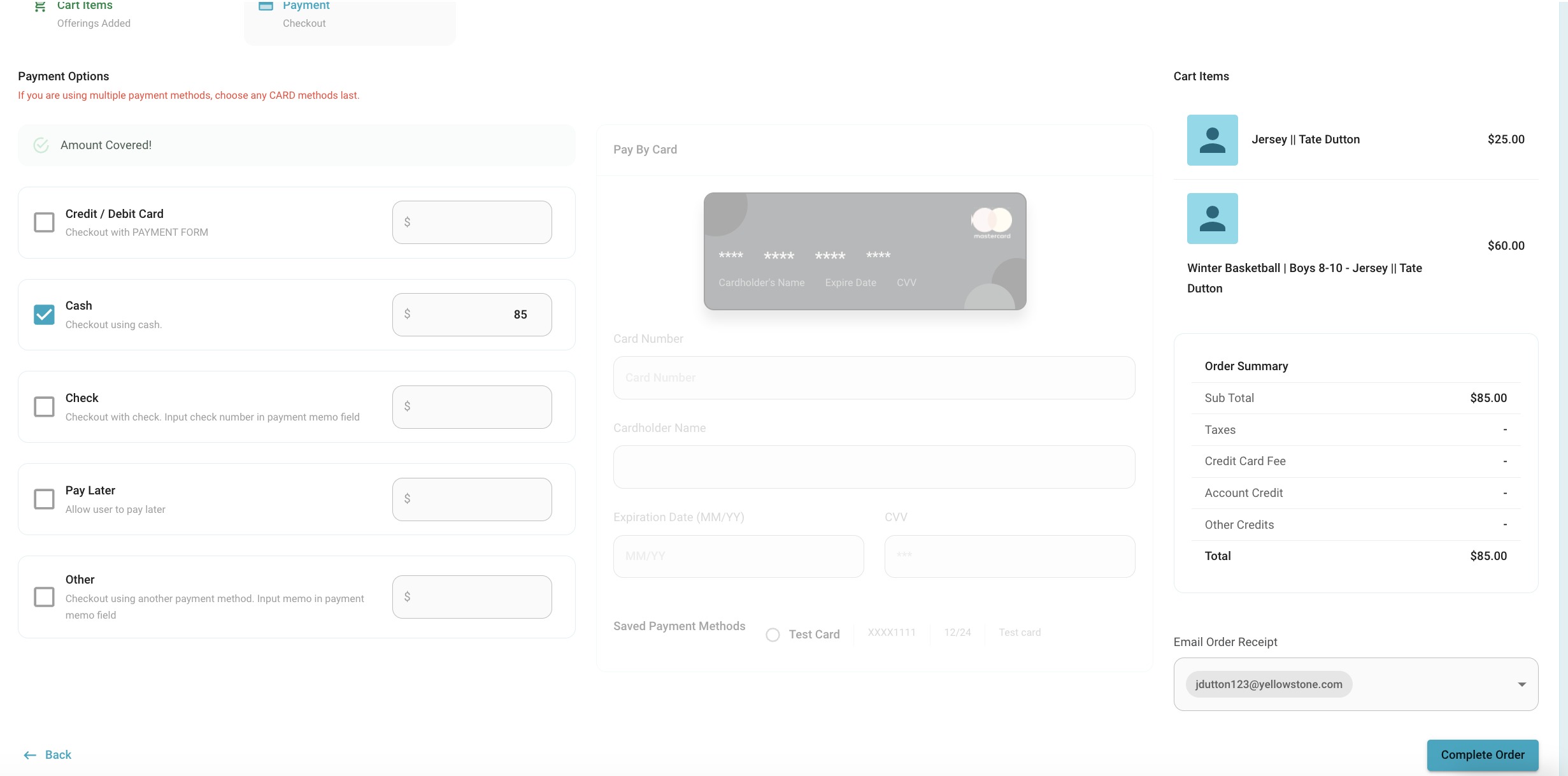
Payment information is collected on this screen.
Multiple forms of payment can be used, however, if taking a credit card plus another form chose the card method last.
an email for the user can be selected to send a receipt to.
Press ‘Complete Order’ to allow order to process.
Stay on this screen and do not refresh until you are brought to the receipt.
The receipt can be printed from this screen.