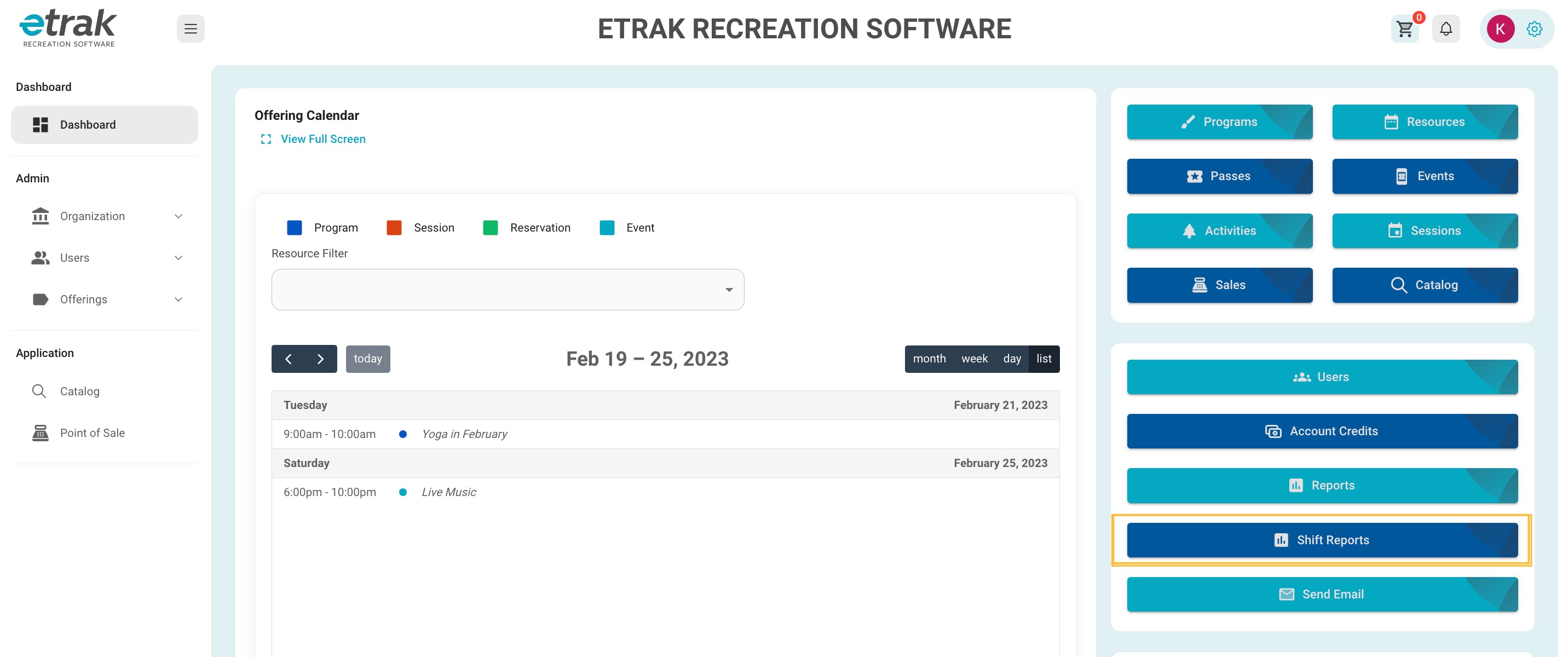
Click on ‘Shift Reports’ button from the shortcut buttons on the right side of your dashboard.
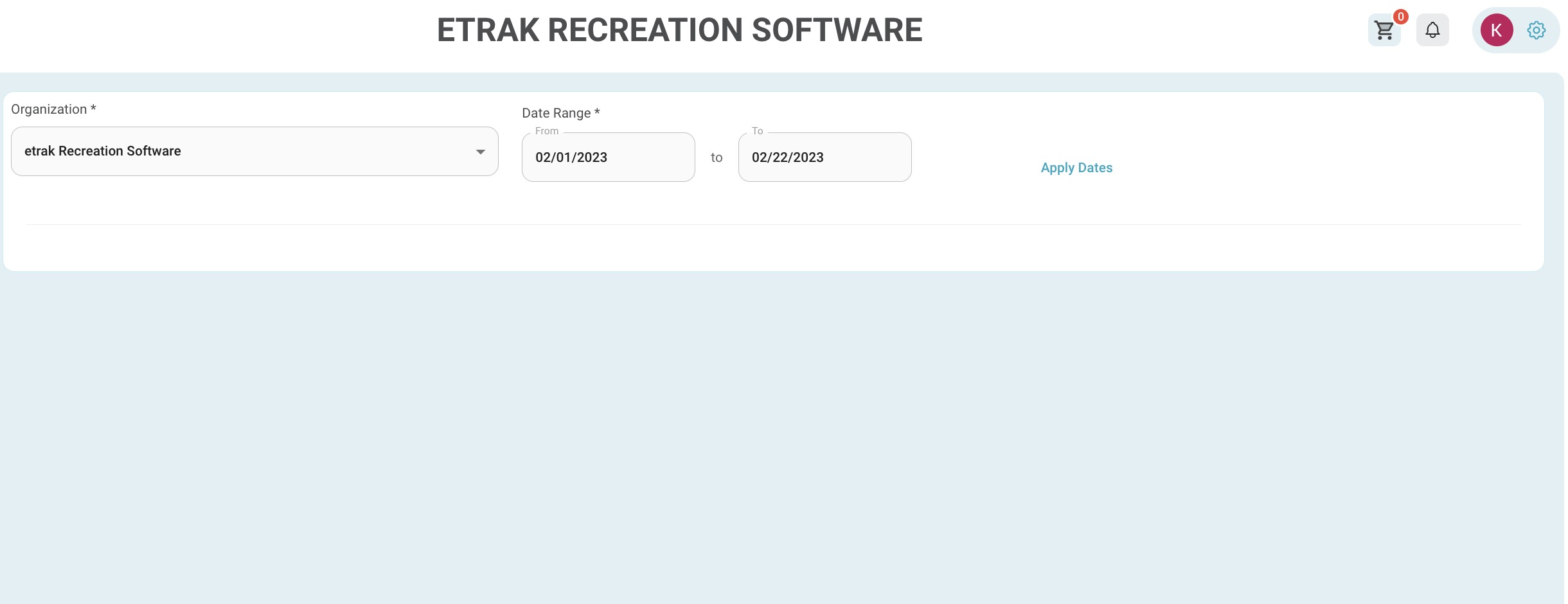
Date Range:
From- midnight of date applied
To- 11:59pm of date applied
If pulling a one day report for 01/31/2023 set that date as from date and 02/01/2023 as the to date. This will only pull information for the entire day of 1/31/2023.
Hit ‘Apply Dates’ to show the report
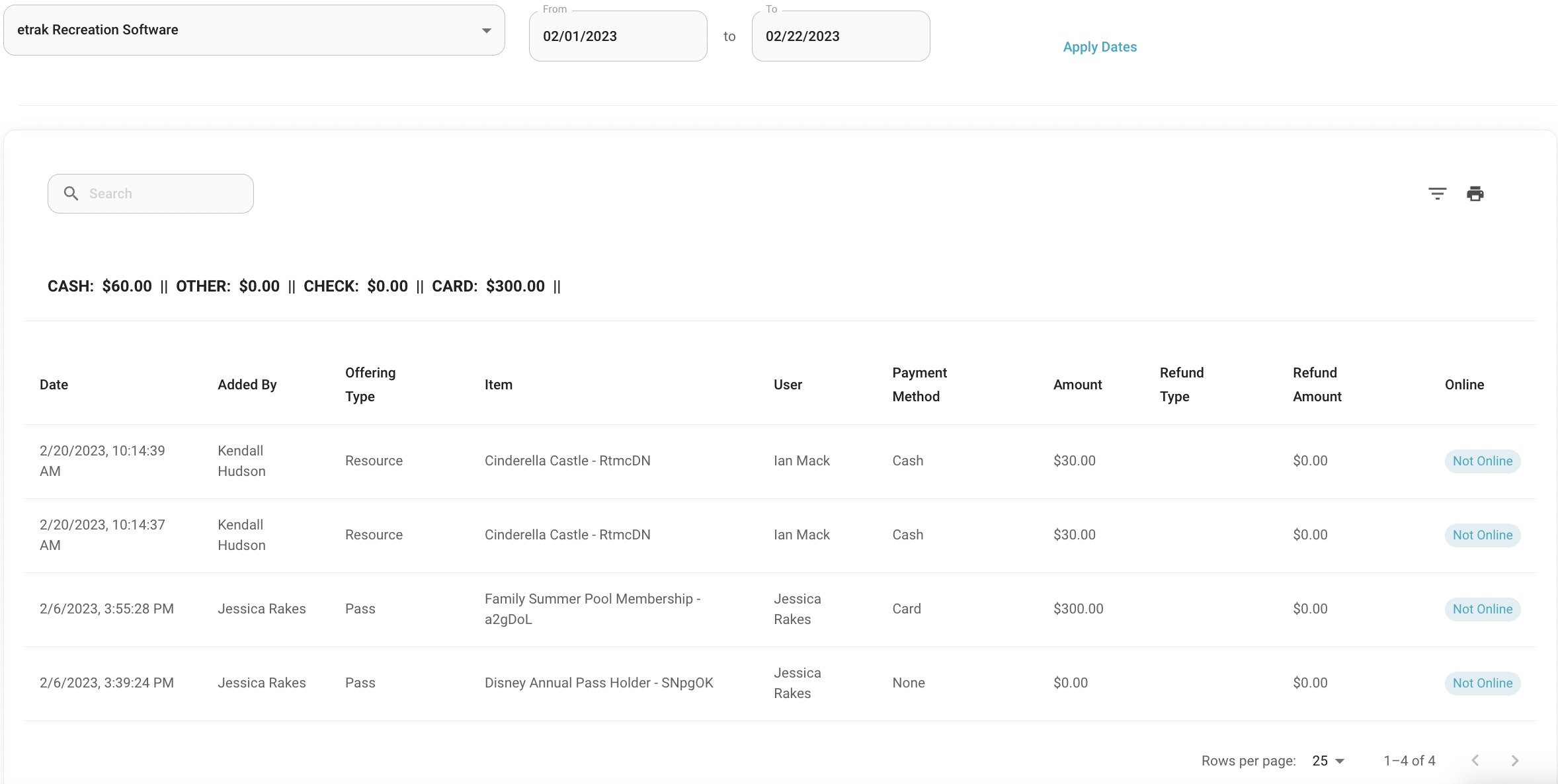
The totals will show at the top of the report.
Every transaction will show on the shift report.
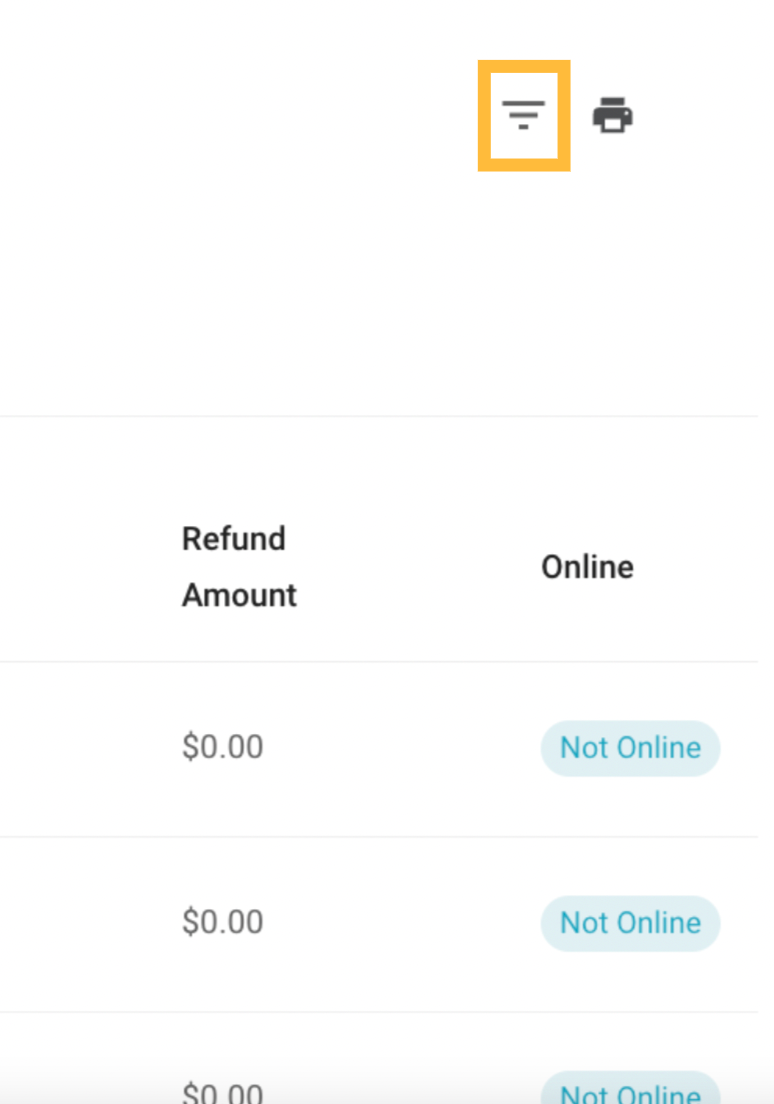
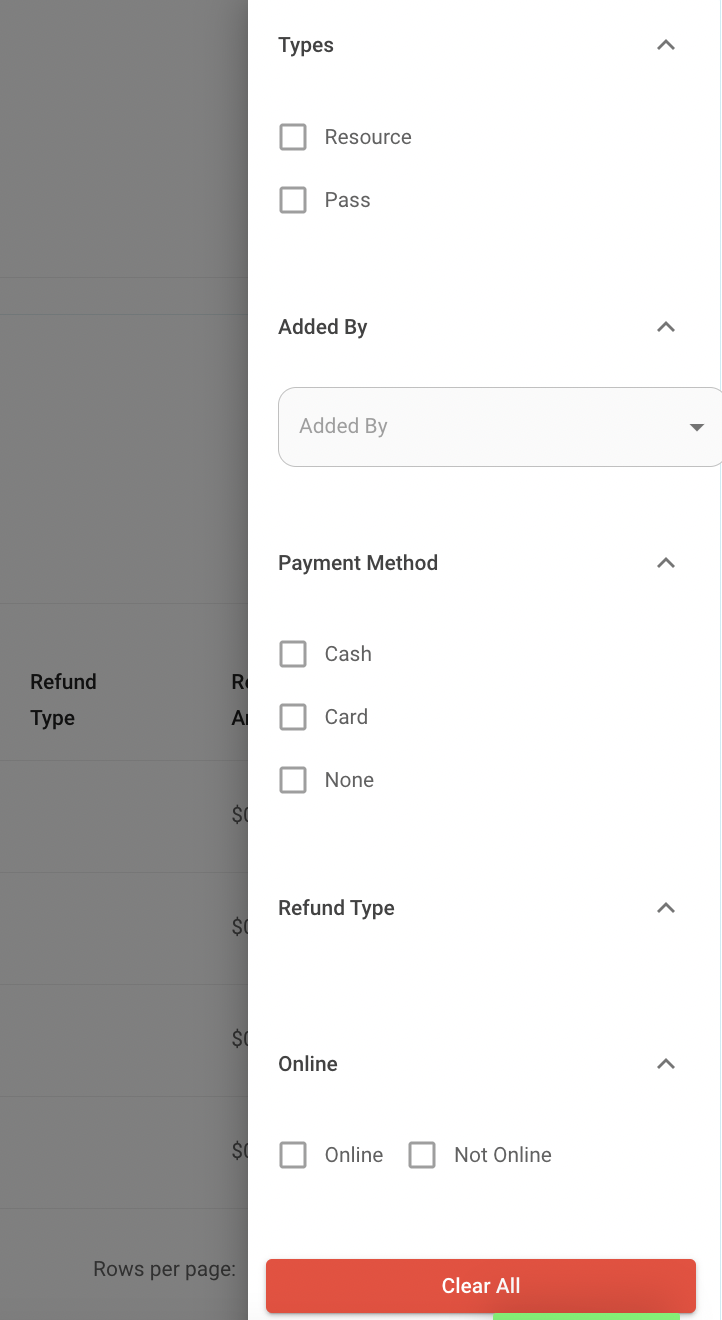
Select the button with the 3 lines in the upper right corner to filter the report.
The report can be filtered to show specific items:
Offering Types: such as resource, pass, program, event, session, or activity
Added By: the person who added the registration. If online the parent or if done in house it will show the logged in admins name.
Payment Method: Cash, card, none
Refund Type: Card, Cash, Check, Account Credit
Online: Online” or not online which means by a user or in house.
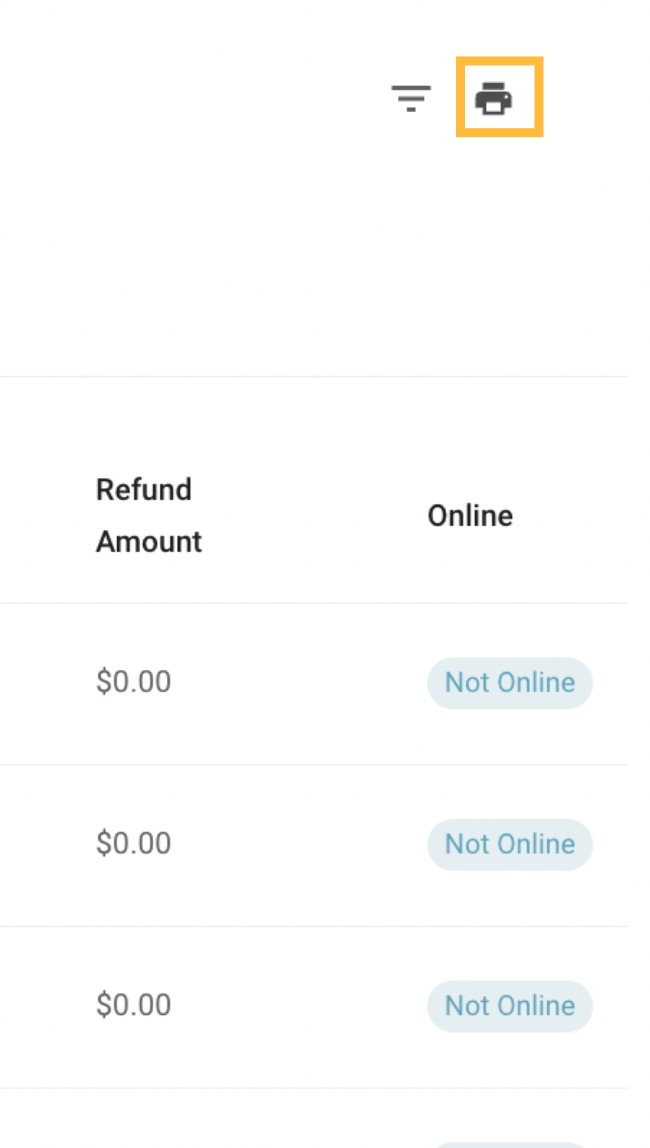
Select the printer icon in the upper right hand corner to print the shift report.
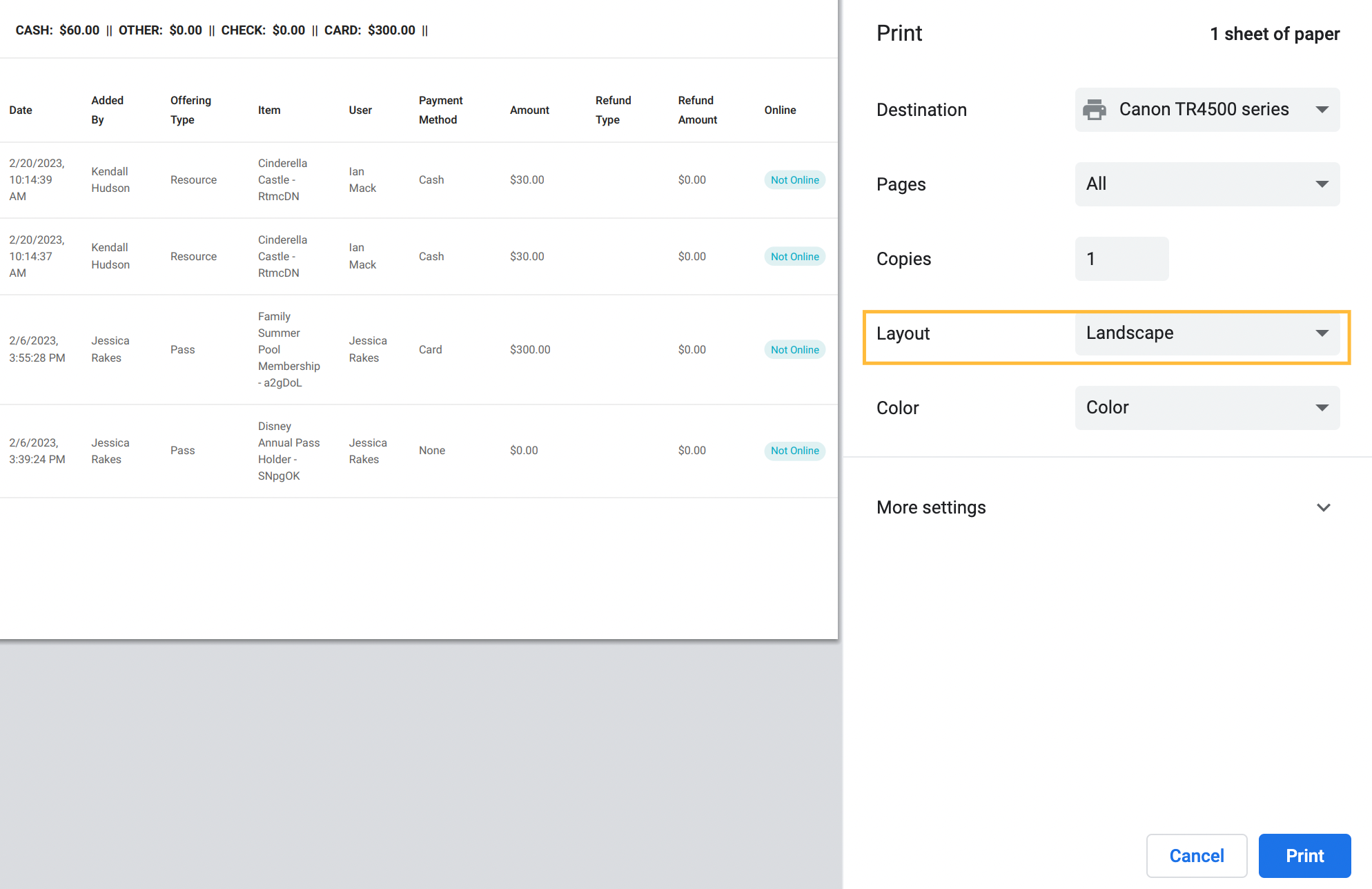
*To show all columns change the layout from portrait to landscape
Was this article helpful?
That’s Great!
Thank you for your feedback
Sorry! We couldn't be helpful
Thank you for your feedback
Feedback sent
We appreciate your effort and will try to fix the article