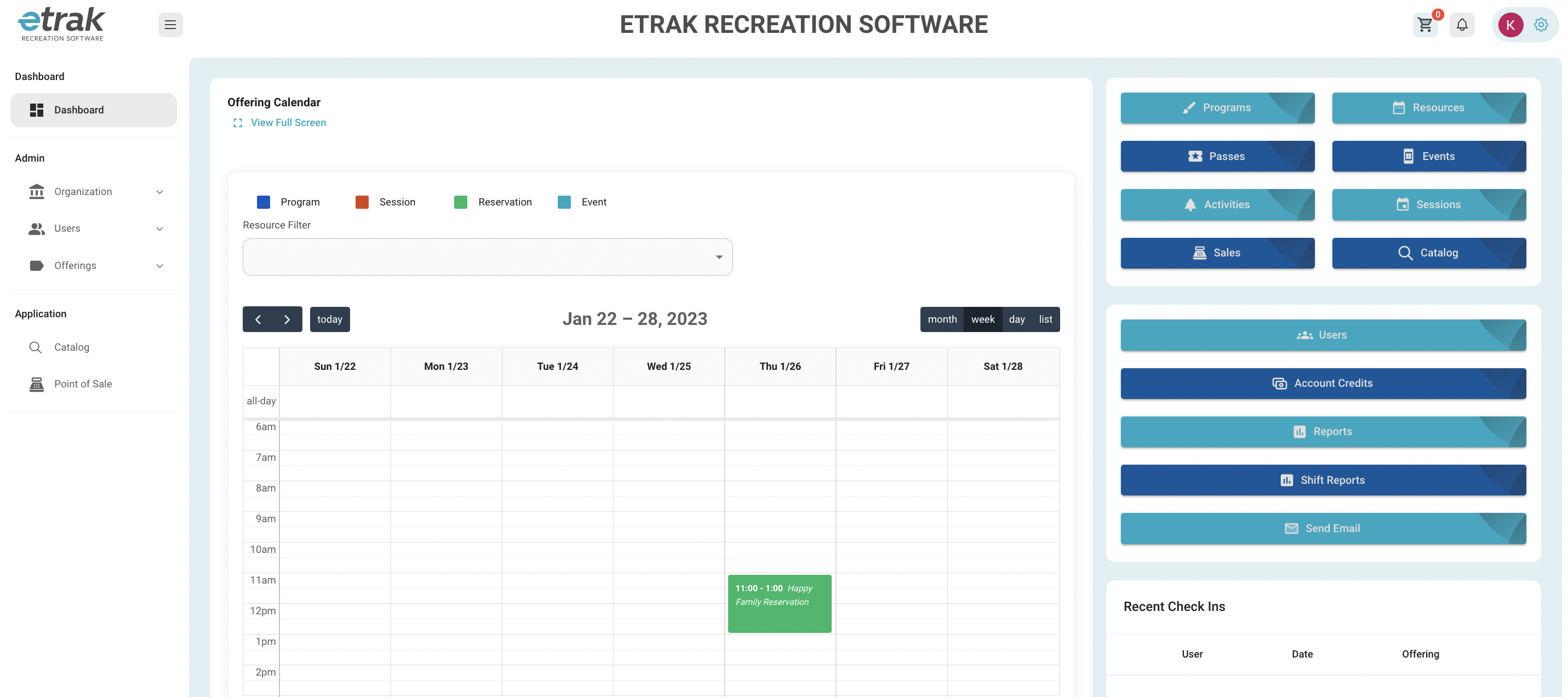
The menu on the left side contains quick buttons to most information needed, it can be hidden by pressing the button with 3 lines in the upper left corner.
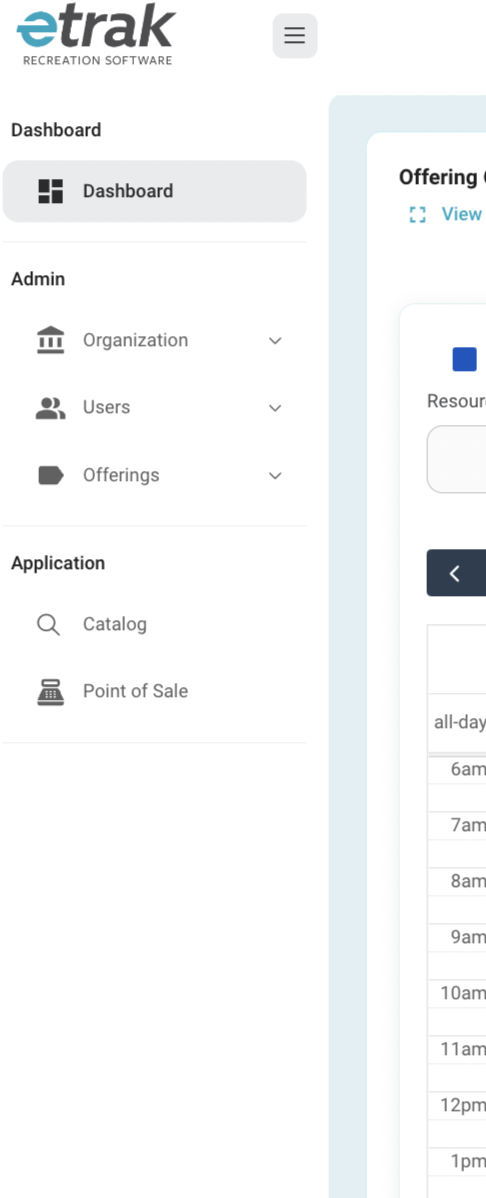
‘Offerings’ and ‘Application’ subjects can be accessed through the short cut buttons on the right side of the page as well.
| Programs | Resource |
| Pass | Events |
| Activities | Sessions |
| Sales | Catalog |
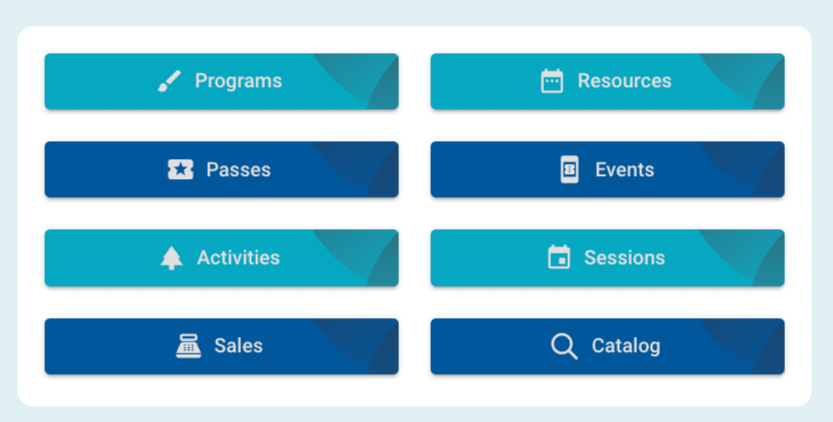
User information, reports and marketing tools can be accessed through the short cuts on the right side of the screen as well.
| Users |
| Account Credits : a report for all account credits in the system can be accessed here |
| Reports |
| Shift Reports |
| Send Email |
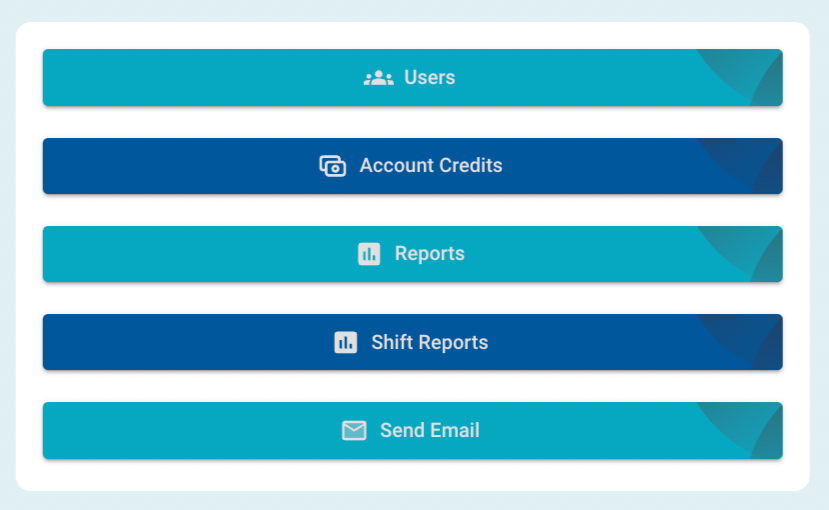
The calendar will show any happenings for the entire organization
Filter by:
month, week, day or list
resource (using drop down)
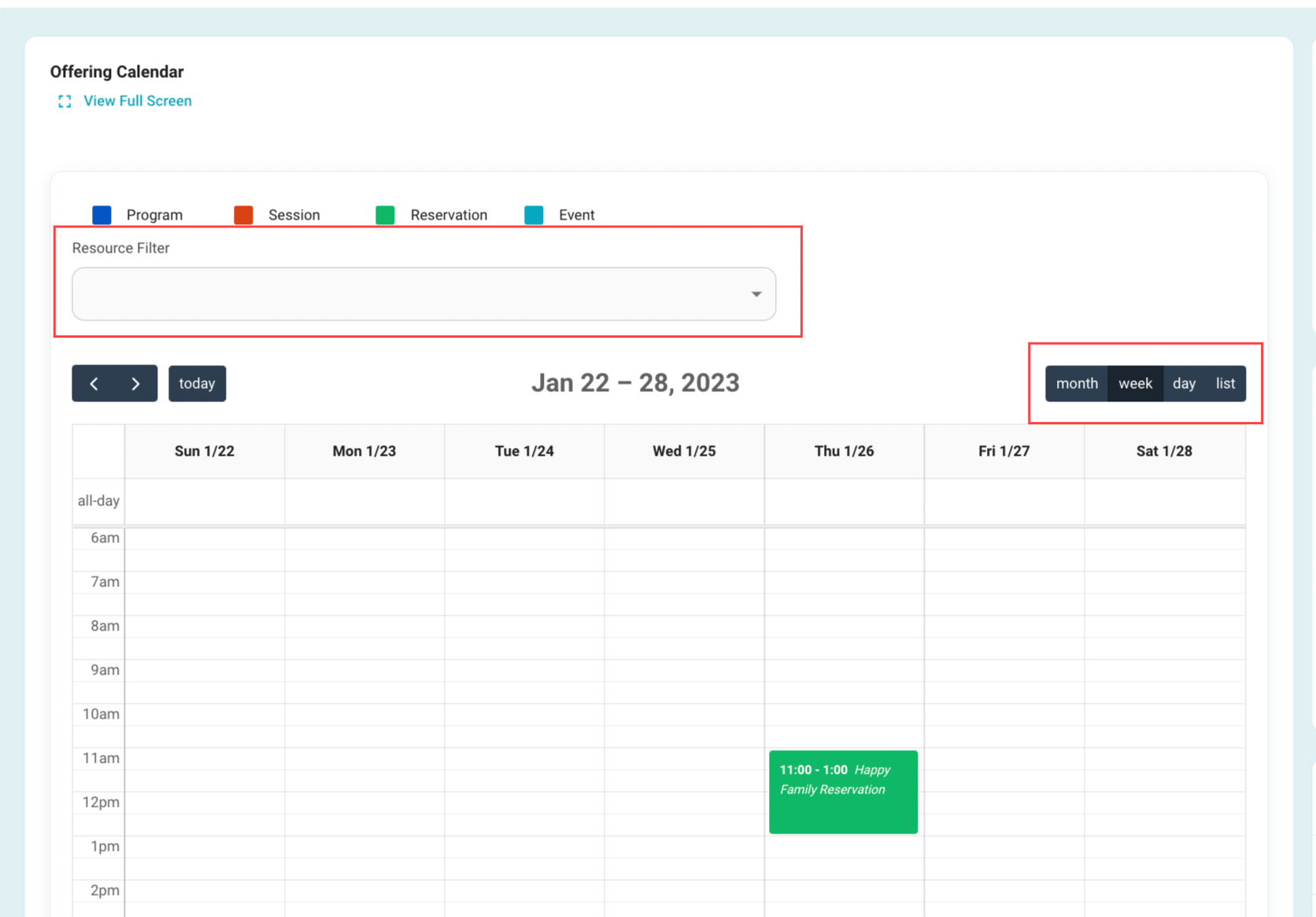
Quick financial summaries are provided below the calendar
All transactions: filter day/month in the upper right hand corner of the box.
Unpaid items: pull report of owed money by clicking the clipboard icon

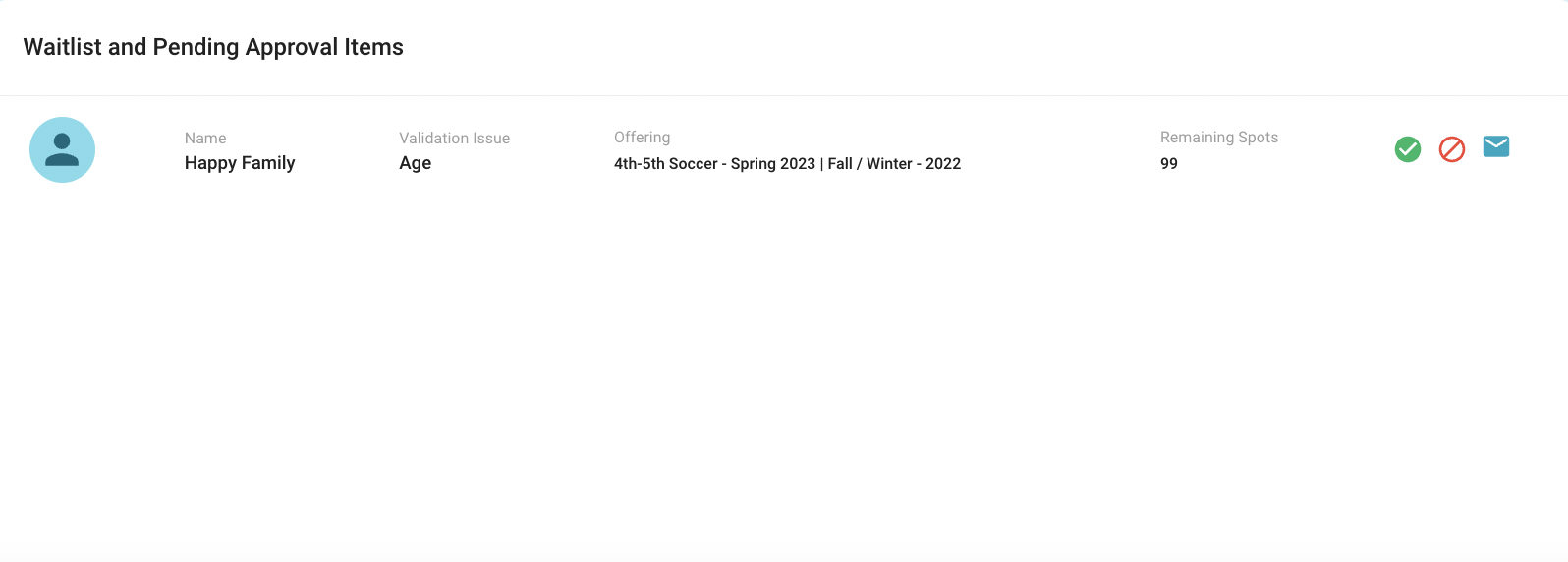
Any waitlisted or pending approval items can be found at the bottom of the dashboard.
Validation issue: age, gender, grade, waitlist
Check mark = approve (in the case of a waitlist, can only approve if there are spots open. Offering will have to be edited to expand class size or people will have to cancel registrations for spots to open up).
Red circle = deny (will move their request to an inactive state)
Envelope = send user an email (can send user an email regarding registration directly from this screen).
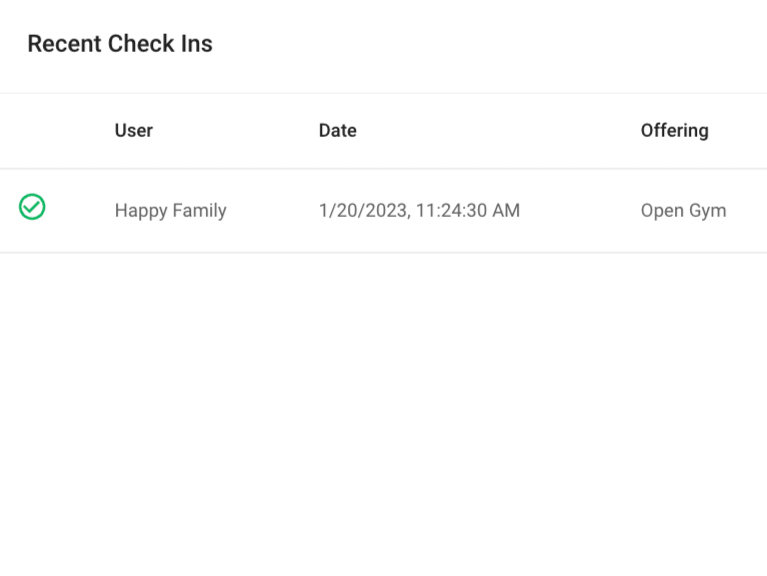
The recent check in window will update as users come into the facility. This allows organizations to keep track of who is in the building.
At the top right of the screen there is a short cut to the cart, a short cut for any notifications, as well as a way to access profile settings.

Was this article helpful?
That’s Great!
Thank you for your feedback
Sorry! We couldn't be helpful
Thank you for your feedback
Feedback sent
We appreciate your effort and will try to fix the article