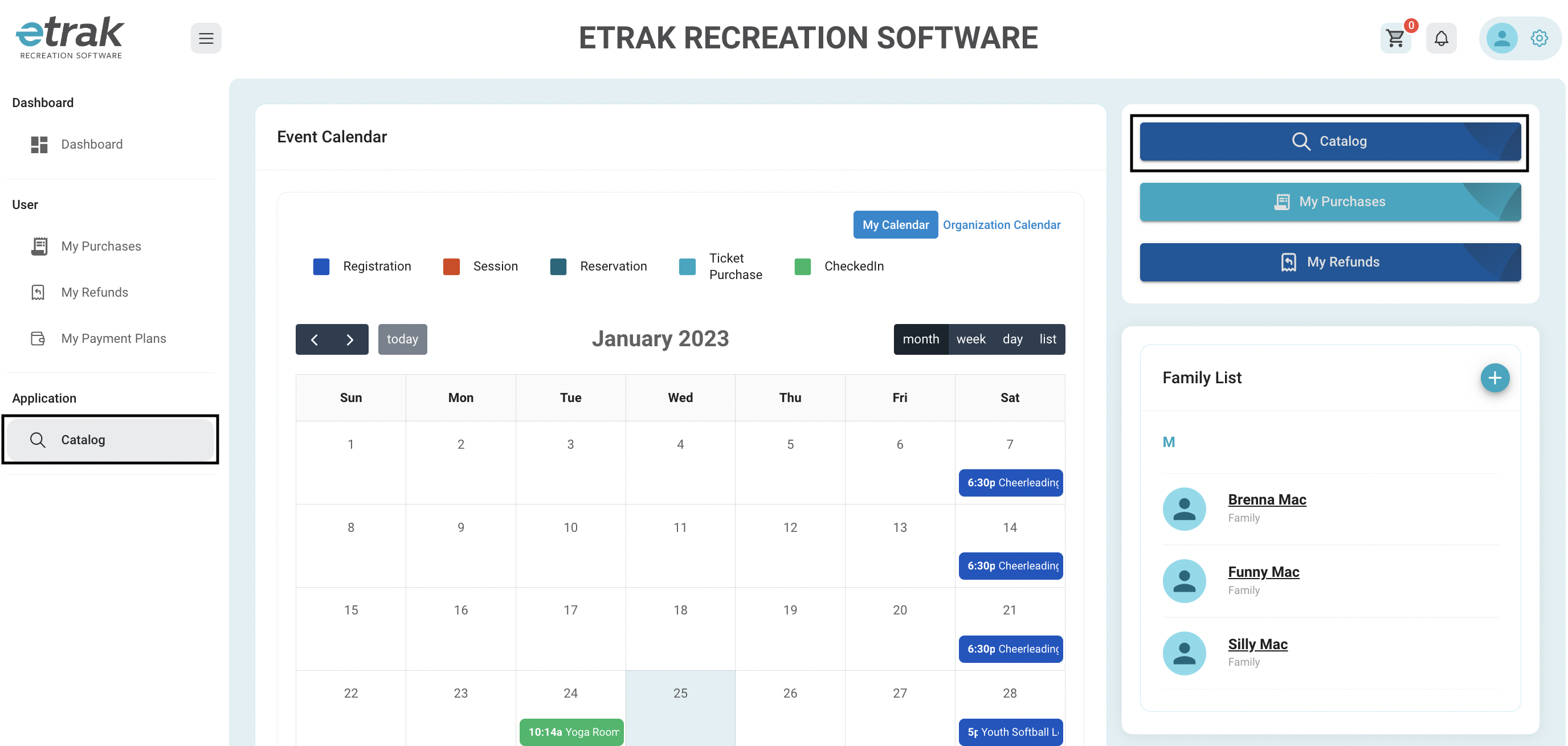
Select 'Catalog' from the navigation menu on the left side of the screen or the blue button on the upper right side of the screen.
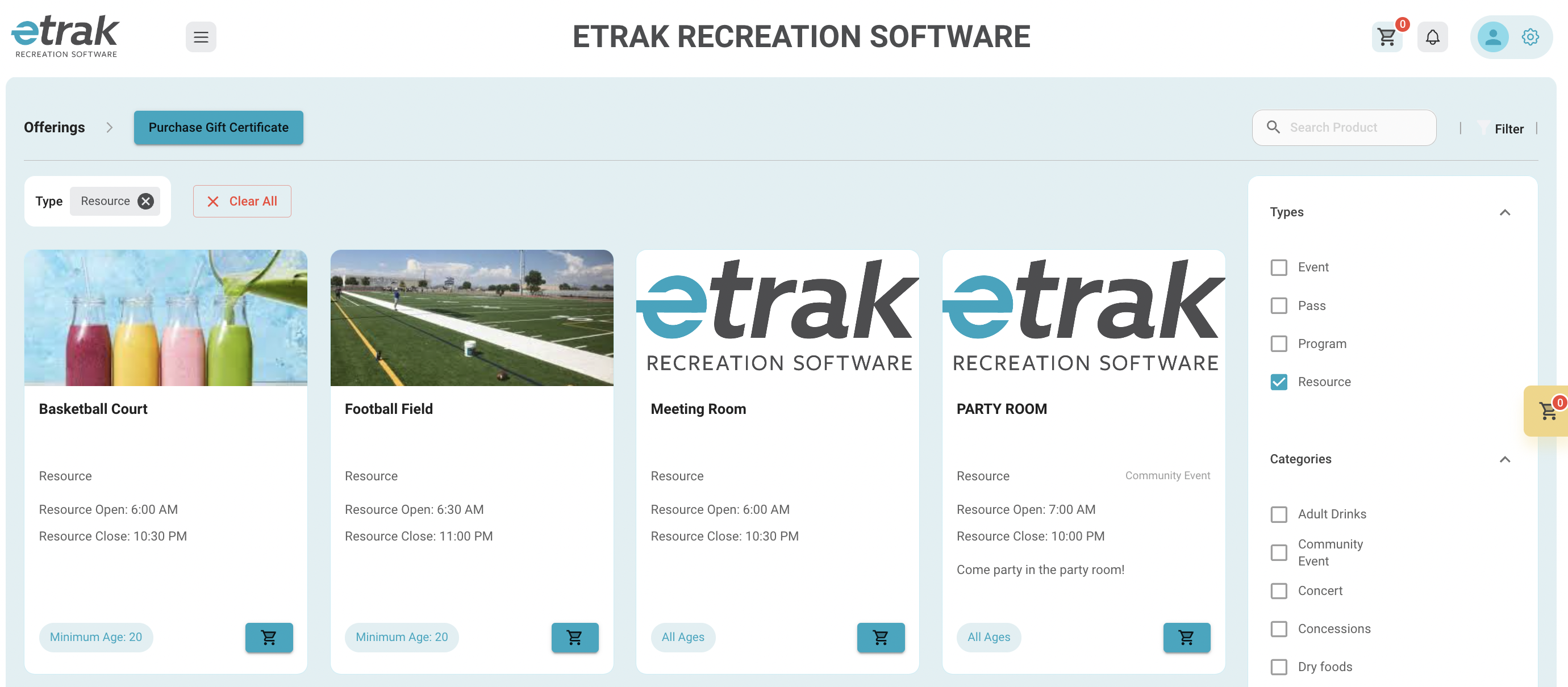
Filter down to show 'Resource' from the right side of the screen.
Select blue cart icon or the picture of the resource that you are interested in reserving.
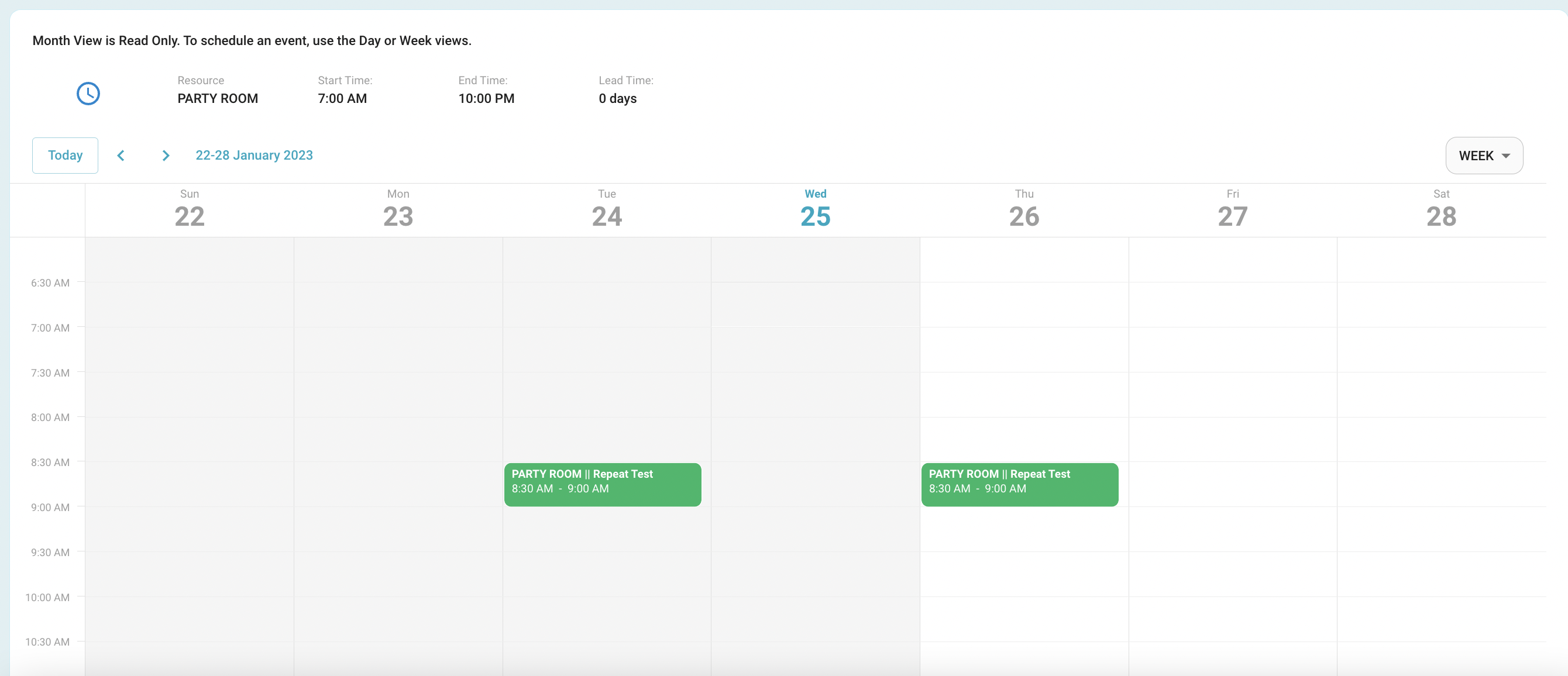
The resource calendar will appear and show any reservations that have already been made.
Filter by Week, Month or Day view on the right side of the screen.
*month view is read only.
Select an open time slot to reserve by double clicking on the day and time.
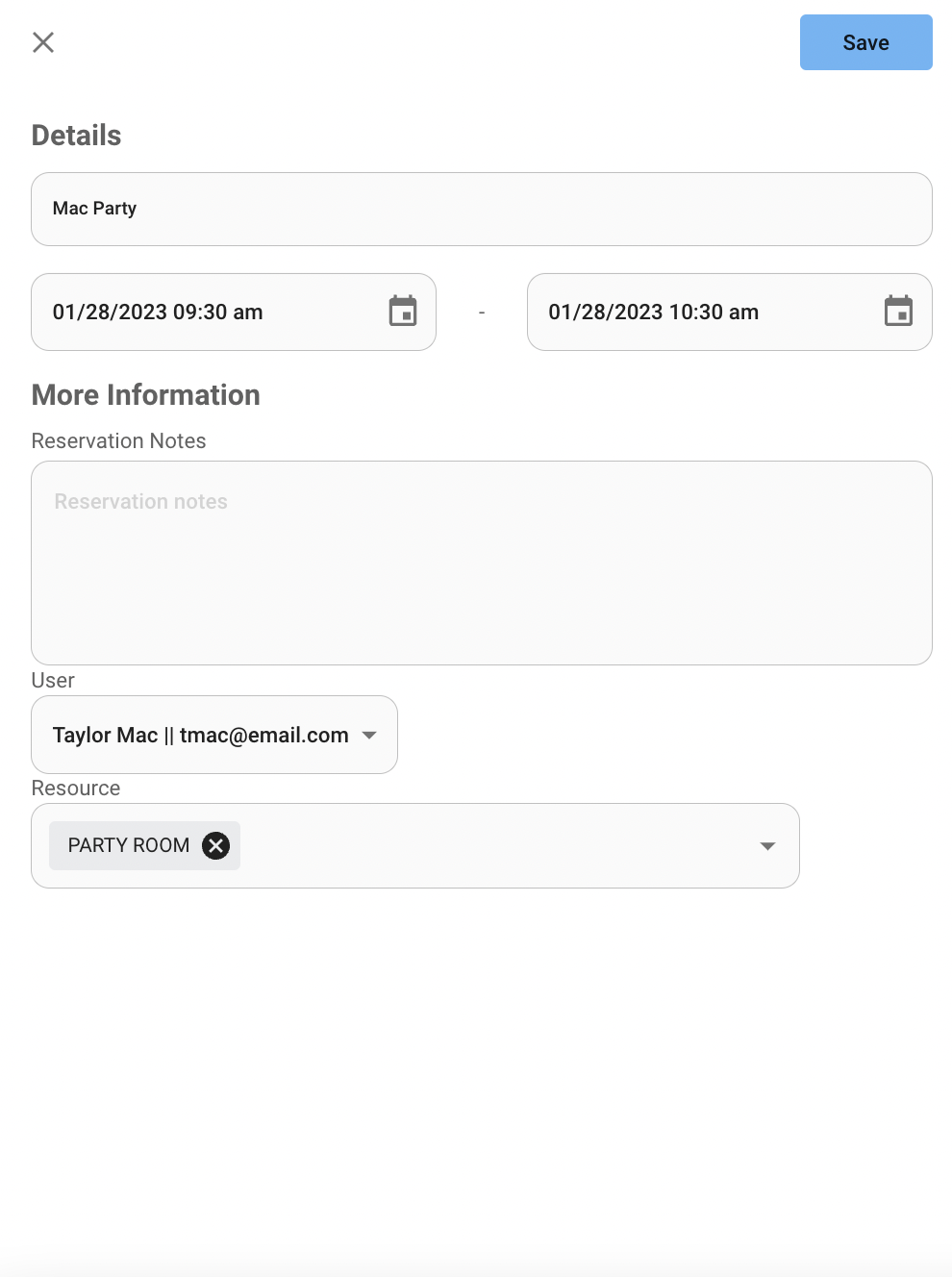
Enter all reservation details in the pop-up.
Reservation Title: a unique name that describes reason for reservation
Reservation Start Date/Time and End Date/ Time
Reservation Notes
User
Resource
Press ‘Save’ to move on to view reservation information.
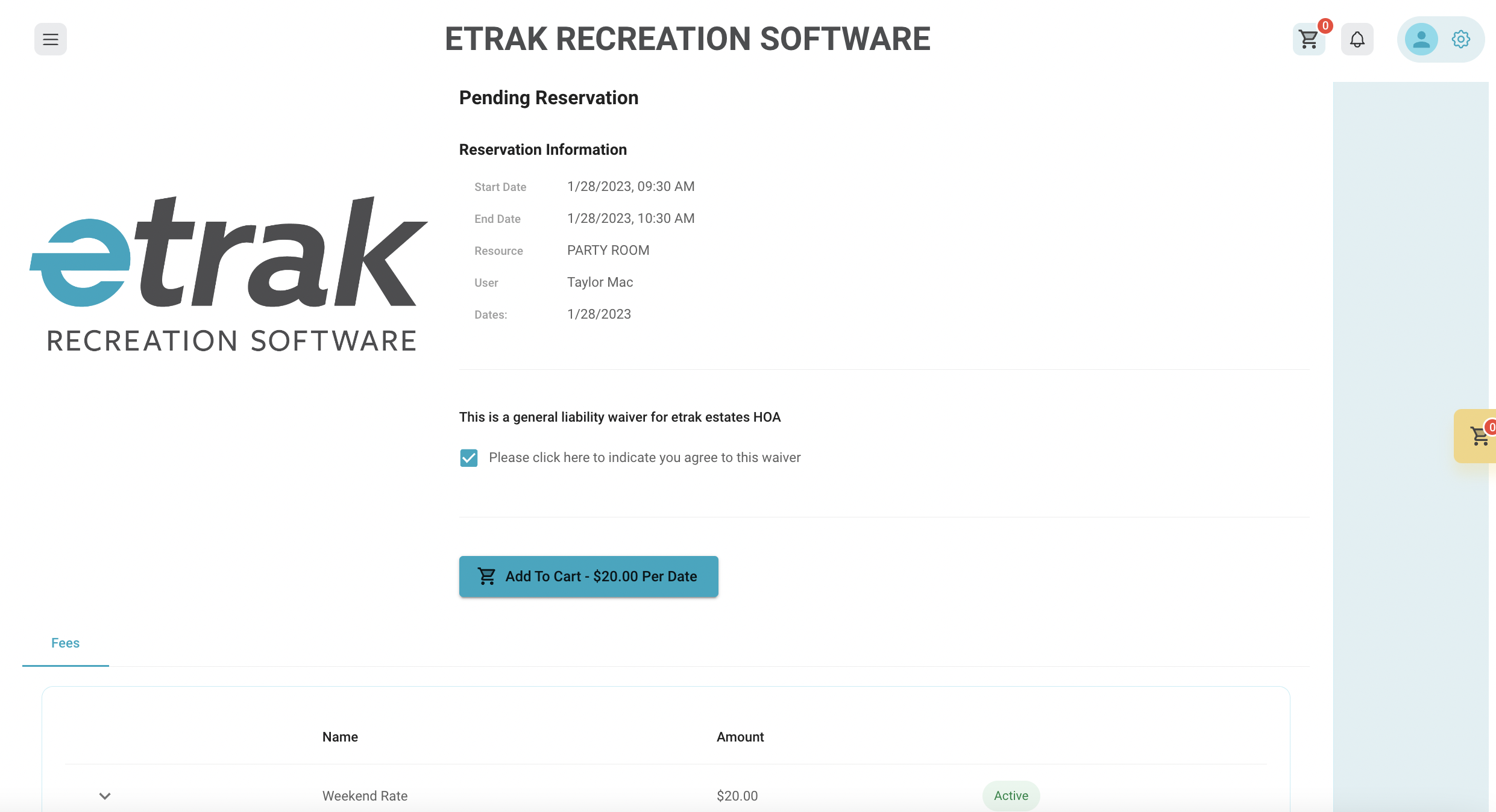
If a waiver is required it will need to be selected to add the reservation to the cart.
Fees will calculate and total will show on the ‘Add to Cart’ button, select this button to add reservation to the cart.
Fee rules can be found at the bottom of the page.
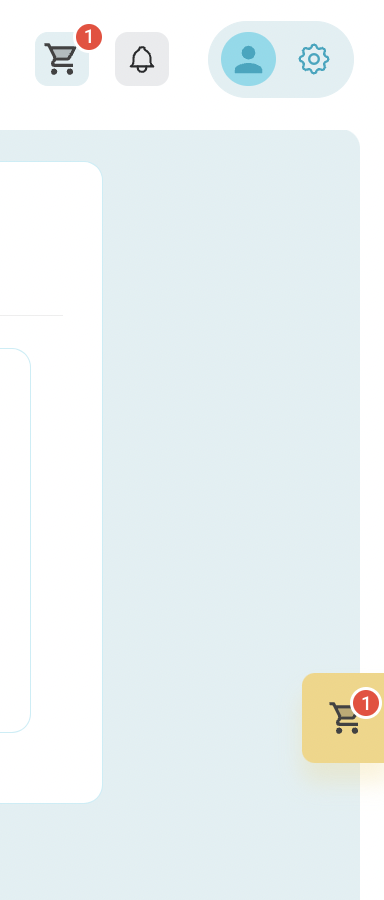
The cart icons will update to show ‘1’ item in the cart.
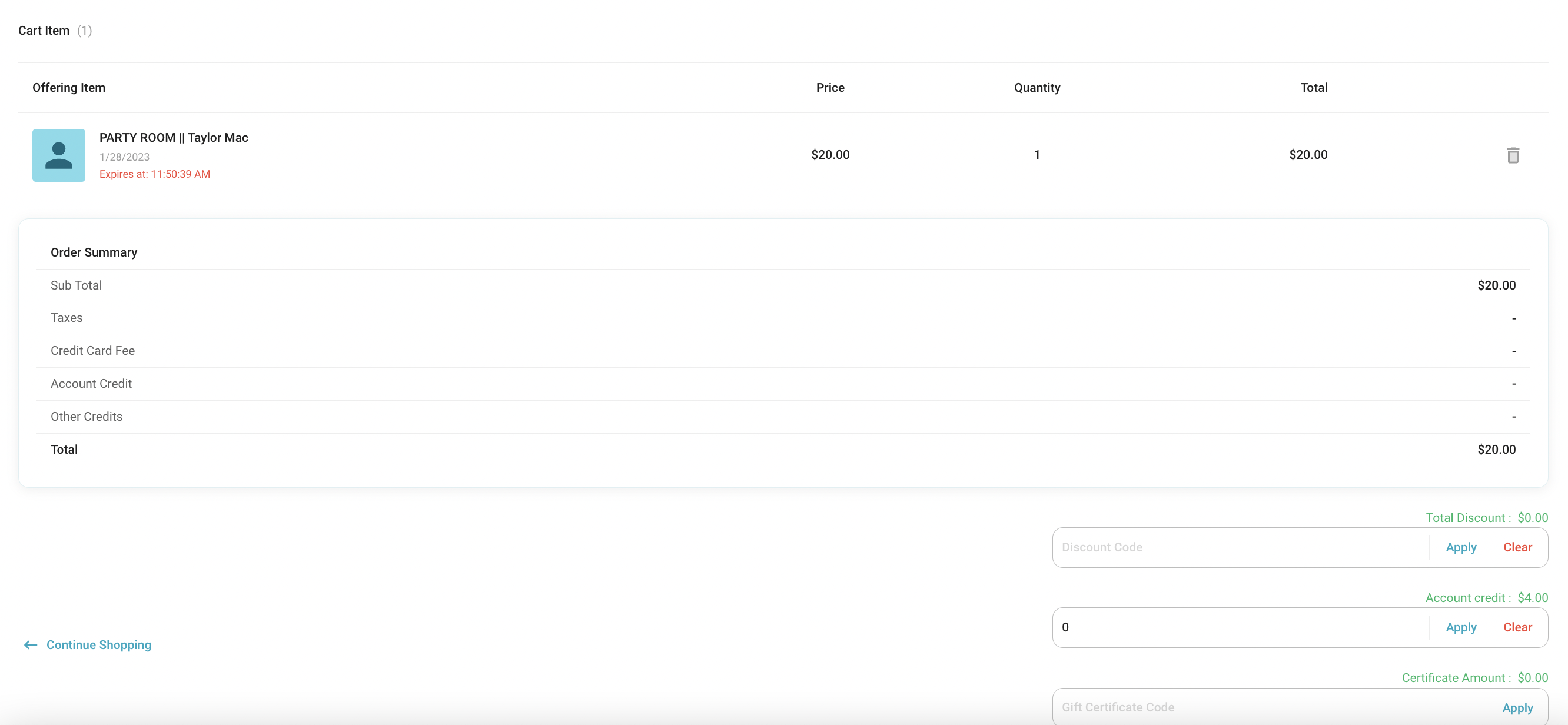
Items will save in the cart for 30 minutes, after 30 minutes the cart will empty.
*reservation is not yours until payment is complete.
Discount code, account credit, or gift cards can be entered at the bottom of this screen.
Click ‘Apply’ after entering details before moving to payment information.
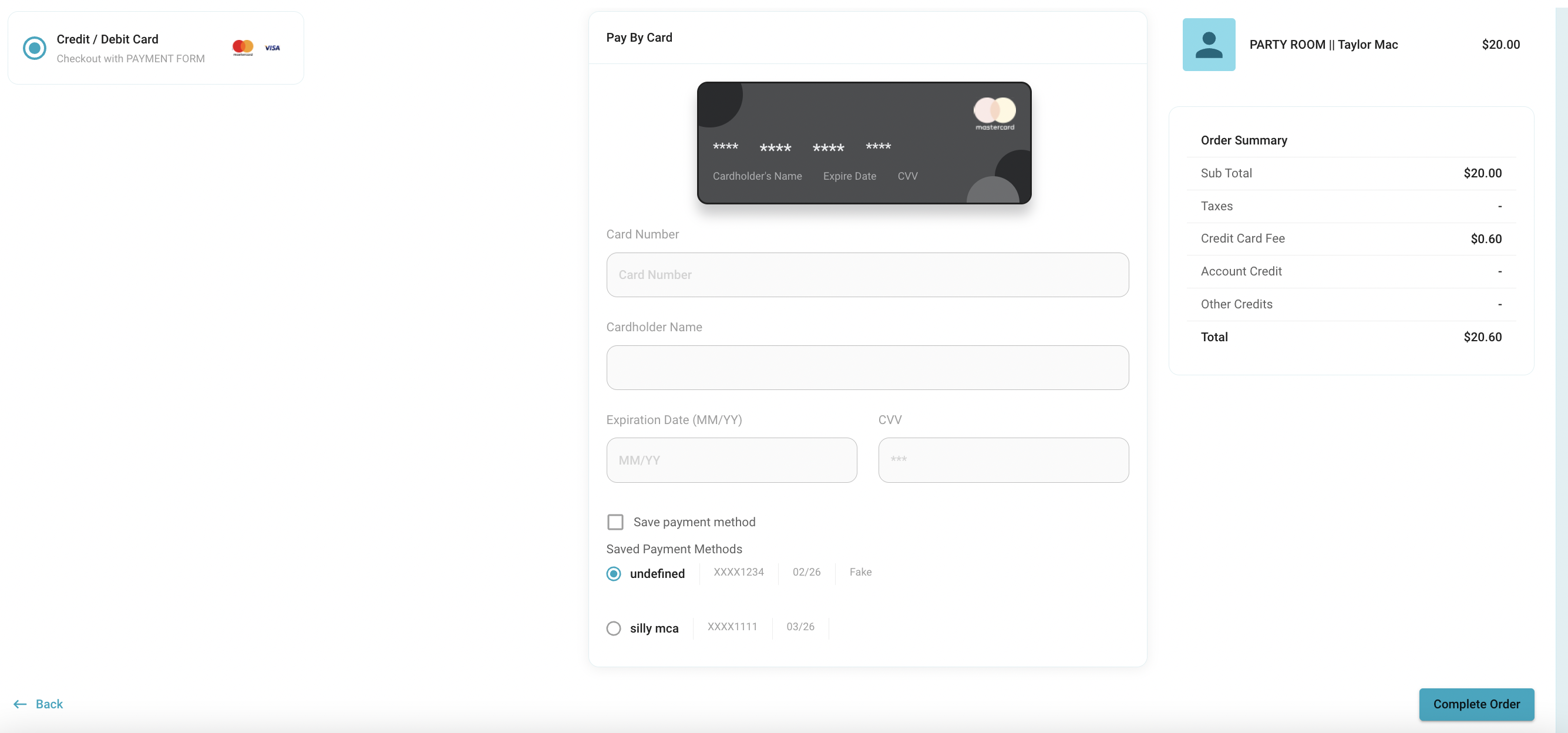
Enter credit or debit card information in the fields.
Check ‘Save Payment Method’ to save this information to your profile for a quicker checkout process.
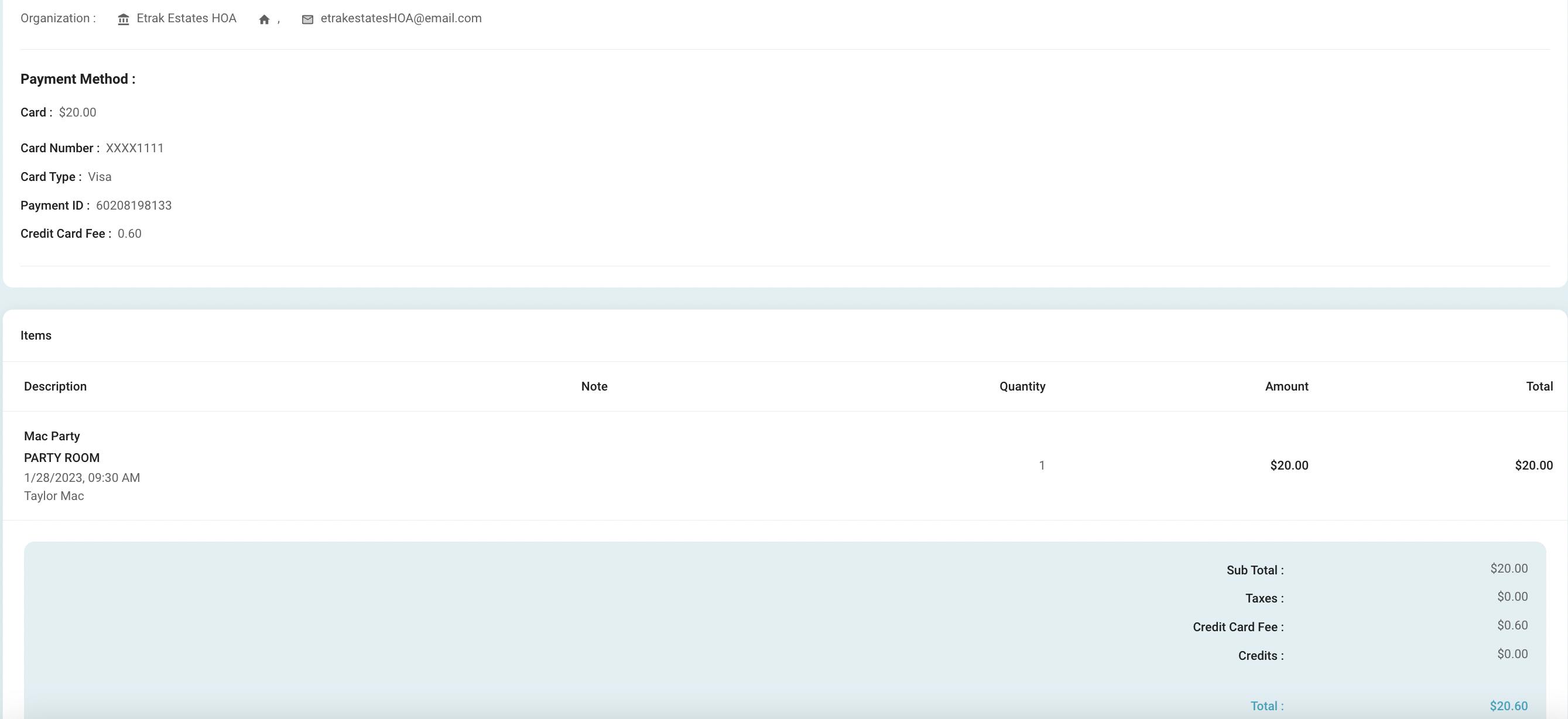
Success!
Was this article helpful?
That’s Great!
Thank you for your feedback
Sorry! We couldn't be helpful
Thank you for your feedback
Feedback sent
We appreciate your effort and will try to fix the article