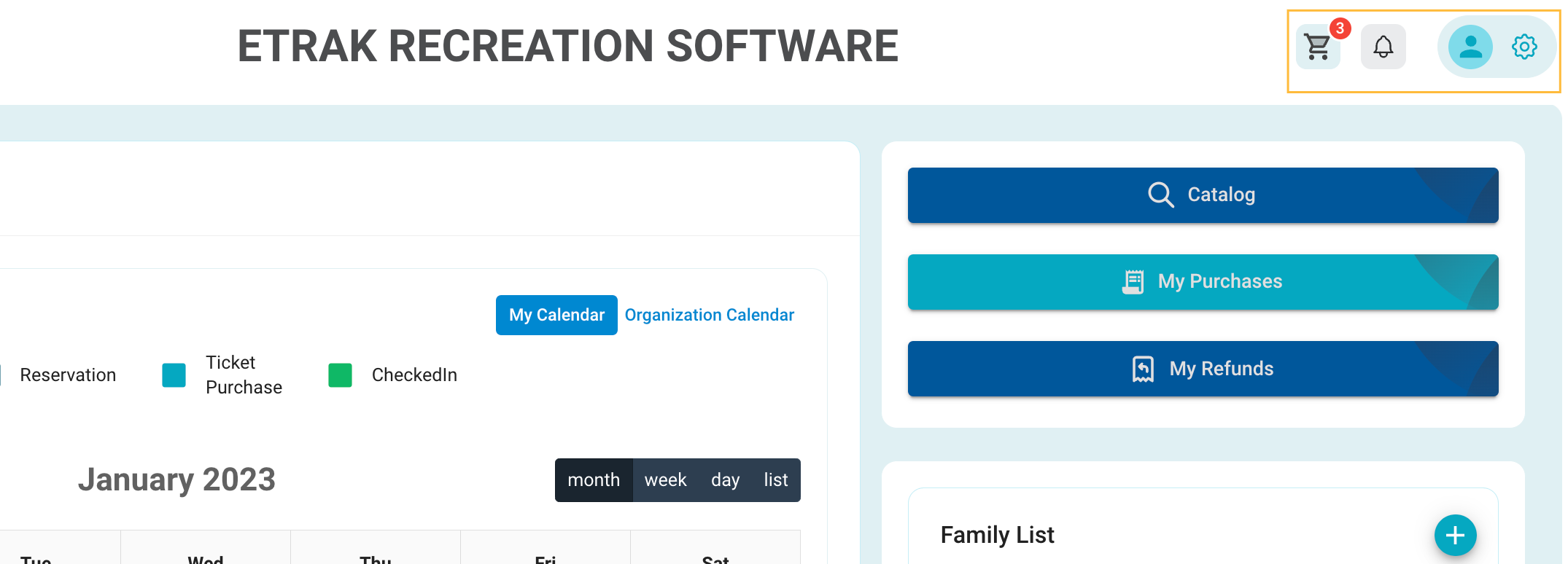
The menu on the left side contains quick buttons to most information needed, it can be hidden by pressing the button with 3 lines in the upper left corner. Shortcut buttons to these options will be displayed on the right side of your dashboard
| My Purchase | My Refunds | My Payment Plans |
| Catalog |
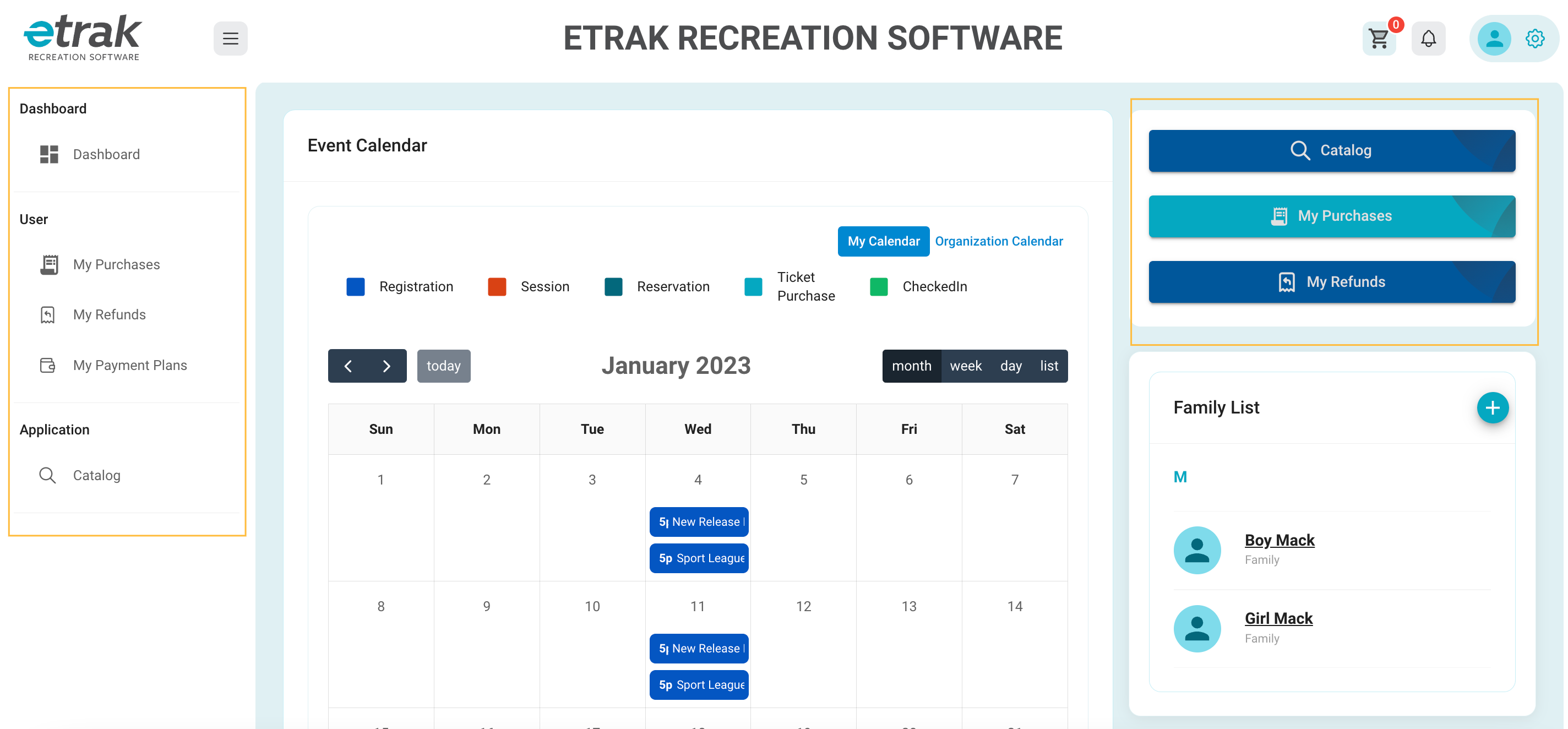
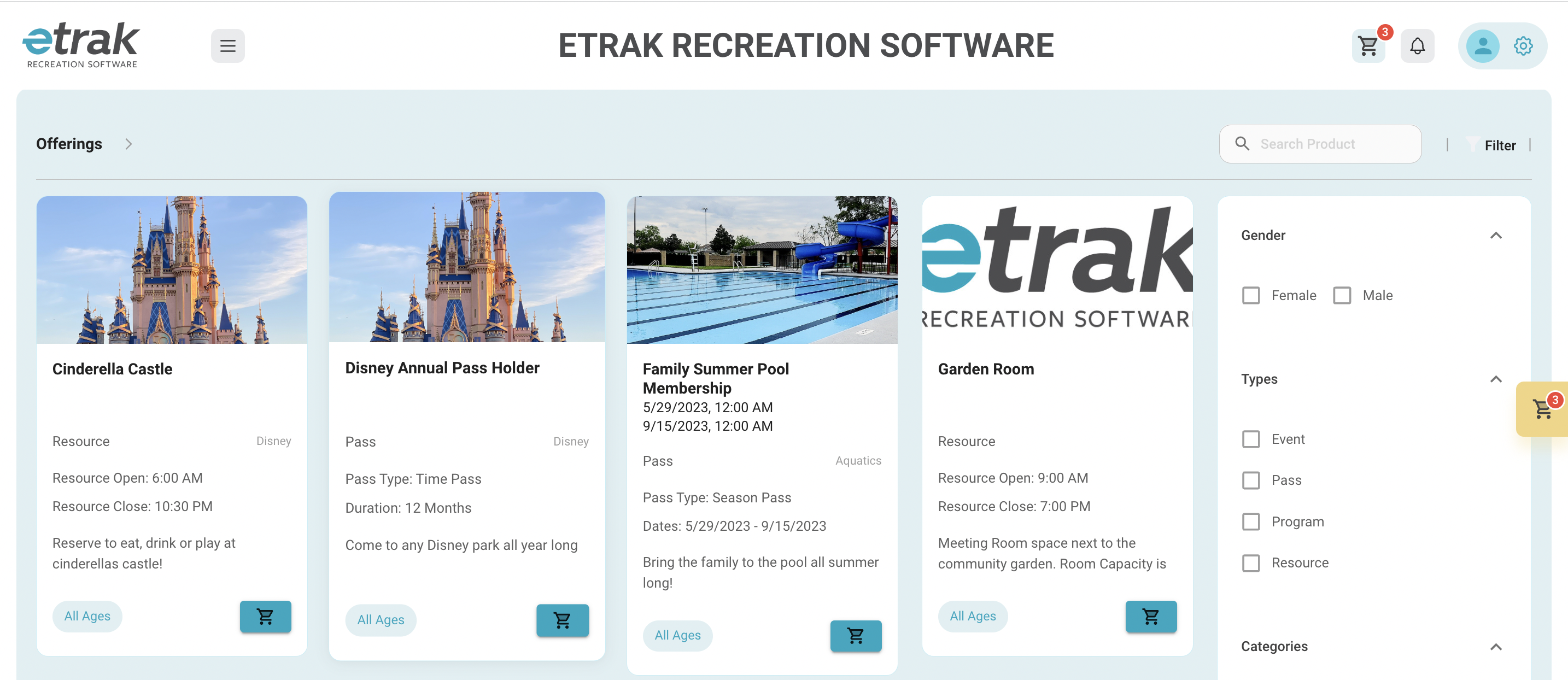
Select the catalog button to view any available offerings for purchase.
Return to the dashboard at any point by clicking the logo on the upper left side of the screen.
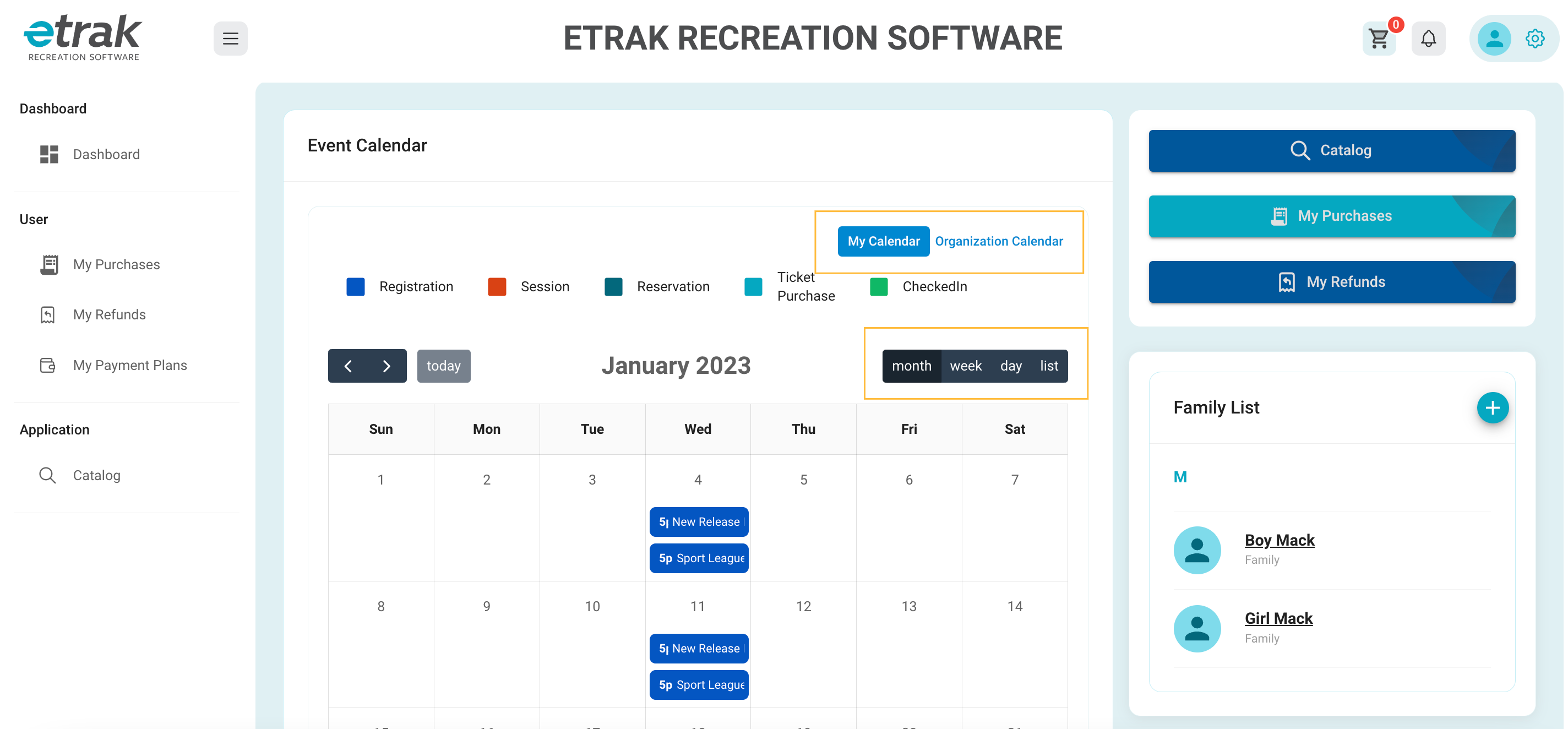
The calendar will show any happenings for your family or the organization as a whole
Filter by:
month, week, day or list view.
Financial summaries can be found underneath the calendar.
Balance, click the clipboard icon to view the balance details and pay the amount owed.
Account Credits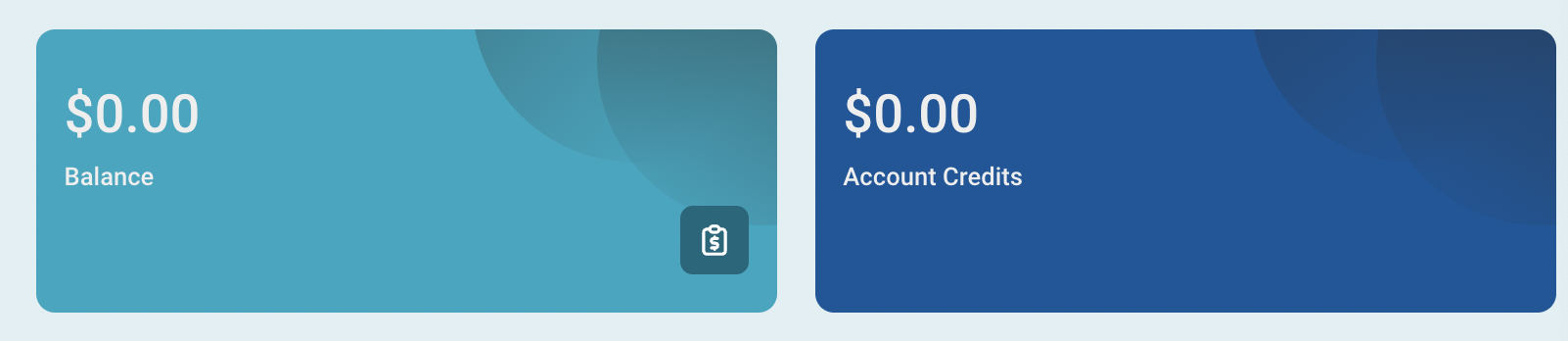
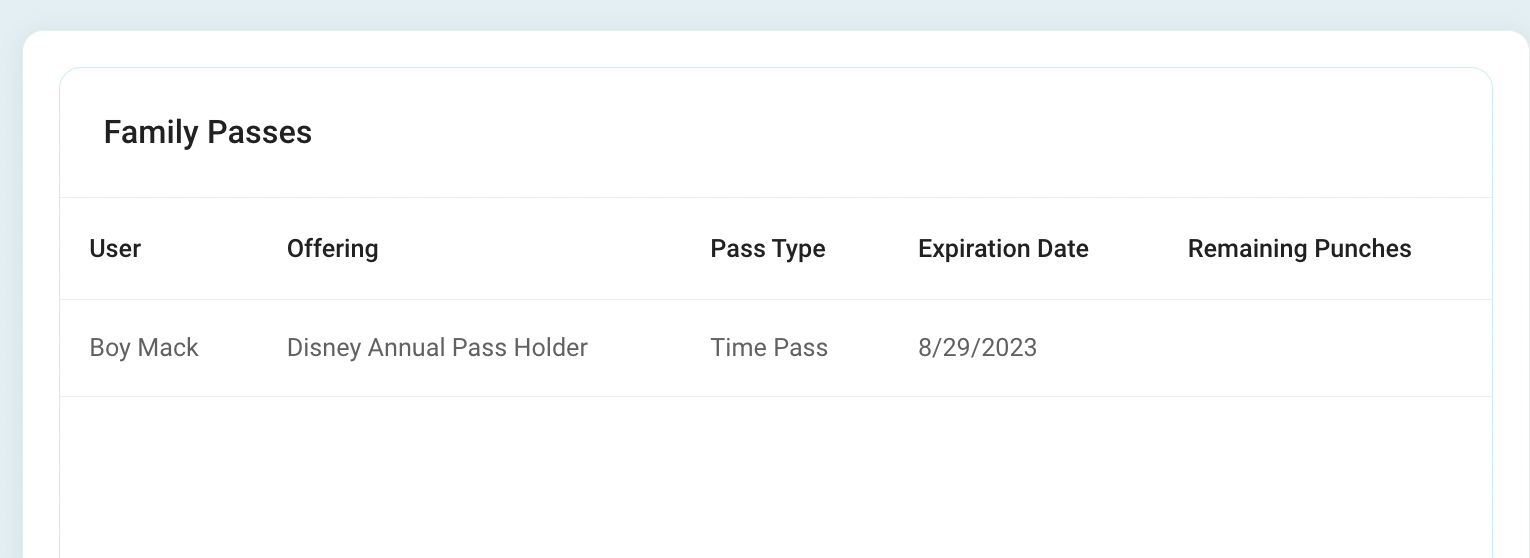
Active Passes for the user or family can be found at the bottom of the dashboard.
Time of expiration or remaining punches will show on this page to allow you to track your memberships and learn when it is time to get a new one
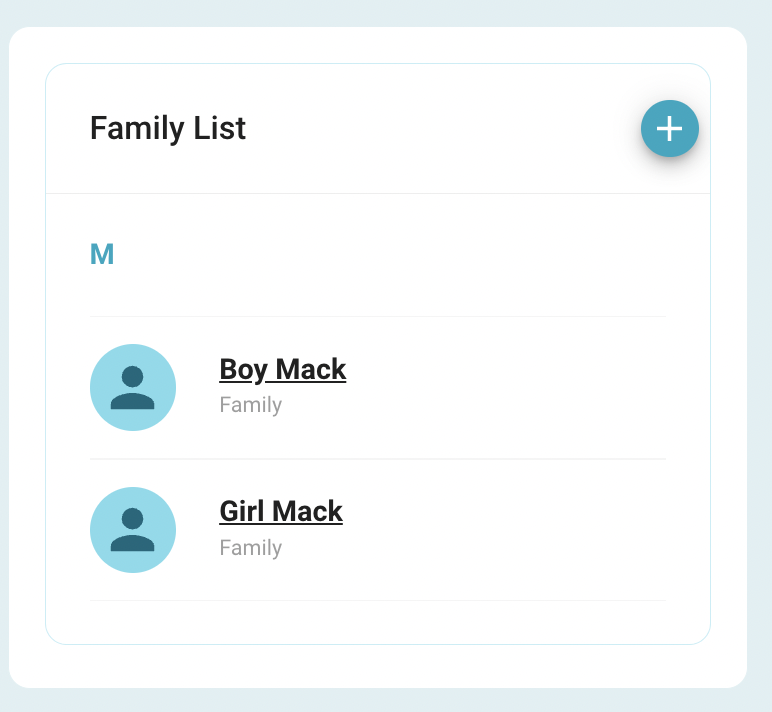
Family members are shown on the right side of the screen.
Click into a specific account to edit that family members information.
Press the blue ‘plus’ icon to add a new family member to your account.
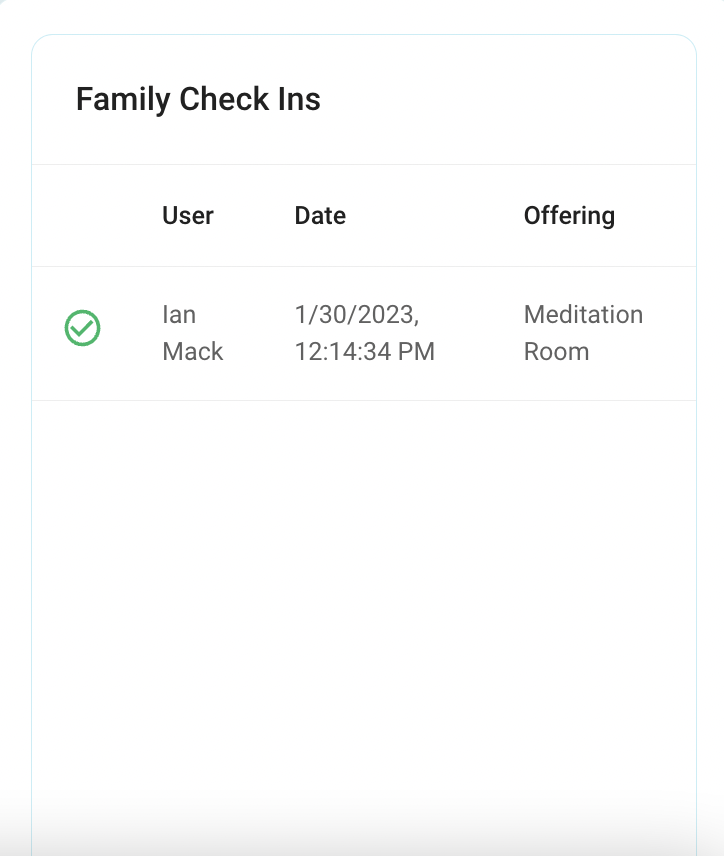
Any activity check-ins for your family can be found on the bottom right side of the screen.
This allows you to track how often your family is using the organizations facilities.
At the top right of the screen there is a short cut to the cart, a short cut for any notifications, as well as a way to access profile settings.
Was this article helpful?
That’s Great!
Thank you for your feedback
Sorry! We couldn't be helpful
Thank you for your feedback
Feedback sent
We appreciate your effort and will try to fix the article