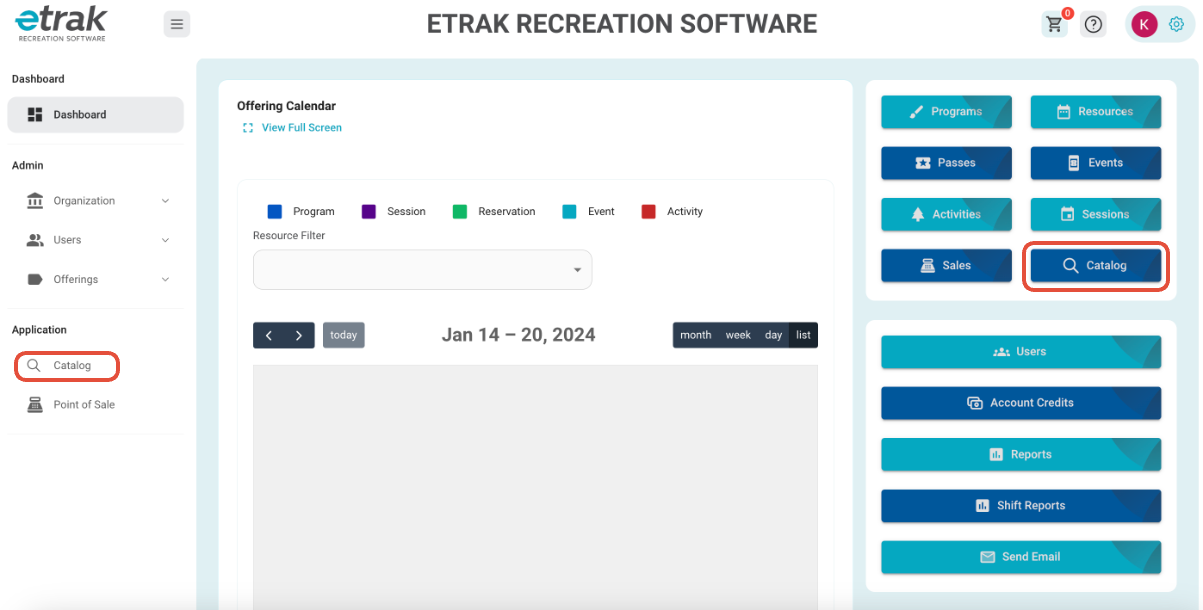
1. Select the ‘Catalog’ button from the menu on the left side of the screen or the blue button on the right side.
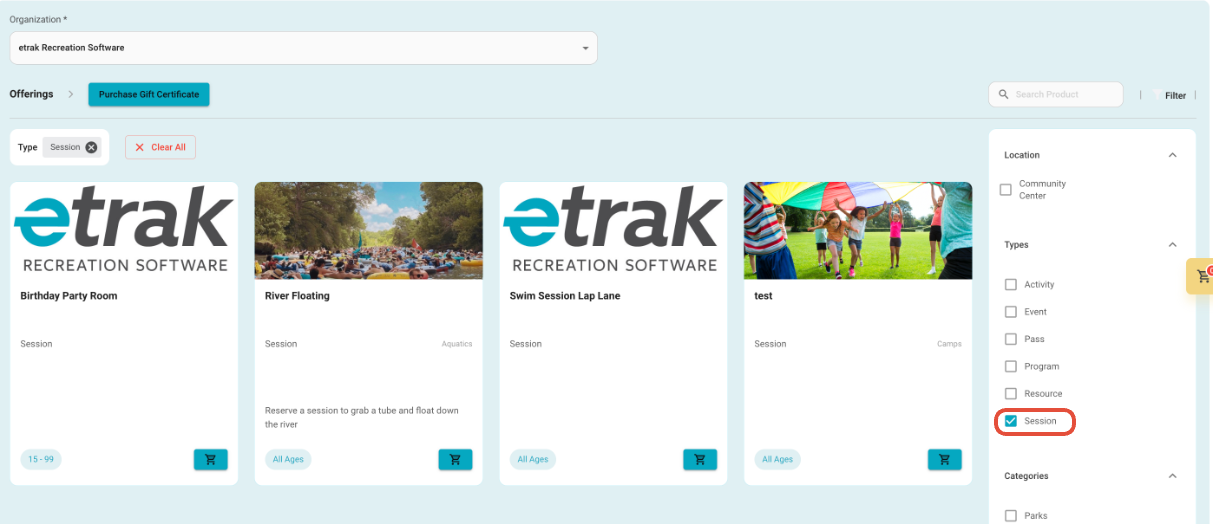
2. Filter the catalog down to just show the offering type ‘Session’
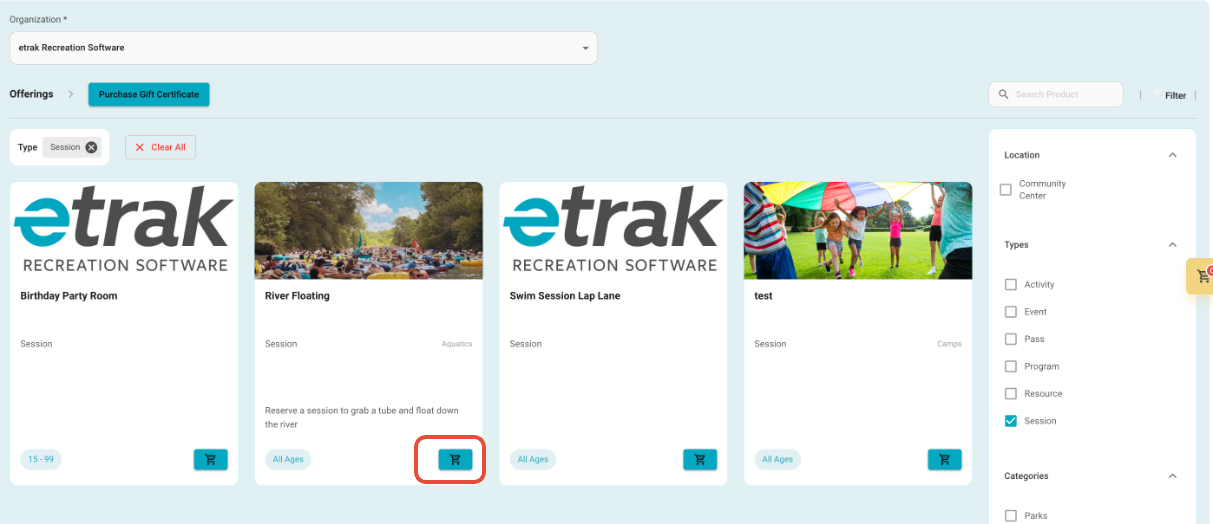
3. Press the ‘Cart’ icon that coordinates with the session the user wants to register for.
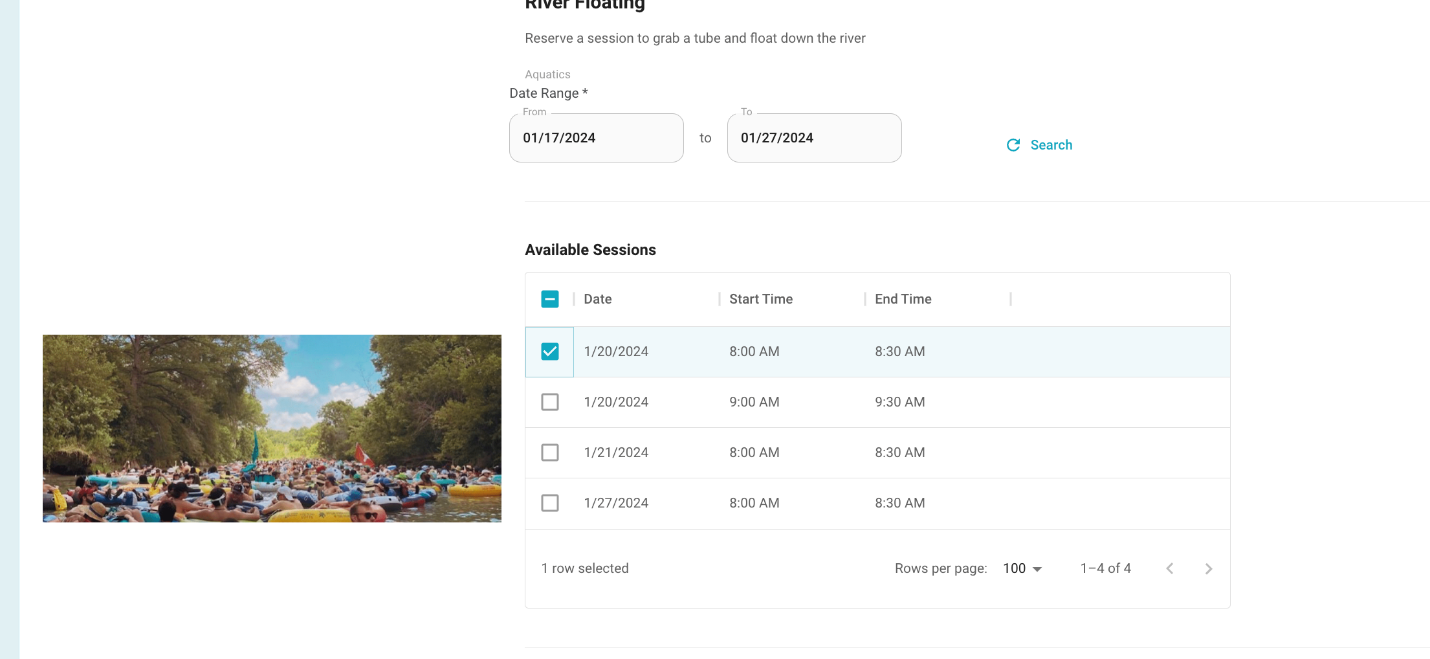
4. Select the date range in which the session the user is interested in occurs
5. Select the individual session times the user wishes to register for.
6. In the Select User field click the drop down and select the family member you wish to register.
7. If a waiver is attached to this session it MUST be checked to proceed.
8. Once all information is complete, press ‘Add to Cart’ at the bottom of the page.
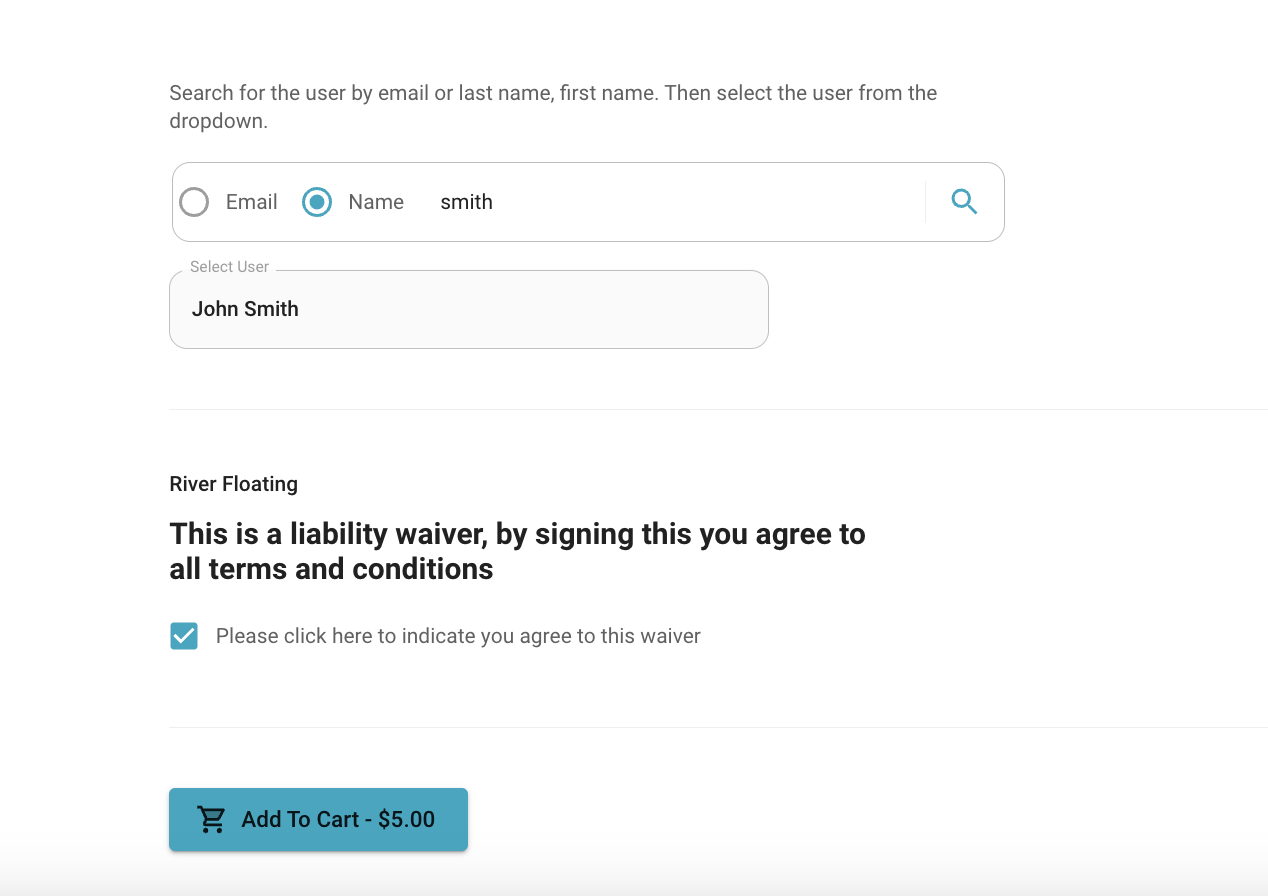
9. Items will save in the cart for 30 minutes, after 30 minutes the cart will empty.
*registration spot is not yours until payment is complete
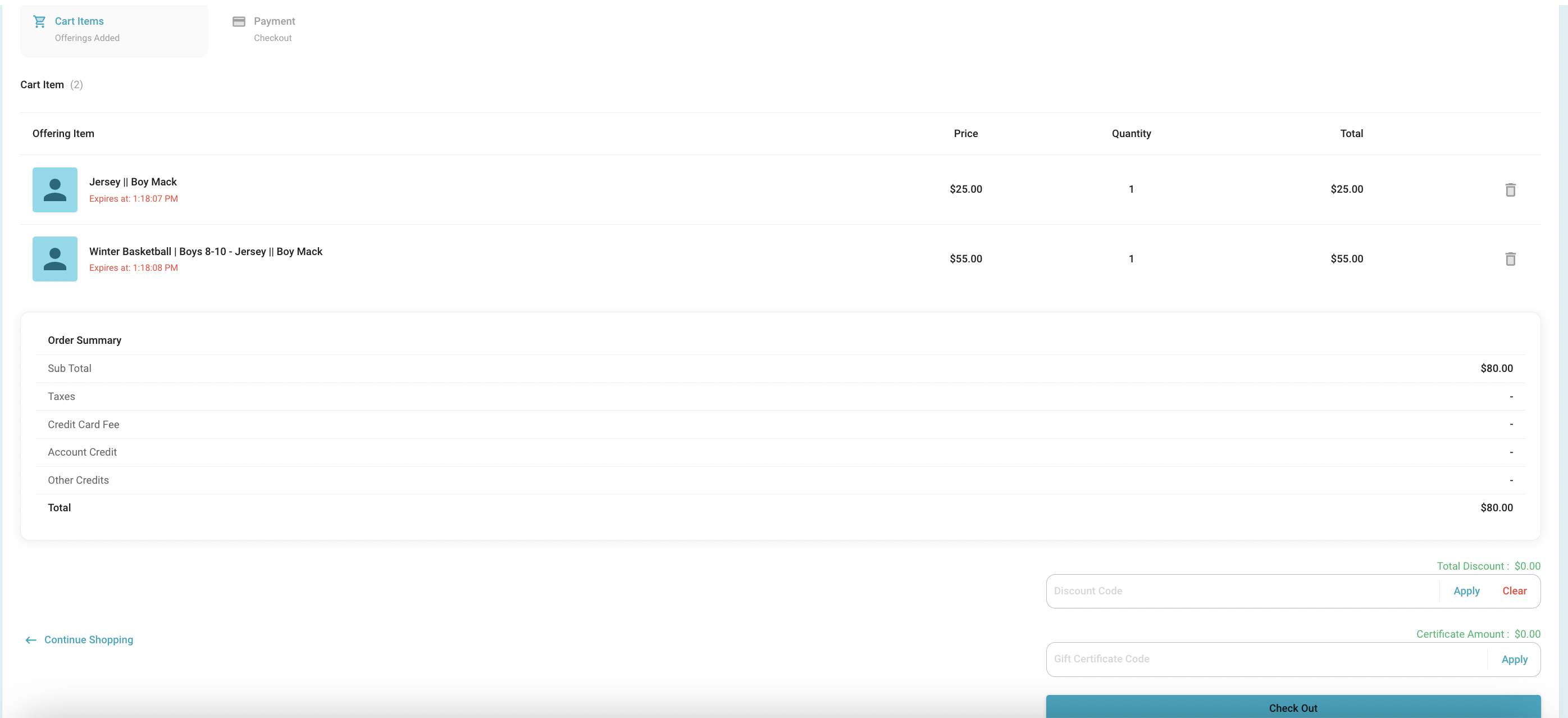
Discount code, account credit, or gift cards can be entered at the bottom of this screen. Click ‘Apply’ after entering details before moving to payment information.
Use the trash can button to remove any unwanted items
Hit the checkout button to move on to payment information
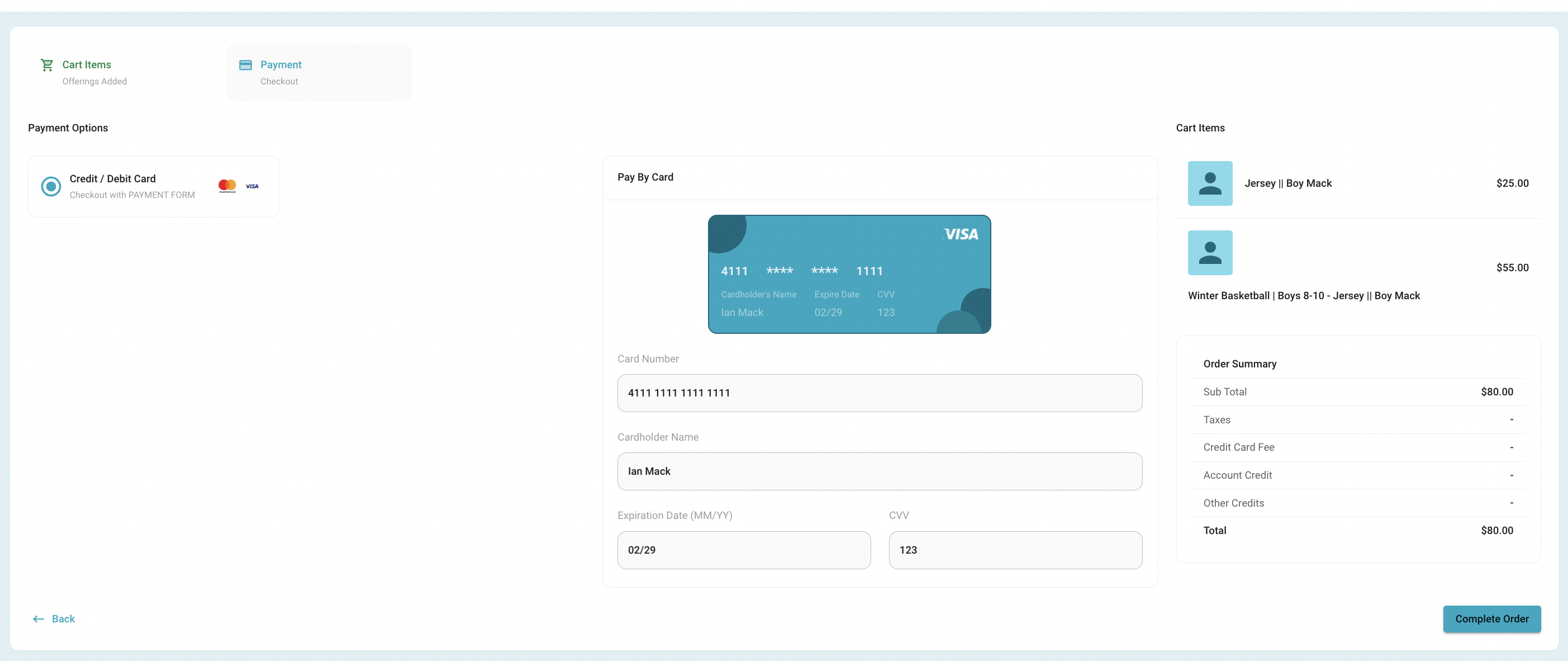
As you enter card information the card picture will update
Hit the "complete order" button to complete the registration payment
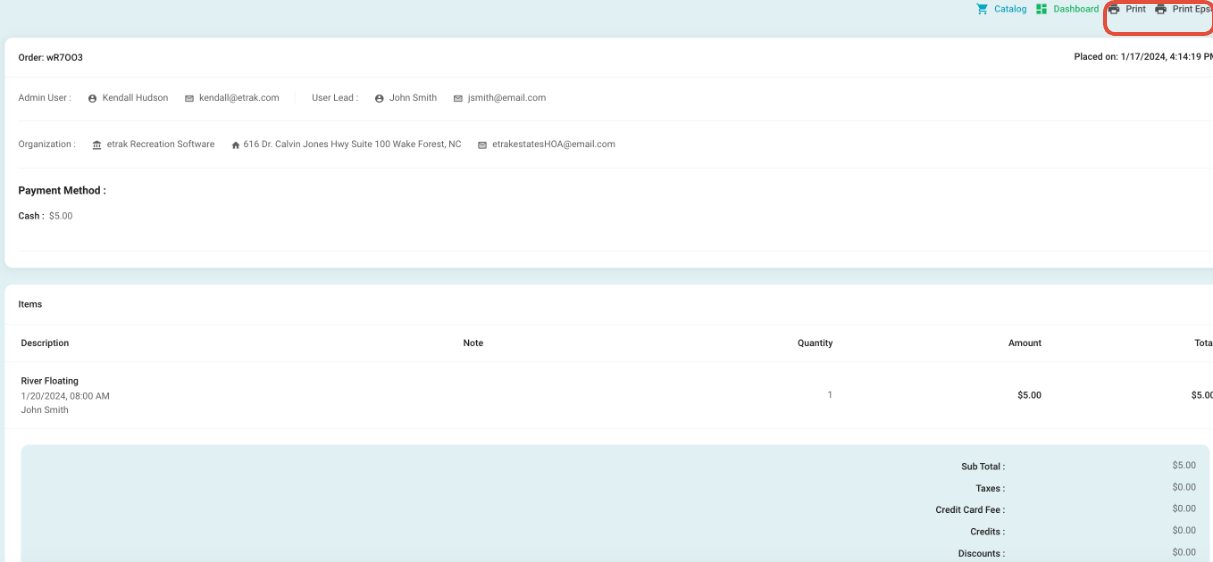
10. The receipt can be printed from this screen.
Was this article helpful?
That’s Great!
Thank you for your feedback
Sorry! We couldn't be helpful
Thank you for your feedback
Feedback sent
We appreciate your effort and will try to fix the article