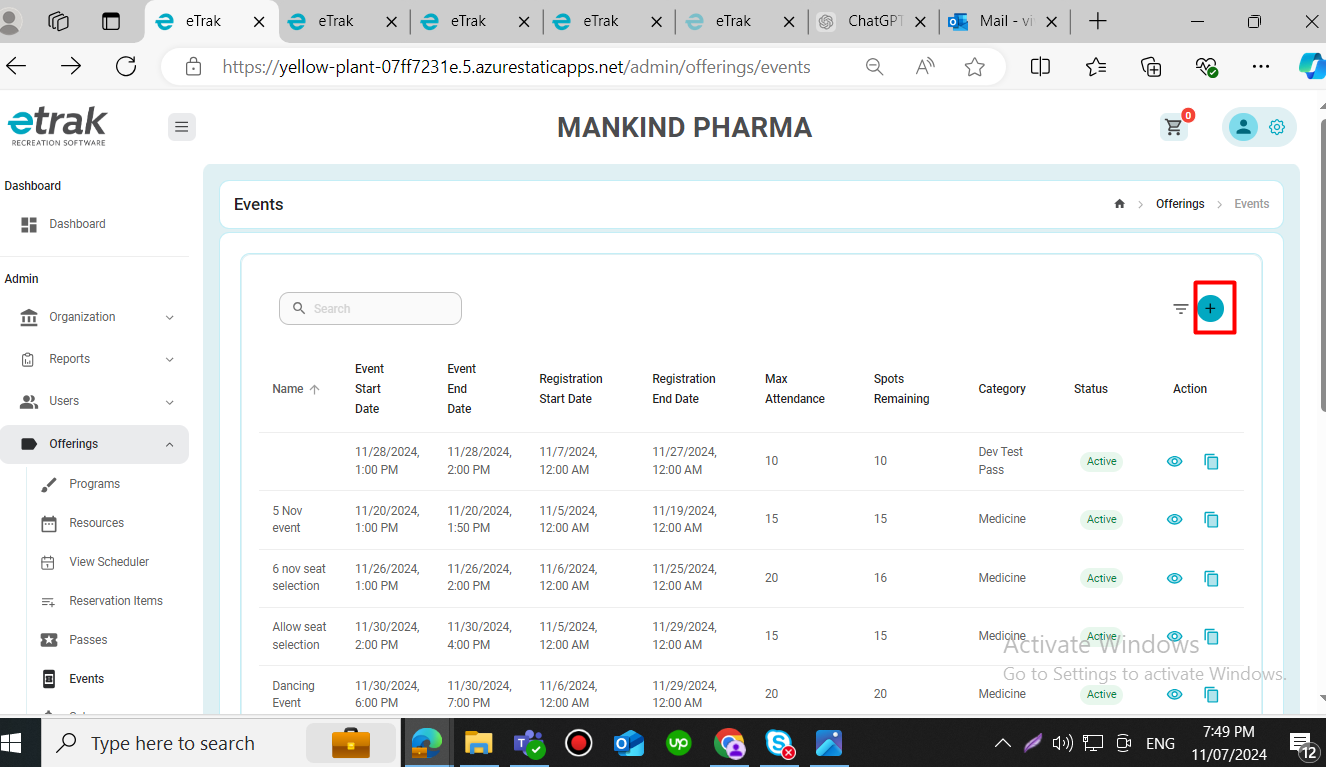
- Start by clicking on the add event icon.
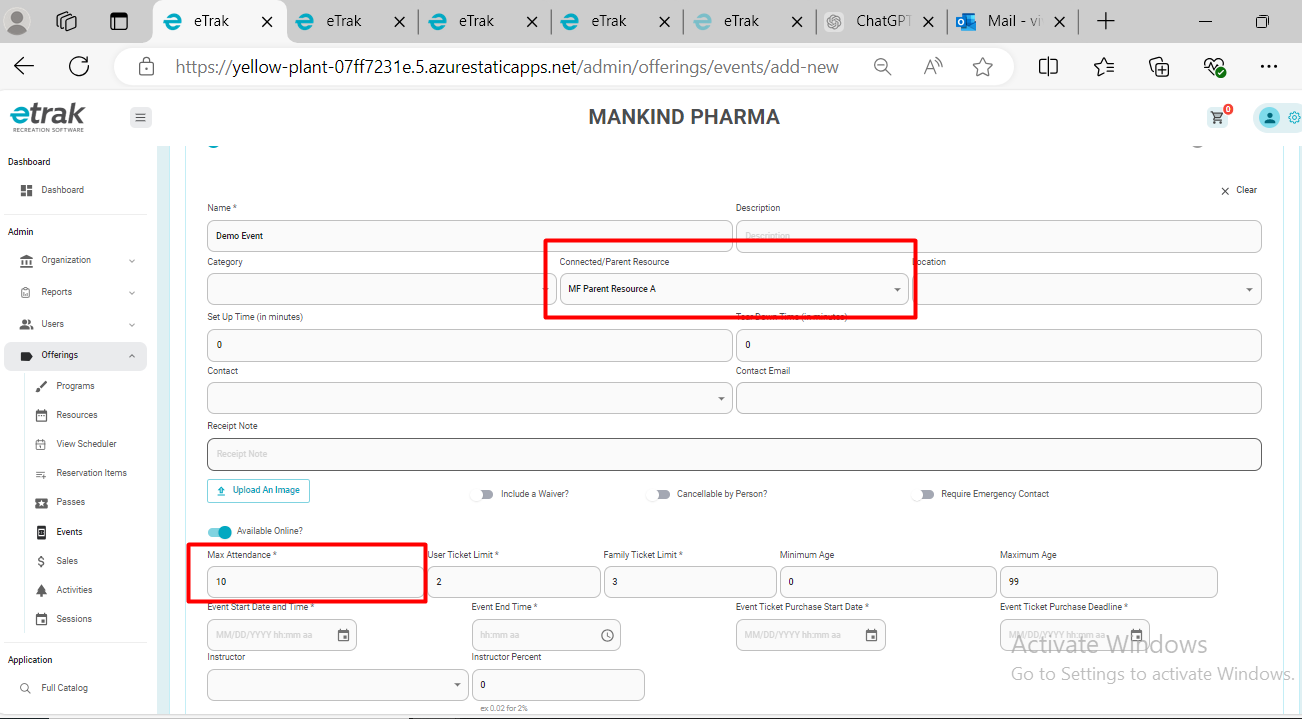
2. Then fill in the connected resource and max attendance to allow seat selection.
*There must be a connected resource in order to use this feature.*
3. Fill in all the required information on this form and then click on the allow seat selection toggle button. If there has already created a layout previously, you will select it from this dropdown.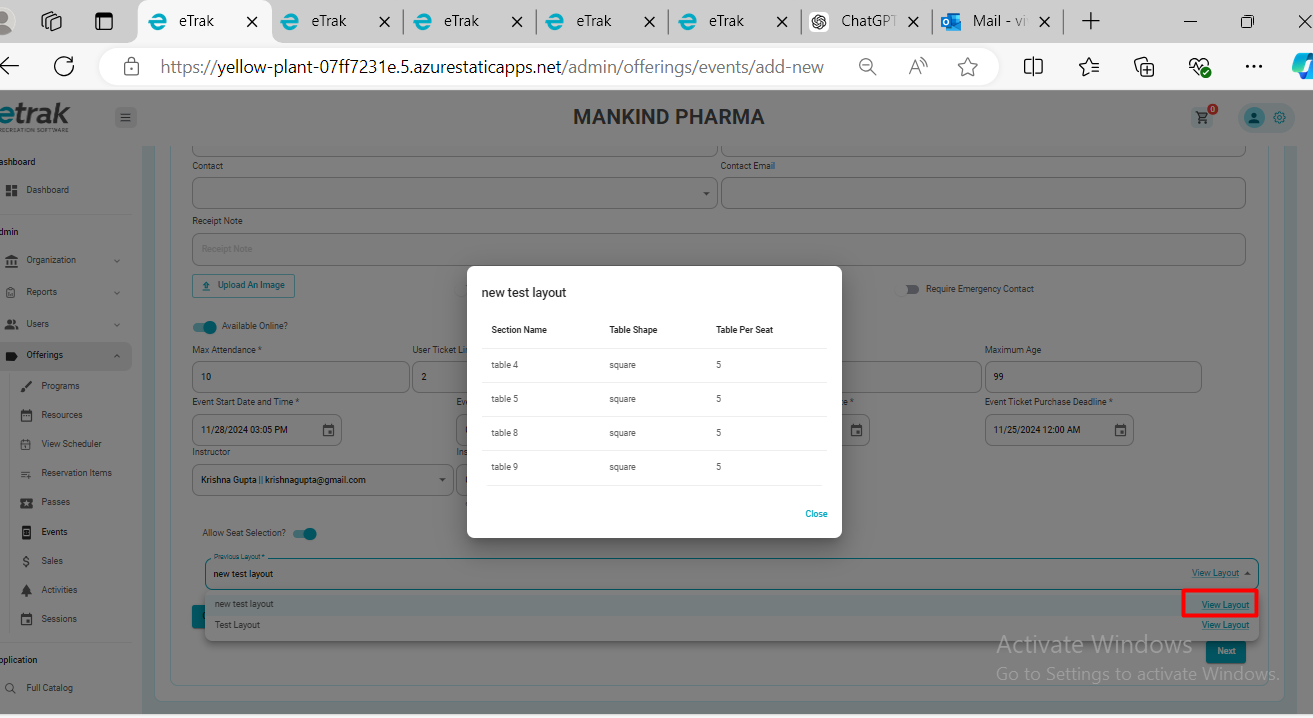
4. Otherwise, if a new layout needs to be created you can click the "Create New Layout" button.
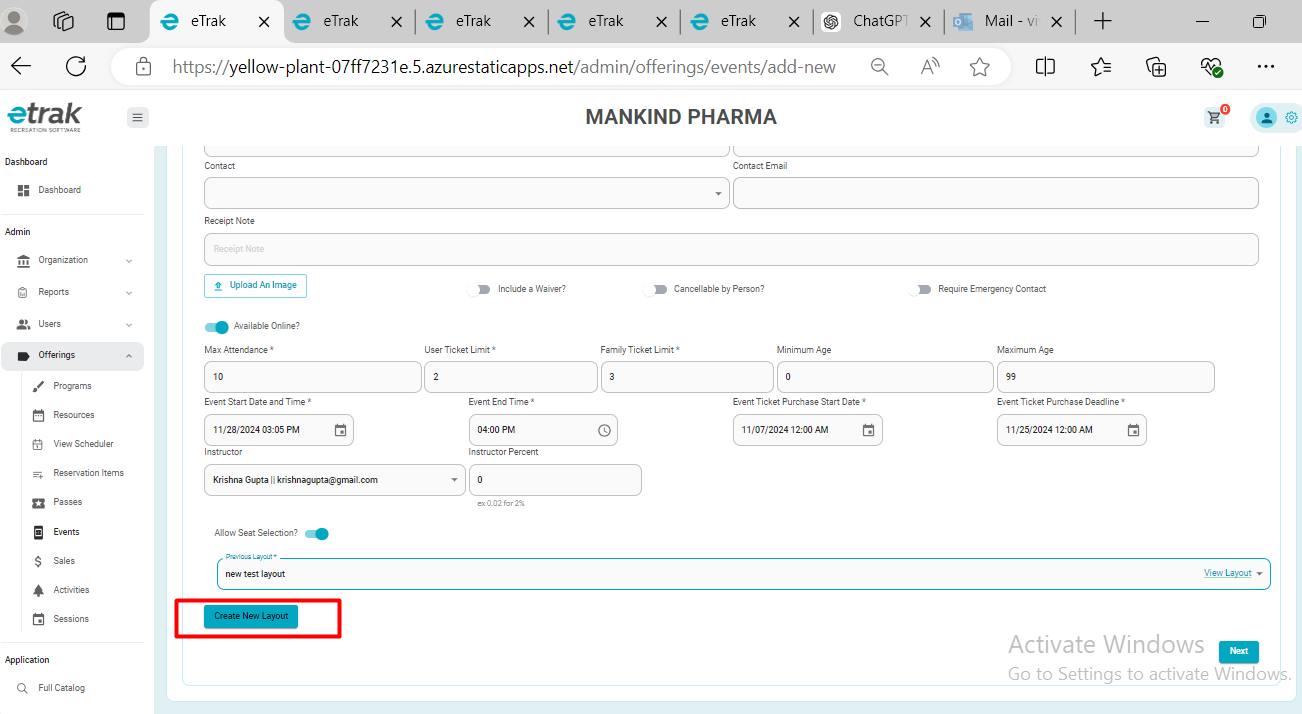
4A. Click on create new layout. Make your selections based on the amount of tables/rows/seats you wish to set up. Select the green check mark to save this information. The system will populate the information below to which you can make edits to the individual tables/rows.
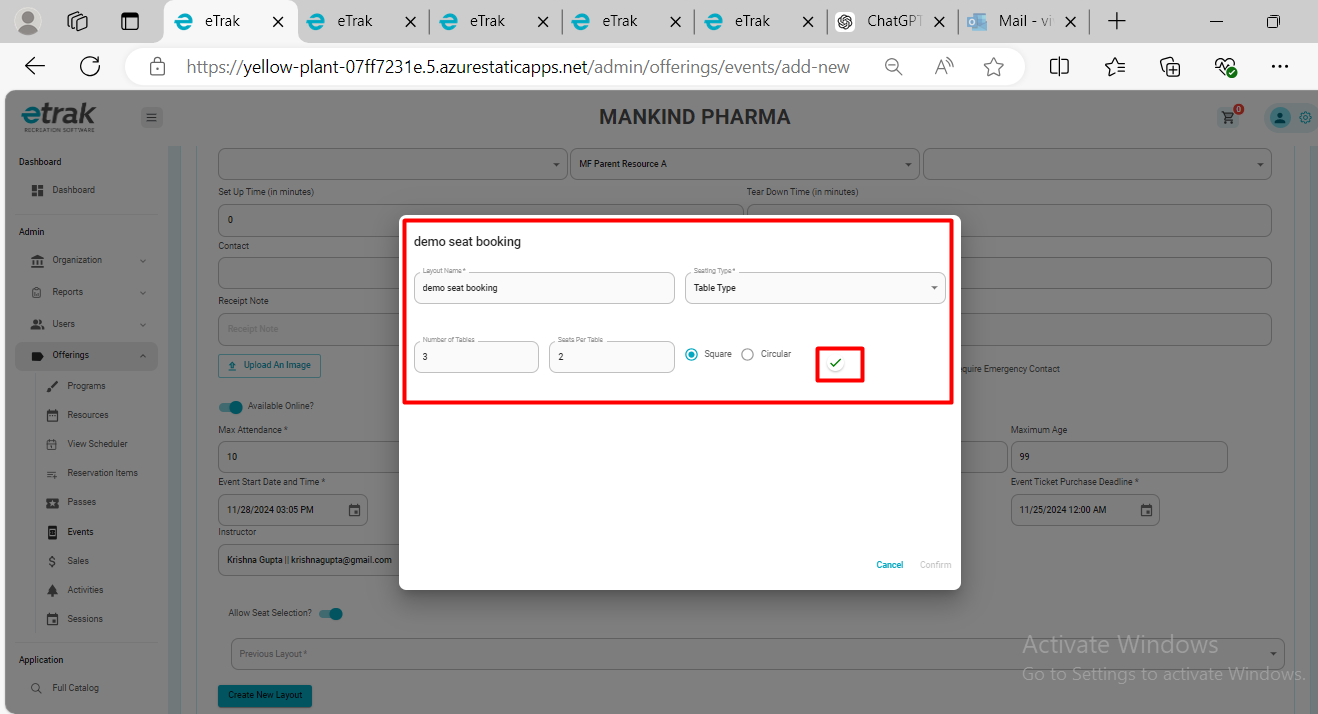
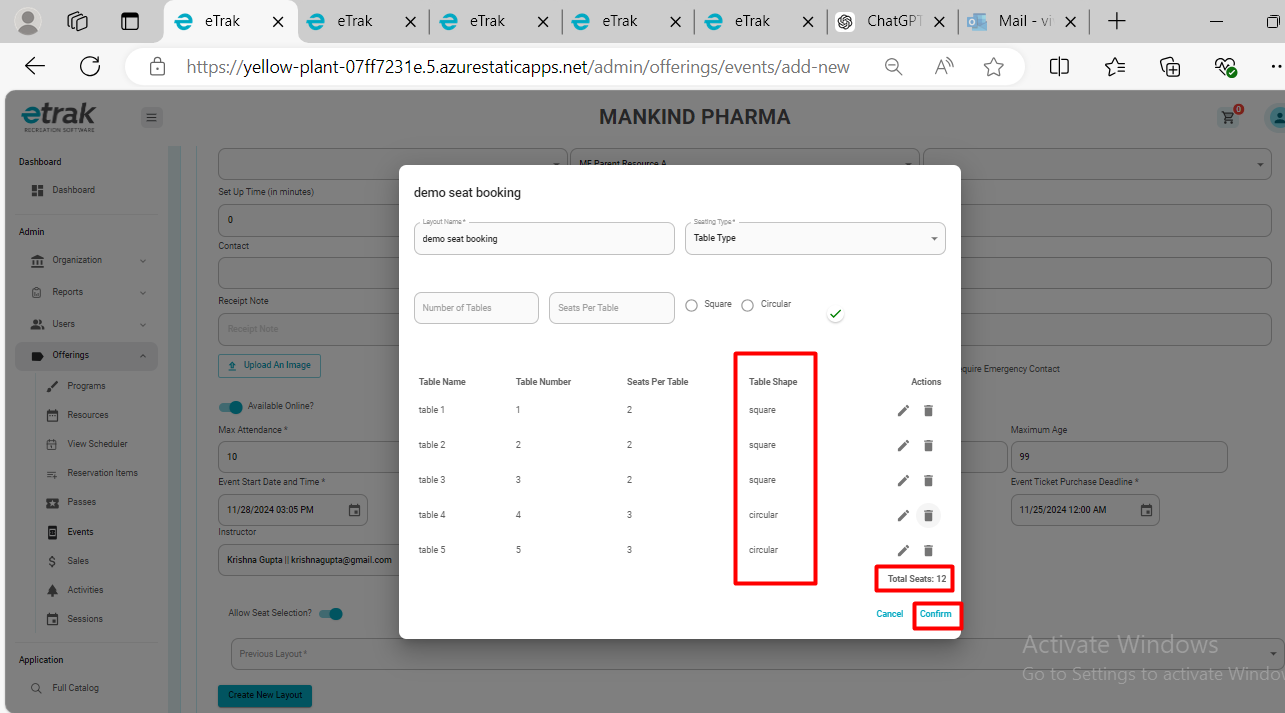
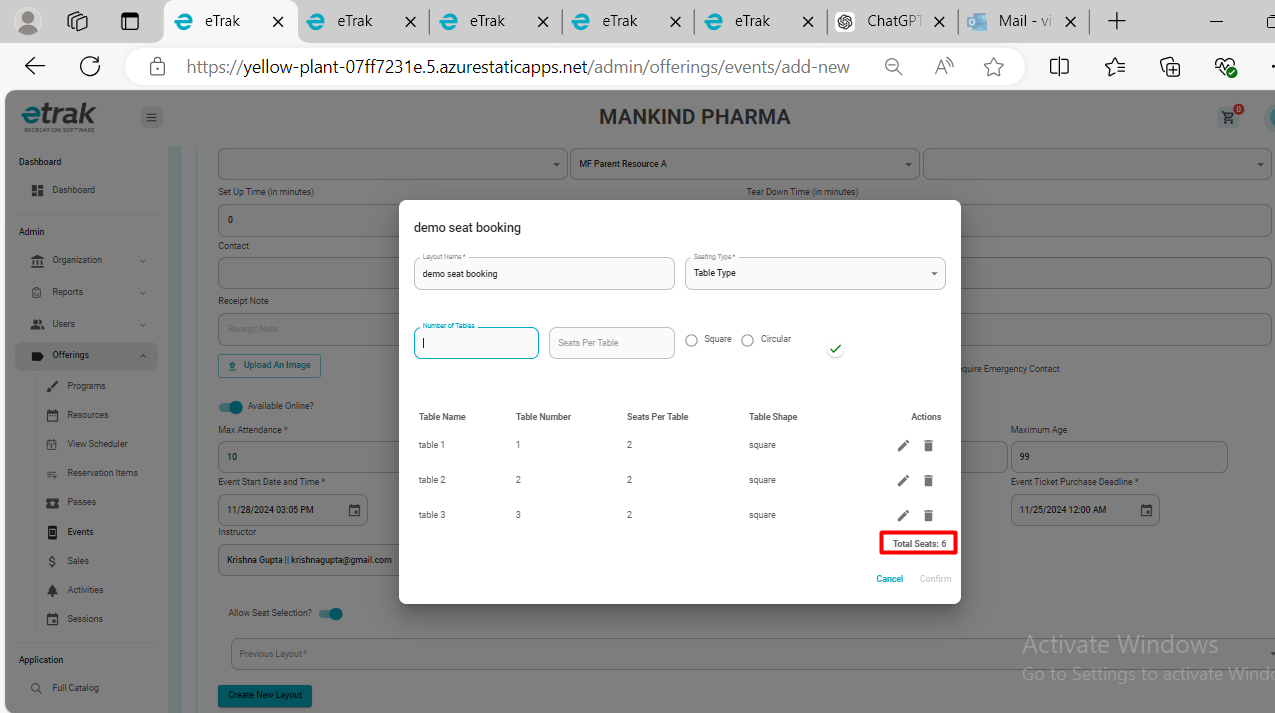
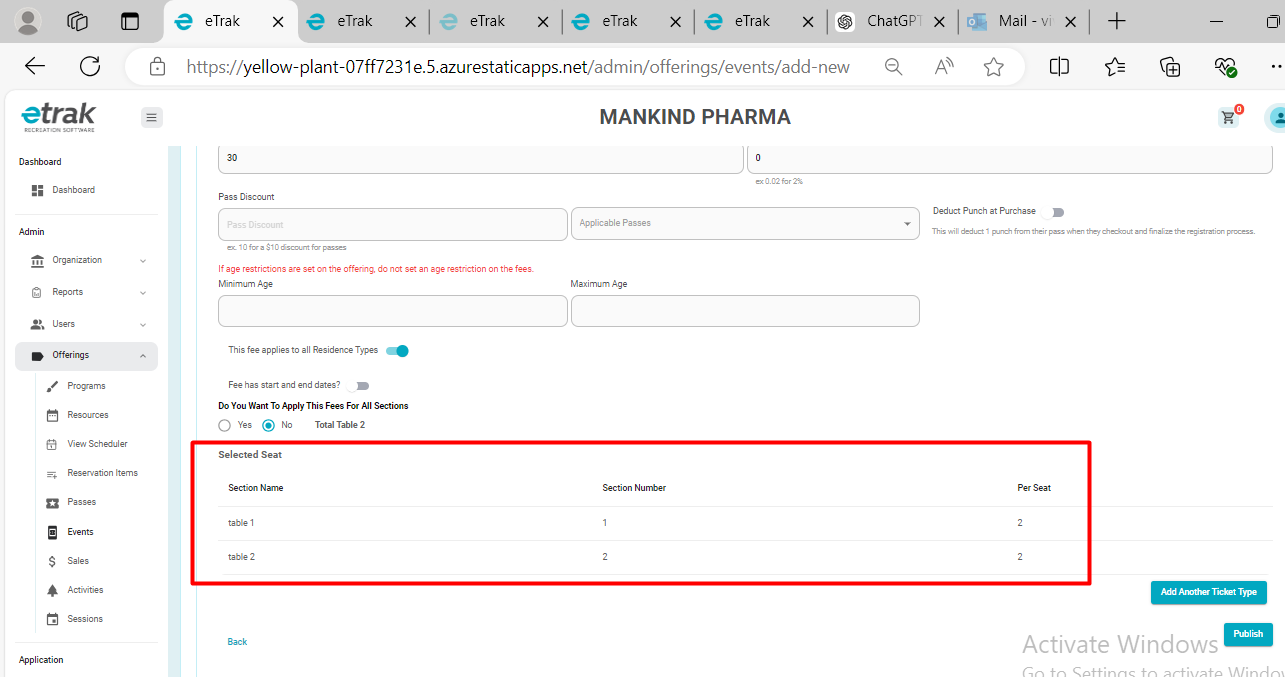
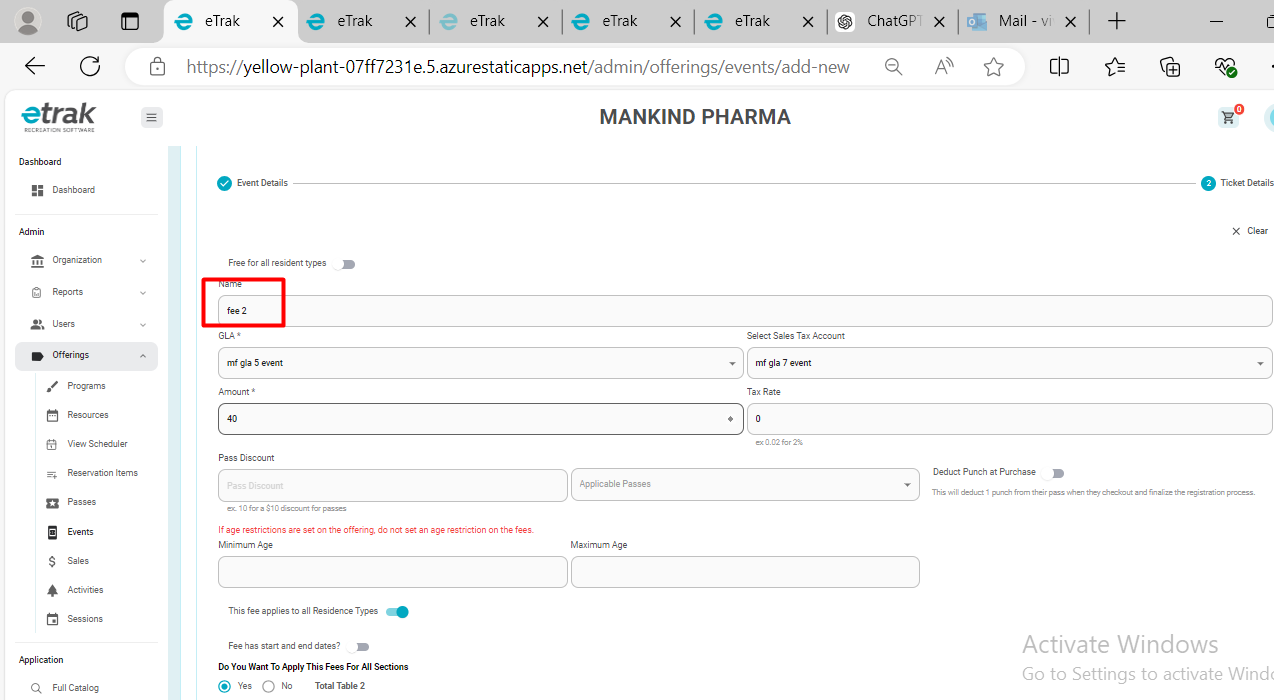
5. Once saved, you will move forward to the fee section. Click on Do You Want To Apply This Fees For All Sections – yes or no
If the user selects no, then the layout will appear on apply fee selected table
5A. Fee 1
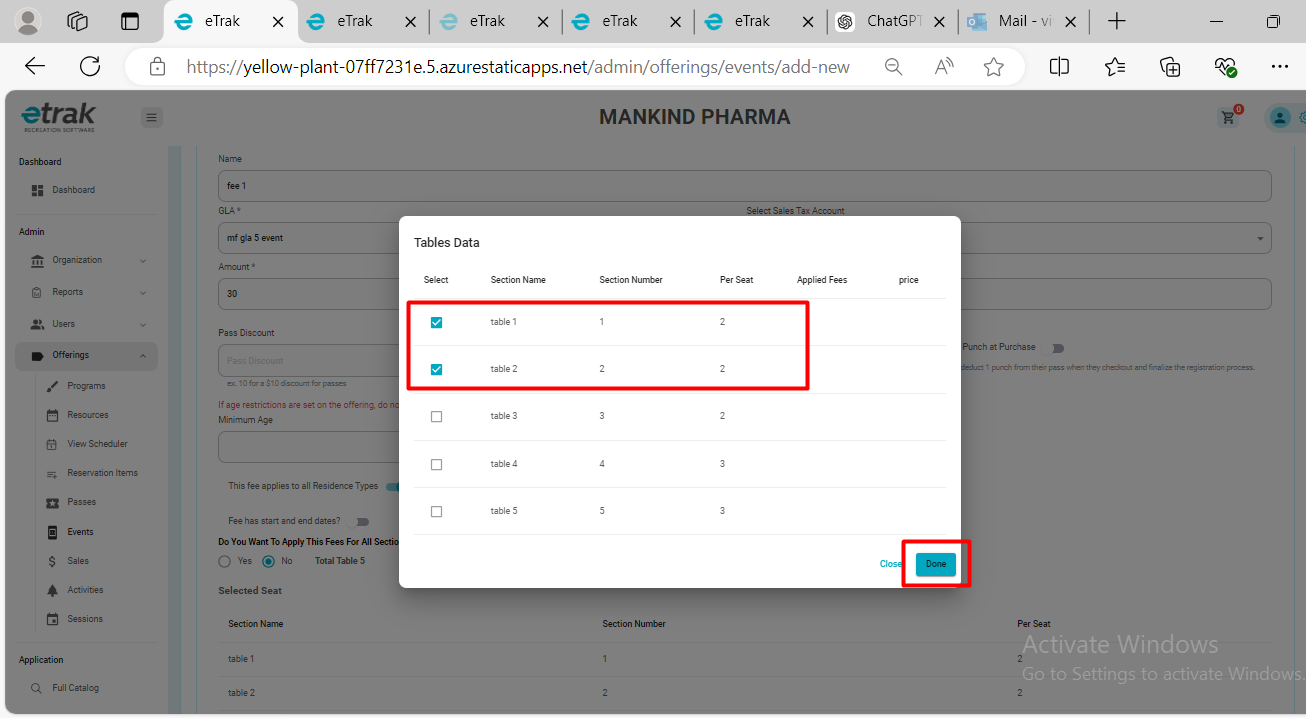
5B. Fee 2
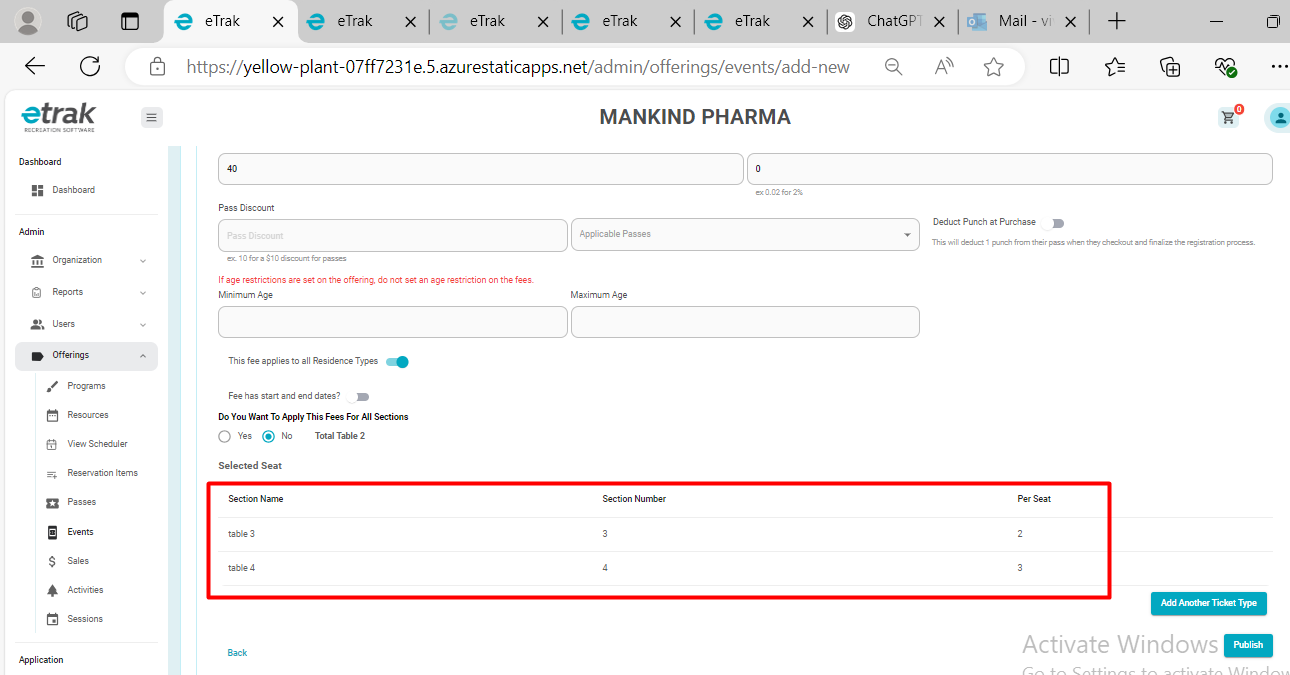
5C. Fee 3 for all resident type- click on yes and after created fee click on pulish
Was this article helpful?
That’s Great!
Thank you for your feedback
Sorry! We couldn't be helpful
Thank you for your feedback
Feedback sent
We appreciate your effort and will try to fix the article