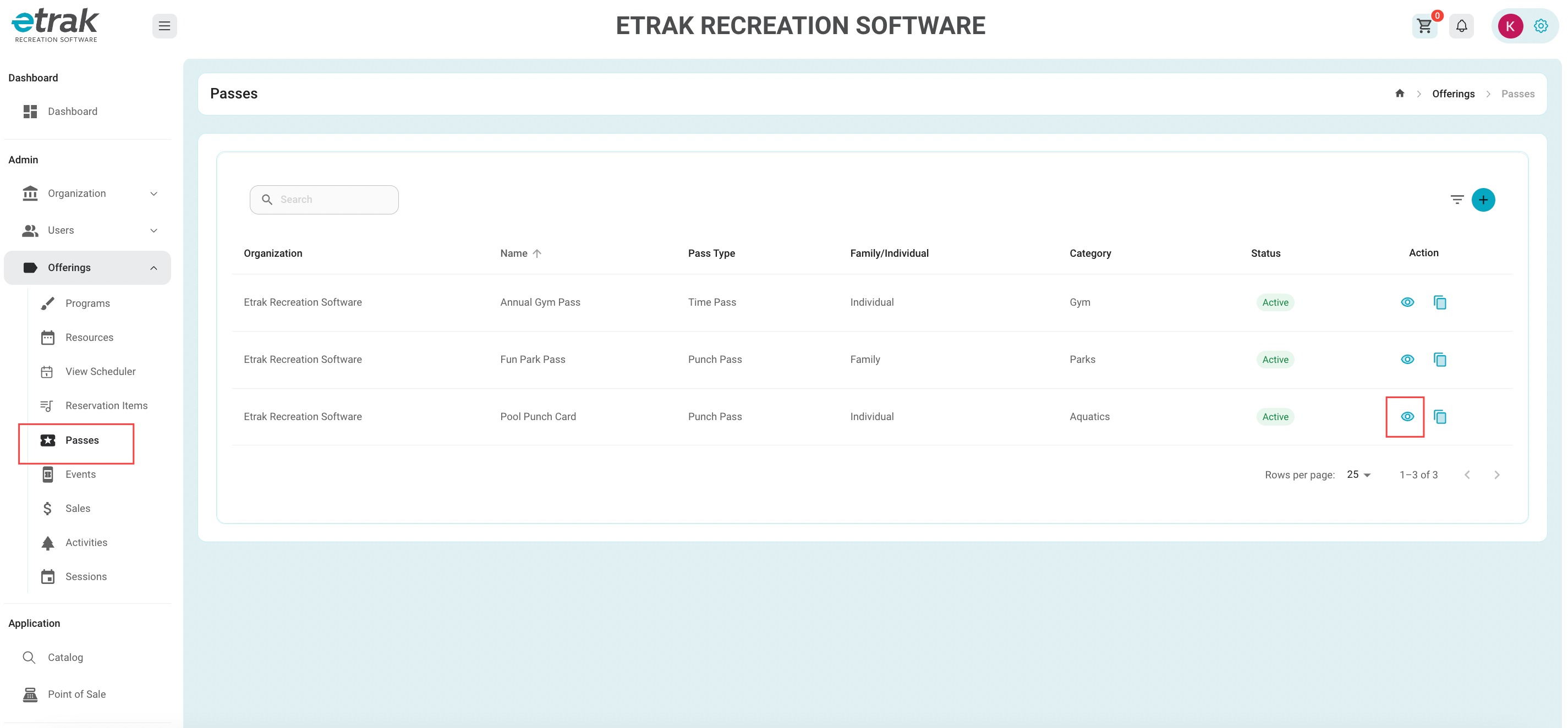
Select "Passes" from the offerings category on the left side of the screen
Find the pass the user is looking to purchase, and select the corresponding eye on the right hand side.
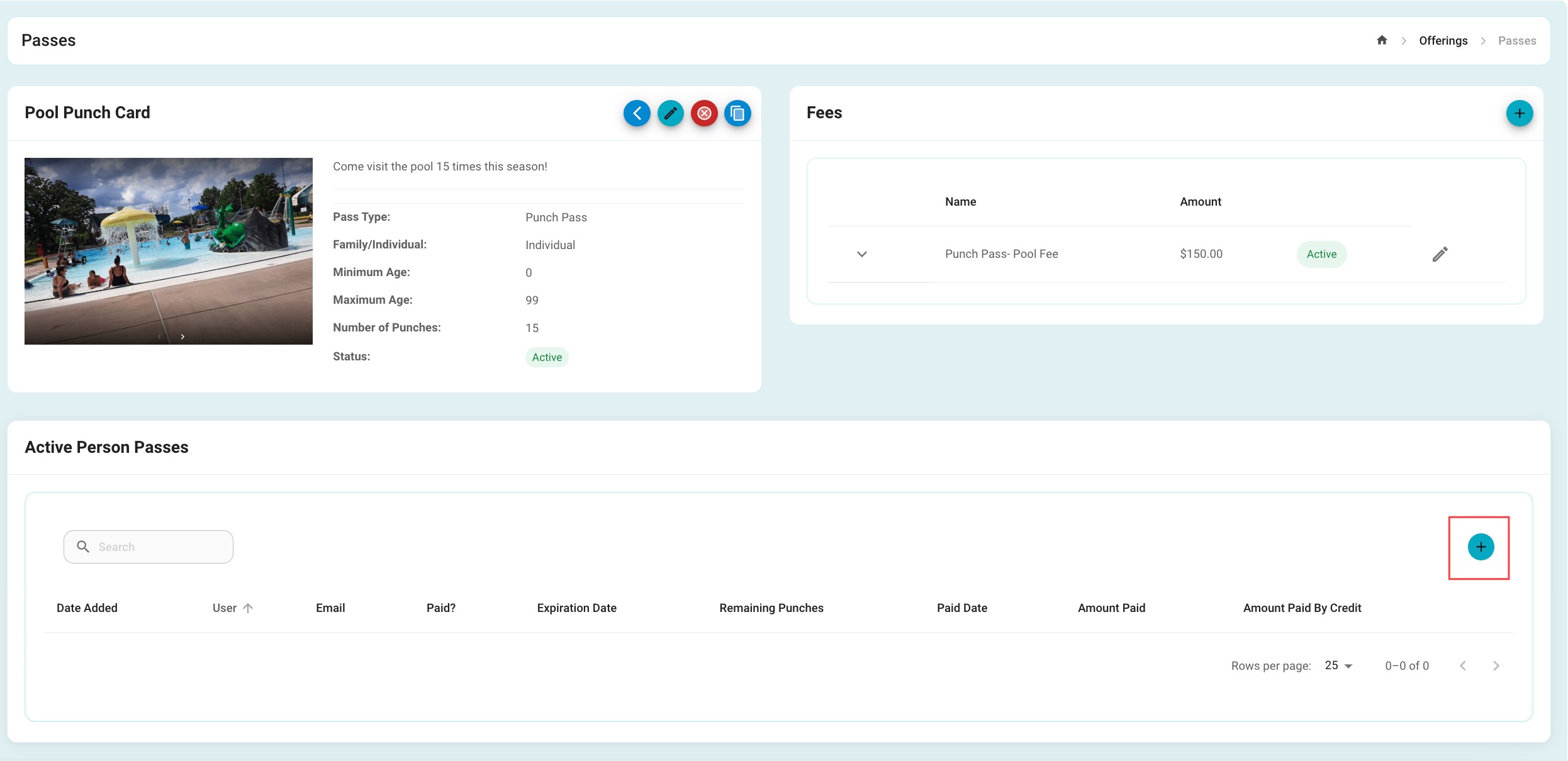
Select the blue ‘+’ sign from the ‘Active Person Passes’ section
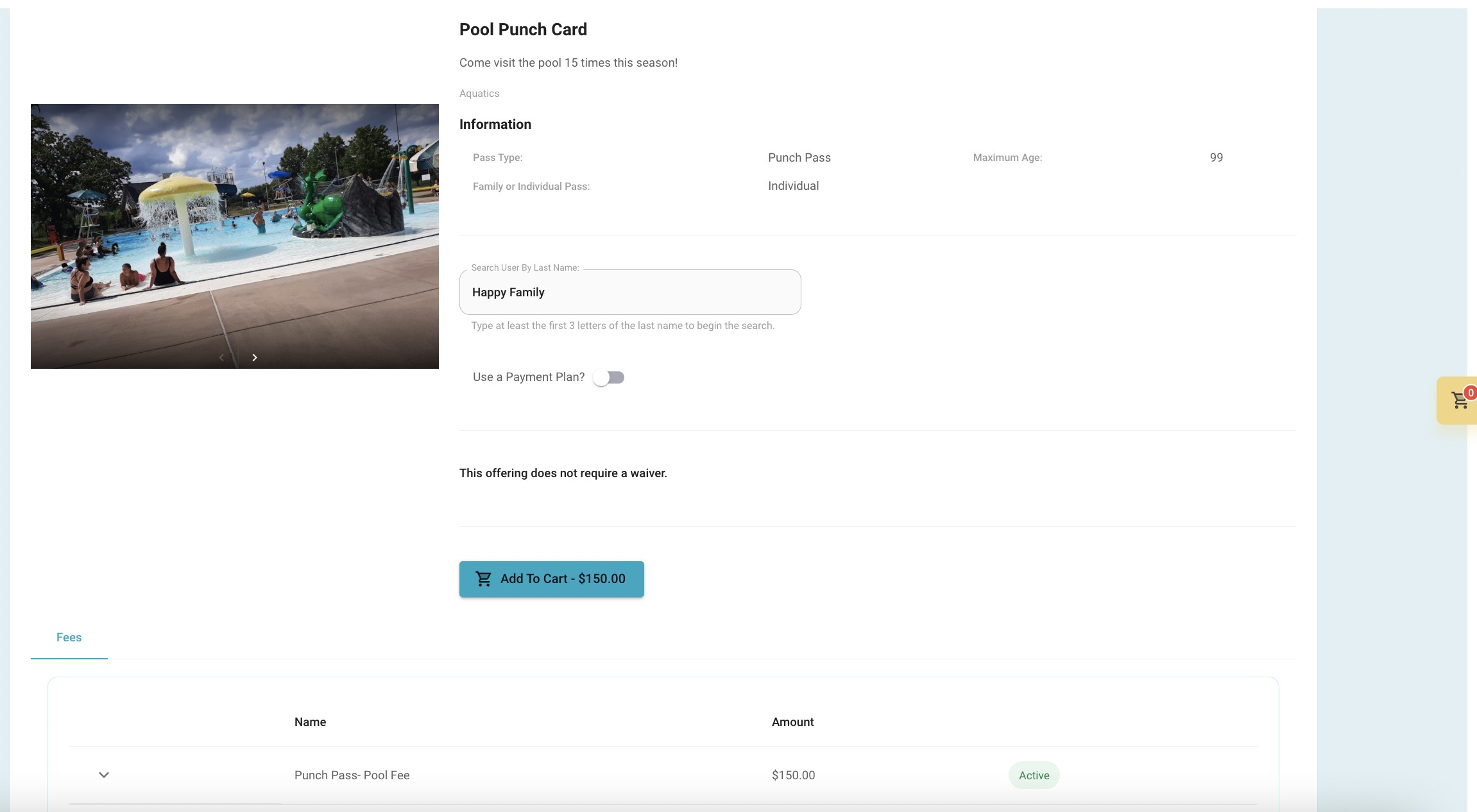
Search by the last name of the user purchasing the pass.
*must be at least 3 letters
After the user is selected the total cost will populate on the ‘Add to Cart’ button based off the fee structure.
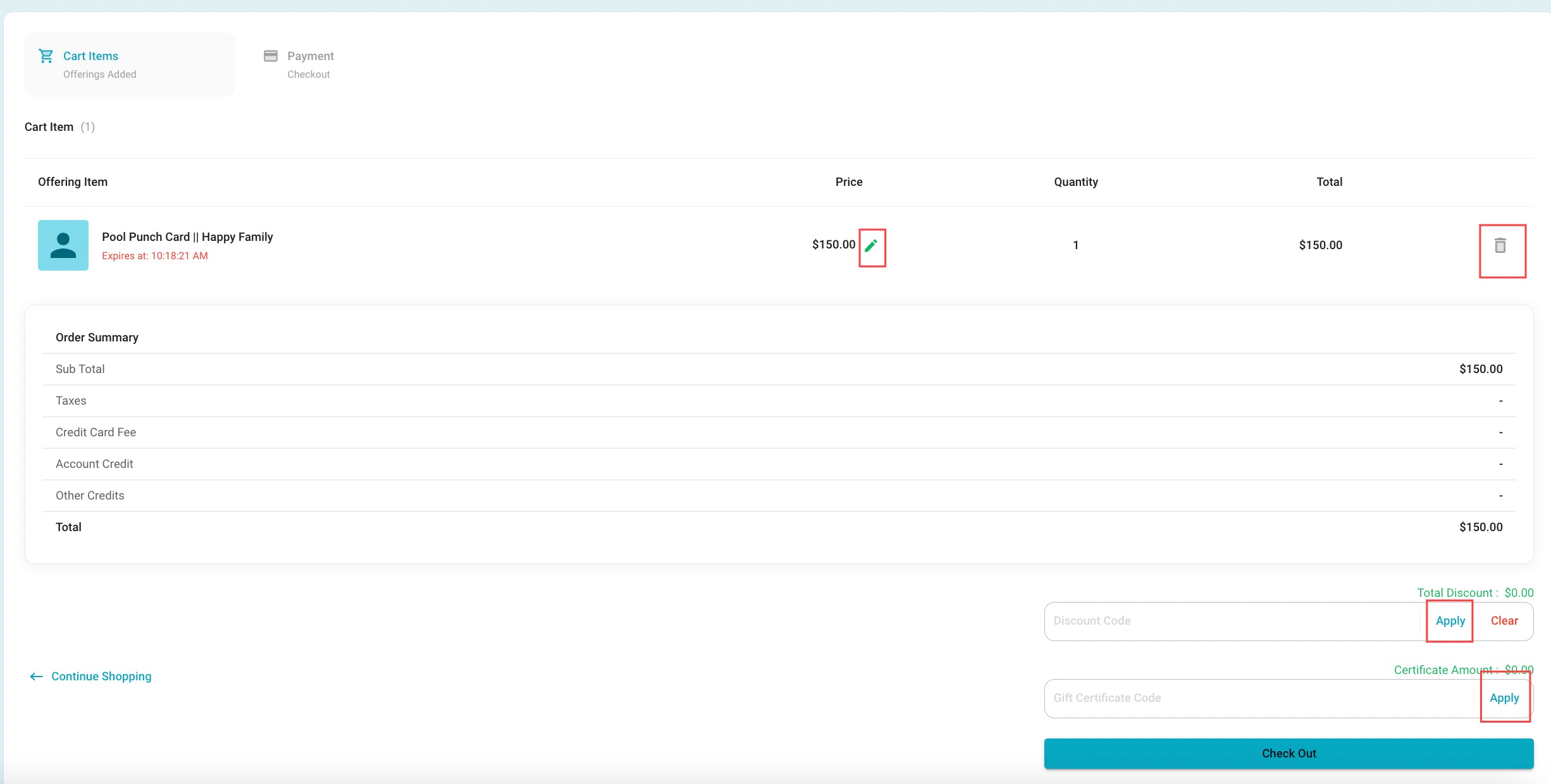
Review the items in the cart.
Price changes can be made by selecting the green pencil icon.
The pass can be removed from the cart by pressing the trash can icon.
Discount or Gift Card codes can be entered at the bottom of the screen. Press ‘Apply’ after entering code before proceeding to ‘Check Out’.
If an Account Credit is on this users account that will also be an option at the bottom of the screen.
Press 'Check Out' to move on.
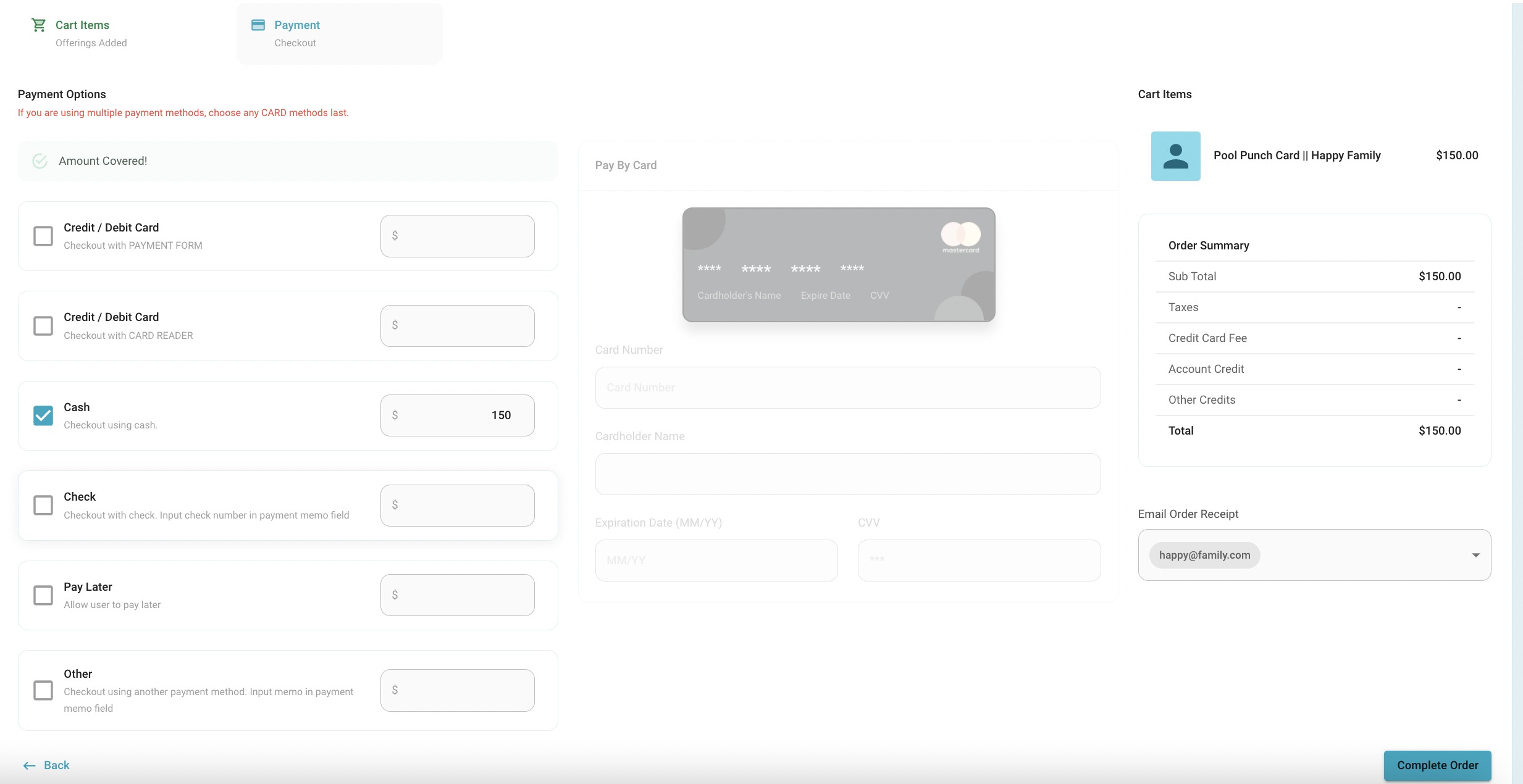
Select the pay type you wish to use from the list.
The users email will be connected to automatically send email receipt. If an emailed receipt is not necessary simply unselect the email from the drop down.
Press ‘Complete Order’ to move on to view the receipt.
A receipt will pop up and can be printed on standard printing paper or an epson print version
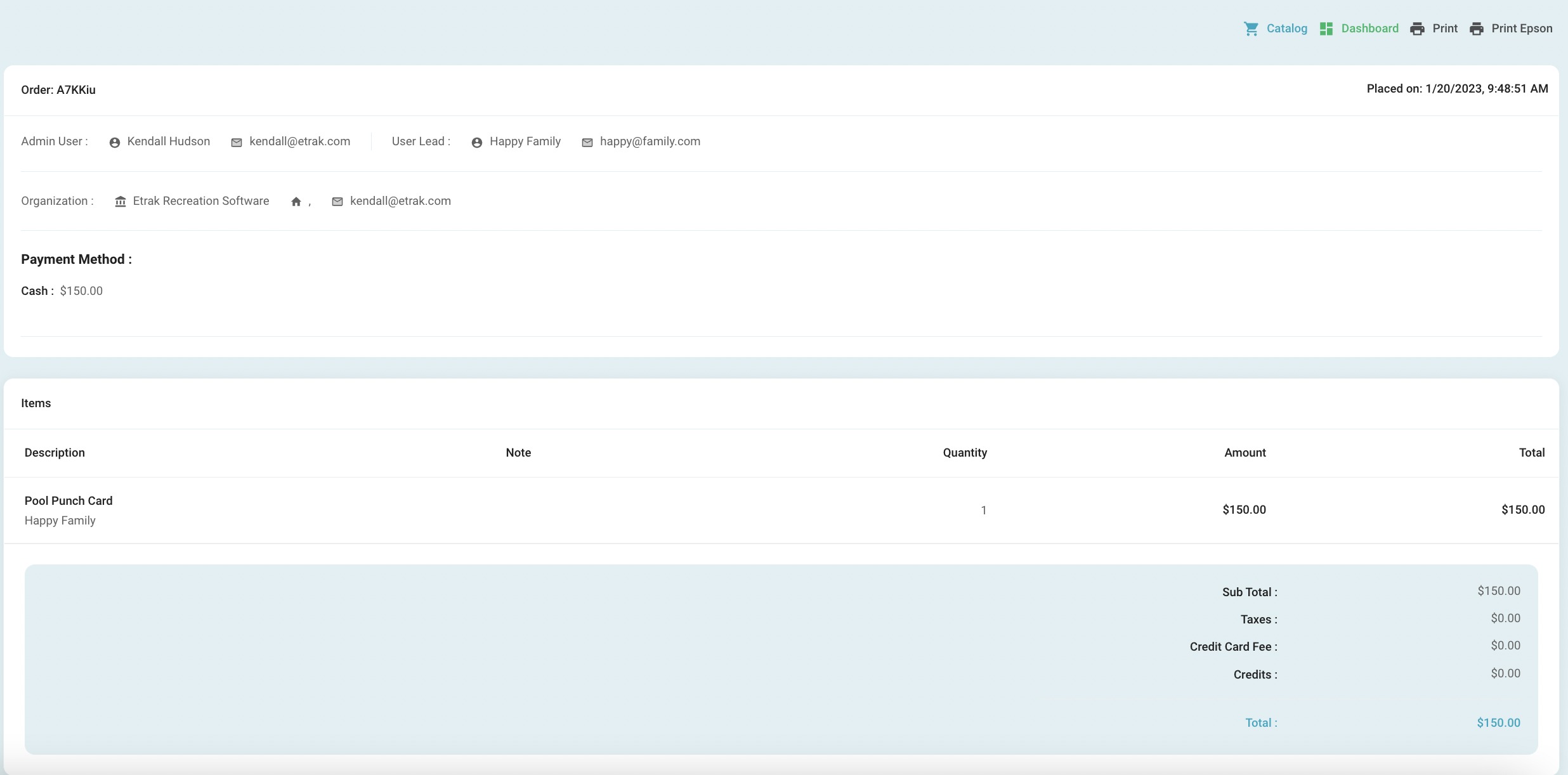
Success!