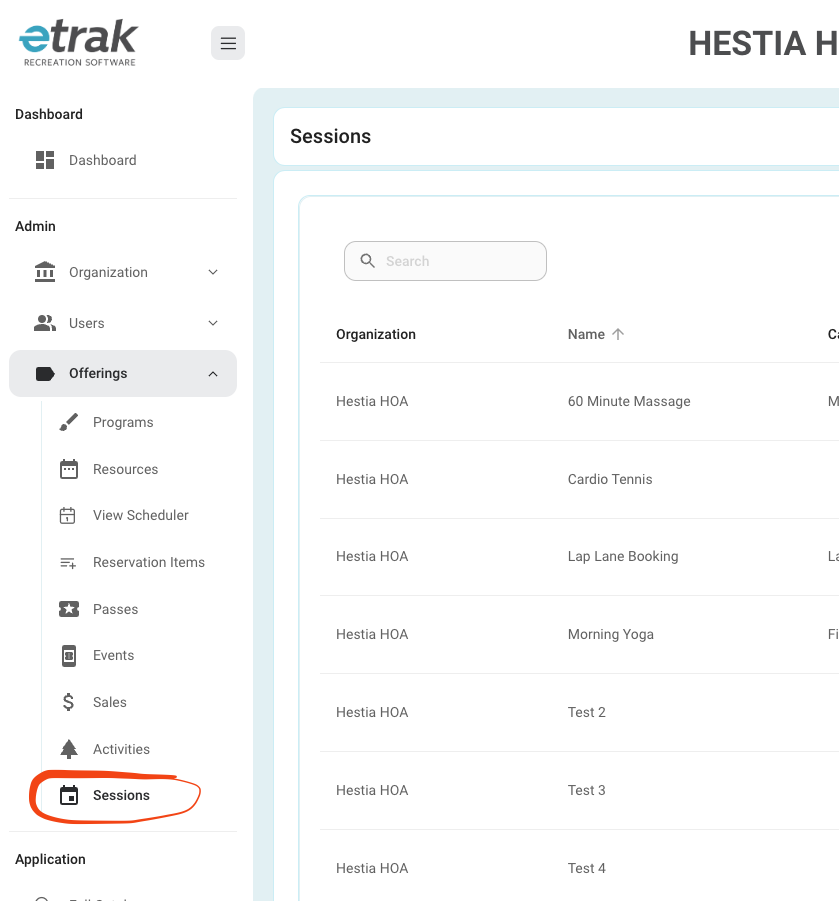
1. Navigate to Sessions in the Left Menu:
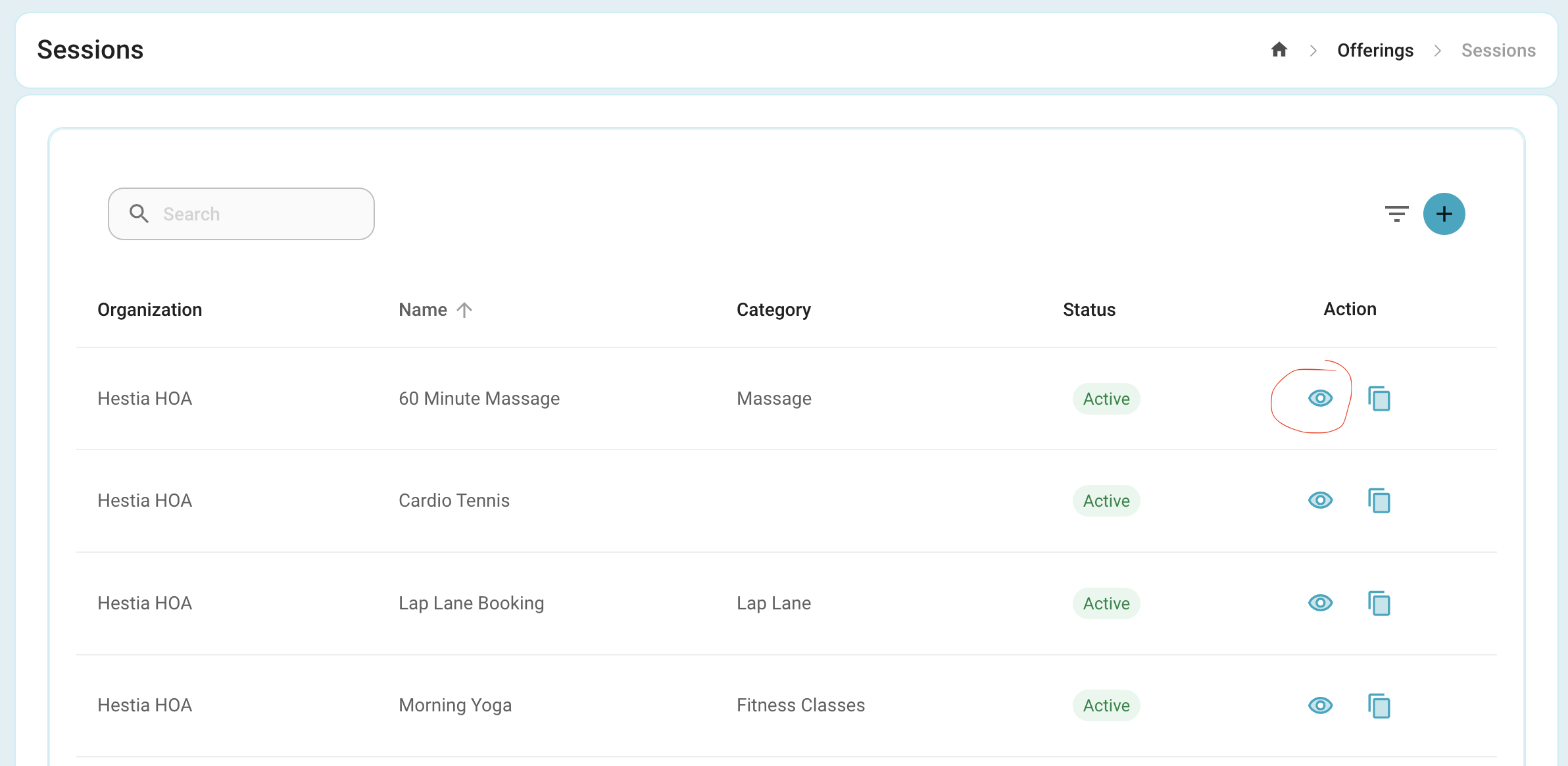
2. Click the Eye for the Session that you would like to edit:
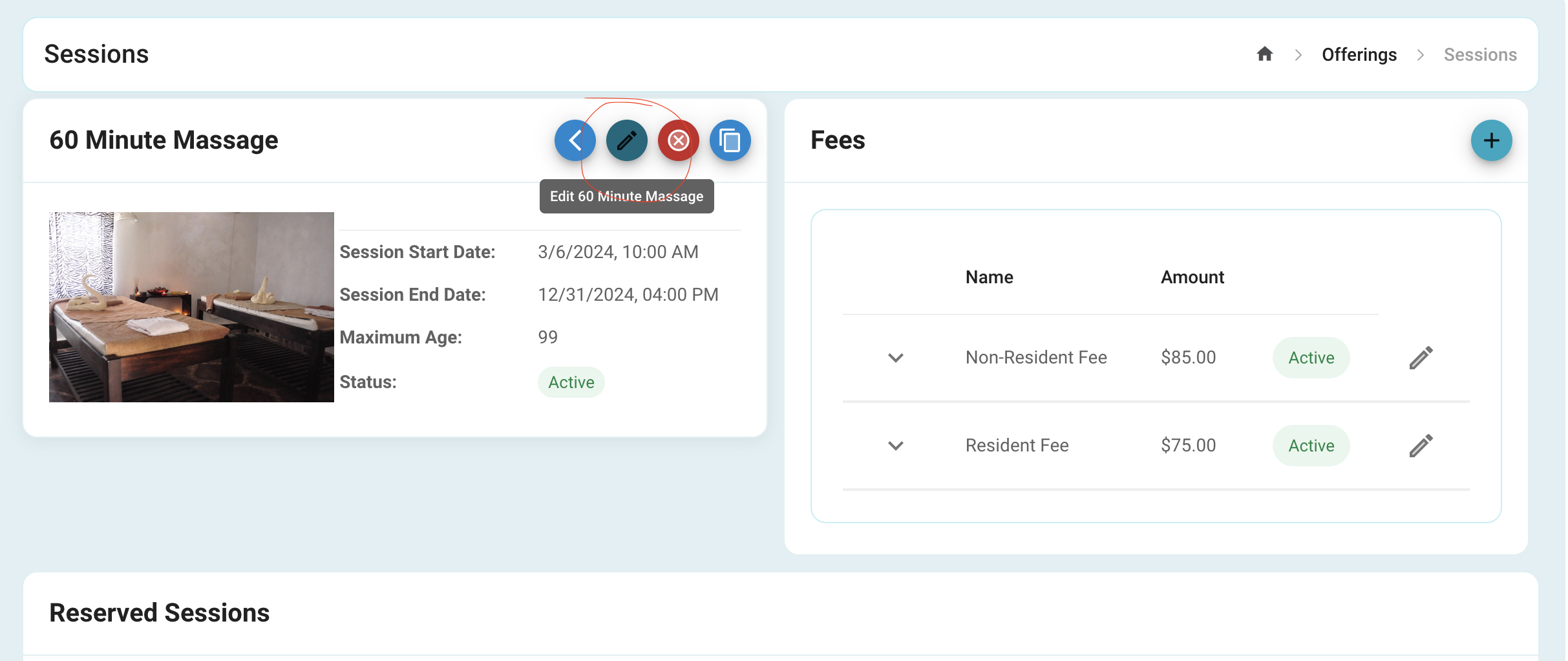
3. Click the pencil icon towards the top of the screen:
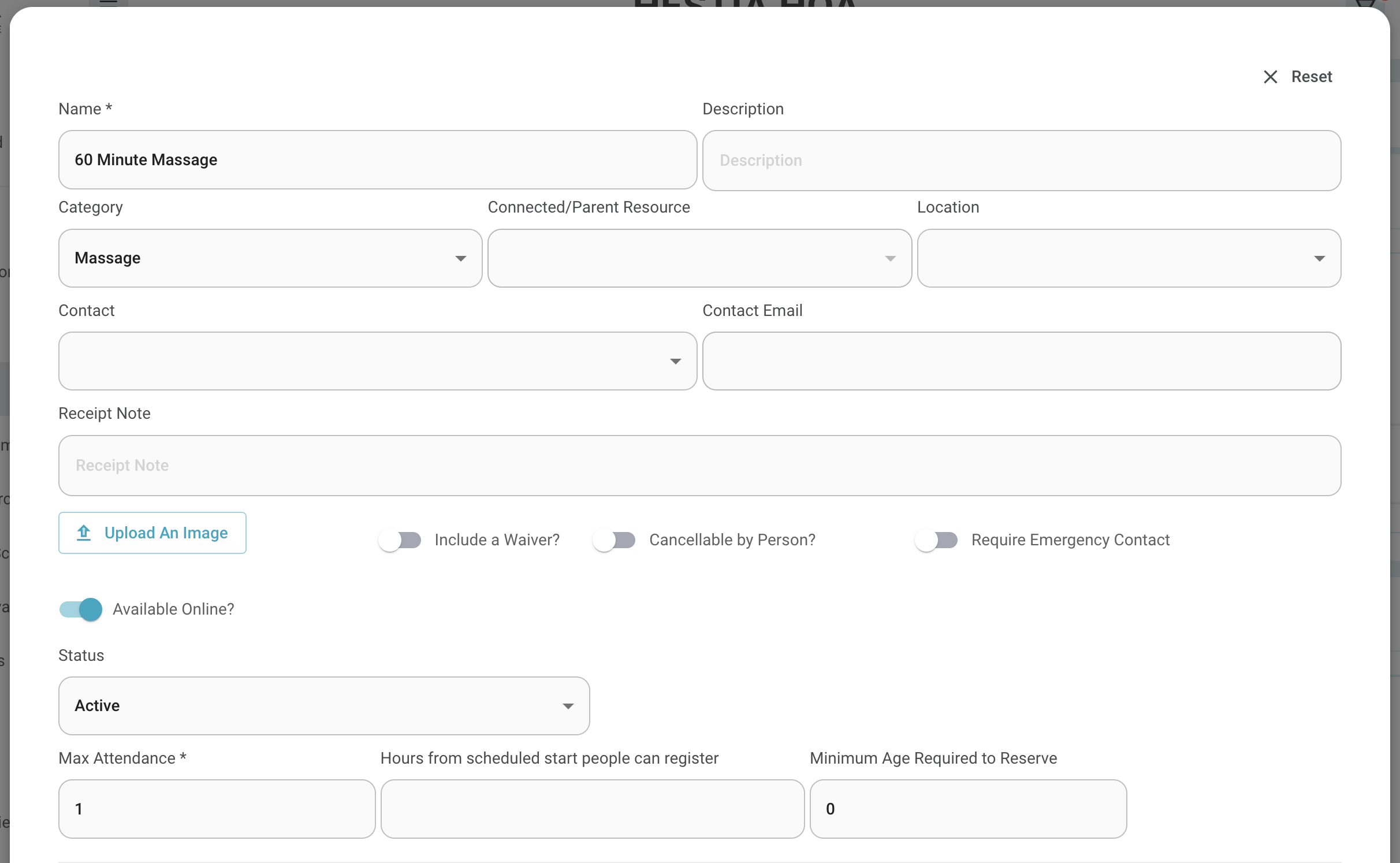
4. Adjust the fields you would like:
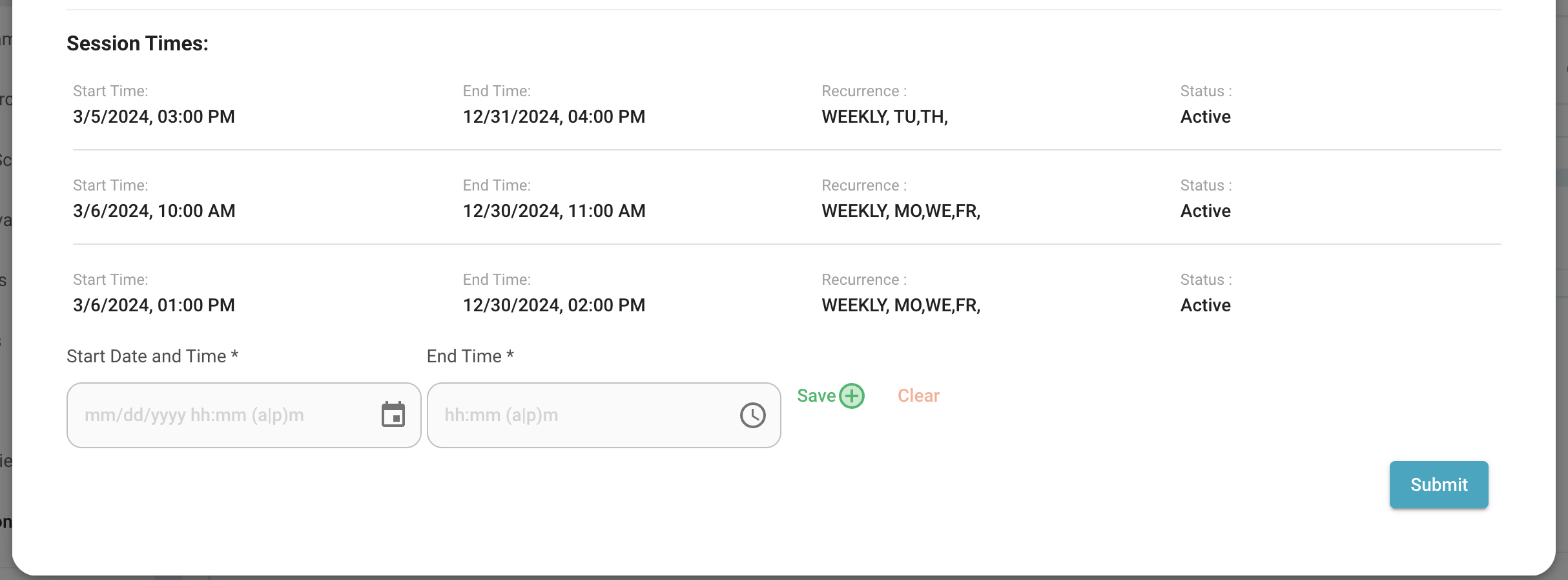
If you would like to add session times, this is the place you can do it.
4a. Select the Start Date and Time of your first Session Schedule:
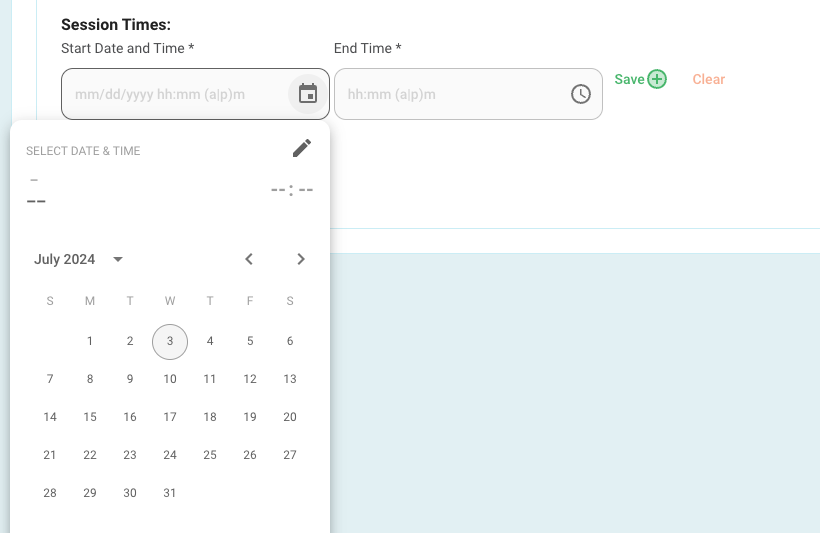
Select the Start Date of your first session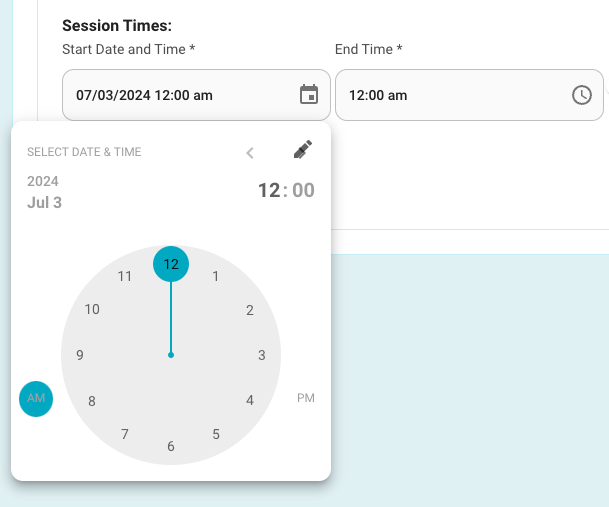
Select the start time.
Tip: Select the Hour, then the AM or PM, Then the Minute of the start time.
4b. Now Select the End Time (Note: Sessions are designed to happen within the same day, and that is why there isn't an end date field):
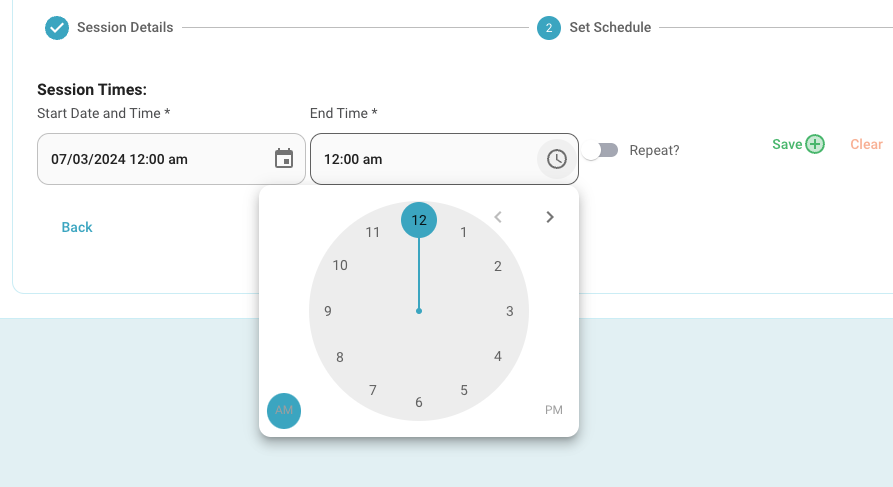
Tip: Select the Hour, then the AM or PM, Then the Minute of the start time.
4c. Repeat?
- When clicking on repeat you can set the repeat schedule of these sessions.
- Example: If you have a workout class that happens Monday to Friday from 11am to 12pm, you would select the repeat switch.
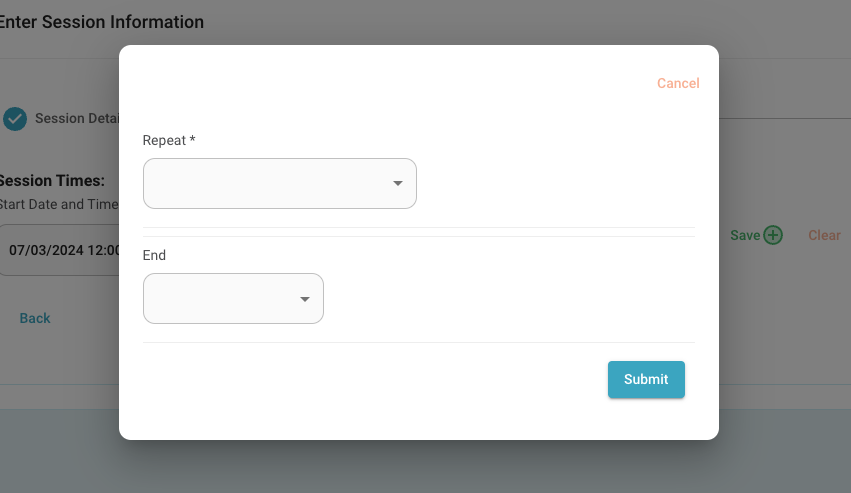
4d. Select your repeat type:
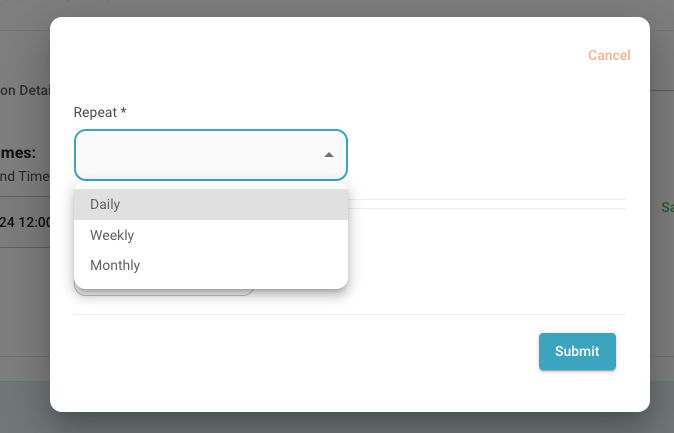
4e. Complete the "Every" Field
- This will tell the system how often you want to repeat this schedule
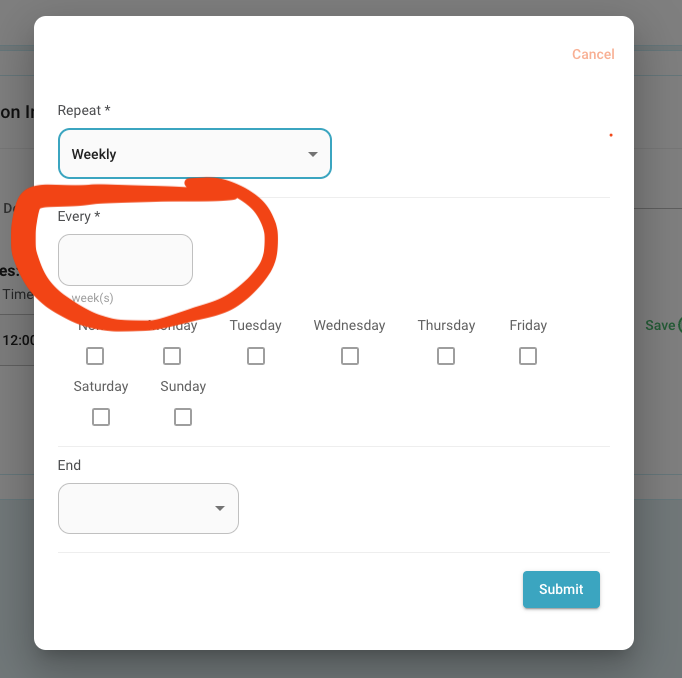
4f. Depending on the option chosen you will have to complete some more options:
- Daily
- Just Complete the "Every" Field, and this will tell the system if you want it repeated everyday or just every 5
days.
- Weekly
- Complete the "Every" Field, and this will tell the system if you want it repeated every Wednesday week or every
other week.
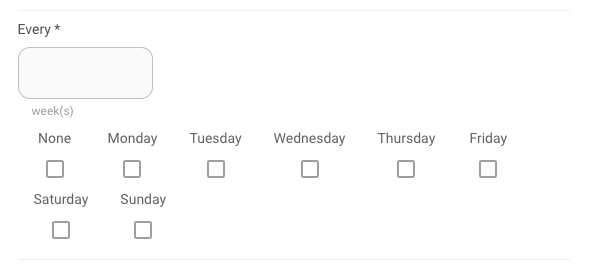
- Pick the days of the week to tell the systems if you want it on Monday, Tuesday, and Friday (for example)
8e. Select the End
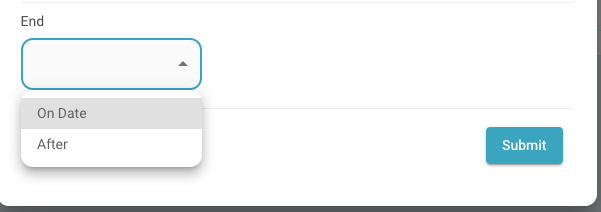
- On Date allows you to pick a specific date that the reoccurring schedule will end
- After will allow it to repeat for the number of times you specify
4g. Click Submit
Note: If you don't complete all the fields it will likely lead to errors in the schedule as well as making the offering available to purchase.
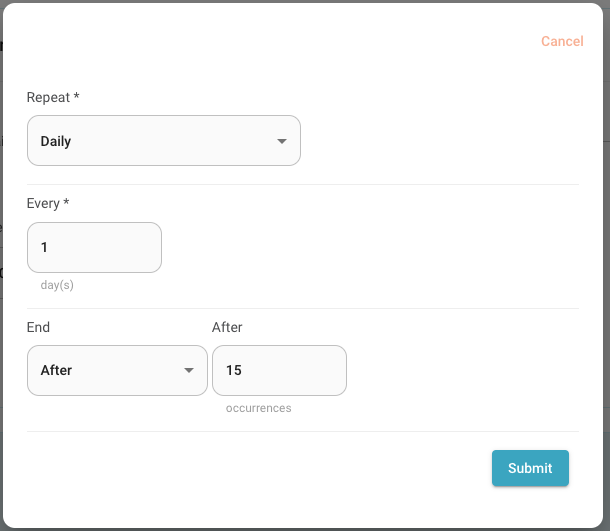
4h. Click Save next to repeat to ensure that your schedule is saved
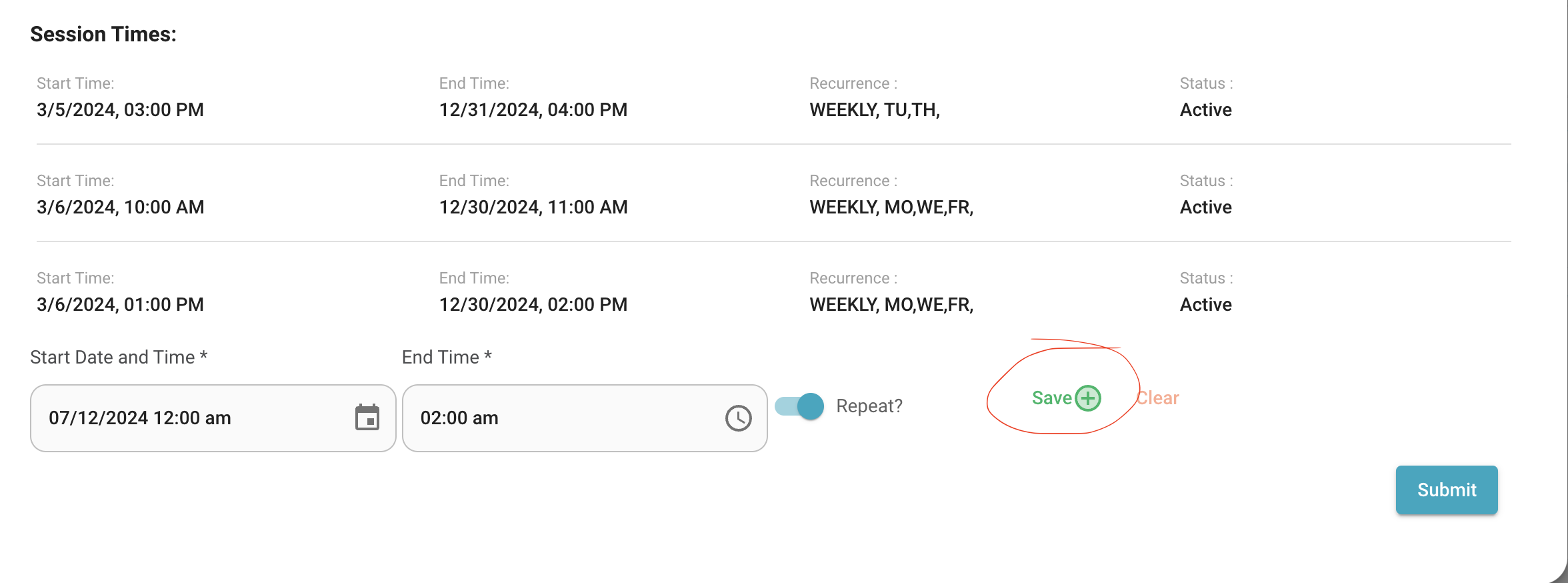
(Note: If you don't click save and then you click next you will not save your schedule and your session will be missing a schedule for people to register.)
5. Click Submit to save all changes.
Was this article helpful?
That’s Great!
Thank you for your feedback
Sorry! We couldn't be helpful
Thank you for your feedback
Feedback sent
We appreciate your effort and will try to fix the article