We have now released the ability for users to deduct a punch pass at the time of purchase of offering. This new feature will all you as an admin to set up a fee that will discount the price to what ever value you would like it to be reduced, and also deduct a punch from a punch pass at the moment the user completes their registration for the offering. Please review the how to guides below to better understand how this can be configured as well as the process for deduction and refund.
What it will look like when someone registers:
When a user selects the name for the person they are signing up for the offering it should show the price according to the discount. It will also show a message:
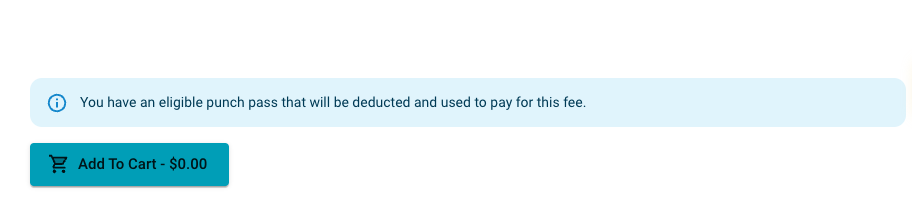
- It will add the item to cart for the amount set based on the discount.
- Once they get to the final order confirmation screen it will have deducted officially from the passes available passes.
How to setup a fee to deduct a punch pass at purchase?
- Set up your offering.
- When you get to Fee Details, put in a pass discount
- This is the amount of discount you would like the purchaser to receive by using their punch pass.
- If the fee is $10, and I would like to give them 100% off , then I will put $10 in the field
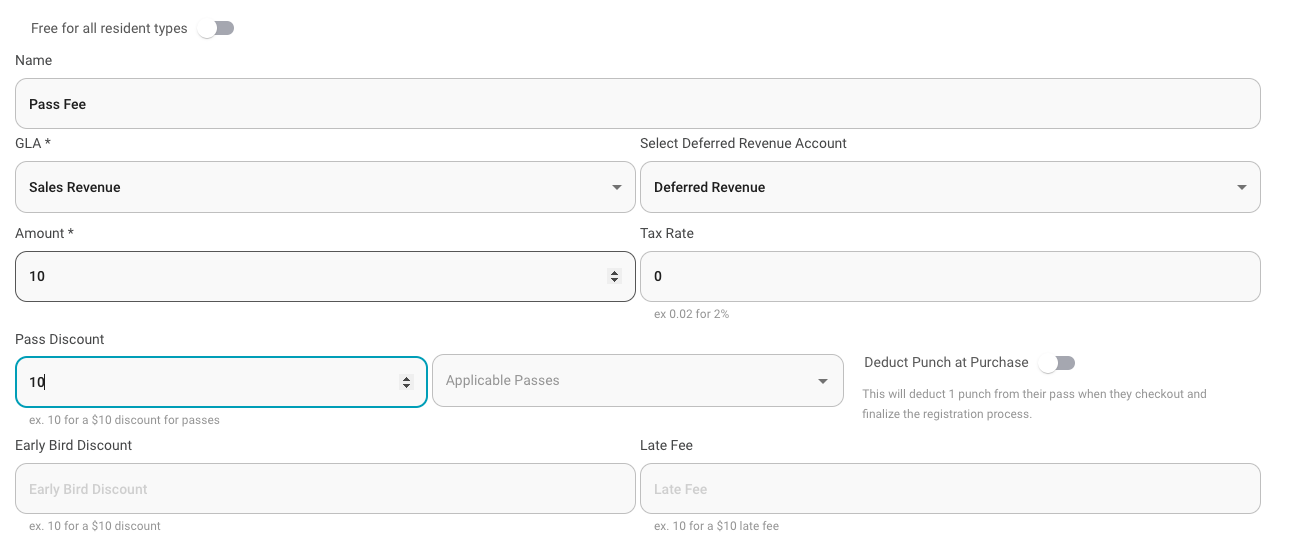
I will then select the Applicable Passes that I would like as possible deduction
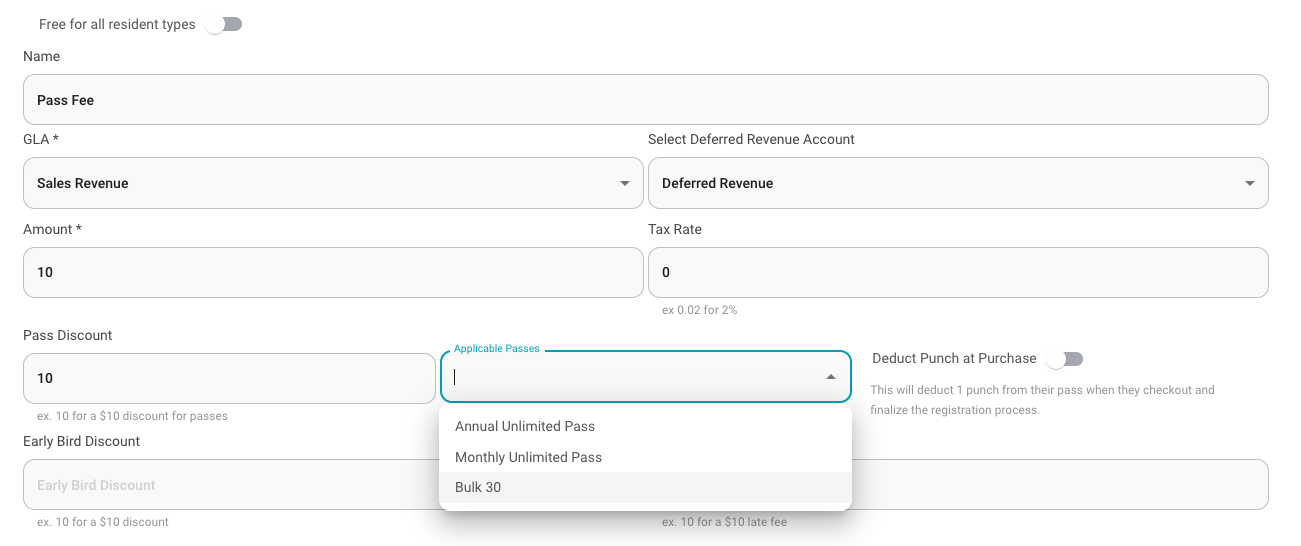 If there are more than one possible punch pass you can select them here, but in our example there is only 1.
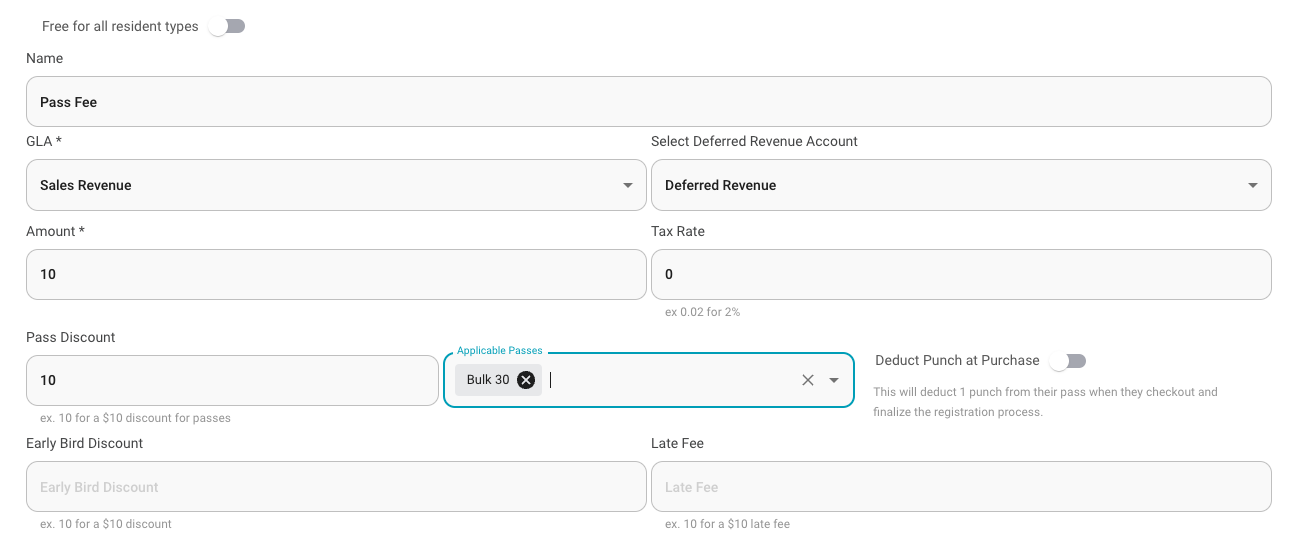 (Reminder this function will only work for passes that are punch passes. If the pass selected is not a punch pass it will still reduce the fee according to the amount in the pass discount, but at purchase it will not deduct a punch from the punch pass if its not a punch pass)
 Click the switch and turn on the "Deduct Punch at Purchase" Option
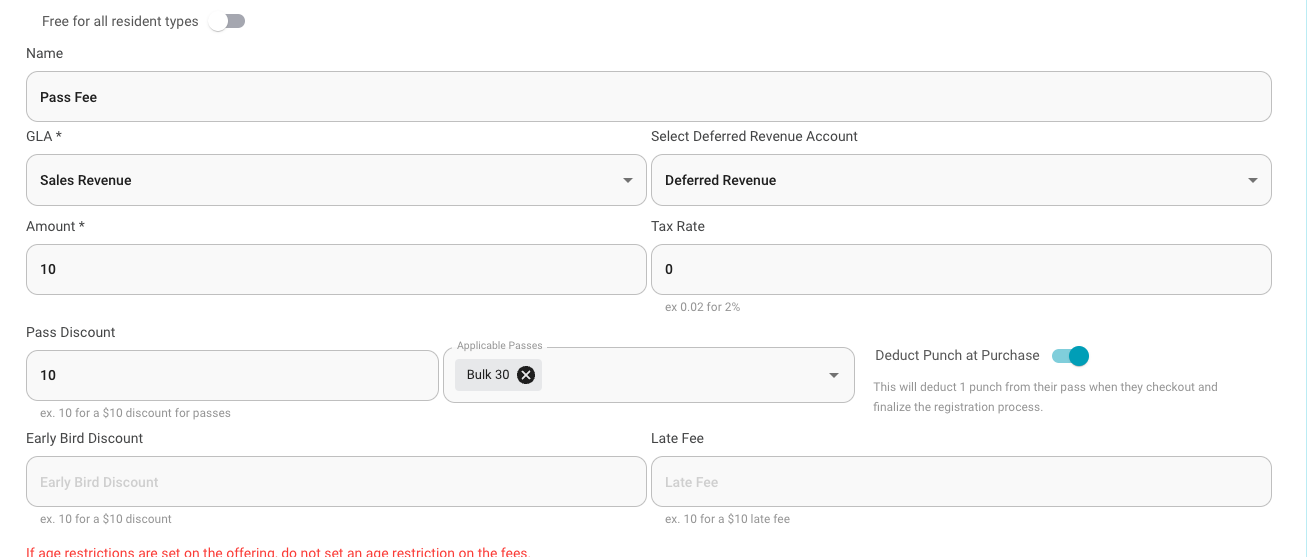
Now you can finish the rest of setting up your fee
Click Next when your finished (Don't forget to click Next)
How to refund a punch that was used to pay for an offering?
- Once a person is listed under "Active" or "Inactive" Registrations for your offering. You simply click the pencil icon at the end of their row.
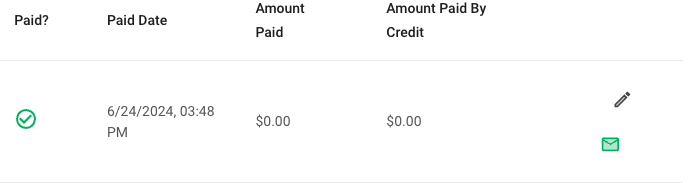
- Once the edit registration window appears, you will see a new switch for refunding a punch:
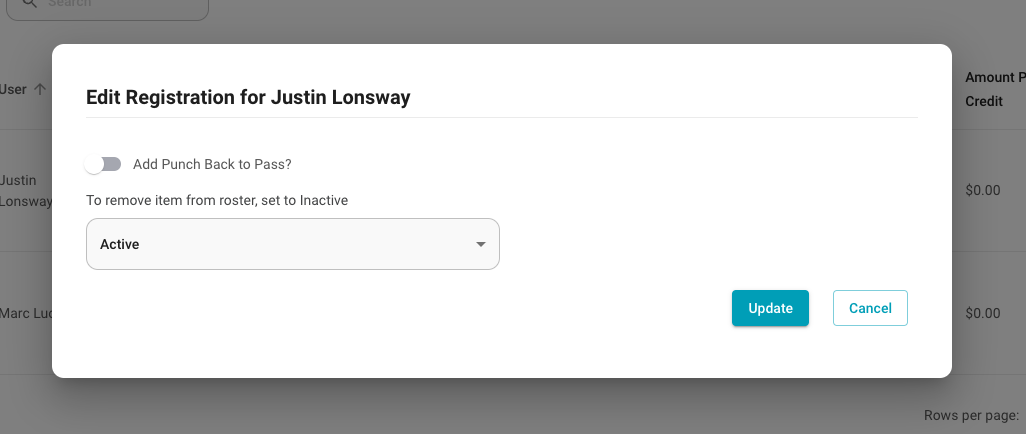
- Toggle this switch on:
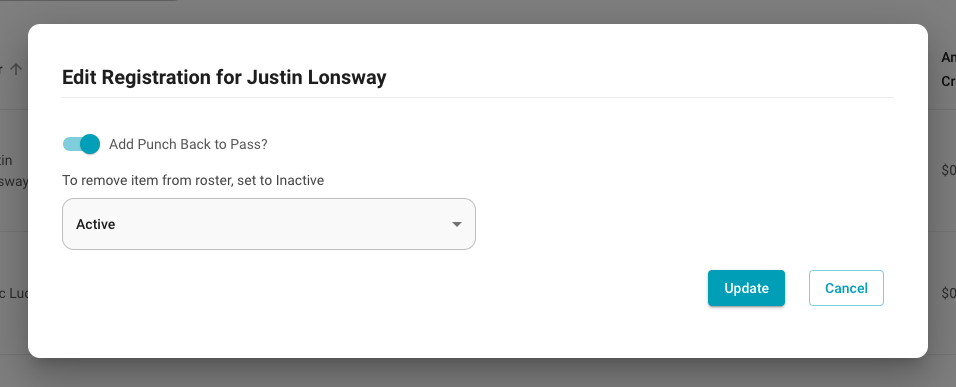
- Change inactive if you wish to remove them from the roster.
- Click update, and it will add the punch back.
Was this article helpful?
That’s Great!
Thank you for your feedback
Sorry! We couldn't be helpful
Thank you for your feedback
Feedback sent
We appreciate your effort and will try to fix the article