Select "User List" from the menu on the left side of the screen.
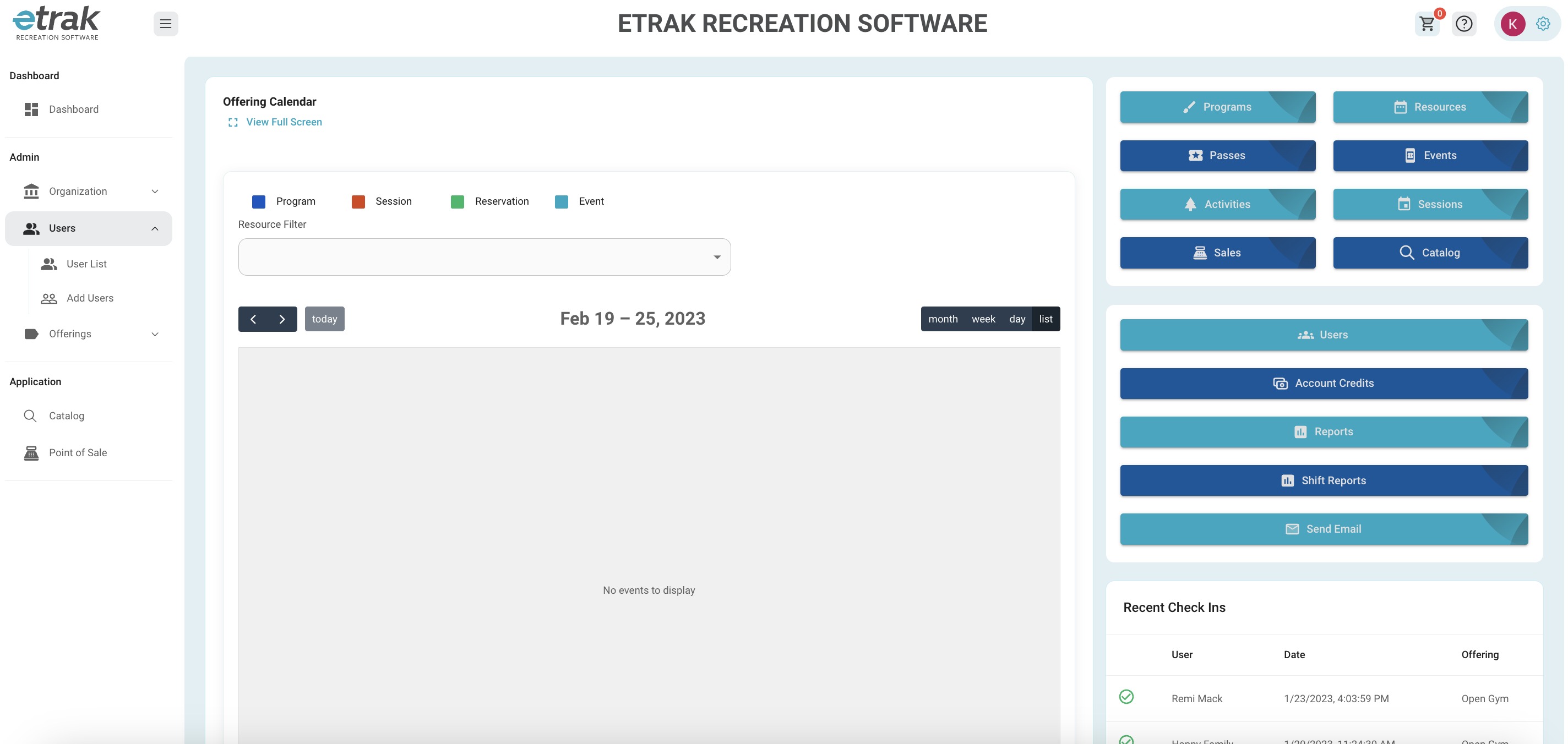
Search for the email or last name of the user that the refund is for.
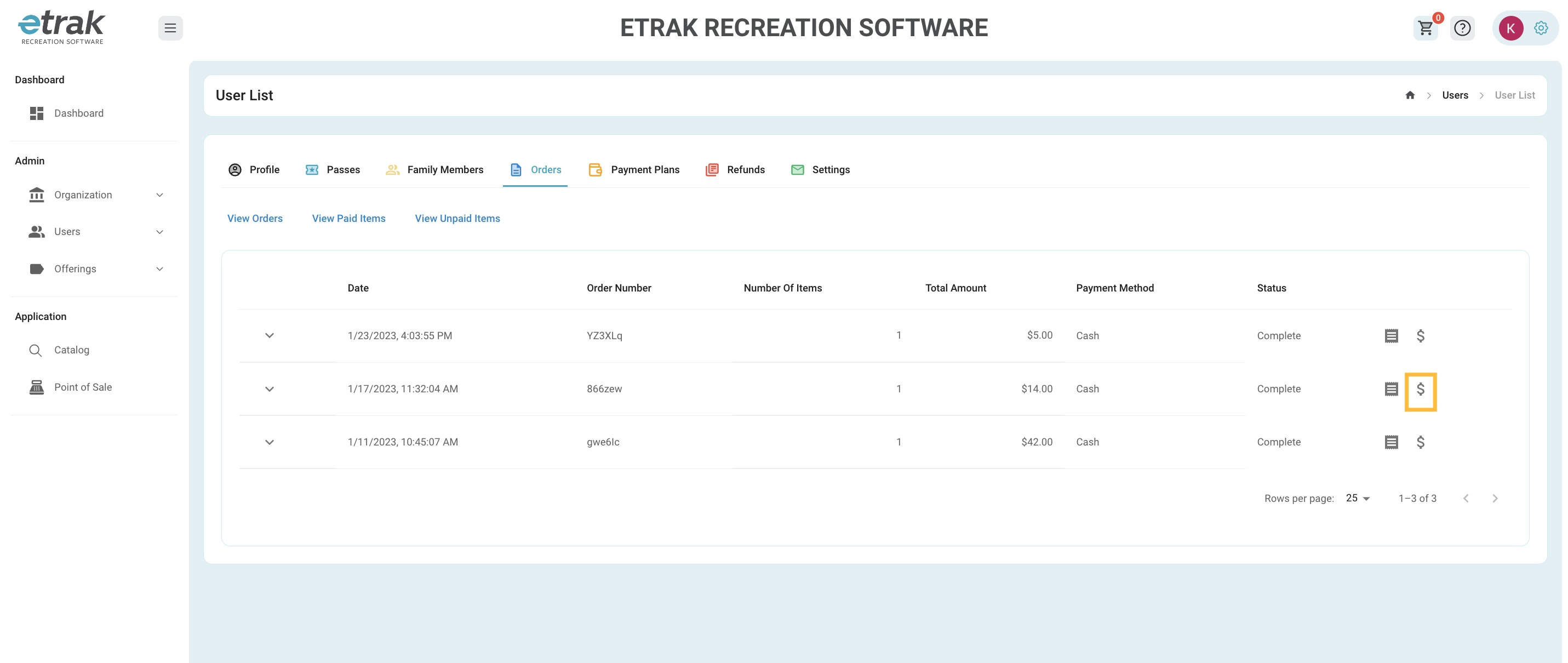
From the user profile select "Orders"
Select the "$" icon that coordinates with the order you are refunding.
*select the down carrot to view order details
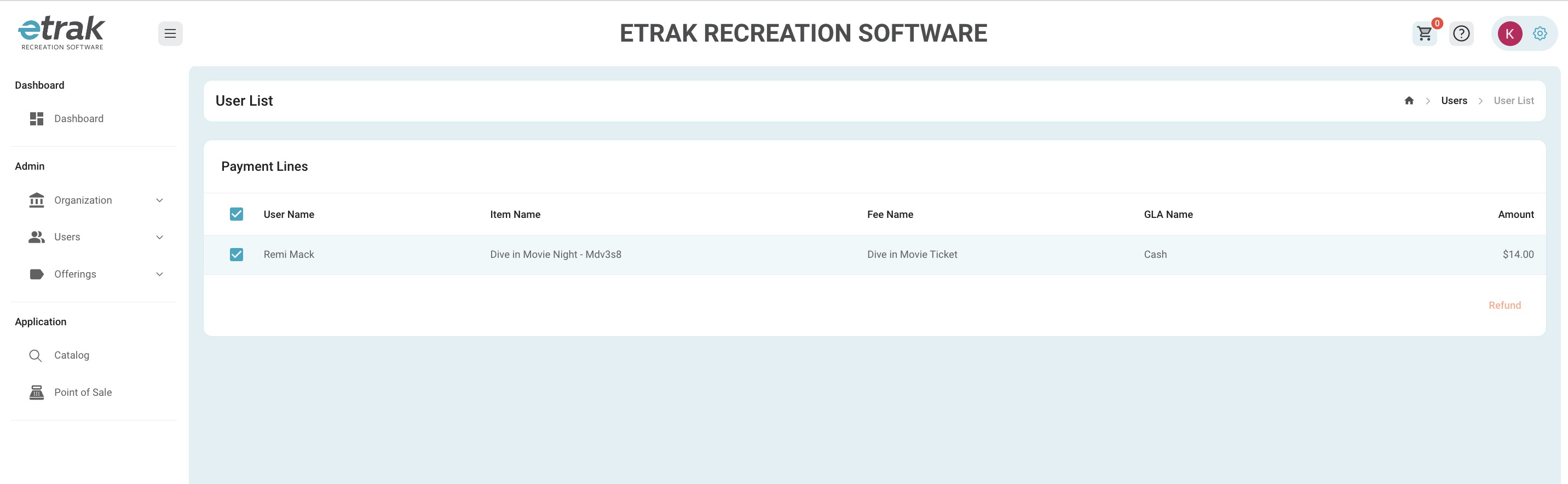
The payment lines for that order will appear.
If multiple items were in one order there will be multiple payment lines to check.
Select the payment lines you wish to refund.
The Item Status can be set to active or inactive.
For example, maybe someone won a free ticket but already paid, you can leave the ticket status as active but still run a refund.
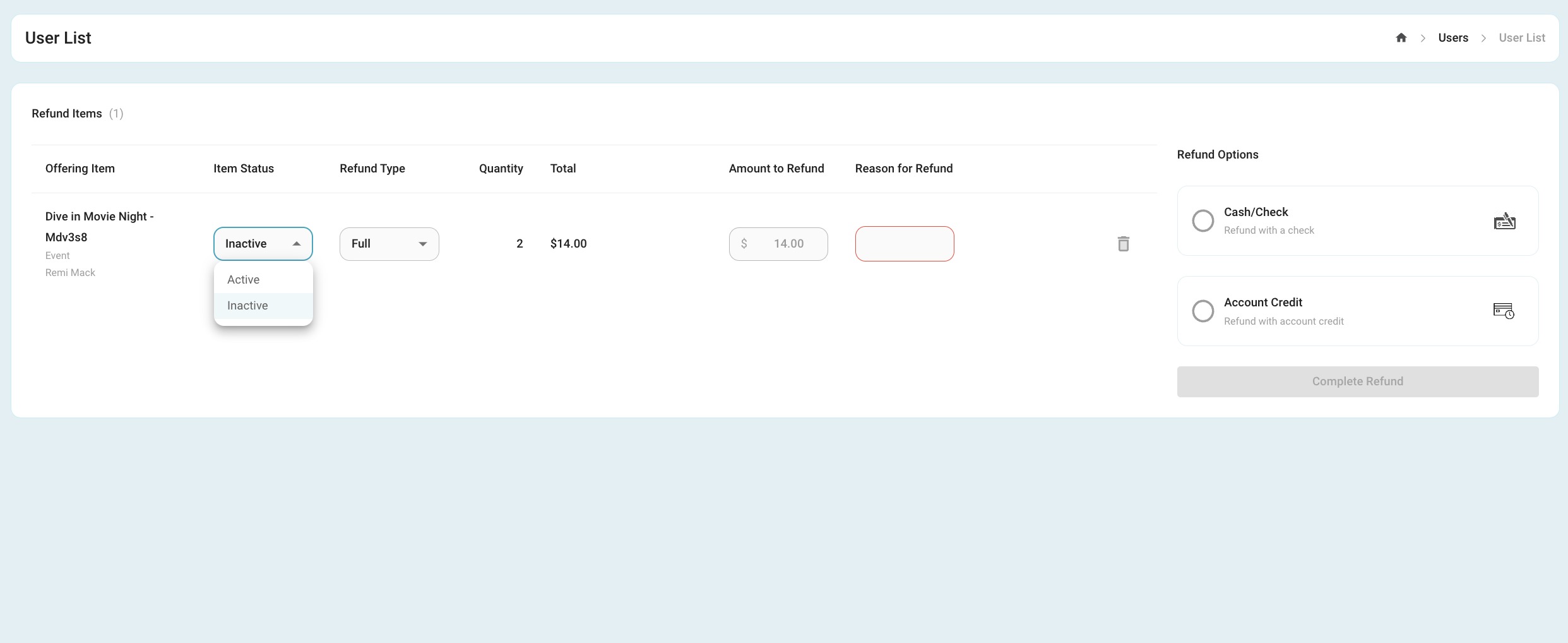
Refund Type can be full or partial.
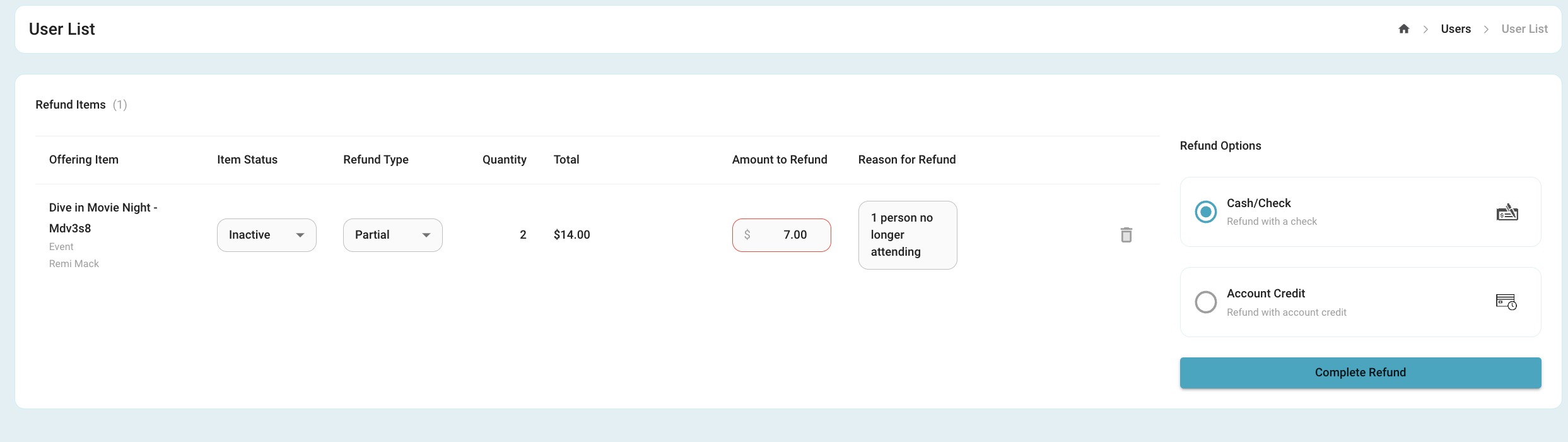
For the case below someone bought 2 tickets and we are refunding the price of one.
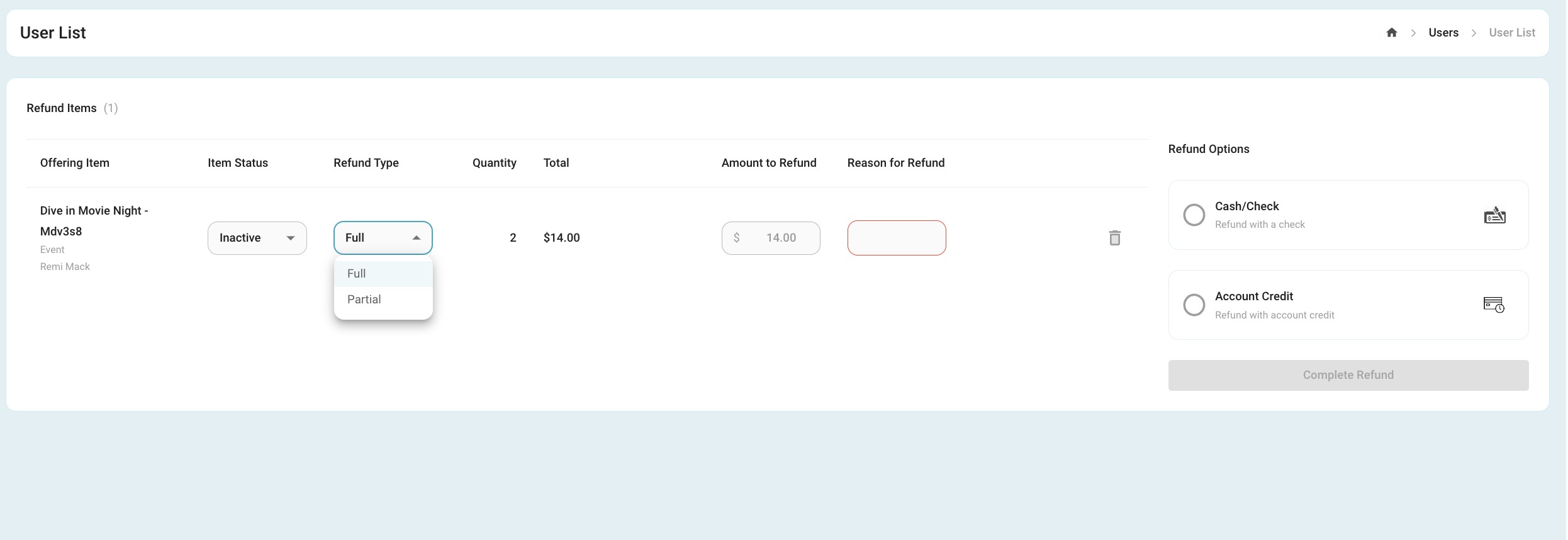
Enter the exact Amount to Refund and a not for the Reason for Refund.
Select how the refund will be processed (cash/check or account credit).
If the user paid with a credit card that will also be an option but if they did not pay with a credit card refunding to a credit card will not be an option.
Press 'Complete Refund' to finish
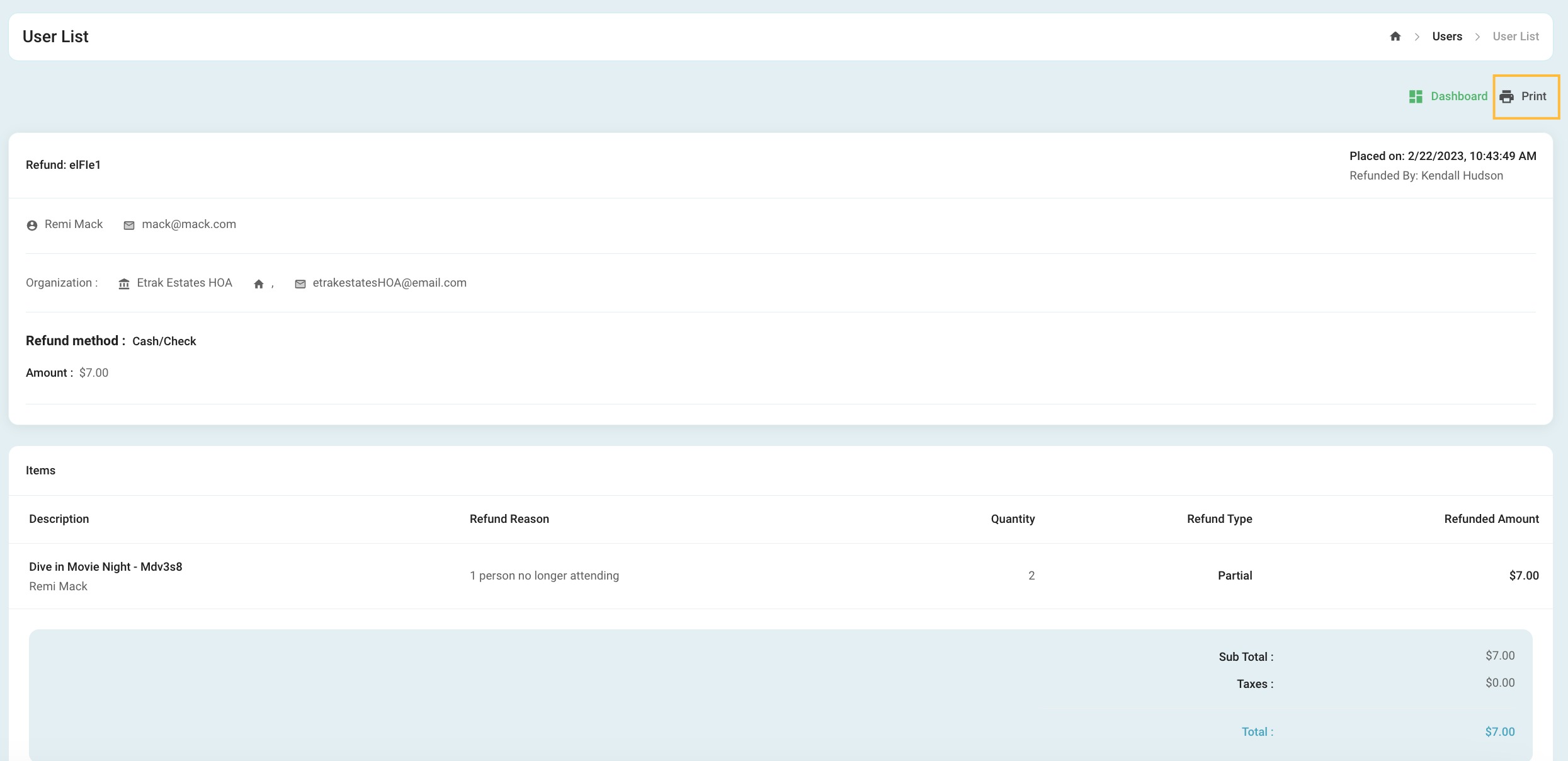
A receipt will appear and can be printed by selecting the "Print" icon in the upper right corner.
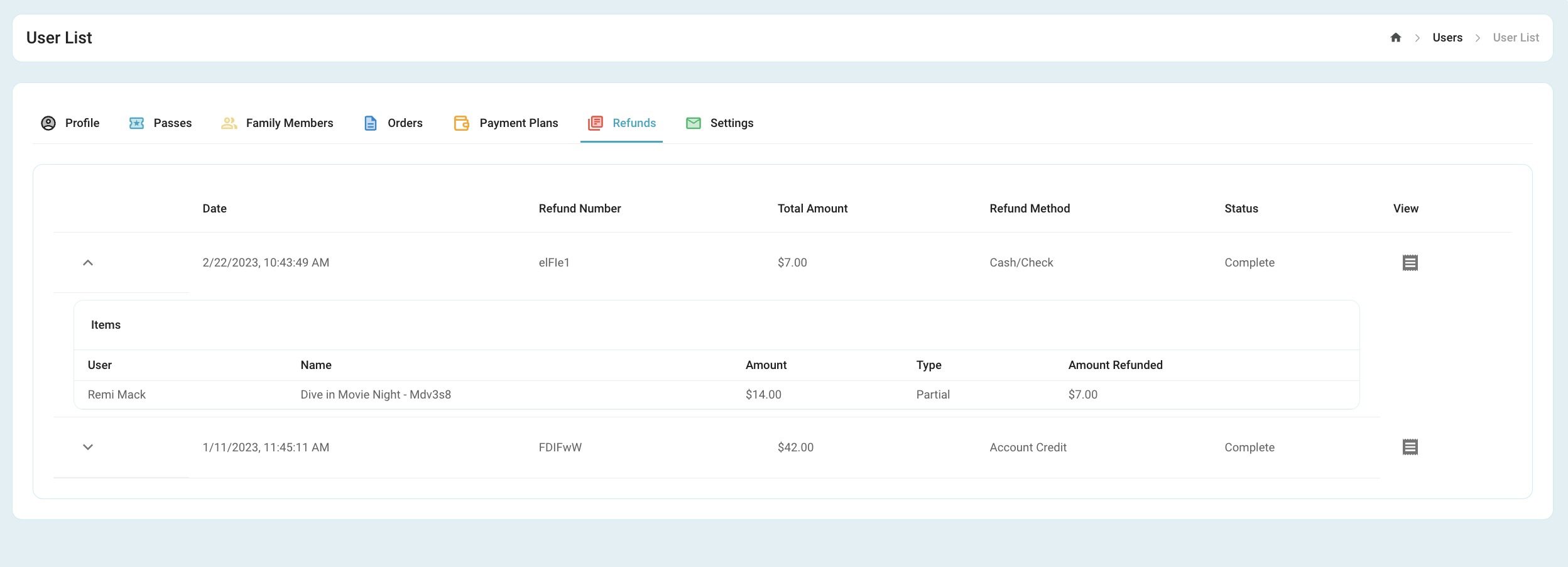
On the users profile under the "Refunds" tab the refund will show and a receipt can be printed at anytime for records.
For refunds of an Account Credit
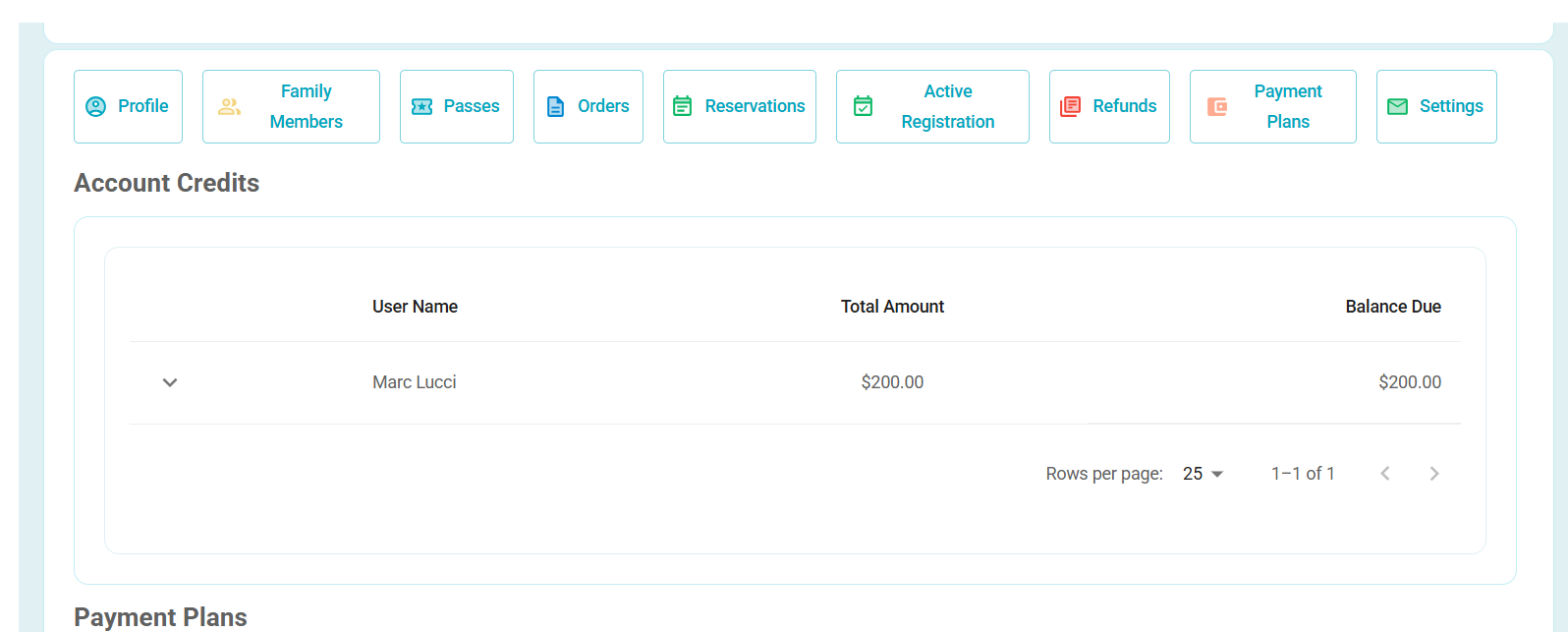
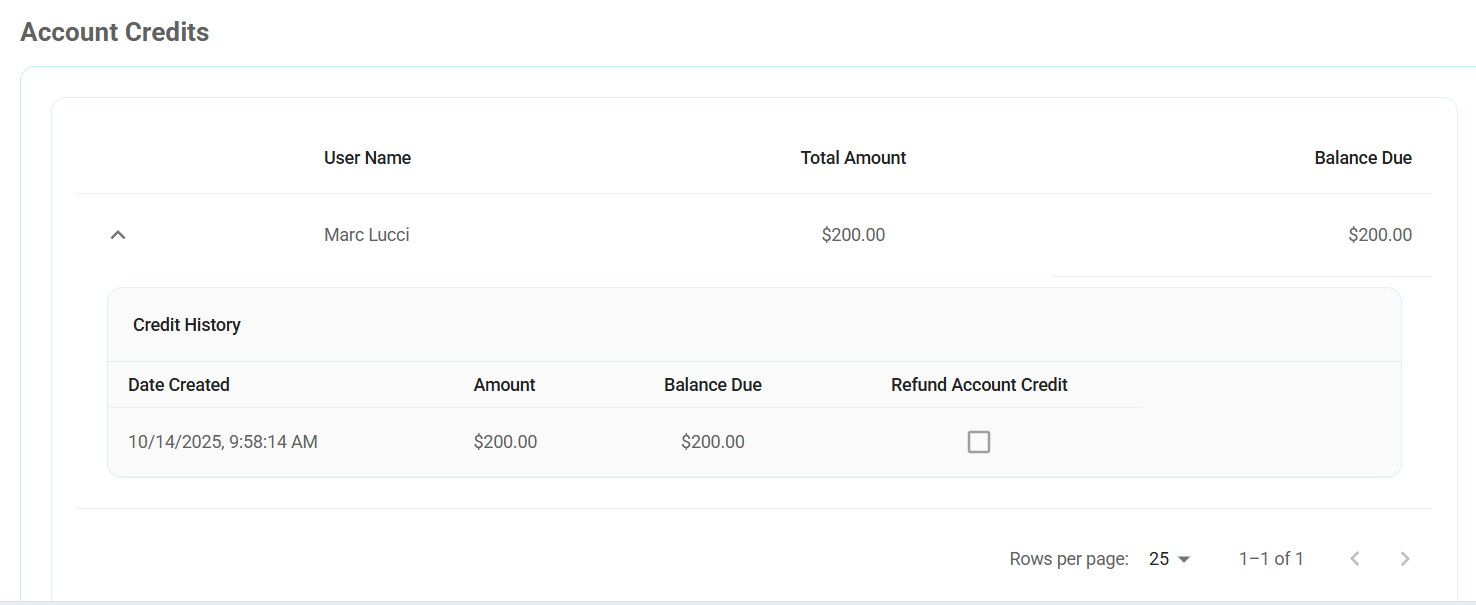
Navigate to the Account Credits portion of the user profile, just below refunds. Once you find the credit you will be able to click on the drop down arrow where you will check the box to refund the account credit.
Was this article helpful?
That’s Great!
Thank you for your feedback
Sorry! We couldn't be helpful
Thank you for your feedback
Feedback sent
We appreciate your effort and will try to fix the article