There are 2 ways to initiate the sale of event tickets.
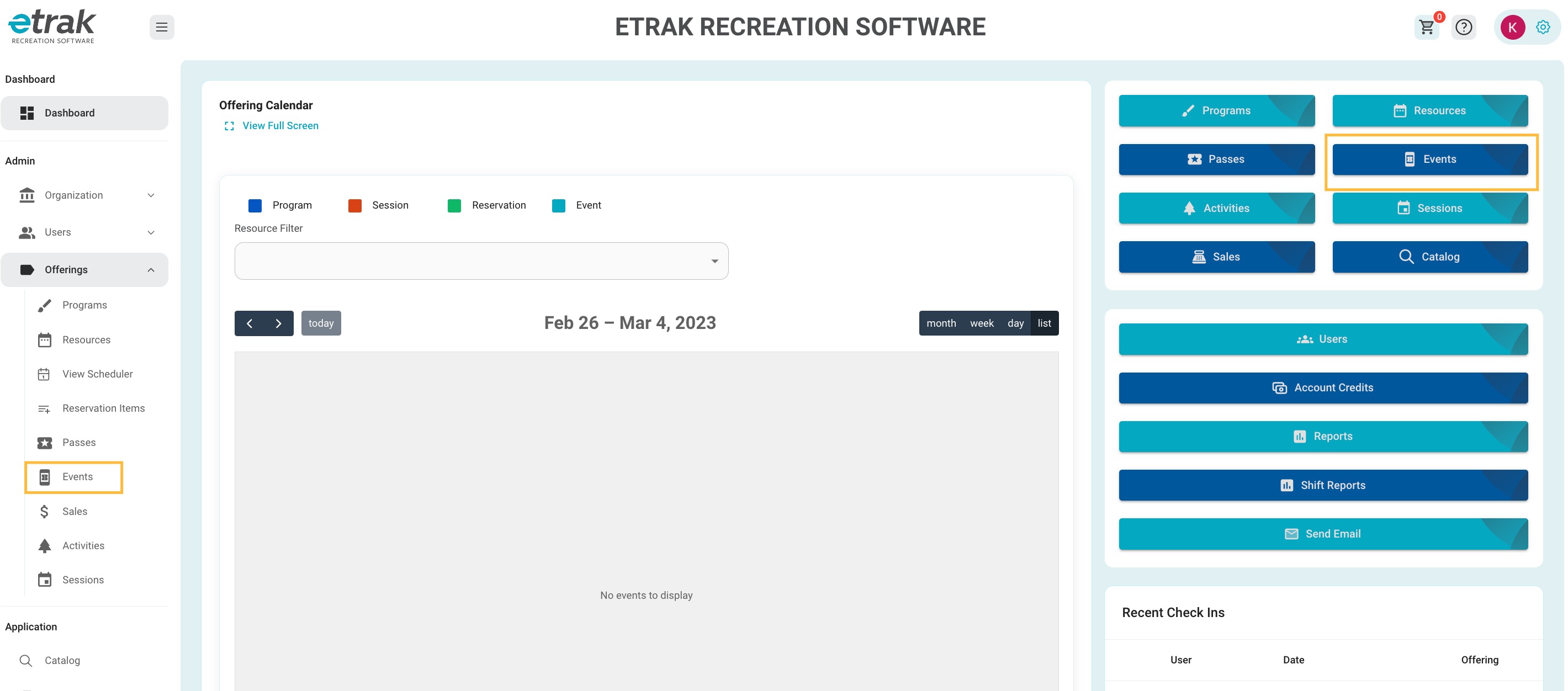
- Select ‘Events’ from the menu on the left side of the screen or the blue button on the right side of the screen.
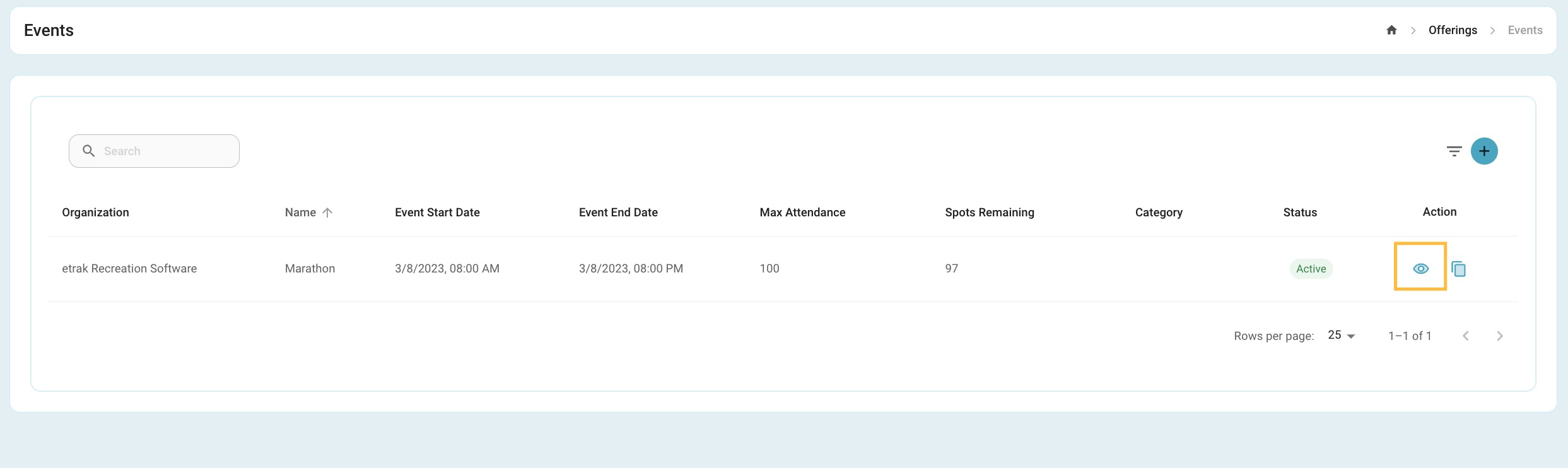
Select the eye icon that coordinates with the event you are purchasing tickets for.
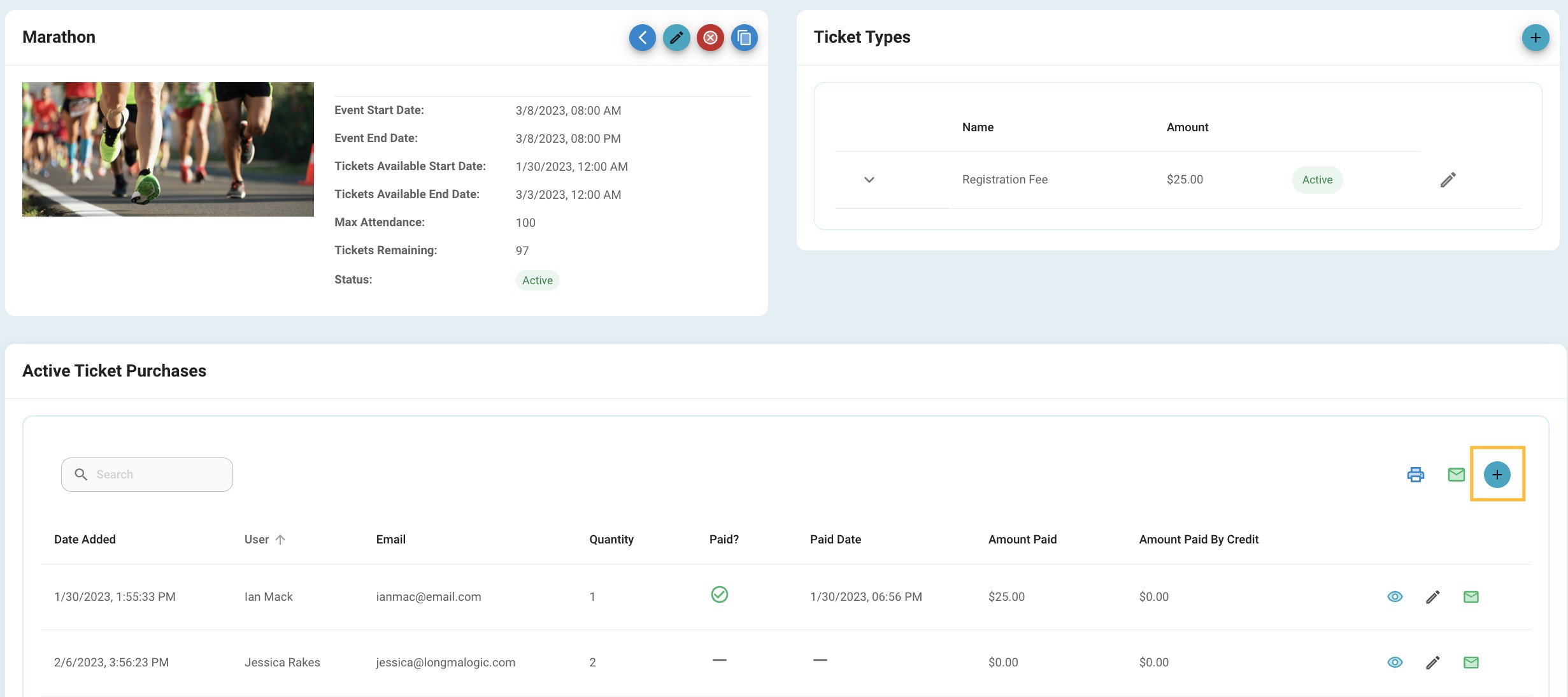
Select the ‘+’ button on the Active Ticket Purchases section to purchase tickets.
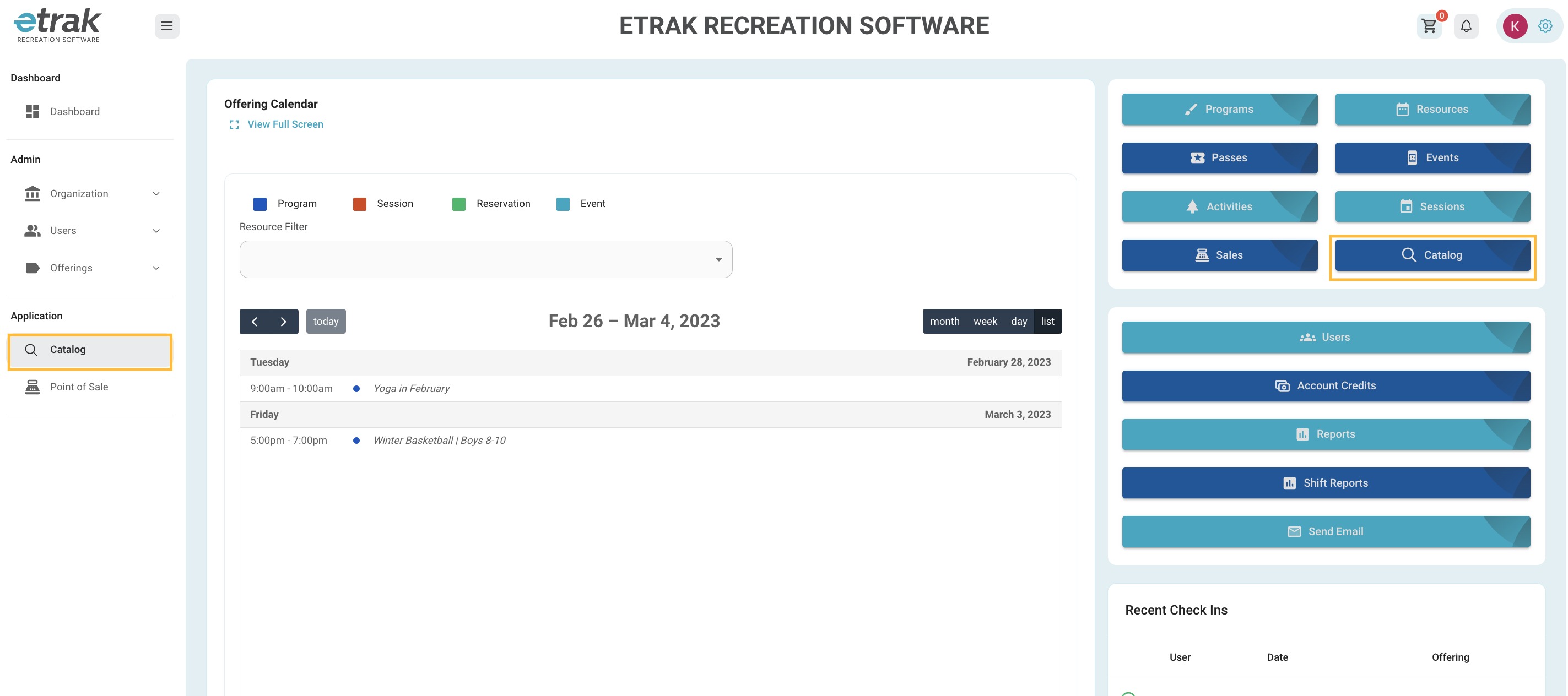
2. Select ‘Catalog’ from the menu on the left side of the screen or the blue button on the right side.
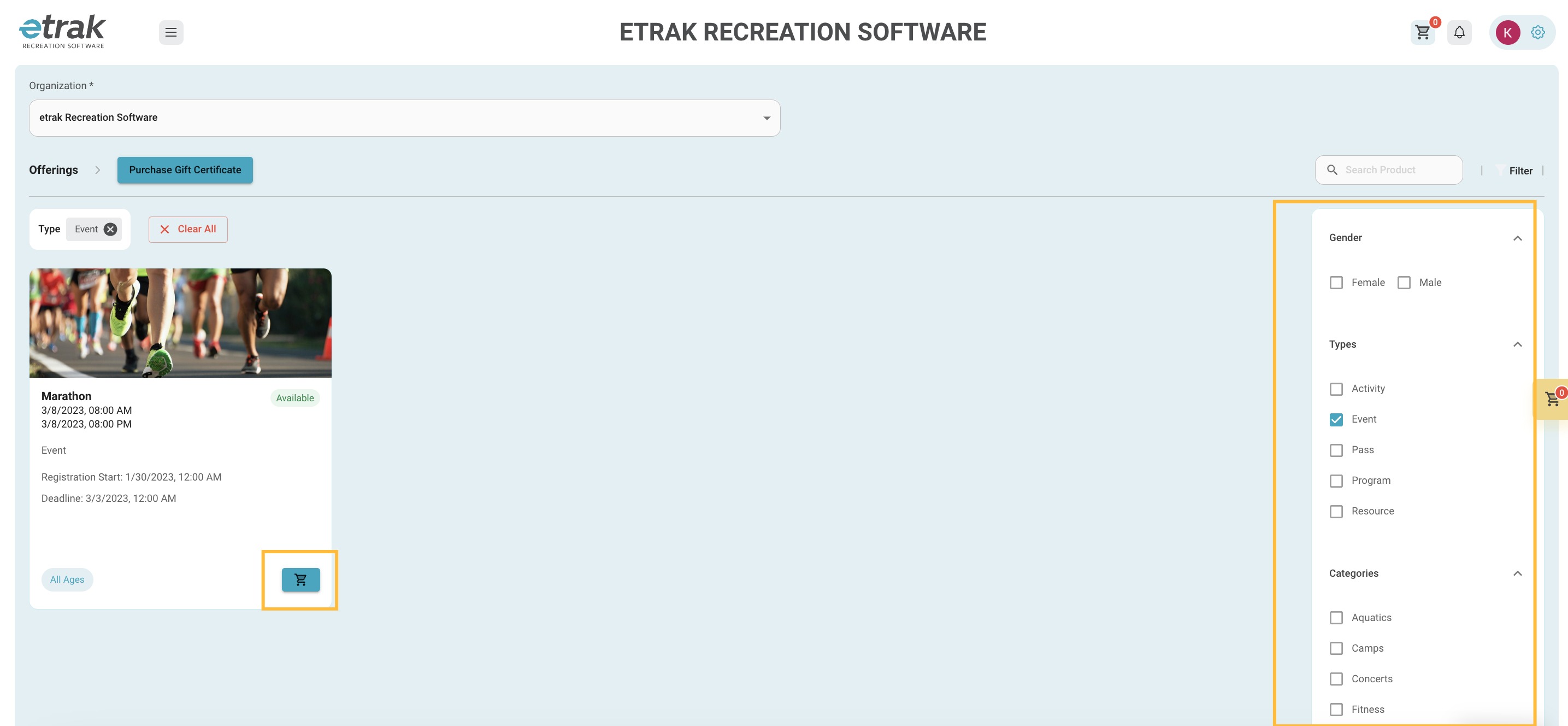
Use the filters on the right side of the screen to find the event you are looking for.
Press the cart icon on the event that the user is interested in purchasing.
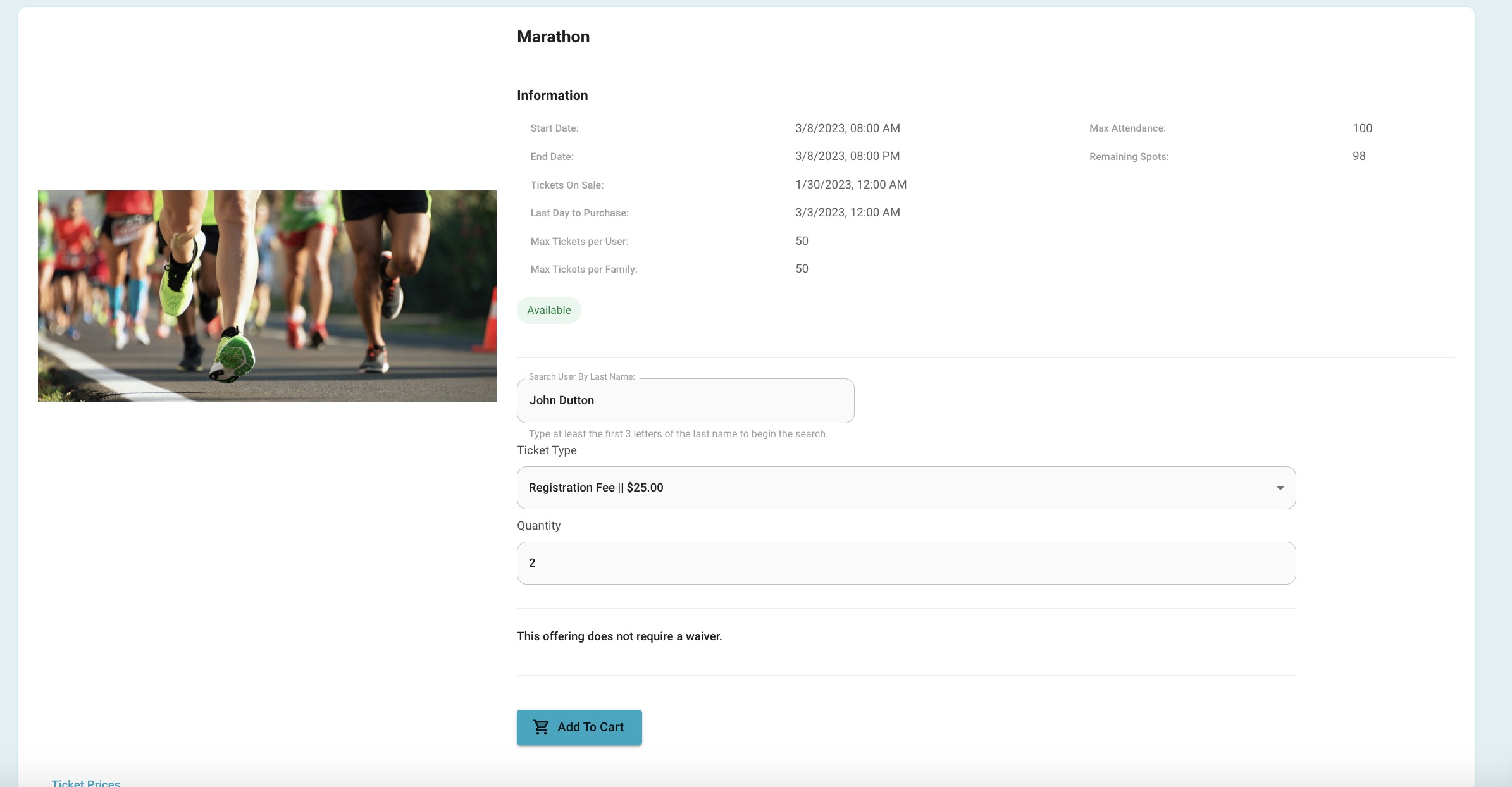
View event details
Enter at least the first 3 letters of the last name of the user that is purchasing the tickets
Select the ticket type they wish to purchase
Enter the quantity of tickets they want to purchase.
Select add to cart to proceed to payment.
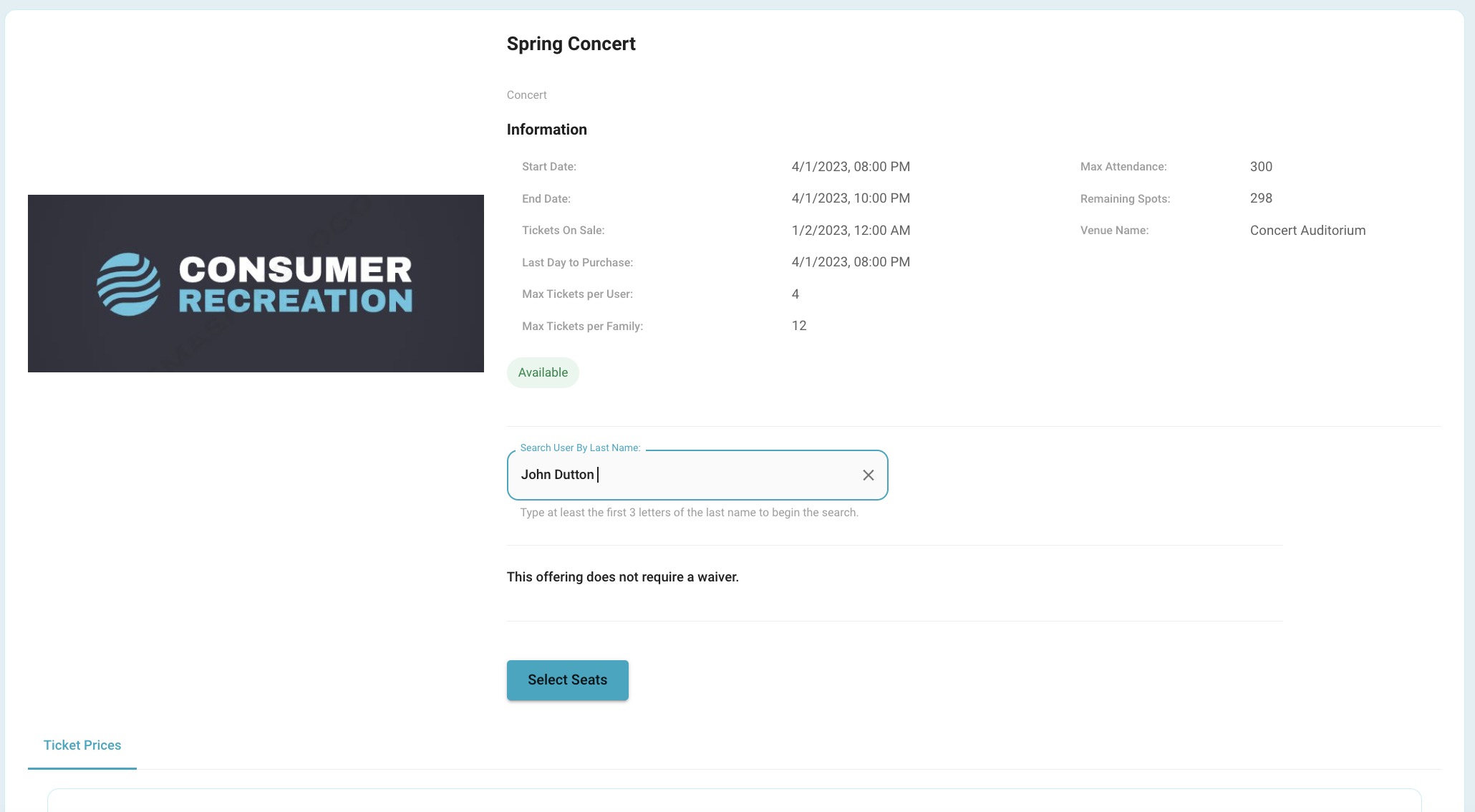
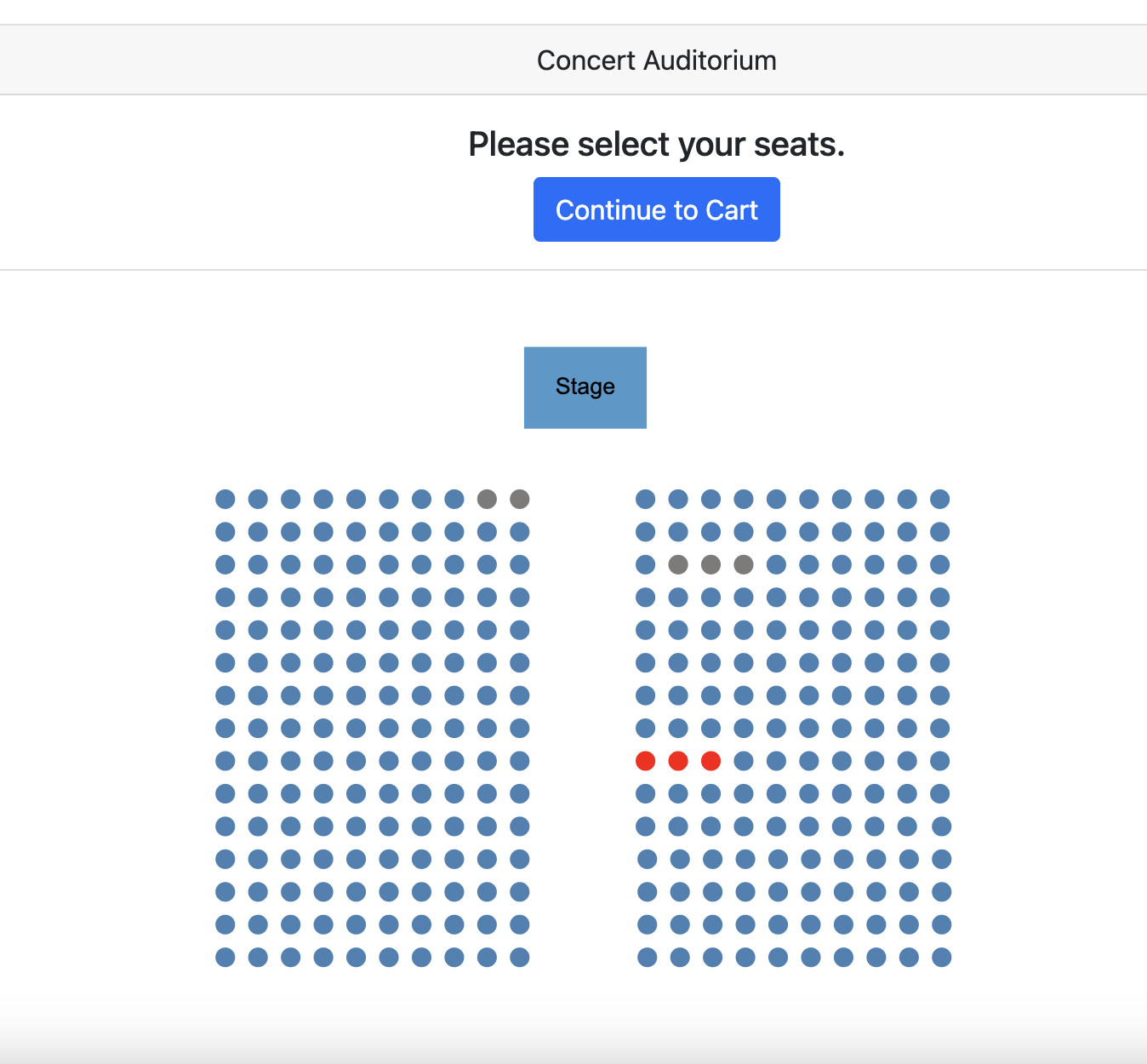
If the event is set up for users to select their seats press ‘Select Seats’ after entering users name.
Select the spots that the user wants to purchase.
Hit ‘Continue to Cart’ after selection
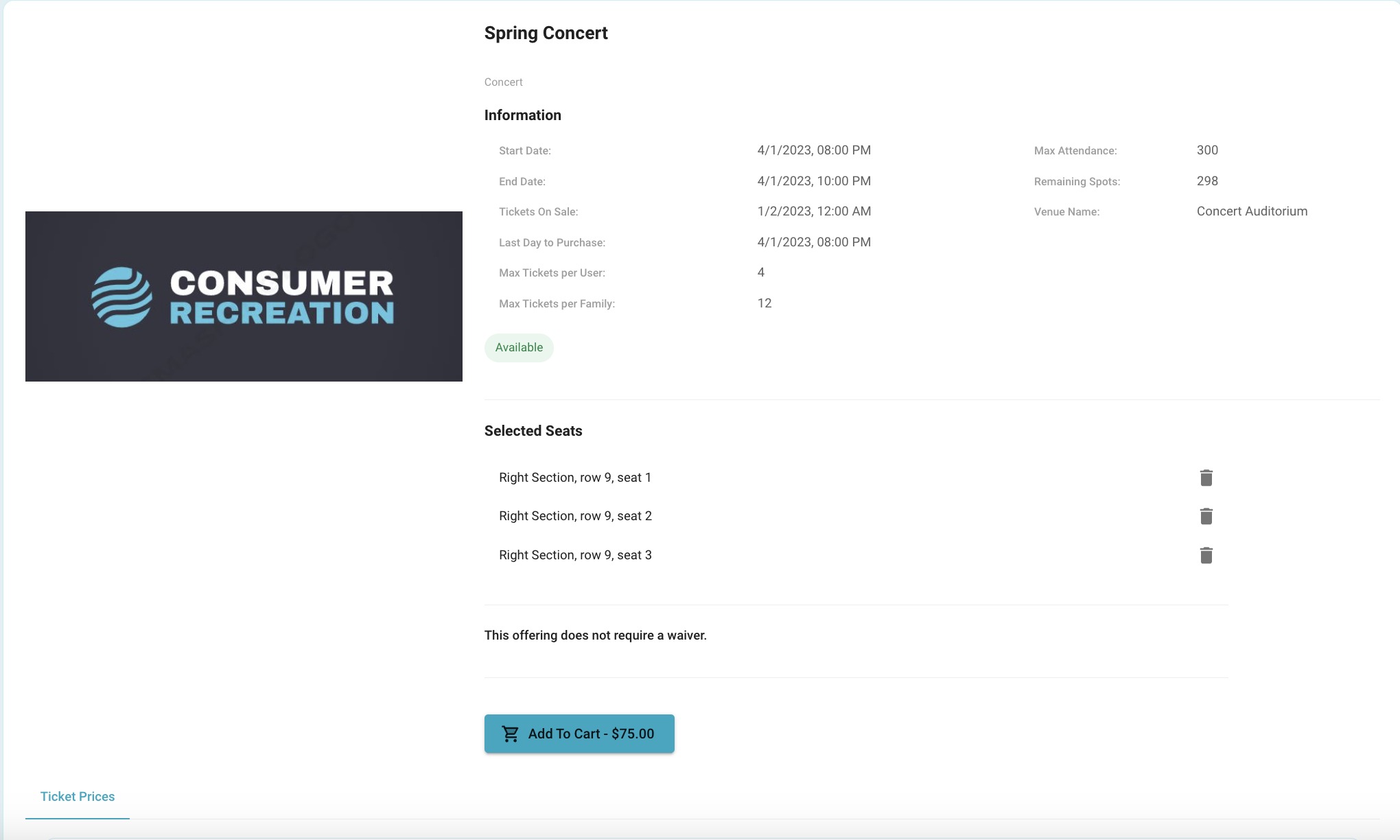
The selected seats will display and can be removed by clicking on the trash can icon.
The price of the tickets will calculate on the ‘Add to Cart’ button, press to proceed to checkout.
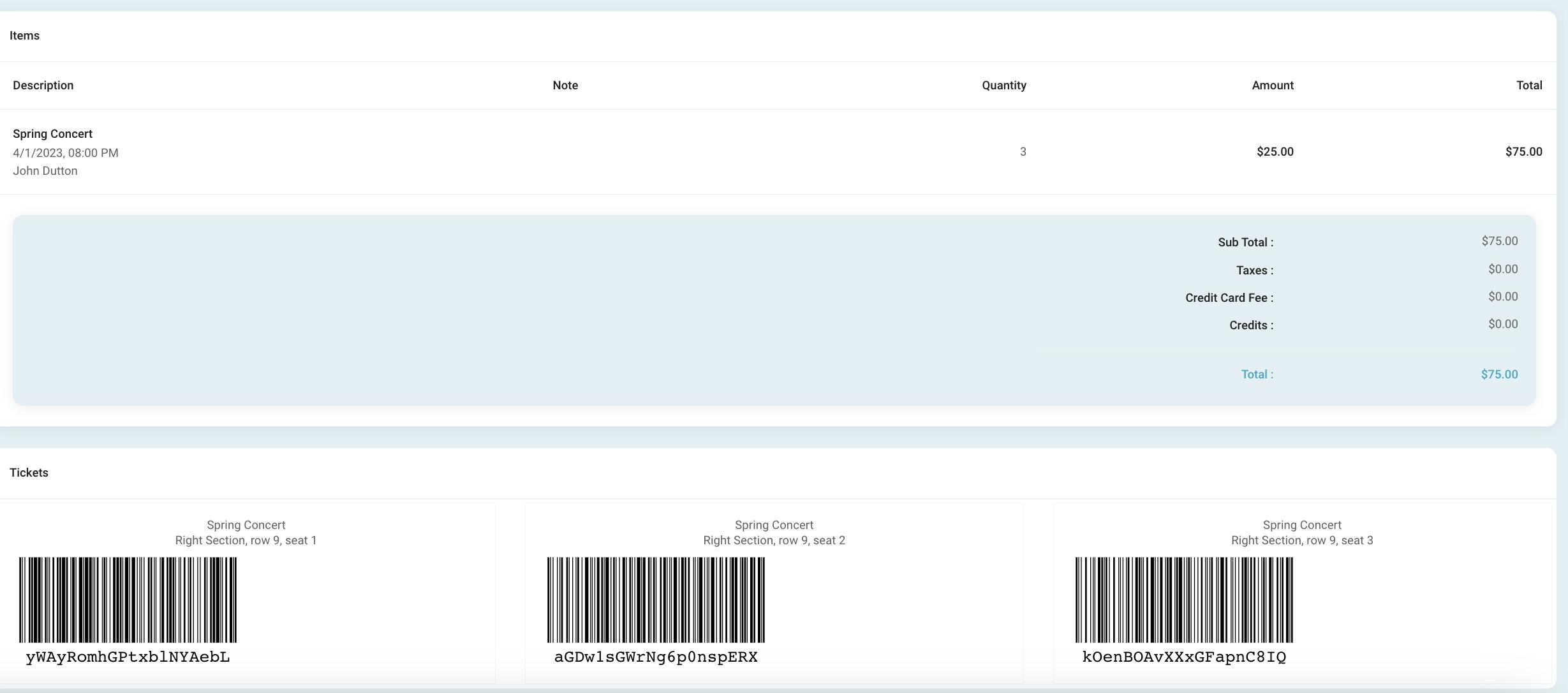
After going through the checkout process the bottom of the receipt will display the tickets.
This receipt can be referenced through the users profile under orders.