Settings
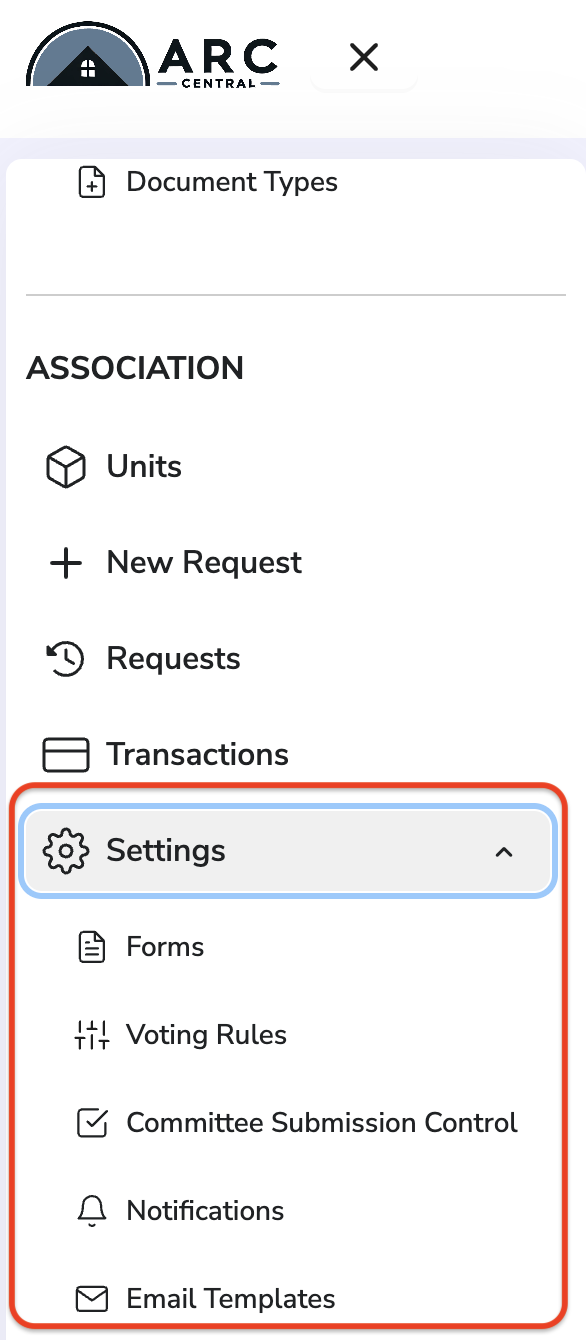
To see all Settings,
- First, ensure you have selected your Association
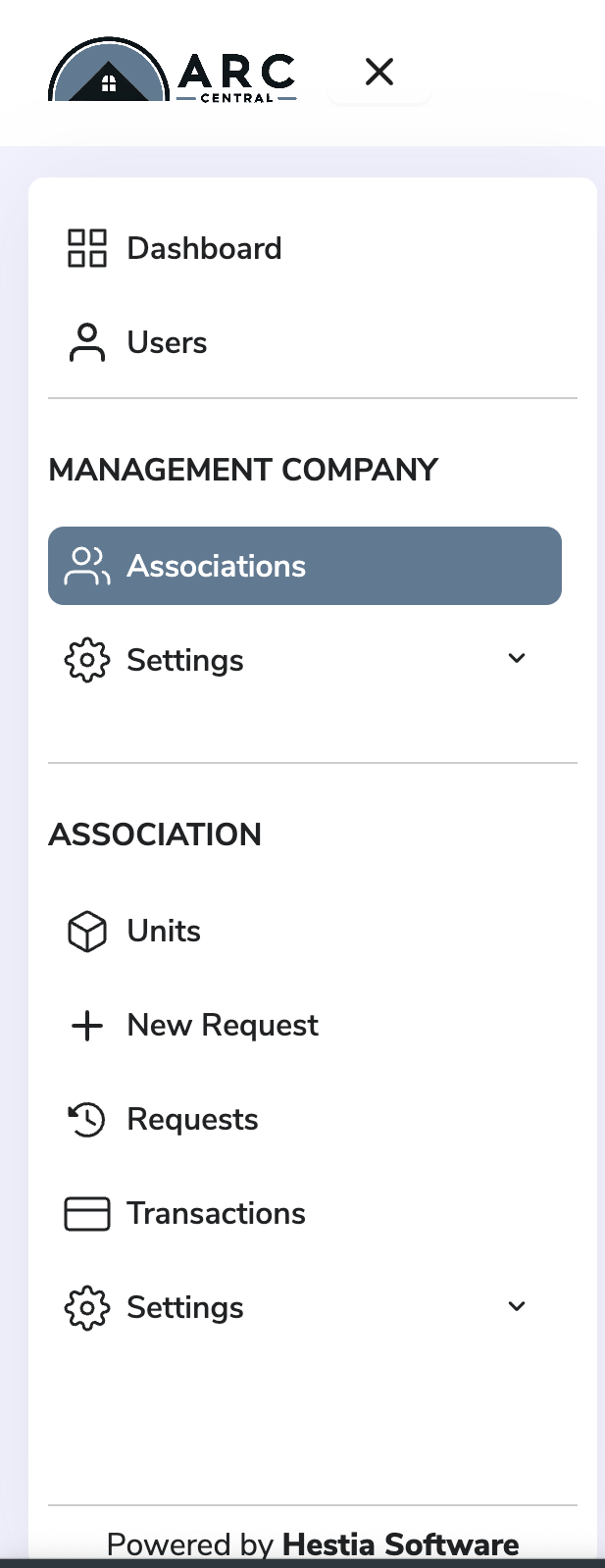
- Then click on the three line menu in upper left screen to open the Sidebar Menu

A Sidebar with additional options will now show up on the left side of your Dashboard.
Within the Sidebar, notice the Settings area can be expanded. Depending on your Role, you will see options for different Association settings like Voting Rules, Committee Submission Control, Email Templates, etc. For detailed information about Roles, see Committee Member Roles.
Viewing ARC Form
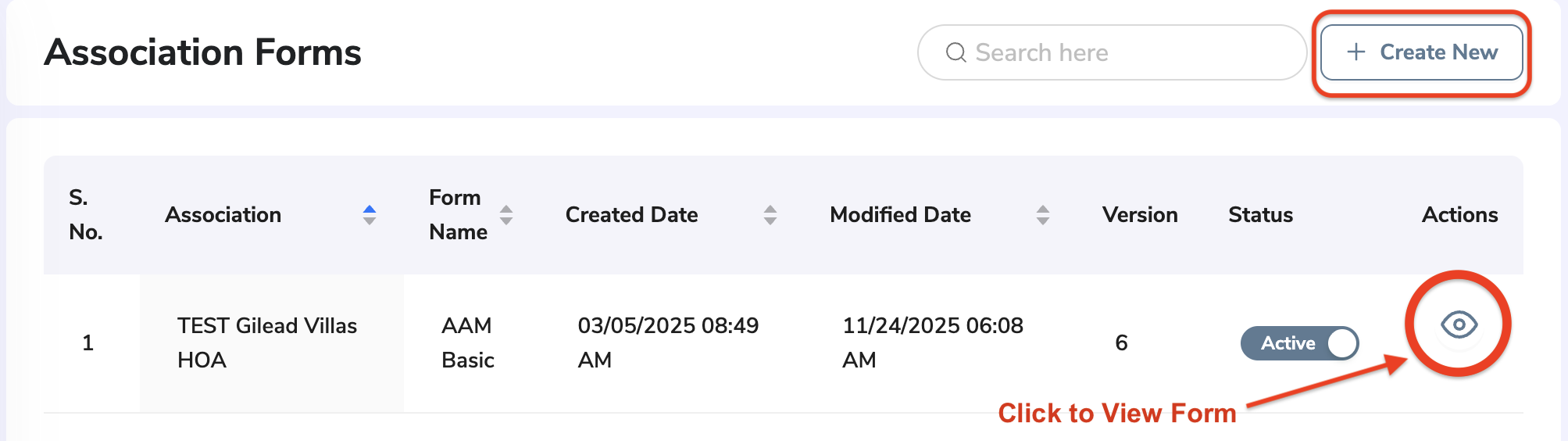
A default form will be provided and available for you to use for your Association. You may view this form or add your own forms under the Settings → Forms area.
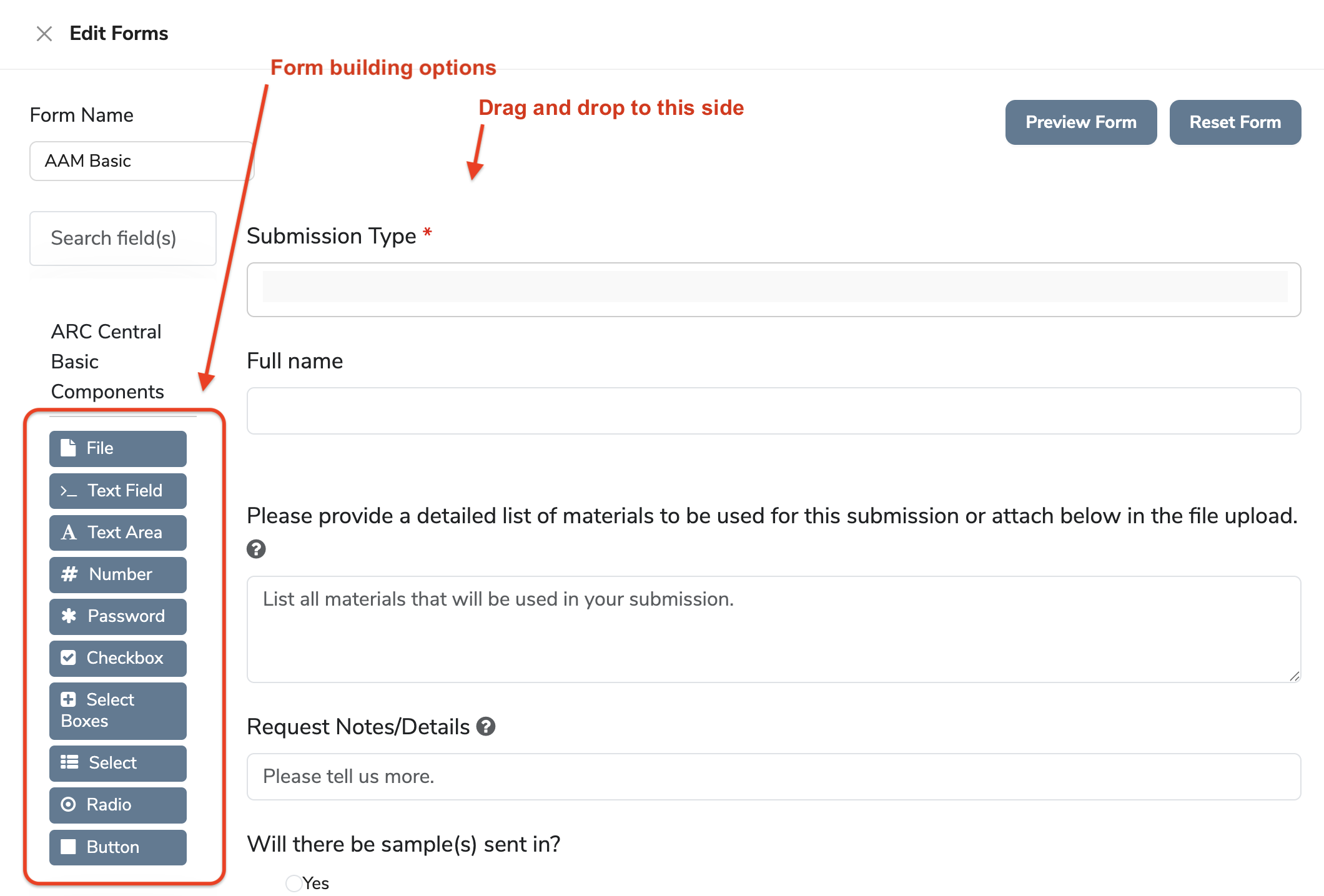
The Forms editor has drag and drop fields for you to choose from and a Preview button to check before saving.
Click Update button if you want to save changes.
Setting Up Committees and Voting Rules
As a Management Company Admin, one of your tasks will be to setup your Association Committee. These are the members of the association that may vote on an architectural submission and/or complete the final action (mark as completed) for architectural submissions.
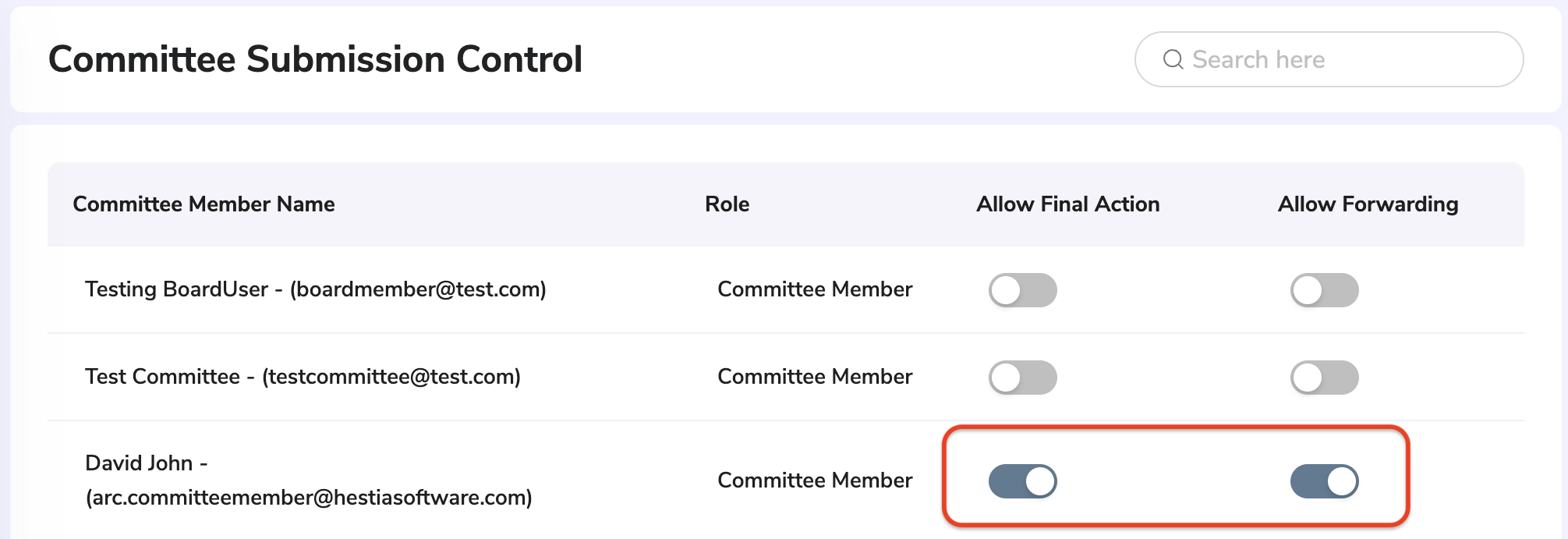
To allow Committee Members access to finalize or forward an architectural, you may toggle their user permissions within Settings → Committee Submission Control
To see/update the Voting Rules or Committee Members who have Voting rights, select Settings → Voting Rules in side menu.
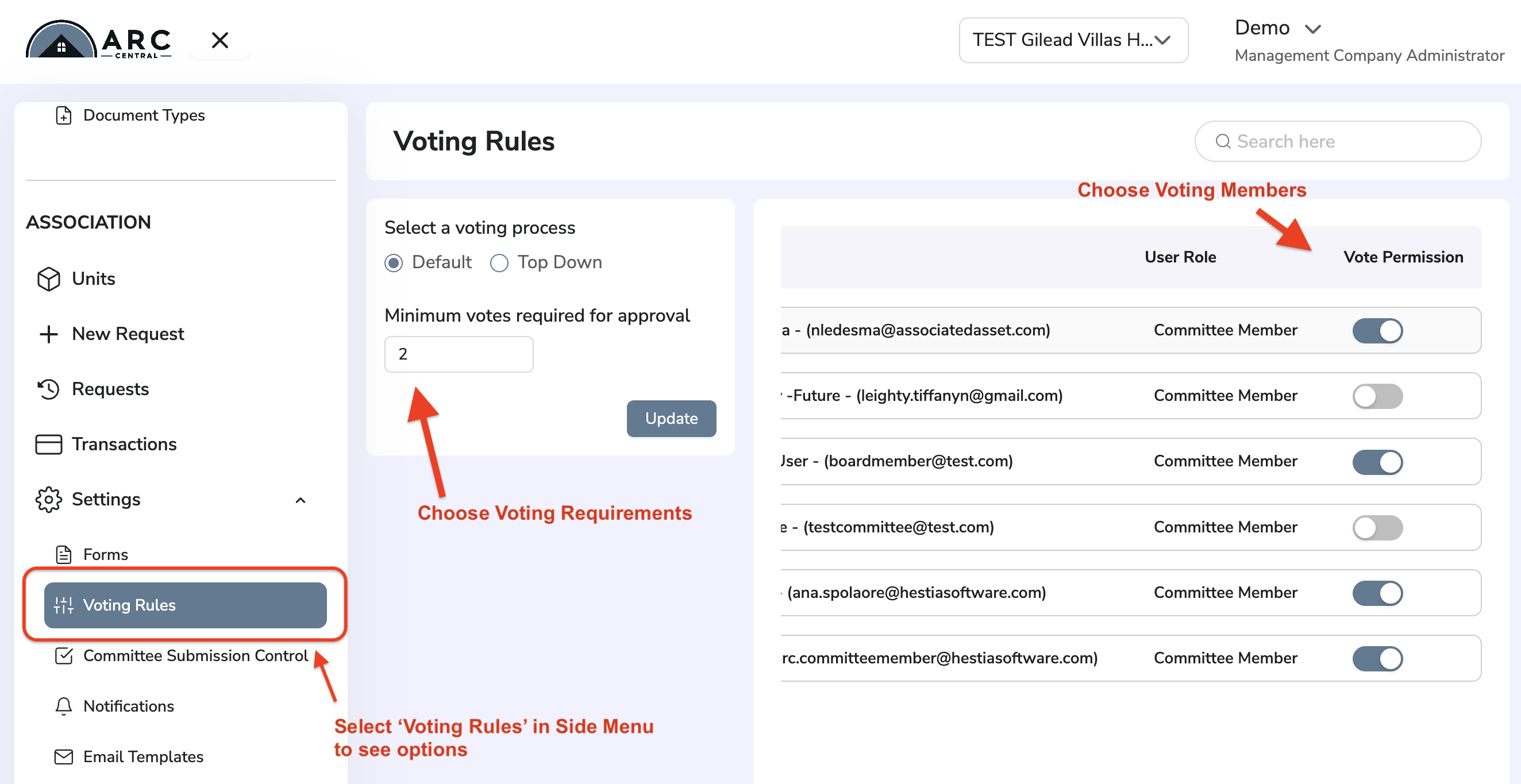
Default voting, the voting members can cast votes in any order.
Top Down voting, voters will vote in sequence (first Member 1, then Member 2, and so on)
Notifications
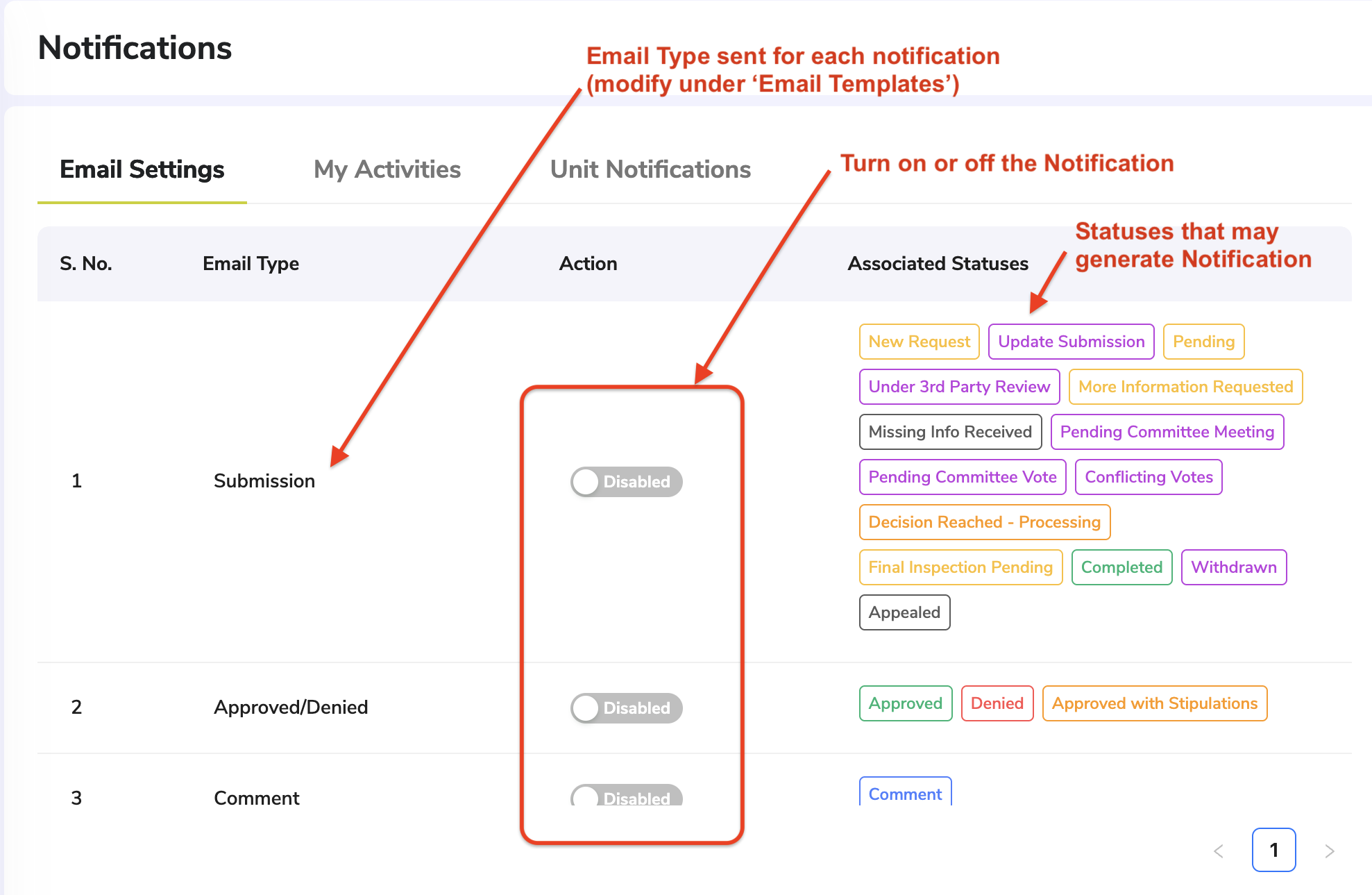
Under Settings → Notifications area, you can
- Enable/Disable Email Notifications you would like to receive (Email Settings)
- See your existing notification history (My Activities) Review the notifications for a specific Unit/Property (Unit Notifications)
Email Templates
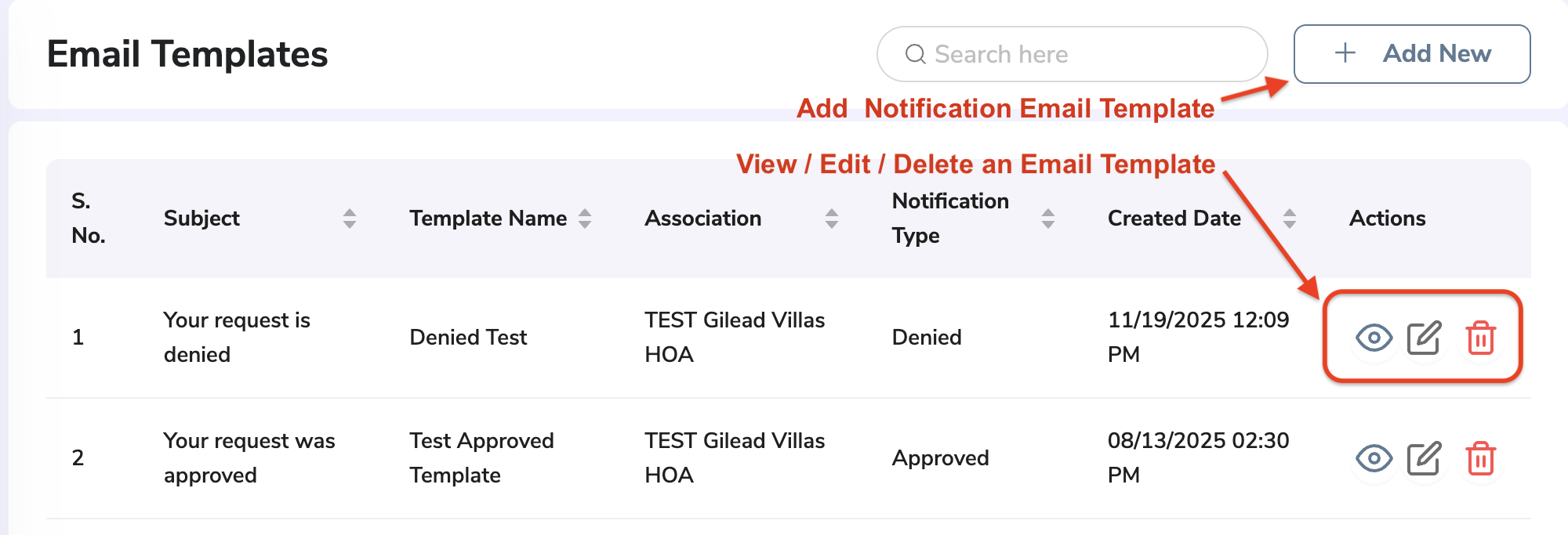
Under Settings → Email Templates area, you can edit how the Association email notifications look.
Return to Getting Started with ARC Central
Was this article helpful?
That’s Great!
Thank you for your feedback
Sorry! We couldn't be helpful
Thank you for your feedback
Feedback sent
We appreciate your effort and will try to fix the article