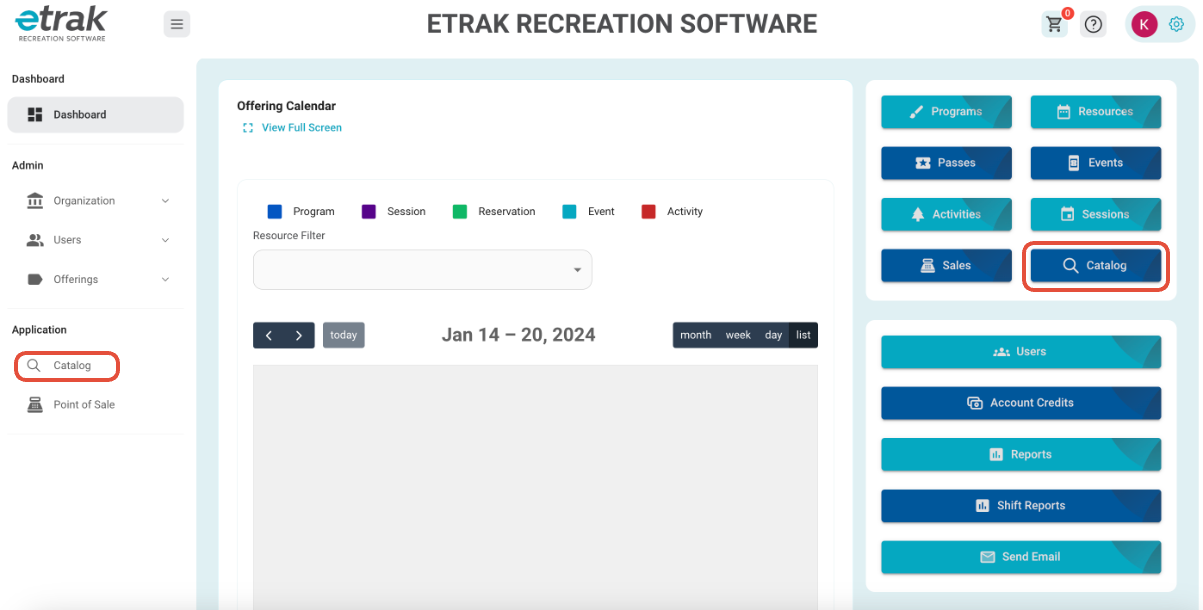
1. Select the ‘Catalog’ button from the menu on the left side of the screen or the blue button on the right side.
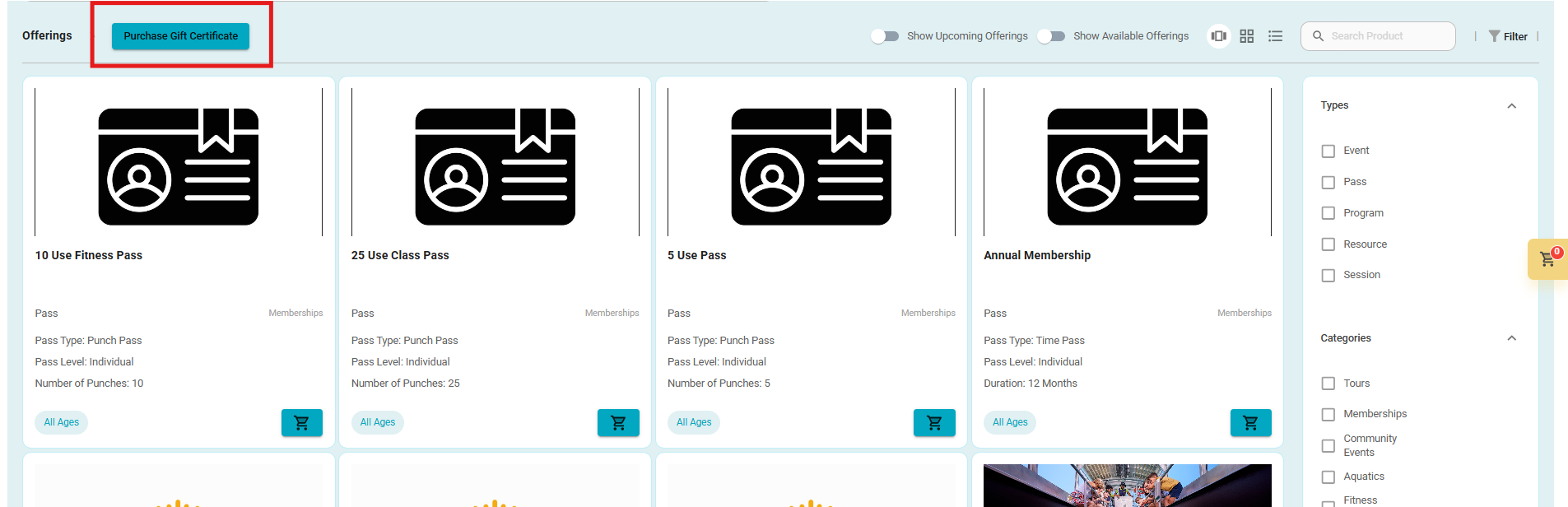
2. Once in the Catalog you will select to purchase the gift certificate with the button at the top of the screen.
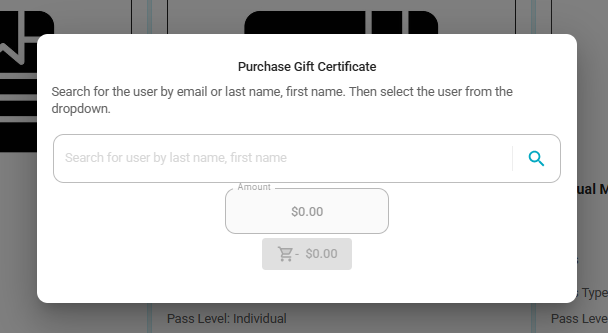
3. This will bring up the Purchase Gift Certificate window.
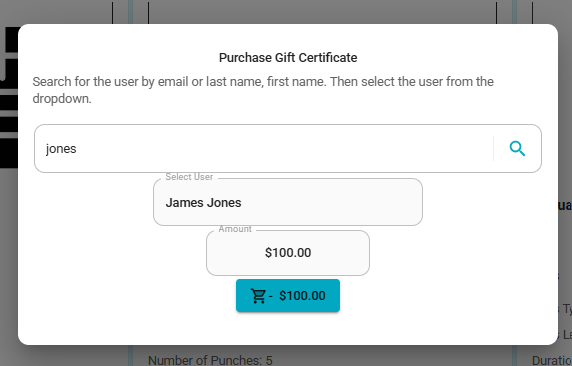
4. You will search for and select the user along with the amount of the gift certificate. Please note that gift certificates are able to be used for any type of transaction, there is not limitation on when a gift certificate can be used. Once the information is entered you will add to the cart.
5. Once in the cart you will proceed as normal through the transaction processing.
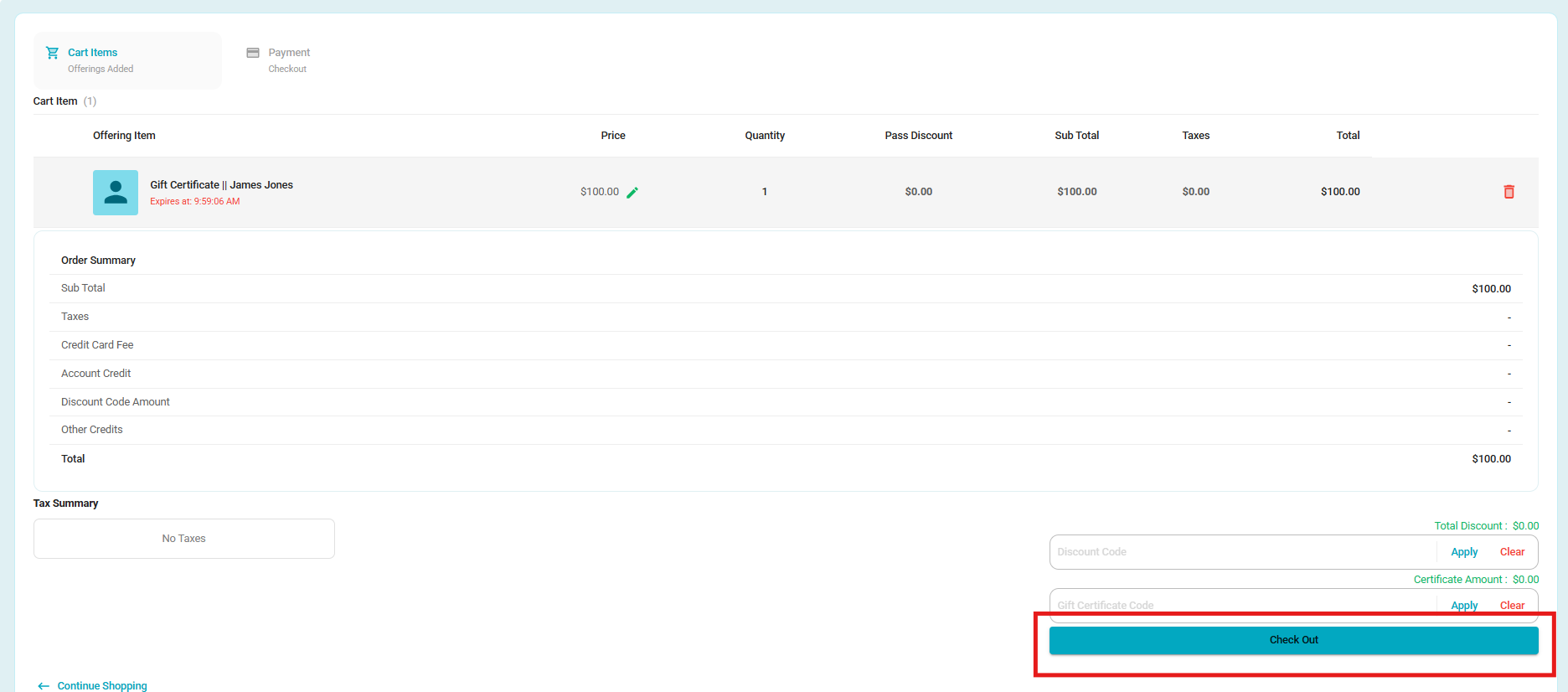
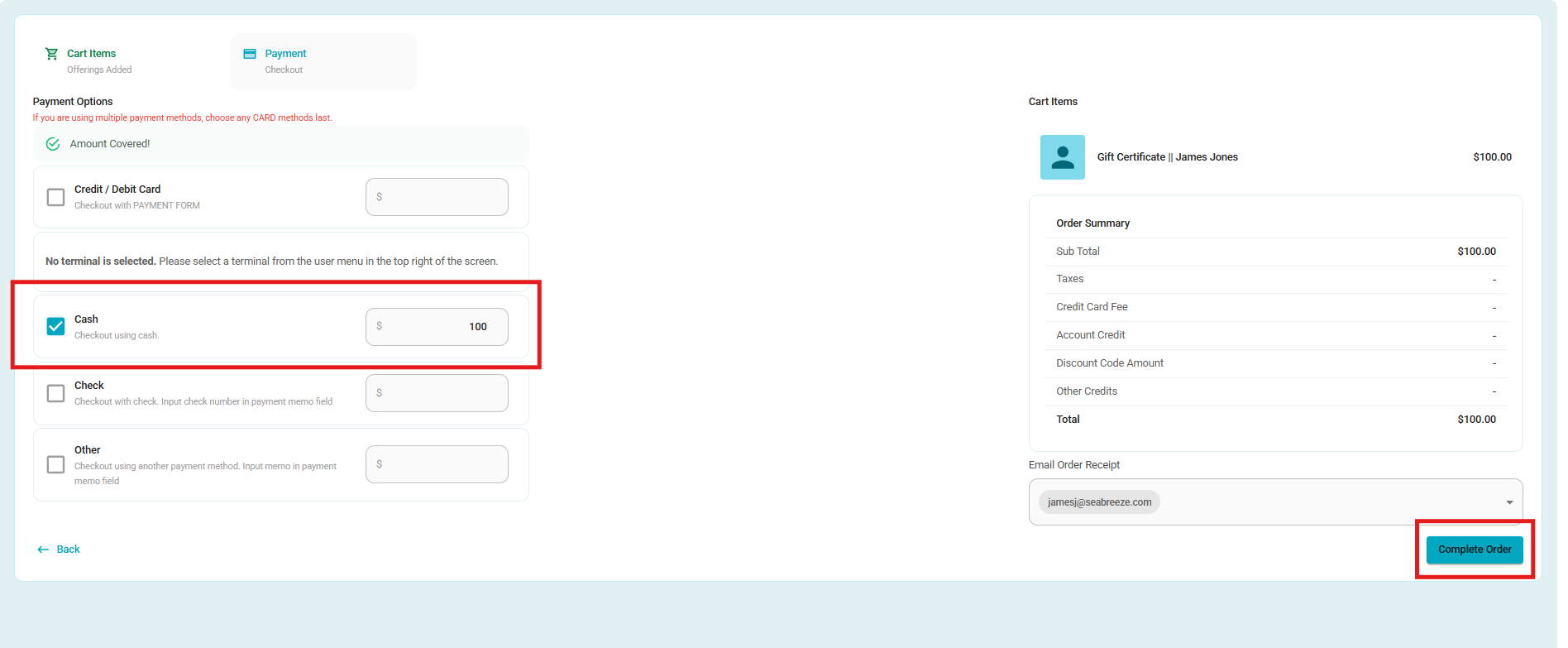
6. You will take payment as you would for any other type of transaction.
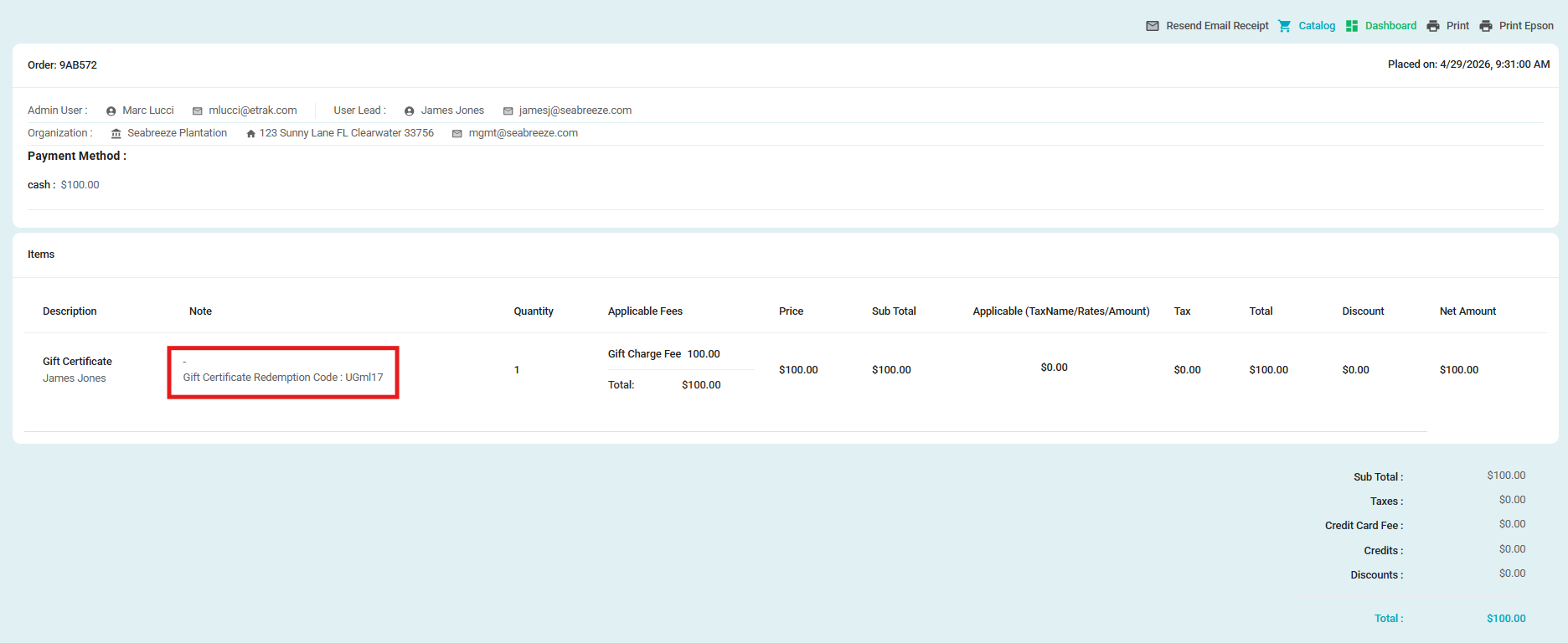
7. Once the transaction is complete the receipt will display the gift certificate code. This is the code that will be used the redeem the gift certificate for future transactions.
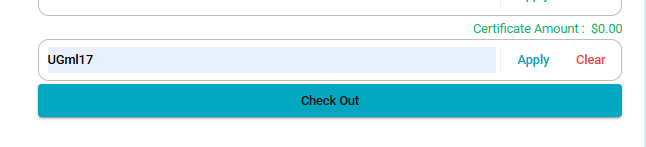
8. For any future transactions in the cart review screen you will find the gift certificate box where you enter the code to redeem the gift certificate.
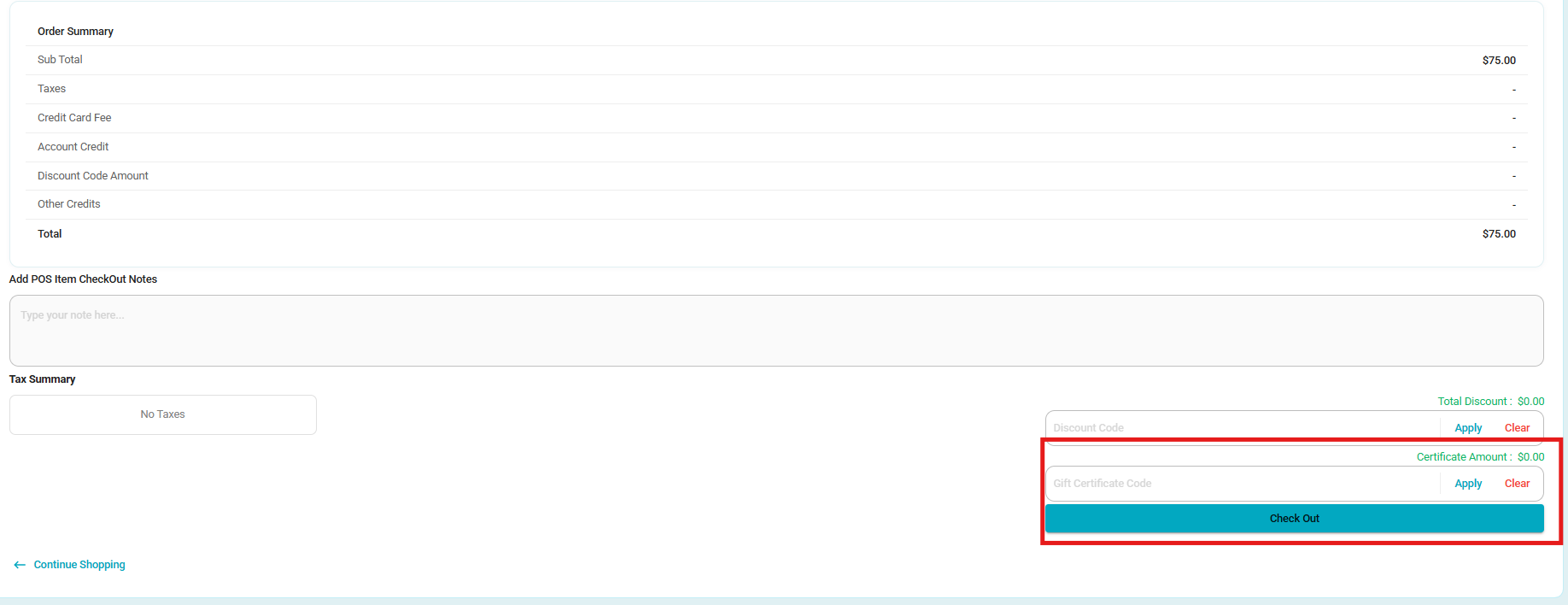
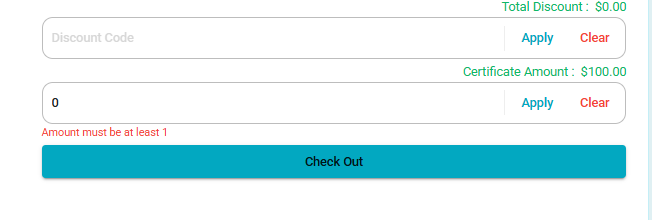
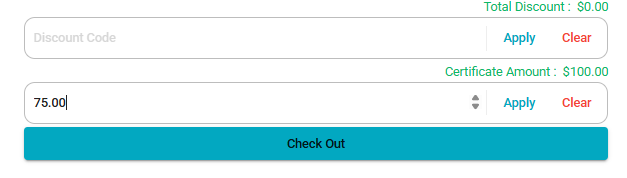
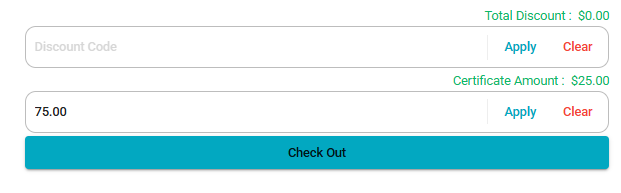
9. You will enter your code and click apply, which will show you the remaining amount on the gift certificate, you can then enter the amount of the gift certificate you would like to use and select to apply, this amount will go against the amount due in the cart and update the remaining balance on the gift certificate.
Was this article helpful?
That’s Great!
Thank you for your feedback
Sorry! We couldn't be helpful
Thank you for your feedback
Feedback sent
We appreciate your effort and will try to fix the article